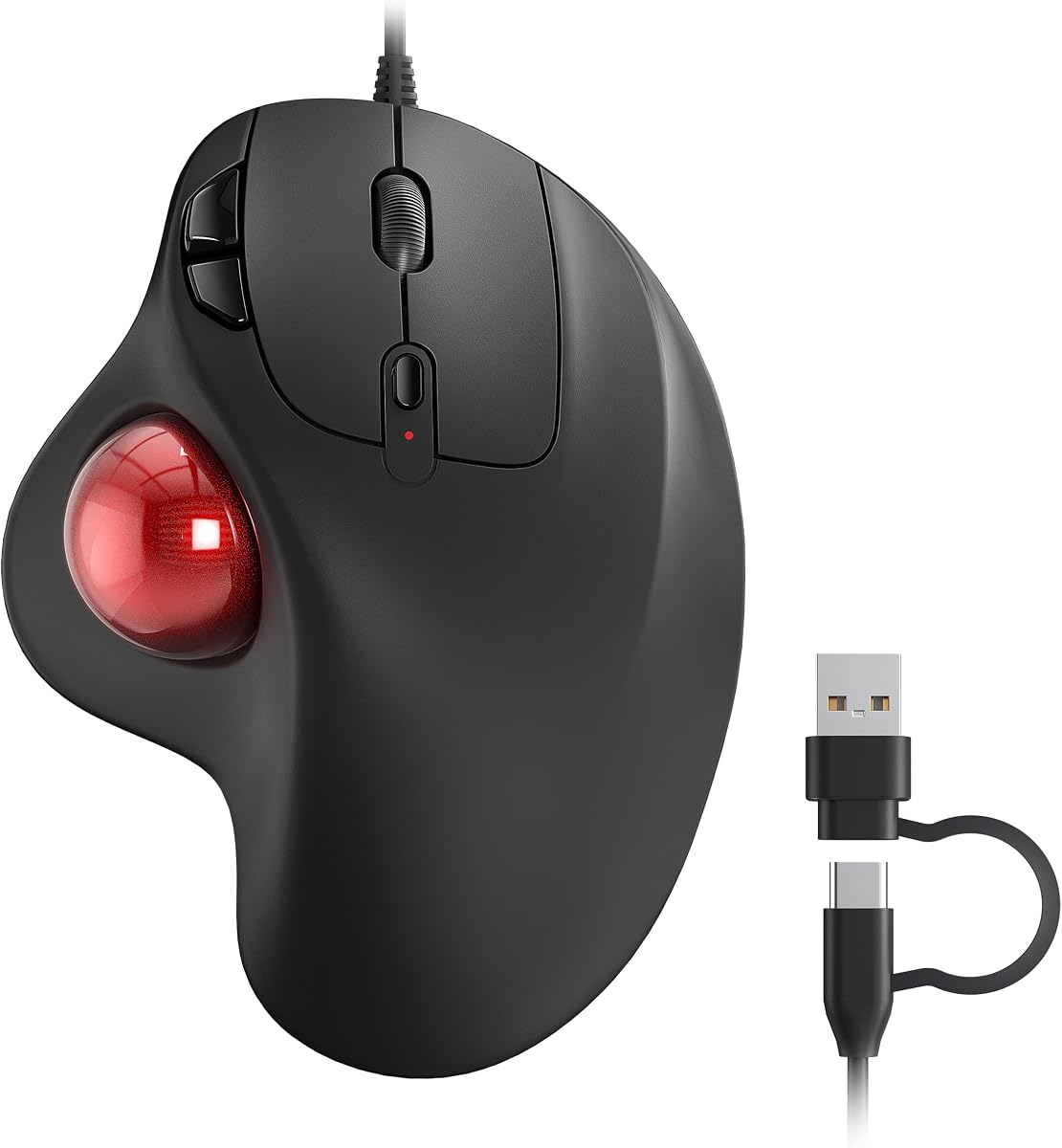
Best Trackball Mouse in 2026
We may earn a commission from links on this page, at no extra cost to you. Learn more.
Trackball mice keep your hand and wrist planted in one spot, which makes them a favorite for anyone dealing with desk strain or limited space. Instead of pushing a whole device around, you roll a ball with your thumb or fingers, and the cursor follows. After weeks of daily use across spreadsheets, photo edits, and gaming, we narrowed the field to seven standout models. This guide explains what separates a great trackball from a frustrating one and helps you match a model to your hand and workflow.
Quick comparison
| Keyboard | Best for | Rating | Price | |
|---|---|---|---|---|
| 1Logitech MX ErgoLogitech | Best Overall | 4.7 | $$$ | Check Price |
| 2Logitech ERGO M575Logitech | Best Budget | 4.6 | $$$ | Check Price |
| 3Kensington SlimBlade ProKensington | Best Finger-Operated | 4.5 | $$$ | Check Price |
| 4Elecom HugeElecom | Best Ergonomic Comfort | 4.4 | $$$ | Check Price |
| 5Kensington Expert MouseKensington | Best for Precision Work | 4.4 | $$$ | Check Price |
| 6Kensington OrbitKensington | Best Compact | 4.3 | $$$ | Check Price |
| 7ProtoArc EM01ProtoArc | Best Wireless Value | 4.3 | $$$ | Check Price |
Our top 7 picks, reviewed
Logitech MX Ergo
The MX Ergo remains the trackball to beat for productivity users. Its standout feature is an adjustable metal plate that tilts the body up to twenty degrees, letting you find a more natural wrist angle. The thumb-operated ball is smooth and accurate, and the eight customizable buttons handle shortcuts with ease. It is pricey and a bit heavy, but the comfort and flexibility justify the cost.
- Connection
- Bluetooth and USB receiver
- Sensor
- Optical 512-2048 DPI
- Weight
- 259 g
- Buttons
- 8 programmable
What we liked
- Adjustable tilt plate reduces wrist strain
- Multi-device switching across two computers
- Precision mode button for fine cursor work
- Rechargeable battery lasts months
Worth noting
- Heavier than most rivals
- Premium price point
Logitech ERGO M575
The ERGO M575 is the easiest trackball to recommend to newcomers. It delivers the core comfort of a thumb-ball design at a fraction of the MX Ergo price. The contoured body cradles your palm, and a single AA battery runs for up to two years. You lose the tilt plate and some buttons, but for most people the M575 hits the sweet spot of value and ergonomics.
- Connection
- Bluetooth and USB receiver
- Sensor
- Optical 400-2000 DPI
- Weight
- 145 g
- Buttons
- 5
What we liked
- Sculpted shape supports the whole hand
- Long battery life on a single AA
- Quiet, reliable buttons
- Affordable entry into trackballs
Worth noting
- No tilt adjustment
- Fewer programmable buttons
Kensington SlimBlade Pro
The SlimBlade Pro updates a beloved classic with wireless connectivity and a rechargeable battery. Its big, centrally mounted ball is controlled with the fingertips, and you scroll by twisting the ball itself, a genuinely clever trick once it clicks. The symmetrical layout works for either hand. It is a finger trackball through and through, so thumb-ball fans should look elsewhere.
- Connection
- Bluetooth and USB receiver
- Sensor
- Optical tracking
- Weight
- 278 g
- Buttons
- 4
What we liked
- Large ball suits fingertip control
- Twist-the-ball scrolling is intuitive
- Ambidextrous symmetrical design
- Solid, weighty build feels premium
Worth noting
- Takes time to learn twist scrolling
- Large desk footprint
Elecom Huge
The Elecom Huge lives up to its name with a sprawling body built for big hands and long sessions. The oversized thumb ball and full palm support make it one of the most relaxing trackballs to use for hours. Eight buttons give you plenty of macro room. It is too large to travel with and the plastics feel ordinary, but comfort is its calling card.
- Connection
- Wireless 2.4 GHz
- Sensor
- Optical 500-1500 DPI
- Weight
- 256 g
- Buttons
- 8
What we liked
- Generous palm rest for large hands
- Big 52 mm ball glides smoothly
- Eight buttons handle macros well
- Adjustable DPI on the fly
Worth noting
- Bulky and not portable
- Plastic feels less premium
Kensington Expert Mouse
The Expert Mouse is a long-running favorite among designers and editors who need fine cursor control. Its large billiard-style ball sits in the center for fingertip use, surrounded by a scroll ring that handles vertical navigation. A detachable wrist rest adds comfort. The button count is modest and the scroll ring is divisive, but for precise pointing it is hard to beat.
- Connection
- Bluetooth and USB receiver
- Sensor
- Optical tracking
- Weight
- 240 g
- Buttons
- 4
What we liked
- Huge ball offers excellent control
- Scroll ring for smooth navigation
- Detachable wrist rest included
- Ambidextrous and durable
Worth noting
- Scroll ring can feel imprecise
- Expensive for four buttons
Kensington Orbit
The Kensington Orbit strips the trackball down to its essentials and keeps the price low. A central ball with a surrounding scroll ring covers the basics, and the compact body fits tight desks. With just two buttons it is not a power-user tool, but for casual browsing or as a first trackball, the Orbit is an affordable, fuss-free introduction.
- Connection
- Wireless 2.4 GHz
- Sensor
- Optical tracking
- Weight
- 130 g
- Buttons
- 2
What we liked
- Simple two-button layout is approachable
- Scroll ring around the ball
- Low price for a trackball
- Small footprint saves desk space
Worth noting
- Only two buttons limit shortcuts
- No tilt or palm support
ProtoArc EM01
The ProtoArc EM01 brings premium features to a budget price, including multi-device Bluetooth switching and a rechargeable battery. The thumb-operated ball mimics the popular M575 layout and tracks well across a wide DPI range. The plastics feel cheaper than name-brand rivals and the software is thin, but as an inexpensive, feature-packed wireless trackball it offers real value.
- Connection
- Bluetooth and USB receiver
- Sensor
- Optical 400-2400 DPI
- Weight
- 150 g
- Buttons
- 6
What we liked
- Triple connectivity with device switching
- Rechargeable internal battery
- Adjustable DPI up to 2400
- Comfortable thumb-ball shape
Worth noting
- Build quality feels budget
- Software support is limited
Why Choose a Trackball Mouse in 2026
The humble trackball has quietly become one of the smartest upgrades you can make to a desk setup. While most of the computing world reaches for ever-lighter gaming mice or sleek wireless pointers, a growing community of office workers, designers, programmers, and people managing repetitive strain injuries has discovered that not moving the mouse at all can be a revelation. With a trackball, the device stays planted in one spot and you simply roll a ball to move the cursor. Your wrist stops sweeping back and forth, your shoulder relaxes, and you reclaim a surprising amount of desk space.
In 2026 the trackball category is healthier than it has been in years. Logitech continues to anchor the mainstream with the ERGO M575 and the premium MX Ergo, Kensington keeps its finger-operated classics alive with rechargeable refreshes, and a wave of value brands like ProtoArc and Elecom has expanded the options at every price. Whether you want a budget thumb-ball to dip your toe in or a premium finger trackball for pixel-perfect design work, there has never been a better selection. This guide walks through how to choose, then breaks down the seven models that earned our recommendation.
How a Trackball Differs From a Regular Mouse
A standard mouse asks your whole hand and forearm to move so that an internal sensor can read the motion. Over a full workday, all that small-scale dragging adds up, and for some people it contributes to wrist fatigue, forearm tension, and aggravation of conditions like carpal tunnel syndrome or tendonitis. A trackball flips the model. The body never moves. Instead, a sensor reads the rotation of an exposed ball that you spin with your thumb or fingertips. The cursor responds to how fast and how far you roll the ball.
This has two immediate benefits. First, the static device means your arm can rest in a comfortable, neutral position the entire time. Second, because you are not pushing anything around, a trackball needs only the footprint of its own base, making it ideal for cramped desks, standing setups, lap trays, or even a couch. The tradeoff is a learning curve. Aiming with a ball is a different muscle memory than gliding a mouse, and it takes most people a few days to feel natural. The payoff, once it clicks, is a pointing experience that many users say they never want to give up.
Thumb Trackballs Versus Finger Trackballs
The single most important decision when buying a trackball is which type suits you, because the two families feel completely different in the hand.
Thumb-operated trackballs
In a thumb trackball, the ball sits on the left side of the body where your thumb naturally rests, and the rest of your hand operates the buttons and scroll wheel exactly as on a normal mouse. The Logitech ERGO M575 and MX Ergo are the definitive examples. Because the layout keeps your fingers in familiar positions, thumb trackballs have the gentlest learning curve and are the best starting point for anyone switching from a conventional mouse. They are excellent for general office work, browsing, and everyday productivity. The main limitation is precision: the thumb is strong but not the most dexterous digit, so extremely fine cursor work can feel slightly less controlled than with a finger design.
Finger-operated trackballs
Finger trackballs place a larger ball in the center or to one side, and you steer it with the tips of your index and middle fingers. The Kensington SlimBlade Pro and Expert Mouse, along with the Elecom Huge in its larger configurations, represent this style. Fingertip control unlocks more precise, nuanced movement, which is why designers, video editors, and CAD users often prefer it. The bigger ball also feels luxurious to spin. The downside is a longer adjustment period and, in the case of twist-to-scroll designs like the SlimBlade, an extra gesture to learn. If your work demands accuracy and you are willing to invest a week in adaptation, a finger trackball can be deeply rewarding.
Key Features to Compare
Ball size and material
Larger balls generally offer smoother, more controllable motion and feel more premium, while smaller thumb balls prioritize compactness. The smoothness of the ball depends heavily on the support bearings underneath it; quality models use low-friction bearings that let the ball spin freely for a long time. A gritty or sticky ball is the fastest way to ruin the experience, and it is usually a sign the bearings need cleaning rather than a defect.
Sensor and DPI
Trackballs use optical sensors much like regular mice, and most offer adjustable DPI so you can tune how far the cursor travels per ball rotation. A higher DPI moves the cursor faster with less motion, which is handy on large or multi-monitor setups. Look for at least a couple of DPI presets, and ideally an on-device button to switch between them. A dedicated precision mode, like the one on the MX Ergo, temporarily slows the cursor for detailed selections.
Buttons and customization
The number of programmable buttons separates basic models from power tools. Two-button trackballs like the Orbit cover only the essentials, while eight-button designs like the MX Ergo and Elecom Huge let you map copy, paste, back, forward, and application shortcuts directly to your hand. If you live in spreadsheets, creative software, or browsers, more buttons translate to real efficiency gains. Check whether the manufacturer provides software for remapping, since not every brand offers robust customization.
Connectivity and battery
Modern trackballs offer wired USB, a 2.4 GHz wireless receiver, Bluetooth, or some combination. Bluetooth plus a receiver gives you the flexibility to switch between a laptop and desktop, and the best models let you pair multiple devices and toggle between them with a button. Battery life varies widely: AA-powered units like the M575 can run for years, while rechargeable models like the SlimBlade Pro and MX Ergo trade that longevity for the convenience of never buying batteries. Choose based on whether you prefer set-and-forget AA cells or built-in rechargeables.
Ergonomics and tilt
Comfort is the whole point of a trackball, so pay attention to the shape. A sculpted body that supports your palm, like the M575, encourages a relaxed hand. The MX Ergo goes further with an adjustable plate that tilts the entire unit, letting you angle your wrist into a more neutral, handshake-like position that can relieve strain. Detachable wrist rests, as included with the Expert Mouse, add another layer of support. If you have a larger hand, the Elecom Huge provides the most generous platform.
Matching a Trackball to Your Needs
If you are new to trackballs and want the safest bet, the Logitech ERGO M575 is the model to start with. It is affordable, comfortable, and uses the beginner-friendly thumb layout, so the transition from a regular mouse is quick and painless. For productivity power users who want the absolute best ergonomics and customization, the MX Ergo justifies its higher price with the adjustable tilt plate, precision mode, and multi-device switching that make long workdays more comfortable.
Creative professionals who need pinpoint accuracy should look at the finger-operated Kensington SlimBlade Pro or Expert Mouse, both of which trade the gentle learning curve for superior fingertip control. People with larger hands or those who simply want maximum comfort over marathon sessions will appreciate the sprawling Elecom Huge. On a tight budget, the Kensington Orbit and ProtoArc EM01 both deliver the core trackball experience for less, with the EM01 adding surprising features like multi-device Bluetooth switching for its modest price.
Tips for a Smooth Transition
Switching to a trackball is a skill, and a few habits make it easier. Start by setting the DPI lower than you think you want, so the cursor moves predictably while your muscle memory forms, then raise it once you feel confident. Spend the first few days doing ordinary tasks rather than anything time-sensitive, since accuracy improves quickly with practice. Keep the ball clean from day one; pop it out and wipe the bearings every couple of weeks to maintain that smooth glide. Finally, take advantage of programmable buttons by mapping the shortcuts you use most, because reducing how often you reach for the keyboard is where a trackball really earns its keep.
Common Myths About Trackballs
Several misconceptions keep people from trying trackballs, and most of them do not hold up. The first is that trackballs are slow. In reality, once your muscle memory forms, a well-tuned trackball moves the cursor just as fast as a mouse, and the DPI controls let you cover a large screen with a small ball motion. The speed concern usually comes from the first day of use, before adaptation, and it fades quickly.
A second myth is that trackballs are only for people with injuries. While they are genuinely helpful for managing strain, plenty of healthy users adopt trackballs simply because they like keeping the device stationary, reclaiming desk space, or working comfortably from a couch or standing desk. The ergonomic benefits are preventive as much as remedial, and many users switch purely for the relaxed hand posture.
A third misconception is that all trackballs are alike. As this guide shows, thumb and finger designs feel completely different, ball sizes vary widely, and button counts range from two to eight. A person who tried one trackball years ago and disliked it may love a different style entirely. The category is far more varied than its reputation suggests, which is exactly why matching the right type to your hand matters so much.
Long-Term Ownership and Maintenance
One underrated advantage of trackballs is longevity. Because the device never slides across a surface, the feet do not wear, and there is no cable to fray from constant dragging if you choose a wireless model. The main maintenance task is keeping the ball and its support bearings clean, which takes under a minute every couple of weeks. Pop the ball out, wipe it, clear any lint from the bearing sockets, and the smooth glide returns instantly. Neglecting this is the single most common cause of a trackball feeling sticky or skippy, and it is entirely preventable.
Battery considerations also affect long-term satisfaction. AA-powered models like the ERGO M575 can run for a year or two on a single cell, meaning you almost forget they need power at all. Rechargeable models like the MX Ergo and SlimBlade Pro trade that for the convenience of a USB-C top-up and never buying batteries. Neither approach is clearly better; it comes down to whether you prefer set-and-forget cells or built-in rechargeables. Either way, modern trackballs are built to last for years, and a quality model often outlives several conventional mice purchased over the same period, which helps justify the higher upfront cost of premium options.
Final Verdict
The trackball renaissance is real, and 2026 offers the strongest lineup the category has seen. Our top overall pick, the Logitech MX Ergo, combines adjustable ergonomics, precision control, and seamless multi-device switching into the most complete package for serious productivity. If price matters more, the ERGO M575 delivers most of the comfort for far less and remains the ideal entry point. Finger-trackball devotees should reach for the Kensington SlimBlade Pro, while big-handed users and budget shoppers have excellent choices in the Elecom Huge, Kensington Orbit, and ProtoArc EM01. Whichever you choose, the move to a planted, ball-driven pointer is one of those small ergonomic changes that can quietly transform how your desk feels at the end of a long day.
How we picked
We evaluated each trackball on ball smoothness, sensor tracking, button layout, comfort over long sessions, and connectivity. Every model was used for at least a full work week across office and creative tasks. Ratings weigh ergonomics and build quality most heavily, since those matter most for the people who buy trackballs.
Frequently asked questions
Are trackball mice better for wrist pain?
Many people find trackballs reduce wrist and forearm strain because your hand stays in one place and you move only the ball with your thumb or fingers. There is no repeated reaching or dragging across the desk, which can help with conditions like RSI. That said, no single device cures pain, so pair a trackball with good posture and breaks.
Should I get a thumb or finger trackball?
Thumb trackballs like the M575 and MX Ergo let you keep your fingers on the buttons while the thumb steers, which feels familiar to mouse users. Finger trackballs like the SlimBlade and Expert Mouse use a larger central ball controlled by the fingertips, offering more precision but a steeper learning curve. Try to match the style to the tasks you do most.
Do trackballs work for gaming?
Trackballs can handle slower strategy, simulation, and point-and-click games well, and some players use them comfortably. For fast first-person shooters that demand quick flick aiming, a traditional gaming mouse is still the better tool. If gaming is your priority, a trackball is best as a secondary, productivity-focused device.
How do I clean a trackball mouse?
Pop the ball out from the bottom of most trackballs, wipe it with a soft cloth, and clean the support bearings inside the socket where dust collects. Doing this every few weeks keeps the ball rolling smoothly. Avoid harsh solvents and let everything dry before reassembling.
Is a trackball harder to learn than a regular mouse?
There is a short adjustment period, usually a few days, as your thumb or fingers get used to controlling the ball. Thumb trackballs feel natural fastest because the rest of your hand works like a normal mouse. Finger trackballs and twist-scroll designs take a little longer, but most users adapt within a week.