Best for Xbox Series X|S
WD_BLACK 2TB C50 Expansion Card

- Officially licensed NVMe expansion with Quick Resume support
- Up to 2TB with Xbox Velocity Architecture performance
- Plug-and-play slot install—no tools or formatting guesswork
Expert Review & Guide
Xbox Series X and Series S ship with fast internal NVMe storage that feels limitless until you install three or four modern titles. Call of Duty, Forza Horizon, Starfield, and the rest of Game Pass's rotating catalog can consume hundreds of gigabytes within weeks, and Microsoft's own guidance splits storage into two tiers that confuse even experienced console owners. Series X|S optimized games must run from the internal SSD or an officially licensed expansion card. USB drives—including fast external SSDs—can archive those titles or play Xbox One backward-compatible games directly, but they cannot launch native Series X|S builds without copying back to internal storage first.
That split makes shopping for Xbox storage fundamentally different from buying a generic external drive for a PC or PlayStation. The WD_BLACK C50 and similar licensed expansion cards plug into the dedicated rear slot, integrate with Quick Resume, and unlock Xbox Velocity Architecture performance on par with the console's built-in drive. USB options from Seagate, Western Digital, Crucial, and others cost less per terabyte and excel at cold storage, travel, and Xbox One libraries, but they trade away seamless Series X|S gameplay. Third-party expansion card alternatives like Furfox occupy a middle ground that budget hunters should evaluate carefully against Microsoft's licensing requirements.
This ReviewConsensus guide covers all ten products in our best-ssds-for-xbox-series-x pack: licensed NVMe expansion, official Xbox-branded HDDs and SSDs, high-capacity desktop vaults, and cross-platform portable drives. You will get three top picks, a full comparison table, detailed reviews with honest pros and cons, an Xbox-specific buying guide, setup steps, and FAQs so the storage you order matches how you actually play—not just the biggest capacity number on the box.

As an Amazon Associate we earn from qualifying purchases. We may earn a commission at no additional cost to you.
Every product below appears in our Xbox Series X storage pack. Specs focus on capacity, interface, and what each drive can actually do on Series X|S—native play, archive-only, or expansion-card performance—without street pricing. Use this table to narrow candidates before reading the full reviews.
Seagate 2TB Game Drive for Xbox
The Seagate 2TB Game Drive for Xbox is the entry point most Series X owners should understand before spending more on licensed expansion cards. It is an officially licensed USB 3.0 hard drive—not an NVMe expansion card—designed to complement the console's internal SSD rather than replace it. That distinction matters because Microsoft restricts native Series X|S gameplay to internal storage and the proprietary expansion slot. USB drives like this Seagate excel at archiving titles you are not actively playing and at running Xbox One backward-compatible games directly without copying them back to the internal drive first.
Seagate built the Game Drive around a simple workflow Microsoft encourages in the Storage settings menu. When your internal SSD fills, move Series X|S optimized installs to the external drive to free space. Those archived games stay ready to copy back when you want to play—often faster than redownloading from Xbox Live—and your internal volume stays available for the two or three titles you rotate weekly. For Xbox One games, the experience is smoother: install and launch from USB as you did on prior console generations, which makes this drive especially valuable if your library skews backward compatible or Game Pass catalog titles that still ship as Xbox One builds.
The industrial design fits living-room setups better than generic black externals. A built-in LED bar glows Xbox green, signaling official licensing and matching the Series X aesthetic without looking like office hardware. Capacity at 2TB holds a meaningful slice of a modern library—roughly fifteen to twenty large titles depending on patch sizes—while staying portable enough to move between household consoles or take to a friend's Series S.
Performance expectations should stay realistic. USB 3.0 mechanical storage will not match the Velocity Architecture speeds of internal NVMe or the WD_BLACK C50 expansion card. Load times for Xbox One games from USB are acceptable for most players; copying Series X|S builds back to internal storage takes minutes, not seconds, compared with SSD-to-SSD transfers on a licensed card. If your pain point is Quick Resume across many suspended Series X|S titles simultaneously, USB archive drives do not participate in that feature—only the internal pool and licensed expansion do.
Seagate backs the drive with a one-year limited warranty plus three years of Rescue Data Recovery Services, which adds peace of mind when a drive holds hundreds of gigabytes of purchased and Game Pass content. The 4.5 buyer rating in our pack reflects solid reliability for a mass-market archive solution, though some users report the usual mechanical HDD whine during long copy jobs.
Compared with the 5TB Seagate sibling later in this guide, the 2TB model suits players who need modest overflow rather than a whole-library vault. Compared with the WD_BLACK C50, it costs far less per purchase but cannot play Series X|S native games directly. We rank it as Best Budget Archive Drive because it delivers official Xbox licensing and practical cold-storage workflow at the lowest barrier in this roundup.
Choose the Seagate 2TB when you want licensed USB overflow for Game Pass rotation and Xbox One libraries without paying expansion-card premiums. Skip it if you need native Series X|S gameplay from external storage or Quick Resume across a dozen suspended titles—invest in the WD_BLACK C50 instead.
Game Pass subscribers who rotate titles monthly, households with large Xbox One libraries, and players who need affordable overflow without expansion-card pricing.
Connect via USB, allow Xbox to format or recognize the licensed drive, then use Manage Games and Apps to move installs between internal and external volumes.
Choose Seagate 2TB for archive and Xbox One direct-play on a budget; choose C50 when Series X|S native installs and Quick Resume from expansion storage are non-negotiable.
We may earn a commission at no additional cost to you.
WD_BLACK 2TB C50 Expansion Card
The WD_BLACK 2TB C50 Storage Expansion Card is the product Xbox Series X|S was designed around when Microsoft decided proprietary expansion beat opening the console to standard M.2 drives. It slides into the dedicated slot hidden behind the rear panel cover, registers instantly as additional internal-class storage, and behaves like the built-in SSD for every feature that matters: native Series X|S gameplay, Smart Delivery installs, and Quick Resume suspensions that span multiple titles across both storage pools.
Western Digital's licensing partnership means the C50 meets Microsoft's quality and performance standards rather than merely approximating them. The Superspeed NVMe core delivers reduced wait times and fast asset streaming through Xbox Velocity Architecture—the same I/O pipeline that makes Series X load times impressive out of the box. In practical terms, you install Forza, Starfield, or Halo Infinite directly to the card and play without the copy-back ritual USB owners accept.
Quick Resume integration separates licensed expansion from every USB option in this guide. Suspended games on the C50 rehydrate as quickly as those on internal storage, and the console treats both volumes as one logical fast pool for resumption. USB archive drives cannot participate, which becomes painful if you juggle four or five live-service titles across a week. For players who value instant context switching, the C50 is not a luxury—it is the only external path to that behavior.
Installation is genuinely plug-and-play. Power down, remove the small rear cover on Series X or the corresponding panel on Series S, insert the card until seated, and boot. The console prompts to format on first use, then lists the expansion alongside internal storage in Settings. No screwdrivers beyond the cover, no heatsink clearance research, no compatibility spreadsheets—Microsoft and WD handled that by restricting the slot to licensed modules.
The honest tradeoff is cost density. Per terabyte, the C50 costs substantially more than the Seagate USB drives or even fast portable SSDs like the P40. You are paying for the proprietary connector, firmware integration, and first-party-adjacent validation. The card also lives only in Xbox expansion slots—it will not drop into a PC M.2 bay—so treat it as console-specific infrastructure rather than cross-platform storage.
At 2TB in this pack SKU, most households gain enough room to stop uninstalling weekly while keeping Game Pass exploratory. Collectors who install everything may still want USB archive overflow for cold titles, pairing a C50 for active Series X|S play with a large HDD for backups. The 4.8 rating—the highest here—reflects buyer satisfaction when expectations align with what licensed expansion delivers.
We rank the WD_BLACK C50 Best for Xbox Series X|S because it is the only product in this roundup that fully unlocks the console's storage architecture. Choose it when native gameplay, Quick Resume, and Velocity Architecture performance justify the premium. Choose USB alternatives when you mainly need cheap archive space or Xbox One direct-play.
Series X|S owners who install native titles frequently, Game Pass power users who suspend multiple games, and anyone who refuses copy-back workflows for Series X|S builds.
Power off, open the rear expansion cover, insert until flush, boot and format when prompted. Assign new installs to the expansion card in Settings or per-game manage menus.
Choose C50 for official Microsoft licensing and proven Quick Resume integration; evaluate Furfox only if budget constraints outweigh first-party validation preferences.
We may earn a commission at no additional cost to you.
Seagate 5TB Game Drive for Xbox
The Seagate 5TB Game Drive for Xbox takes everything the 2TB licensed archive drive does and scales capacity for collectors who treat Game Pass like a buffet. Five terabytes holds dozens of Series X|S installs in archived form plus a large rotating set of Xbox One titles playable directly from USB. If your household shares one console and nobody agrees on what to uninstall, this drive becomes the neutral ground where games wait instead of disappearing from your library.
Microsoft's storage rules apply identically to the 5TB and 2TB Seagate models. Series X|S optimized games must copy to internal storage or the licensed expansion card before launch. Xbox One backward-compatible games—including many Game Pass offerings still packaged for the prior generation—run from the USB drive without that friction. Understanding that split prevents the most common one-star reviews from buyers who expected USB to behave like the WD_BLACK C50.
Seagate's official licensing shows up in firmware compatibility and the illuminated Xbox green accent along the enclosure. Setup is plug-and-play on Series X, Series S, and Xbox One family consoles: connect USB, format or recognize, and begin moving installs through the Manage Storage interface. The drive supports the seamless move workflow Seagate advertises—shift titles between internal and external volumes without re-downloading from the cloud when you reclaim internal space for a new release.
Mechanical hard drive performance is adequate for archive duty and Xbox One gameplay but nowhere near NVMe or fast external SSD transfer rates. Copying a 120 GB Series X|S build from the 5TB drive back to internal storage can take ten to fifteen minutes depending on asset fragmentation and console activity. Plan ahead before game night rather than assuming instant swaps. For cold storage—games you might replay in a month—the wait beats a multi-hour download on typical home broadband.
The Rescue Data Recovery Services bundle matters more at 5TB than at 2TB because more purchased content lives on the platters. Seagate's three-year rescue tier plus one-year limited warranty aligns with how console owners actually use these drives: always-on, rarely powered down, subjected to occasional bumps behind the TV.
Against the WD_BLACK 5TB P10 for Xbox, the Seagate offers similar capacity and licensing story with comparable USB performance class. Choose based on bundled promotions, enclosure aesthetics, and current availability rather than dramatic technical differences—both are archive-first HDDs. Against the 8TB WD D10, the Seagate stays more living-room portable whereas the D10 targets desk setups with active cooling.
We label the Seagate 5TB Best High-Capacity HDD for players who need licensed overflow without jumping to desktop-class externals. Pair it with internal SSD or a C50 card for active titles; let the 5TB hold everything else.
Shared-household consoles, Game Pass archivists, and players with extensive Xbox One libraries who still need Series X|S cold storage.
Keep two to four native titles on internal plus expansion; batch-move completed campaigns to the 5TB Seagate during weekly library cleanup.
We may earn a commission at no additional cost to you.

The WD_BLACK 5TB P10 Game Drive for Xbox packages high-capacity mechanical storage in a portable shell tuned for console gamers rather than office backups. Western Digital's P10 line predates Series X but adapted cleanly to Microsoft's dual-tier storage model: archive Series X|S optimized installs on USB, play Xbox One titles directly, and carry your library between consoles when you visit friends or swap between a Series X in the living room and a Series S in a bedroom.
The bundled one-month Xbox Game Pass Ultimate trial sweetens the purchase for new subscribers, though experienced Game Pass members should treat it as a nice extra rather than a deciding factor. What matters long term is five terabytes of WD_BLACK reliability in a travel-friendly form factor with USB 3.2 connectivity. The drive works on Xbox One, Series X, and Series S without proprietary slot requirements—connect, format for Xbox if needed, and manage storage through the standard OS menus.
Portable here means single-cable USB power without a wall adapter on most setups, which simplifies bag packing for LAN parties or vacations. Performance sits in the mainstream 2.5-inch HDD class adequate for Xbox One loads and archive copies. Do not expect SSD snappiness when moving 100 GB Series X|S builds; plan copy sessions during downtime.
WD_BLACK branding signals gaming-focused firmware and enclosure design versus generic externals that may spin down aggressively and interrupt long copy jobs. The 4.7 rating in our pack reflects consistent satisfaction among Xbox owners using P10 drives as secondary libraries. Build quality handles typical living-room and backpack abuse though mechanical drives always prefer stable surfaces during heavy writes.
Comparison against the Seagate 5TB Game Drive comes down to aesthetics, bundled trials, and brand loyalty—both fulfill the same Microsoft storage roles. The P10's portable emphasis and Game Pass trial edge it for travelers; Seagate's green LED licensing story appeals to players who want obvious Xbox co-branding. Neither replaces a C50 expansion card for native Series X|S gameplay.
The 2TB P10 sibling appears later in this guide at lower capacity for budget-portable needs. Choose this 5TB SKU when you know overflow is measured in dozens of titles, not a handful. Pair with licensed expansion or internal storage for active native games.
We rank the WD_BLACK 5TB P10 Best Xbox-Branded Portable for players who want WD reliability, Game Pass trial value, and five terabytes in a moveable enclosure without desktop drive bulk.
Log into your Xbox account on a friend's Series console, connect the P10, and access your archived library after sync—useful for co-op weekends without re-downloading.
Choose P10 for WD_BLACK portability and Game Pass trial; choose Seagate 5TB for green LED official styling and Rescue Data Recovery emphasis.
We may earn a commission at no additional cost to you.

The Furfox 1TB Expansion Card targets the most price-sensitive Series X|S owners who refuse USB copy-back workflows but balk at first-party licensed expansion pricing. It uses the same rear slot as the WD_BLACK C50, promises NVMe-class load times comparable to internal storage, and advertises plug-and-play setup without tools. On paper, it delivers the key benefit of licensed expansion—native Series X|S gameplay from the card—at a lower capacity and without Microsoft's official partner badge.
That licensing gap is the crux of the buying decision. Western Digital's C50 carries explicit official licensing, Velocity Architecture optimization, and documented Quick Resume integration tested against Microsoft quality standards. Furfox markets seamless compatibility and instant load times, and many buyers report success, but you accept less transparency about firmware updates, long-term OS compatibility, and warranty support if a future Xbox system update changes expansion requirements.
At 1TB, the Furfox card solves emergency overflow rather than library freedom. One or two major Series X|S titles plus patches can consume most of that space, so treat it as a bridge product while you save for 2TB licensed storage or pair it with a large USB archive for cold titles. The portable card design does let you move the module between consoles—useful in multi-console homes if each system has the rear slot accessible.
Performance claims align with what NVMe expansion should deliver when the console accepts the module: fast loads, direct play, no USB bottleneck. Verify your specific firmware version and read recent buyer feedback before purchase because third-party expansion history on Xbox includes more variance than USB drives. The 4.5 rating suggests satisfactory experiences for many, but the spread of reviews often mentions compatibility checks after major OS updates.
Honest recommendation: risk-tolerant budget buyers who need native Series X|S play today and accept 1TB limits can consider Furfox. Conservative buyers who treat expansion as long-term infrastructure should prioritize the WD_BLACK C50 despite higher cost. Furfox is not a USB drive—it belongs in the expansion conversation, not the archive conversation.
Versus USB SSDs like the P40, Furfox wins native gameplay and Quick Resume potential; USB wins cross-platform reuse and higher capacities per dollar for archive-only duty. Versus the C50, Furfox trades official licensing and 2TB headroom for upfront savings.
We label Furfox Best Budget Expansion Card with explicit caveats about licensing and capacity. It fills a niche; it does not replace the C50 as our top pick.
Best for buyers who understand third-party expansion tradeoffs; avoid if you want Microsoft-validated licensing and maximum Quick Resume confidence.
Budget 1TB as a partial extension of internal storage—rotate one to two flagship titles on the card and archive the rest to USB.
We may earn a commission at no additional cost to you.

The Avolusion T1 Series 1TB drive occupies the budget tier of Xbox USB storage with straightforward positioning: pre-formatted portable HDD, plug into Xbox One or Series X|S, and start moving games. Avolusion's listing is refreshingly explicit about Microsoft limitations—Series X|S optimized games cannot play directly from USB and must copy back to internal SSD first, while Xbox One games run from the external drive. That clarity saves buyers from discovering restrictions after purchase.
One terabyte helps in specific scenarios: a teenager's Series S with 512 GB internal storage, a temporary overflow while waiting for a larger drive, or a secondary vault for Xbox One Game Pass titles. It is not a forever solution for serious collectors. Modern AAA installs overwhelm 1TB quickly when a single game with updates crosses 100 GB.
The white enclosure differentiates visually from the black and green Xbox-licensed crowd. Build quality and long-term reliability draw more mixed feedback—the 4.1 pack rating is the lowest here—so treat this as a value play with adjusted expectations versus Seagate and WD_BLACK partners. Pre-formatting reduces first-setup steps, which helps less technical household members get storage working quickly.
Performance sits in standard USB 3.0 HDD territory. Copy operations and Xbox One load times are acceptable for the tier; nothing about the T1 transforms Series X|S workflows. Use it to stash archived Series X|S builds and rotate Xbox One gameplay off the internal drive, exactly as Avolusion documents.
Compared with spending slightly more on the Seagate 2TB licensed drive, Avolusion trades official co-branding, Rescue services, and capacity for upfront savings. Compared with expansion cards, there is no native Series X|S gameplay path. The T1 makes sense when budget is fixed and 1TB solves an immediate crisis.
We recommend the Avolusion T1 as Best Entry USB Storage for light overflow and Xbox One libraries—not as a primary storage strategy for Series X owners with deep Game Pass habits. Plan an upgrade path when the terabyte fills.
If reliability and licensing matter more than absolute minimum spend, step up to Seagate 2TB. If you need native Series X|S external play, skip USB entirely and save for the WD_BLACK C50.
Series S owners needing modest overflow, temporary storage while a larger drive ships, and Xbox One-heavy libraries on a tight budget.
Primary household storage for Game Pass power users, anyone expecting Series X|S direct-play from USB, or buyers who want official Xbox licensing.
We may earn a commission at no additional cost to you.
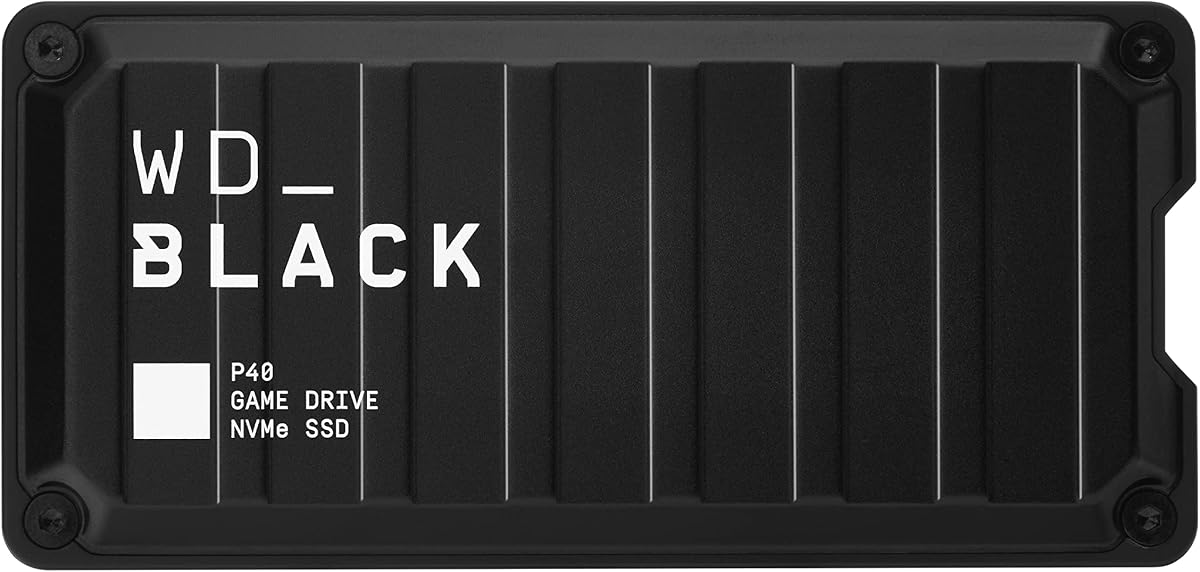
WD_BLACK 1TB P40 Game Drive SSD
The WD_BLACK 1TB P40 Game Drive SSD is the speed champion among USB storage in this Xbox guide. Rated up to 2,000 MB/s reads over USB 3.2 Gen2x2, it dramatically reduces the pain point of USB ownership on Series X|S: copying large native installs back to internal storage before play. Mechanical archive drives can spend fifteen minutes shuffling a flagship title; the P40 often finishes the same job in a fraction of that time depending on console USB controller limits.
Microsoft's gameplay rules still apply. The P40 cannot launch Series X|S optimized builds directly from external storage—it archives them and plays Xbox One backward-compatible titles like any USB drive. Where SSD speed matters is workflow friction: Game Pass rotation feels less punishing when copy-back is quick, and PC cross-use unlocks the full interface speed when you connect to a Gen2x2-capable desktop or laptop.
WD_BLACK built the P40 for gamers who carry storage. Shock-resistant construction survives two-meter drops per Western Digital's internal testing— relevant for backpack transport between rooms or friends' houses. RGB customization through the WD_BLACK Dashboard runs on Windows only and is cosmetic for Xbox use, but the durability carries over regardless of platform.
On Xbox Series X, USB ports may not deliver the full 2,000 MB/s ceiling the drive reaches on optimal PC hosts. Even so, SSD throughput on console USB typically beats HDD archive drives by a wide margin for copy operations. Xbox One direct-play loads also benefit from faster asset streaming off solid-state storage, smoothing texture pop-in on older open-world titles.
One terabyte is the capacity compromise. Speed per dollar is high, but library hoarders need the 2TB P40 SKU outside this pack or a large HDD companion for cold storage. Many enthusiasts run a P40 for active archive rotation plus an 8TB D10 or 5TB Seagate for bulk—speed where it matters, capacity where it is cheap.
Against the Crucial X10 6TB later in this guide, the P40 wins peak interface marketing and RGB gaming aesthetics while the Crucial wins capacity and rugged IP65 ingress protection. Against mechanical P10 drives, the P40 is the upgrade when copy-back latency annoys you weekly.
We rank the P40 Best Portable SSD Speed for Xbox owners who accept USB archive rules but refuse mechanical copy times. It is our top-pick speed solution—not a replacement for the C50 expansion card when native Series X|S gameplay from external storage is the goal.
Archive Series X|S titles to the P40 for fast recall; keep two to three native installs on internal plus expansion; enjoy Xbox One games directly from the SSD.
Install WD_BLACK Dashboard on Windows for RGB and health monitoring; use full Gen2x2 speeds on compatible PCs when the drive is not attached to Xbox.
We may earn a commission at no additional cost to you.

The WD_BLACK 8TB D10 Game Drive is the warehouse option for Xbox libraries that outgrew portable 5TB limits. Eight terabytes of 7200 RPM storage with active cooling targets players who install everything, capture gameplay locally, and refuse to delete backward-compatible titles they revisit seasonally. It sits on a desk or media cabinet—not in a backpack—and uses wall power like a small appliance.
Active cooling sounds like PC excess but matters for 7200 RPM drives under sustained copy loads. Moving dozens of Series X|S archives on and off the D10 generates heat; the integrated fan helps maintain consistent throughput during multi-hour library reorganizations. Rated speeds up to 250 MB/s beat many 5400 RPM portable HDDs, though they remain far below SSD options for copy-back latency.
Dual 7.5W USB Type-A charging ports on the enclosure turn the drive hub into a practical gaming station—top up controllers while managing storage without extra USB bricks cluttering the entertainment center. That convenience factor adds value in shared spaces where the Xbox and the drive share one shelf.
Microsoft storage semantics unchanged: Series X|S native games archive on the D10 and copy back to internal or licensed expansion before play; Xbox One games run directly. Eight terabytes means you stop choosing what to delete for months at a time, storing entire Game Pass exploration histories and seasonal live-service titles offline against download quotas or slow ISP speeds.
Cross-platform compatibility lets PC and Xbox households share one vault—useful if you play Game Pass on both platforms and want a single physical backup of large installs where license rules allow. The D10 is not Xbox-exclusive branding like the P10 for Xbox, but functionally it behaves identically on Series X|S via USB.
Tradeoffs are physical size and power requirements. Travelers should buy a P10; apartment dwellers with one desk and a Series X benefit from maximum capacity per outlet. Pair the D10 with a C50 or internal SSD for active native titles; let the eight terabytes hold cold storage and Xbox One direct-play libraries.
We name the WD_BLACK 8TB D10 Best Desktop Game Vault for collectors who prioritize capacity and cooling over portability. It ends storage anxiety for households that treat downloads as permanent.
Position the fan exhaust with clearance; connect wall power before USB to the console; schedule large copy jobs overnight to avoid session interruptions.
Use C50 or internal for Quick Resume and native Series X|S; use D10 as the deep archive and Xbox One play library.
We may earn a commission at no additional cost to you.

The WD_BLACK 2TB P10 Game Drive for Xbox splits the difference between the 1TB entry tier and 5TB portable max in this WD lineup. Two terabytes holds a respectable archive of Series X|S builds plus a rotating set of Xbox One playable titles while staying backpack-friendly for travel between consoles. It mirrors the 5TB P10's Xbox branding and Game Pass trial bundle at a capacity point many households find sufficient for overflow without desktop drive bulk.
Western Digital positions P10 as purpose-built for gamers: firmware that tolerates long gaming sessions, enclosures that survive typical transport, and USB connectivity that works across Xbox generations. Setup follows standard Microsoft external storage prompts—connect, format if needed, assign as default install location for backward-compatible games, and use move commands for Series X|S archives.
The included one-month Game Pass Ultimate trial adds value for new subscribers exploring the ecosystem; veterans should focus on the 2TB capacity and 4.6 buyer rating as the real metrics. Performance is mechanical USB—fine for Xbox One direct-play and overnight archive jobs, slower than SSD when you need a Series X|S build back on internal storage before multiplayer night.
Compared with the Seagate 2TB Game Drive, the P10 trades green LED official styling for WD_BLACK branding and the Game Pass trial. Capacities and Microsoft storage rules align closely; choose based on bundle value and aesthetic preference. Compared with the 5TB P10, this 2TB model fits tighter budgets and smaller bags while requiring more frequent library curation.
Pairing advice mirrors other USB options: keep native Series X|S active titles on internal SSD or C50 expansion; push completed campaigns and seasonal games to the P10. If copy-back latency frustrates you, upgrade archive speed with the P40 SSD while keeping the P10 as secondary—or jump capacity to the 5TB sibling.
We label the WD_BLACK 2TB P10 Best Mid-Size Portable for Xbox owners who want licensed-adjacent WD reliability, Game Pass trial value, and a travel-friendly two-terabyte vault without committing to five terabytes or desktop form factors.
Skip it if you need native Series X|S external gameplay—only licensed expansion delivers that. Skip it if 2TB feels immediately cramped; the Seagate or WD 5TB options add headroom for modest incremental cost in the storage market.
Series S owners augmenting 512 GB internal, travelers with moderate libraries, and players who want WD_BLACK without D10 desk footprint.
Start with 2TB P10 for overflow; add C50 expansion when Quick Resume and native play justify it; add P40 or larger HDD when copy speed or capacity bites.
We may earn a commission at no additional cost to you.

The Crucial X10 6TB Portable SSD represents the convergence of high capacity and solid-state speed in a rugged shell that is not Xbox-exclusive but works perfectly within Microsoft's USB storage rules. Six terabytes on an external SSD would have sounded exotic a few years ago; in 2026 it is a credible primary archive for multi-platform households that game on Xbox, PlayStation, and PC while sharing one fast vault.
Crucial rates the X10 up to 2,100 MB/s reads over USB 3.2 USB-C—competitive with the WD P40 and faster than any mechanical option here for copying Series X|S builds back to internal storage. Solid-state architecture also eliminates spin-up delays and mechanical whine during late-night session prep. The matte blue enclosure targets durability: IP65 dust and water resistance and drop survival up to 9.8 feet suit dorm rooms, LAN events, and family rooms where drives get knocked off shelves.
On Xbox Series X|S, the X10 behaves like other USB storage: archive native Series X|S titles, play Xbox One backward-compatible games directly, and accept that Quick Resume and Velocity Architecture features require internal or licensed expansion storage. Where the X10 shines is dual-use—move the same drive to a gaming laptop, PlayStation, or Android tablet with USB-C and one purchase serves multiple ecosystems.
Bundled software adds value for PC-centric buyers: three months of Mylio Photos+ and Acronis True Image after registration. Console-only owners may ignore these extras, but they signal Crucial's positioning toward creators and students who need one drive for games, backups, and media—not just a green LED Xbox accessory.
Six terabytes reduces the capacity anxiety that forces 1TB and 2TB USB owners into constant curation. Store entire seasonal Game Pass explorations, capture clips, and backward-compatible libraries together. Tradeoff: this is the premium tier—higher cost per unit than HDD vaults—justified if copy speed and ruggedness matter alongside capacity.
Versus the WD D10 8TB HDD, the Crucial trades two terabytes and desk-hub charging for SSD speed, silence, and travel toughness. Versus the P40 1TB, the X10 wins capacity decisively while matching fast read claims. Neither replaces the WD_BLACK C50 for native Series X|S expansion gameplay.
We rank the Crucial X10 6TB Best Cross-Platform SSD for Xbox owners who also need PC or PlayStation storage, value rugged portability, and want SSD copy times at multi-terabyte scale. Pair with licensed expansion for native Xbox play; let the X10 be the shared fast archive.
One X10 can archive Xbox Series X|S titles and PlayStation 5 backups on the same drive—format per console or partition on PC first depending on workflow.
IP65 and drop ratings help travel; still use USB-C cables rated for data speeds and eject properly through Xbox storage menus before unplugging.
We may earn a commission at no additional cost to you.
Xbox Series X|S splits storage into fast internal-class volumes and everything else. The internal SSD and officially licensed expansion cards like the WD_BLACK C50 form the fast pool. Games optimized for Series X|S must install and run from that pool to use Velocity Architecture features, ray-tracing modes, and Quick Resume across suspended titles. USB drives—HDD or SSD—sit outside that pool. They can store Series X|S games as archives and play Xbox One backward-compatible titles directly, but launching a native Series X|S build requires copying back to fast storage first.
That policy drives every recommendation in this guide. If your frustration is uninstalling Call of Duty weekly, a USB drive helps only if you accept copy-back before sessions—or you buy licensed expansion. If your library is mostly Xbox One Game Pass titles, USB may solve the problem entirely without expansion-card spending.
Licensed expansion cards insert into the rear slot on Series X and Series S. They are proprietary modules—not standard M.2 sticks—and Microsoft restricts the slot to partners who meet integration testing. Benefits include native Series X|S gameplay, Quick Resume spanning internal and expansion storage, and performance on par with the internal drive. Costs include premium pricing per terabyte and zero cross-platform reuse in PCs.
USB storage spans official Xbox-branded HDDs from Seagate and WD_BLACK, fast portable SSDs like the P40 and Crucial X10, and budget options like Avolusion. Benefits include lower cost per terabyte, portability, cross-platform use, and simpler returns if you change strategy. Costs include archive-only rules for Series X|S native titles and no Quick Resume participation for games stored solely on USB.
Internal Series X storage is 1TB before formatting; Series S offers 512 GB. Modern AAA titles with updates routinely exceed 100 GB. Game Pass encourages trying titles you may not keep—without overflow, you spend more time managing storage than playing. A practical 2026 stack: keep internal plus optional 2TB expansion for active native titles and Quick Resume; add 2TB to 8TB USB for archive and Xbox One libraries.
Collectors who install everything should prioritize the largest vault that fits their space—5TB portable or 8TB desktop HDD, or 6TB Crucial X10 if SSD copy speed matters—plus licensed expansion for gameplay. Minimalists who play one title at a time may survive on a 1TB USB bump until habits change.
Mechanical HDDs like Seagate Game Drive and WD P10 deliver the lowest cost per terabyte and adequate performance for Xbox One direct-play and cold archive. Choose HDD when capacity dominates and copy-back waits happen occasionally.
Portable SSDs like WD P40 and Crucial X10 cost more per terabyte but accelerate copy-back for Series X|S archives and improve Xbox One load times. Choose SSD when you rotate native titles weekly and mechanical copy latency annoys you—or when the same drive serves gaming PC and console.
Products like the Furfox 1TB card promise expansion-slot performance below WD_BLACK C50 pricing. They may work well for many buyers but lack Microsoft's official licensing badge and documented long-term OS compatibility assurances. Conservative buyers treating expansion as a multi-year investment should prefer the C50. Risk-tolerant buyers needing a temporary 1TB native-play bump can evaluate Furfox with recent firmware reviews in mind.
Decide whether you need licensed expansion (native Series X|S play, Quick Resume) or USB overflow (archive and Xbox One direct-play). Order the appropriate product from this guide.
For expansion cards: fully power down the console, remove the rear expansion cover, insert the card until seated, replace the cover, and boot. Follow on-screen format prompts before installing games to the new volume.
For USB drives: connect to a rear USB port on Series X or the available port on Series S. Allow the console to detect and format the drive if prompted—official Xbox drives may auto-configure.
Open Settings > System > Storage to verify the new volume appears. Set default install location for backward-compatible games to external if desired.
Use My games & apps > See all games > Manage game and add-ons > Move or copy to shift titles between internal, expansion, and USB volumes without re-downloading.
Remember: Series X|S optimized games on USB show a console icon indicating copy-back required. Xbox One games on USB launch directly—select and play.
Safely disconnect USB only when powered down or after ensuring no active copy jobs run in the background.
No. Microsoft requires Series X|S optimized games to run from the internal SSD or an officially licensed expansion card like the WD_BLACK C50. USB drives—including fast SSDs like the WD P40 and Crucial X10—can store those games as archives, but you must copy them back to internal or expansion storage before launch. Xbox One backward-compatible games can play directly from USB storage on Series X|S.
It is worth the premium if you want native Series X|S gameplay, Quick Resume across suspended titles, and Velocity Architecture performance without copy-back workflows. USB hard drives cost less per terabyte and excel at archiving titles you are not actively playing or running Xbox One libraries. Many households use both: C50 for active native games, USB for cold storage.
Quick Resume works with games installed on the internal SSD and officially licensed expansion cards. Games stored solely on USB external drives do not participate in Quick Resume the same way because USB volumes are not part of the fast internal-class storage pool. If you suspend multiple Series X|S titles frequently, licensed expansion or internal storage is essential.
Playing means the game runs directly from that storage volume—required for Series X|S native titles on internal or expansion only. Archiving means the game files live on USB storage to free fast storage space, but you copy the install back before playing. Xbox One games on USB are an exception: they play directly without copying back because they are not Series X|S optimized builds.
Third-party expansion cards use the same physical slot and often deliver fast load times, but they lack Microsoft's official licensing and long-term validation documentation that WD provides with the C50. Many buyers report satisfactory Furfox experiences, but firmware update compatibility and Quick Resume behavior may vary. Conservative buyers should choose officially licensed expansion; budget-focused buyers can research recent reviews before choosing third-party cards.
Game Pass libraries vary, but planning for two to three times your internal capacity is realistic if you try new releases regularly. Series X internal storage after formatting holds roughly 800 GB usable. A 2TB expansion card triples fast storage for native play; a 5TB to 8TB USB drive adds affordable archive space for titles you are not currently playing. SSD archive options like the 6TB Crucial X10 help if you copy games back frequently.
USB drives formatted for Xbox use Xbox-specific partitioning that PCs cannot read without reformatting—which erases data. Drives like the WD P40, Crucial X10, and WD D10 support cross-platform use if you manage formatting: typically exFAT on PC with Xbox reformat when switching, or dedicated drives per platform. Licensed expansion cards are Xbox-only and cannot serve PC storage.
Yes for copy operations. When you move a Series X|S game from USB back to internal storage, SSDs like the WD P40 and Crucial X10 complete transfers significantly faster than mechanical drives like the Seagate Game Drive or WD P10. Xbox One direct-play loads also benefit from SSD speed. HDDs still win on cost per terabyte if you rarely copy games back and mainly use USB as long-term cold storage.
Any USB 3.0 or faster external drive that meets Xbox formatting requirements can serve as USB storage, though official Xbox-branded drives from Seagate and WD_BLACK ship with licensing, styling, and sometimes bundled Game Pass trials. Generic drives work after Xbox formats them but may lack Rescue services or pre-formatting. Expansion cards must fit the proprietary slot—only licensed or compatible third-party cards apply, not standard M.2 SSDs.
Series S has only 512 GB internal storage, so overflow happens quickly. If you play mostly Series X|S native titles and use Quick Resume, prioritize licensed expansion when budget allows. If your library skews Xbox One Game Pass titles or you can tolerate copy-back for native games, a 1TB to 2TB USB drive like the Seagate 2TB or WD P10 delivers immediate relief at lower cost. Many Series S owners start USB and upgrade to expansion later.
Xbox Series X|S storage is not one-size-fits-all because Microsoft deliberately split fast internal-class storage from USB overflow. The WD_BLACK 2TB C50 remains the only path in this guide to native Series X|S gameplay, Quick Resume integration, and Velocity Architecture performance outside the factory SSD—making it our Best for Xbox Series X|S pick despite premium pricing. If your budget stops at USB, the Seagate 2TB Game Drive and WD_BLACK P10 line deliver official or gaming-branded archive solutions that play Xbox One titles directly while keeping Series X|S installs ready to copy back when you need them.
Speed-focused USB buyers should look at the WD_BLACK P40 for 2,000 MB/s portable transfers; capacity hoarders should weigh the Seagate or WD 5TB portables against the desk-class WD D10 8TB or rugged Crucial X10 6TB SSD depending on whether mechanical cost or solid-state copy times matter more. Furfox and Avolusion fill budget niches with clear tradeoffs around licensing and long-term reliability.
Match your purchase to your workflow: active native titles and Quick Resume on licensed expansion; cold storage and backward-compatible libraries on USB; cross-platform households on rugged SSDs that also serve PC and PlayStation. With the right combination, Game Pass stops feeling like a storage management simulator—and starts feeling like the buffet Microsoft intended.