Skip to content

Best SSDs for Laptops in 2026

By Thomas BrianUpdated June 29, 2026

We may earn a commission from links on this page, at no extra cost to you. Learn more.

Upgrading a laptop's SSD is one of the most rewarding things you can do for an aging machine, but laptops add constraints that desktops do not. Power efficiency affects battery life, thermals matter in cramped chassis, and the form factor must match what your laptop accepts. The fastest desktop drive is not always the best laptop drive. We weighed efficiency, heat, and value alongside raw speed to find the seven SSDs we would put in a laptop in 2026, covering both M.2 NVMe and 2.5-inch SATA needs.

Top 7 Best SSDs for Laptops

1$$$
Best Overall4.7
2
WD Black SN770Western Digital
$$$
Best Value NVMe4.6
Best Premium NVMe4.7
4$$$
Best Value Capacity4.4
5
Kingston NV3Kingston
$$$
Best Budget NVMe4.3
6$$$
Best 2.5-inch SATA4.8
7$$$
Best Budget SATA4.7

Our top 7 picks, reviewed

1Best Overall

Samsung 990 Pro

The 990 Pro is our top laptop pick precisely because it is so efficient. It delivers flagship speed while drawing relatively little power and running cool, both of which matter enormously in a laptop. Random performance keeps the system feeling instant, and Magician makes maintenance easy. Choose the bare version without the heatsink for slim notebooks. It is the best all-around laptop NVMe drive you can buy.

Capacity
1TB to 4TB
Interface
PCIe 4.0 x4 NVMe
Read
Up to 7450 MB/s
Form
M.2 2280

What we liked

  • Excellent efficiency preserves battery
  • Runs cool in tight chassis
  • Top-tier random performance
  • Best-in-class Magician software

Worth noting

  • Premium pricing
  • Heatsink version may not fit slim laptops
2Best Value NVMe

WD Black SN770

The SN770 is a laptop favorite because it is remarkably efficient despite being DRAM-less, making it cool and battery friendly without a heatsink. Real-world responsiveness belies its modest peak numbers, and the price is very fair. For most laptop upgrades it strikes the ideal balance of speed, efficiency, and cost. It is the value NVMe drive we recommend to the majority of laptop owners.

Capacity
500GB to 2TB
Interface
PCIe 4.0 x4 NVMe
Read
Up to 5150 MB/s
Form
M.2 2280

What we liked

  • Outstanding efficiency for its price
  • No heatsink needed in laptops
  • Strong real-world responsiveness
  • Excellent value

Worth noting

  • DRAM-less design
  • Lower peak speeds than flagships
3Best Premium NVMe

SK Hynix Platinum P41

The Platinum P41 is arguably the most efficient high-performance PCIe 4.0 drive available, which makes it superb for laptops. It pairs flagship speed with remarkably low power draw and heat, so it thrives in confined spaces. SK Hynix builds it end to end, and the quality shows. If you want top performance in a laptop without thermal worries, the P41 is a brilliant choice that rivals the 990 Pro.

Capacity
500GB to 2TB
Interface
PCIe 4.0 x4 NVMe
Read
Up to 7000 MB/s
Form
M.2 2280

What we liked

  • Exceptional efficiency and low heat
  • Class-leading random performance
  • In-house NAND and controller
  • Stays cool under sustained load

Worth noting

  • Higher price point
  • Limited to 2TB maximum
4Best Value Capacity

Crucial P3 Plus

When you want maximum capacity in a laptop for the least money, the P3 Plus is the answer, scaling to 4TB at a very low cost per terabyte. It is QLC and DRAM-less, so sustained writes throttle, but its low power draw and cool operation make it well suited to notebooks. For storing large game or media libraries on the go, it offers more space per dollar than anything else here.

Capacity
500GB to 4TB
Interface
PCIe 4.0 x4 NVMe
Read
Up to 5000 MB/s
Form
M.2 2280

What we liked

  • Lowest cost per terabyte here
  • Very low power draw
  • Up to 4TB for big libraries
  • Cool, laptop-friendly operation

Worth noting

  • QLC NAND slows sustained writes
  • Lower endurance rating
5Best Budget NVMe

Kingston NV3

The Kingston NV3 is a budget NVMe drive that delivers a real performance jump over older or slower storage for very little money. It is DRAM-less and Kingston sometimes varies the internal components, but everyday responsiveness is good and power draw is low. For a wallet-friendly laptop upgrade where you want NVMe speeds without paying flagship prices, it is a sensible, widely available pick.

Capacity
500GB to 4TB
Interface
PCIe 4.0 x4 NVMe
Read
Up to 6000 MB/s
Form
M.2 2280

What we liked

  • Very affordable
  • Decent peak speeds for the price
  • Low power consumption
  • Wide capacity range

Worth noting

  • DRAM-less with variable components
  • Endurance trails premium drives
6Best 2.5-inch SATA

Samsung 870 EVO

For older laptops that have a 2.5-inch drive bay rather than an M.2 slot, the 870 EVO is the gold standard. It saturates the SATA interface, draws little power, and has an exemplary reliability record. The upgrade from a hard drive or slow original SSD is transformative. If your laptop predates widespread M.2 adoption, this is the drive that will give it years of new life.

Capacity
250GB to 4TB
Interface
SATA III 6Gb/s
Read
Up to 560 MB/s
Form
2.5-inch

What we liked

  • Ideal for older laptops with a SATA bay
  • Best reliability in its class
  • High endurance ratings
  • Low power draw

Worth noting

  • SATA speed ceiling
  • Only fits laptops with a 2.5-inch bay
7Best Budget SATA

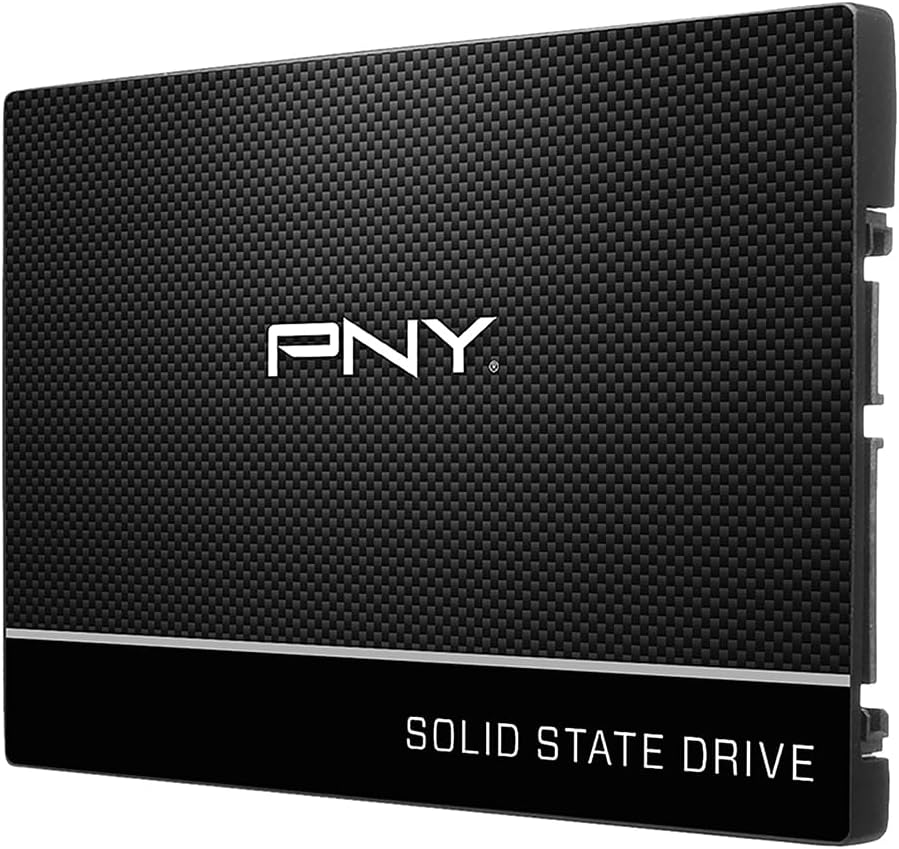
Crucial MX500

The MX500 is the value choice for laptops with a 2.5-inch SATA bay. It performs within a hair of pricier SATA drives, sips power, and includes hardware encryption, all at a friendly price. Its reliability is well proven over years on the market. For an affordable, dependable upgrade to an older notebook, it is hard to do better than the MX500.

Capacity
250GB to 4TB
Interface
SATA III 6Gb/s
Read
Up to 560 MB/s
Form
2.5-inch

What we liked

  • Excellent value 2.5-inch drive
  • Low power draw for battery life
  • Hardware encryption support
  • Proven reliability

Worth noting

  • SATA interface ceiling
  • Requires a 2.5-inch bay

Why Upgrading Your Laptop SSD Is Worth It

Best SSDs for Laptops in 2026

A laptop with a slow or cramped drive is a frustrating thing to live with, and yet many otherwise capable machines ship with mediocre storage to hit a price point. Swapping in a quality SSD is frequently the single most effective upgrade you can make, often more impactful than adding memory. A faster drive shortens boot times, makes applications launch instantly, and keeps the whole system feeling responsive even under load. If your laptop still uses a mechanical hard drive or an early, slow SSD, the improvement from a modern drive borders on miraculous.

Laptops, however, are not desktops, and the best drive for a desktop is not automatically the best for a notebook. Three factors come to the fore in a laptop. First, power efficiency directly affects battery life, since a drive that draws a lot of power shortens your unplugged runtime. Second, thermals matter intensely in a cramped chassis with limited airflow, where a hot-running drive can throttle or contribute to an uncomfortably warm machine. Third, the physical form factor must match what your laptop accepts, whether that is M.2 2280, a shorter module, or a 2.5-inch SATA bay. This guide weighs all three alongside speed and value.

What to Look For in a Laptop SSD

Form Factor Compatibility

Before anything else, confirm what your laptop physically accepts. The most common modern format is M.2 2280, an 80mm-long module that fits most laptops from the last several years. Some thin and light models use shorter 2242 or 2230 modules, and you must match that length or the drive will not fit. Older laptops, particularly those from before M.2 became standard, use 2.5-inch SATA drives in a removable bay. Check your manual or open the access panel to verify. Buying the wrong form factor is the most common laptop upgrade mistake.

Power Efficiency and Battery Life

In a laptop, efficiency can matter more than raw speed. A drive that performs well while drawing little power preserves battery life and runs cooler, both of which improve the everyday experience. This is why drives like the Samsung 990 Pro, SK Hynix Platinum P41, and WD Black SN770 shine in laptops despite different price points; all three are notably efficient. A power-hungry desktop flagship can deliver marginally higher benchmarks while measurably reducing your unplugged runtime, a poor trade in a portable machine.

Thermals in Confined Spaces

Laptops offer little airflow, so a drive that runs hot can throttle and add to overall chassis heat. Most laptops do not have room for an aftermarket heatsink, and many drives sold with tall heatsinks simply will not fit. The solution is to choose an efficient, cool-running drive rather than to add cooling. Buy the bare version of a drive, not the heatsink model, for laptop use. The thin thermal pad many laptops place against the drive cover is generally sufficient when the drive itself runs cool.

Capacity and Endurance

Decide how much space you need based on your usage. Casual users may be fine with 500GB or 1TB, while gamers and creatives benefit from 2TB or more. The Crucial P3 Plus and Kingston NV3 scale to 4TB affordably for those who want maximum room. Endurance matters less for typical laptop use than it does for write-heavy desktop workstations, since most laptop owners write a small fraction of a drive's rated terabytes. Any drive here will comfortably outlast typical laptop ownership for normal use.

How We Tested and Ranked

We tested each drive with synthetic benchmarks and real-world tasks, then placed special emphasis on the factors that matter in laptops. We measured power draw and thermal behavior in confined conditions to gauge battery impact and throttling risk. We evaluated sustained and random performance, since responsiveness in everyday use depends heavily on random speed. We weighed capacity options and price per terabyte, and considered the quality of companion software for firmware updates and health monitoring. Because laptops punish inefficiency, a drive that posts a high benchmark but runs hot or drains battery does not rank as highly as a slightly slower but cooler, more efficient alternative.

Choosing the Right Laptop SSD for You

For the Best All-Around Experience

Most laptop owners seeking a premium upgrade should choose the Samsung 990 Pro or the SK Hynix Platinum P41. Both deliver flagship speed with the efficiency and low heat that laptops demand, and both feel instantly responsive in daily use. The 990 Pro adds the excellent Magician software, while the P41 counters with arguably the best efficiency in its class. Either is an outstanding choice; pick based on price and availability.

For the Best Value

The WD Black SN770 is our value recommendation for the majority of laptop upgrades. It is remarkably efficient for a DRAM-less drive, runs cool without a heatsink, and feels far faster than its modest peak speeds suggest, all at a fair price. The Kingston NV3 is an even cheaper option that still delivers a real NVMe speed jump, ideal when budget is the priority.

For Maximum Capacity

If you want to carry large game or media libraries, the Crucial P3 Plus offers up to 4TB at the lowest cost per terabyte here, with low power draw that suits laptops well. Its QLC NAND means sustained writes slow, but for storage-heavy portable use that is rarely an issue. The Kingston NV3 also reaches 4TB at a budget price for those wanting capacity without flagship cost.

For Older Laptops with a SATA Bay

If your laptop predates M.2 and has a 2.5-inch bay, the Samsung 870 EVO and Crucial MX500 are the drives to buy. Both saturate the SATA interface, draw little power, and have excellent reliability records. The 870 EVO leads on endurance and sustained performance, while the MX500 offers the better value. For an older machine, either will deliver a dramatic, battery-friendly improvement.

Installation and Migration Tips

Upgrading a laptop drive is straightforward with a little care. First, back up your data and confirm the correct form factor. Power down, unplug, and where possible remove the battery, then open the access panel or bottom cover. Ground yourself to avoid static, locate the existing drive, and remove its retaining screw or bracket. Insert the new M.2 drive at an angle and secure it, or slide the new 2.5-inch drive into the bay and fasten it.

To avoid reinstalling everything, clone your existing drive before swapping. Connect the new SSD using a USB-to-NVMe or USB-to-SATA enclosure, run the free cloning utility from your drive maker, such as Samsung Magician or Crucial Storage Executive, and copy the old drive to the new one. Then install the cloned drive and boot. After the upgrade, install the vendor software to confirm firmware is current and to monitor health. If your laptop has a thermal pad on the cover, make sure it contacts the new drive when you close the panel.

Understanding Laptop SSD Slot Limitations

Laptops impose constraints that desktop builders rarely think about, and slot limitations are among the most important. Many thin and light laptops have only a single M.2 slot, which means upgrading is a one-for-one replacement rather than an addition. In those machines you must migrate your data to the new drive, since there is no room to keep the old one installed alongside it. Some laptops offer a second slot, occasionally a shorter 2242 or 2230 slot intended for a smaller secondary drive, so check exactly what your model provides before planning an upgrade.

Slot keying and PCIe lane allocation also matter. Most laptop M.2 slots are M-keyed for NVMe drives, but a few older or budget machines use B+M keyed slots that may only support SATA M.2 drives, which look similar but are an entirely different interface. Installing an NVMe drive in a SATA-only slot will not work. Some laptops also restrict the second slot to fewer PCIe lanes or an older generation, capping the performance of any drive placed there. Reading your laptop's service manual or a reliable teardown before buying prevents an expensive compatibility mistake and ensures you choose a drive your machine can actually use to its full potential.

Common Mistakes When Upgrading a Laptop SSD

The most common mistake is buying the wrong form factor. Assuming every laptop takes a standard M.2 2280 drive leads to disappointment when a slim machine turns out to need a shorter 2242 or 2230 module, or an older one requires a 2.5-inch SATA drive. Always confirm the exact form factor and interface your laptop accepts before ordering. A second frequent error is prioritizing peak benchmark speed over efficiency. In a laptop, a power-hungry drive can measurably shorten battery life and add heat, so an efficient drive that performs slightly lower on benchmarks often delivers a better overall experience.

A third mistake is buying a drive with a tall heatsink that will not fit, or assuming a laptop needs one at all. Most laptops cannot accommodate aftermarket heatsinks and rely on a thin thermal pad against the cover, so choosing an inherently cool, efficient drive is the right approach. Finally, many users reinstall their entire operating system from scratch when a simple clone would have preserved everything. Using a USB enclosure and free cloning software saves hours and avoids the hassle of reinstalling applications and reconfiguring settings.

Getting the Most From Your Laptop SSD

Once installed, a few practices keep a laptop SSD performing well and extend its useful life. Leave some free space, ideally ten to fifteen percent, so the drive can manage caching and background maintenance effectively. Modern operating systems issue the TRIM command automatically, keeping the drive responsive over time without manual intervention. Avoid running the drive completely full for extended periods, which can slow it down and stress the NAND.

Install your drive maker's utility to monitor health and apply firmware updates, since these occasionally fix bugs or improve efficiency, the latter being especially welcome in a battery-powered device. For laptops, it is also worth checking your power settings to ensure the operating system is allowed to manage the drive's low-power states, which helps battery life. With an efficient drive and these simple habits, a laptop SSD upgrade will keep your machine feeling fast and lasting through a full day of unplugged use for years to come.

Final Verdict

The best laptop SSD is the one that balances speed with the efficiency and thermals a portable machine demands, in the form factor your laptop accepts. Our overall pick, the Samsung 990 Pro, delivers flagship performance while staying cool and battery friendly, with the SK Hynix Platinum P41 a near-equal premium alternative. The WD Black SN770 is the value sweet spot for most upgraders, while the Crucial P3 Plus answers the call for affordable capacity. For older laptops with a 2.5-inch bay, the Samsung 870 EVO and Crucial MX500 remain superb. Confirm your form factor, prioritize efficiency, and your laptop will feel transformed.

How we picked

We evaluated drives on power efficiency, thermal behavior in confined spaces, sustained and random performance, capacity options, and price per terabyte. Because laptops are sensitive to heat and battery drain, we weighted efficiency more heavily than peak speed. Rankings reflect mid 2026 retail pricing and firmware.

Frequently asked questions

How do I know which SSD my laptop supports?

Check your laptop's manual or specifications for the storage type and form factor. Most modern laptops use M.2 2280 NVMe, some use shorter M.2 2230 or 2242 modules, and older models use 2.5-inch SATA. Confirm before buying.

Does a faster SSD drain laptop battery quicker?

Efficiency matters more than peak speed. Drives like the Samsung 990 Pro and SK Hynix Platinum P41 are very efficient, so they perform well without hurting battery life. A power-hungry drive can noticeably reduce runtime.

Do I need a heatsink for a laptop SSD?

Usually not, and a heatsink often will not fit. Choose an efficient, cool-running drive instead. Most laptops have a small thermal pad on the cover that contacts the drive, which is sufficient for typical use.

Can I clone my laptop drive to a new SSD?

Yes. Use a USB-to-NVMe or USB-to-SATA enclosure to connect the new drive, run free cloning software from the SSD maker, then swap the cloned drive in. This avoids reinstalling your operating system and applications.

Is PCIe 5.0 worth it in a laptop?

Generally no. Gen5 drives run hot and draw more power, which is poorly suited to laptops, and few notebooks support them. A good efficient PCIe 4.0 drive is the better choice for nearly all laptop upgrades.