Skip to content

Best Wireless Keyboards in 2026

4.5 average · hands-on tested
By Dylan AidenUpdated June 27, 20267 picks tested

We may earn a commission from links on this page, at no extra cost to you. Learn more.

A great wireless keyboard gives you a clean, cable-free desk without the lag or battery anxiety that used to come with it. We tested gaming and everyday wireless boards across price points — from premium Lightspeed to budget tri-mode — and these seven are the ones worth buying in 2026.

Quick comparison

KeyboardBest forRatingPrice
1Logitech G915 TKL LightspeedLogitechBest Overall4.6$$$Check Price
2Royal Kludge RK84Royal KludgeBest Value4.4$$$Check Price
3Keychron K3 MaxKeychronBest Slim Wireless4.5$$$Check Price
4Nuphy Air75 V2NuphyBest for Portability4.6$$$Check Price
5AULA F75 ProAULABest Wireless Feel4.5$$$Check Price
6Redragon K673 ProRedragonBest Budget 75%4.4$$$Check Price
7Royal Kludge RK61Royal KludgeBest Compact 60%4.5$$$Check Price

Our top 7 picks, reviewed

1Best Overall

Logitech G915 TKL Lightspeed

The best wireless keyboard you can buy. Logitech's Lightspeed connection is genuinely indistinguishable from wired, the low-profile switches feel fast, and the slim aluminum body is gorgeous. Bluetooth and strong battery life seal it.

Layout
TKL
Connection
Lightspeed / BT
Profile
Low-profile
Battery
Up to 40h

What we liked

  • Lag-free Lightspeed wireless
  • Premium slim aluminum
  • Bluetooth for second device
  • Reliable battery

Worth noting

  • Low-profile feel divides opinion
  • Not hot-swappable
2Best Value

Royal Kludge RK84

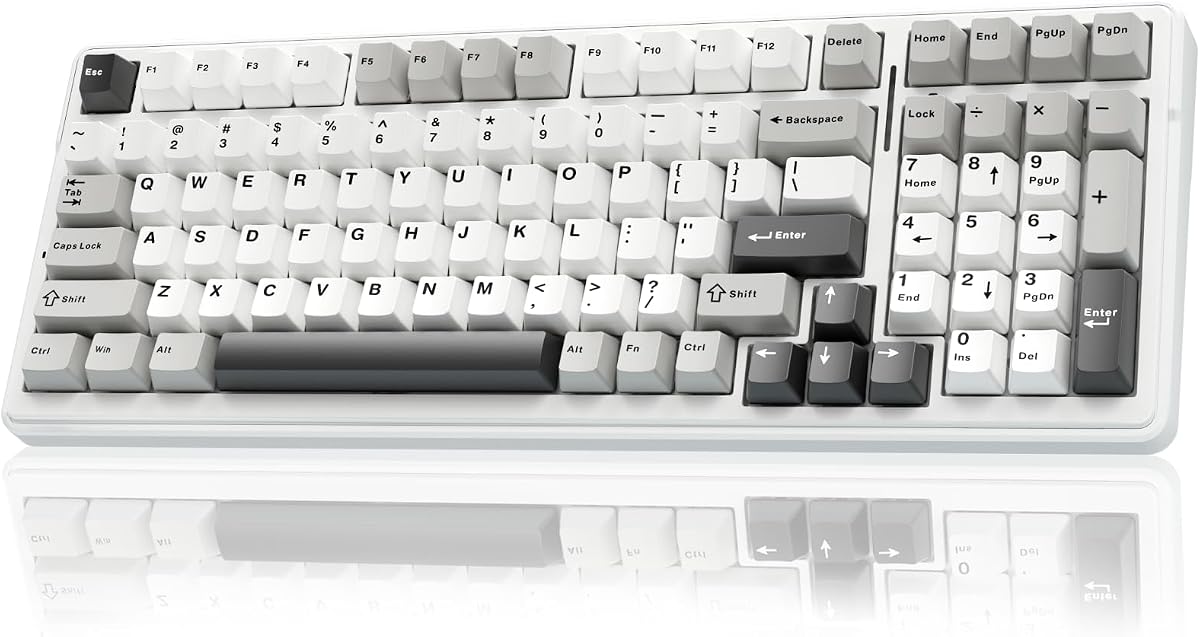
The value champion of wireless. Bluetooth, 2.4GHz and wired in one hot-swappable 75% board for budget money, with battery life that stretches for days. Hard to beat for the price.

Layout
75% (84-key)
Connection
BT / 2.4GHz / USB-C
Switches
Hot-swap
Battery
Up to 200h

What we liked

  • Triple-mode wireless
  • Hot-swap sockets
  • Compact 75%
  • Outstanding price

Worth noting

  • Stabilizers need a tune
  • Basic software
3Best Slim Wireless

Keychron K3 Max

One of the thinnest wireless mechanical boards around, and a rare low-profile keyboard with full QMK/VIA and hot-swap. If you want a slim, programmable wireless board for work and play, the K3 Max nails it.

Layout
75% low-profile
Connection
2.4GHz / BT / USB-C
Software
QMK / VIA
Switches
Hot-swap low-profile

What we liked

  • Ultra-slim aluminum body
  • QMK/VIA programmable
  • Hot-swappable low-profile switches
  • Mac + Windows

Worth noting

  • Low-profile won't suit everyone
  • Smaller keycaps take adjustment
4Best for Portability

Nuphy Air75 V2

The slim board to throw in a bag. The Air75 V2 looks fantastic, hot-swaps low-profile switches, pairs with up to four devices and lasts for days. A favorite of laptop and Mac users who want mechanical feel on the go.

Layout
75% low-profile
Connection
BT / 2.4GHz / USB-C
Keycaps
PBT
Battery
4000mAh

What we liked

  • Gorgeous, travel-friendly design
  • Hot-swappable low-profile
  • Connect up to 4 devices
  • Long battery life

Worth noting

  • Premium for a low-profile board
  • Sidelit RGB only on legends
5Best Wireless Feel

AULA F75 Pro

The best-feeling wireless board for the money. A gasket mount and lubed switches give it a premium, thocky sound, with triple-mode wireless and a knob on top. Punches well above its price.

Layout
75% (81-key)
Mount
Gasket
Connection
BT / 2.4GHz / USB-C
Extras
Volume knob

What we liked

  • Deep, creamy typing sound
  • Gasket mount + knob
  • Triple-mode wireless
  • Large battery

Worth noting

  • Smaller brand support
  • RGB software is rough
6Best Budget 75%

Redragon K673 Pro

Remarkable value: a 75% board with tri-mode wireless, a knob, gasket mount and five layers of dampening, all at a budget price. The most practical cheap wireless pick for everyday use.

Layout
75% (81-key)
Connection
BT / 2.4GHz / USB-C
Switches
Hot-swap
Extras
Knob + foam

What we liked

  • Tri-mode wireless with knob
  • Gasket mount + dampening
  • Hot-swap sockets
  • Keeps arrows + function row

Worth noting

  • Heavier than slim boards
  • Average stock keycaps
7Best Compact 60%

Royal Kludge RK61

The best wireless 60% on a budget. The RK61 packs triple-mode wireless and hot-swap into a tiny shell that's perfect for travel or a minimalist desk. Just be ready to use a function layer for arrows.

Layout
60% (61-key)
Connection
BT / 2.4GHz / USB-C
Switches
Hot-swap
Battery
Up to 200h

What we liked

  • Tiny, travel-friendly footprint
  • Triple-mode wireless
  • Hot-swap sockets
  • PBT keycaps

Worth noting

  • No arrow/function keys
  • Basic software

How to choose a wireless keyboard in 2026

Wireless is no longer a compromise, but the right pick depends on how and where you'll use it. Here's what to weigh.

Connection type. For gaming, prioritize a 2.4GHz dongle — its latency is low enough to feel wired. Bluetooth is the convenience option for laptops, tablets and phones, and lets you switch devices without a spare USB port. The best boards here, like the G915 TKL and RK84, give you both plus a wired mode.

Latency. Don't fear modern wireless. Lightspeed and good 2.4GHz implementations are effectively lag-free for the vast majority of players. Only elite competitive shooters benefit from wired.

Battery life. RGB backlighting is the biggest drain. With lighting off, budget boards run for weeks; with it on, expect 30–50 hours. If you forget to charge things, look for high-capacity batteries (the AULA F75 Pro and Nuphy pack 4000mAh).

Profile and size. Low-profile boards (G915 TKL, Keychron K3 Max, Nuphy Air75 V2) are slim and travel well, with a shorter, laptop-like keystroke. Standard-profile boards feel deeper and more traditional. Smaller layouts (60%, 75%) free desk space; full-size keeps the numpad.

Switches and feel. Hot-swap sockets (RK84, K3 Max, RK61) let you change switches later. Gasket mounts and foam (AULA F75 Pro, K673 Pro) give a softer, deeper sound.

Multi-device switching. If you bounce between a work laptop, desktop and tablet, look for boards that pair with several devices and switch with a shortcut — most here connect to three or more.

Decide whether you're optimizing for gaming latency, slim portability, or value, then let our ranked picks guide you.

2.4GHz vs Bluetooth: not the same thing

Most wireless keyboards sold in 2026 advertise "wireless" as a single feature. In practice, 2.4GHz and Bluetooth behave very differently, and choosing between them (or a board that offers both) matters depending on how you plan to use it.

2.4GHz wireless uses a USB dongle that plugs into your computer. The signal operates on the 2.4GHz radio band with a dedicated protocol designed for low latency. Premium implementations like Logitech Lightspeed achieve sub-1ms latency — genuinely indistinguishable from wired for almost all users. Standard 2.4GHz (used in budget boards like the RK84) runs at higher latency but still fast enough for casual and moderate gaming.

Bluetooth connects without a dongle and can pair with multiple devices simultaneously. The tradeoff is higher latency — typically 8–20ms for Bluetooth 5.0, compared to 1–2ms for 2.4GHz. For typing, productivity, and casual gaming, this difference is imperceptible. For competitive FPS gaming, it's meaningful.

Boards that offer both (tri-mode: 2.4GHz + Bluetooth + wired) give you the best of all situations. Use 2.4GHz for gaming at the main desk, Bluetooth for pairing to a laptop or tablet in another room.

The battery life question: what the numbers actually mean

Keyboard battery specs are almost always measured without RGB lighting. With lighting on at full brightness, expect actual battery life to be 10–20% of the stated maximum in most cases.

A board rated at "200 hours" means 200 hours with lighting completely off. At 50% brightness, you might get 40–60 hours. At full RGB brightness, 15–25 hours. These numbers aren't deceptive — the spec sheet says "with lighting off" — but many buyers miss this detail and are surprised when they need to charge more often than expected.

If you use lighting regularly, focus on boards with high-capacity batteries (3,000mAh and above) or convenient USB-C charging. The AULA F75 Pro and Nuphy Air75 V2 both ship with 4000mAh batteries that maintain usable runtime even with lighting on.

If you're fine with lighting off, almost any wireless board in this list runs for weeks between charges. Budget boards like the RK84 and RK61 can last months with lighting disabled.

Multi-device switching: the underrated feature for desk workers

Wireless keyboards shine in multi-device setups. If your desk has a work laptop, personal desktop, and occasionally a tablet, a keyboard that pairs with all three and switches between them with a keypress shortcut is genuinely more useful than it sounds.

Most keyboards in this list support pairing with three or more devices via Bluetooth, plus the 2.4GHz connection as a fourth option. Switching usually takes 2–3 seconds — fast enough that it doesn't interrupt your workflow.

The practical effect: one high-quality keyboard serves all your devices instead of each device needing its own input. The cost of a good wireless keyboard becomes more justified when it replaces two or three mediocre ones.

Wireless gaming: where it matters and where it doesn't

For FPS and competitive multiplayer, wireless latency is the main concern. 2.4GHz boards in the sub-1ms range (Logitech Lightspeed boards) are effectively on par with wired for competitive play. Standard 2.4GHz (most other boards) adds a few milliseconds — noticeable in theory, debated in practice by everyone except top-ranked competitive players.

For gaming genres where reaction time is less critical — RPGs, strategy games, open-world exploration, platformers — even Bluetooth latency has no practical impact on gameplay. The signal arrives well within the input window for these genres.

If you play ranked competitive shooters seriously and latency is a concern, the G915 TKL (Lightspeed) is the wireless choice that removes any doubt. For everything else, standard 2.4GHz is fast enough.

What to look for in a wireless keyboard for the office

Office use has different priorities than gaming. Here's what matters most for a professional desk setup.

Multi-device Bluetooth is the most important feature. Switching between a work laptop, personal laptop, and desktop without swapping cables or dongles keeps the desk tidy and the workflow smooth.

Battery life with lighting off. Office keyboards don't need RGB. Turning lighting off dramatically extends runtime — most keyboards last 2–6 weeks between charges with lighting disabled.

Quiet switches. Open offices and calls require a keyboard that doesn't announce every keypress to the room. Silent mechanical switches (Gateron Silent, Cherry MX Silent) or the scissor-switch mechanism in low-profile boards keep noise to a professional minimum.

Compact layout. A TKL or 75% board leaves more desk space for notebooks, documents, and secondary devices. Most office workers don't need a numpad for non-data-entry work.

Wireless keyboards for Mac users: what to check

Mac users face a few specific considerations that Windows users don't when choosing a wireless keyboard.

Key layout compatibility. Standard Windows keyboards map their modifier keys differently from Mac. The Alt key on Windows is Option on Mac, and the Windows key corresponds to Command. Many keyboards remap these automatically when set to Mac mode, but it's worth confirming in product specs. Keychron keyboards specifically are designed with Mac compatibility — they include Mac-specific keycaps and switch between Windows and Mac modifier layouts with a hardware toggle.

Bluetooth stability on Apple silicon. Some older Bluetooth keyboards experience connection drops with Apple M-series Macs. Current-generation Bluetooth 5.0 and 5.1 keyboards are generally stable, but check recent user reviews specifically mentioning Mac compatibility if this is a concern.

Software compatibility. Keyboards with Windows-only configuration software (some Corsair and Razer models) can't access their full feature set on macOS. QMK/VIA keyboards configure through a web browser and work identically on Mac, Windows, and Linux. For Mac users who want deep programmability, QMK/VIA is the better ecosystem.

Lightning vs USB-C. All current keyboards in this list charge via USB-C, which is convenient for Mac users with USB-C/Thunderbolt-only setups. Avoid older keyboards that charge via proprietary connectors or micro-USB.

Keeping a wireless keyboard desk setup tidy

One of the main reasons people choose wireless keyboards is desk cleanliness. A few practical habits preserve that clean aesthetic and keep the wireless setup working smoothly.

Designate a charging spot. Keep a short USB-C cable at one corner of your desk specifically for keyboard charging. When the battery indicator drops, you spend 30 seconds plugging it in rather than hunting for a cable. This prevents the "battery died mid-game" frustration that leads many people back to wired.

Store the 2.4GHz dongle. The USB dongle that ships with 2.4GHz keyboards is small and easy to lose. If your computer is under your desk, use a USB extension cable to bring a port to desk level so the dongle stays accessible and maintains a strong signal. Alternatively, many keyboards include a dongle storage slot in the battery compartment — use it.

Keep Bluetooth device list current. Wireless keyboards that pair via Bluetooth maintain a list of paired devices. Over time this fills with old devices — phones and laptops you no longer use. Clear stale pairings periodically so the keyboard connects to your current devices without searching through outdated entries.

Use the power switch. Most wireless keyboards have a power switch or automatic sleep mode. Turning the keyboard off when you leave your desk (or letting sleep mode activate) extends battery life and reduces RF noise in environments with many wireless devices.

Bluetooth versus a 2.4GHz dongle

The biggest choice with a wireless keyboard is how it connects. Bluetooth needs no USB port, pairs with laptops, tablets and phones, and is ideal for travel and multi-device use, though it can carry slightly more latency and occasionally takes a moment to wake. A 2.4GHz USB dongle delivers a faster, rock-solid connection that feels essentially like wired, which matters for gaming and fast typing, but it uses a USB port. Many of the best wireless keyboards offer both, letting you use the dongle at your desk and Bluetooth on the move. Decide which fits your devices and habits.

Battery life and what affects it

Wireless keyboard battery life varies enormously depending on the board and its features. Simple keyboards without backlighting can run for months on a charge or a set of batteries, while boards with bright RGB lighting may need charging every week or two if you keep the lights on. Most boards let you dim or disable lighting to extend battery life dramatically. Look for the rated battery life with lighting off and on, and consider whether you prefer a rechargeable battery or replaceable cells, so charging fits comfortably into your routine rather than interrupting it.

Multi-device pairing for a tidy setup

A standout feature of many wireless keyboards is multi-device pairing, which lets you connect to several devices and switch between them with a key or dial. If you move between a work laptop, a personal desktop and a tablet, one keyboard can control them all, switching in an instant. This keeps your desk tidy and saves swapping keyboards or re-pairing constantly. For anyone with more than one device, multi-device support is a genuine daily convenience, so it is worth prioritising if your setup spans several machines.

When wireless is the right choice

Wireless keyboards shine for tidy desks, flexible seating, travel and multi-device setups, and modern wireless is reliable enough that the small latency rarely matters for typing and everyday use. If you game competitively, choose a board with a 2.4GHz dongle for the lowest latency, or simply use a wired board for those sessions. For the vast majority of work, browsing and casual gaming, a good wireless keyboard delivers all the responsiveness you need with the freedom of no cable, which is why so many people now prefer them.

Getting the most from a wireless keyboard

A few habits keep a wireless keyboard performing well. Keep the firmware updated for the best stability and battery life, place the 2.4GHz dongle in a front USB port or use an extender to avoid interference, and learn the device-switching shortcut if your board supports multipoint. Dim or schedule the backlighting to stretch battery life, and keep a charging cable or spare batteries handy. With sensible setup, a quality wireless keyboard delivers a clean, cable-free desk without any of the reliability worries that wireless once had.

A tidy desk without compromise

Wireless keyboards have reached the point where going cable-free no longer means giving up performance. With reliable connections, long battery life and multi-device switching, a good wireless board delivers everything a wired one does for everyday use while keeping your desk clean and flexible. Choose the connection and battery setup that suit your routine, and you get the freedom of wireless with none of the old frustrations.

How we picked

We tested each board wired and wireless, measuring real-world latency over 2.4GHz and Bluetooth, plus battery life with and without backlighting. We also scored switch feel, build, keycaps and how cleanly each pairs and switches between devices. Connectivity reliability mattered as much as raw feel.

Frequently asked questions

Is wireless fast enough for gaming?

Yes — modern 2.4GHz wireless like Logitech Lightspeed (G915 TKL) or the RK84's dongle is effectively lag-free for nearly everyone. Bluetooth is best for everyday use and second devices rather than competitive gaming.

What's the difference between 2.4GHz and Bluetooth?

A 2.4GHz dongle gives the lowest, most consistent latency — ideal for gaming. Bluetooth is more convenient for laptops, tablets and phones and uses no USB port, but has slightly higher latency. Most boards here offer both.

How long do these wireless keyboards last on a charge?

It varies with backlighting. With RGB off, boards like the RK84 and RK61 can run 100–200 hours; with lighting on, expect 30–50 hours on most. The G915 TKL manages around 40 hours with its low-profile lighting.

Are low-profile wireless keyboards good for typing?

Yes, if you like a shorter key travel — boards like the Keychron K3 Max and Nuphy Air75 V2 feel fast and are great for laptops and Macs. If you prefer a deeper, full-height keystroke, choose a standard-profile board like the RK84.