Skip to content

Best Monitors for Video Editing in 2026

4.6 average · hands-on tested
By Thomas BrianUpdated June 27, 20268 picks tested

We may earn a commission from links on this page, at no extra cost to you. Learn more.

For video editing, the monitor is your most important tool — it has to show colour accurately so your edits look right everywhere, with enough resolution to see fine detail and fit a timeline, wide colour-gamut coverage for grading, and the connectivity to anchor a creative setup. The best editing monitors range from factory-calibrated 4K IPS panels to vivid wide-gamut OLEDs. After researching and comparing the top displays for Premiere, DaVinci Resolve and Final Cut, these are the eight best monitors for video editing in 2026.

Quick comparison

KeyboardBest forRatingPrice
1Dell UltraSharp U3225QE (31.5" 4K)DellBest Overall4.7$$$Check Price
2ASUS ProArt PA278CV (27" QHD)ASUSBest Value Calibrated4.6$$$Check Price
3ASUS ROG Swift OLED PG32UCDM (32" 4K)ASUSBest OLED for Video4.6$$$Check Price
4Dell UltraSharp U2725QE (27" 4K)DellBest 27-inch4.6$$$Check Price
5Samsung Odyssey OLED G8 (32" 4K)SamsungBest for Video + Grading4.5$$$Check Price
6LG UltraGear 32 4K OLED (32GX850A)LGBest 4K OLED Alternative4.5$$$Check Price
7Alienware AW2725Q (27" 4K QD-OLED)AlienwareBest Sharp 4K OLED4.5$$$Check Price
8LG UltraFine 27UP850K (27" 4K)LGBest Budget 4K4.5$$$Check Price

Our top 8 picks, reviewed

1Best Overall

Dell UltraSharp U3225QE (31.5" 4K)

The Dell UltraSharp U3225QE is the best monitor for video editing, a spacious 31.5-inch 4K display that nails what editors need. Its IPS Black panel delivers accurate colour, deep contrast and crisp 4K detail across a big canvas — ideal for grading footage and spreading out a timeline — while the Thunderbolt hub anchors your editing setup, charging a laptop and connecting drives and peripherals over one cable. The ergonomics and build are superb. It's large for compact desks and premium-priced, but for a colour-accurate, spacious, well-connected 4K editing display that also doubles as a top-tier work monitor, it's the standout.

Panel
31.5" 4K IPS Black
Refresh
120Hz
Connectivity
Thunderbolt hub
Colour
Accurate, wide gamut

What we liked

  • Big, sharp, colour-accurate 4K
  • Thunderbolt docking and ports
  • Deep contrast for an IPS
  • Excellent ergonomics and build

Worth noting

  • Large for small desks
  • Premium price
2Best Value Calibrated

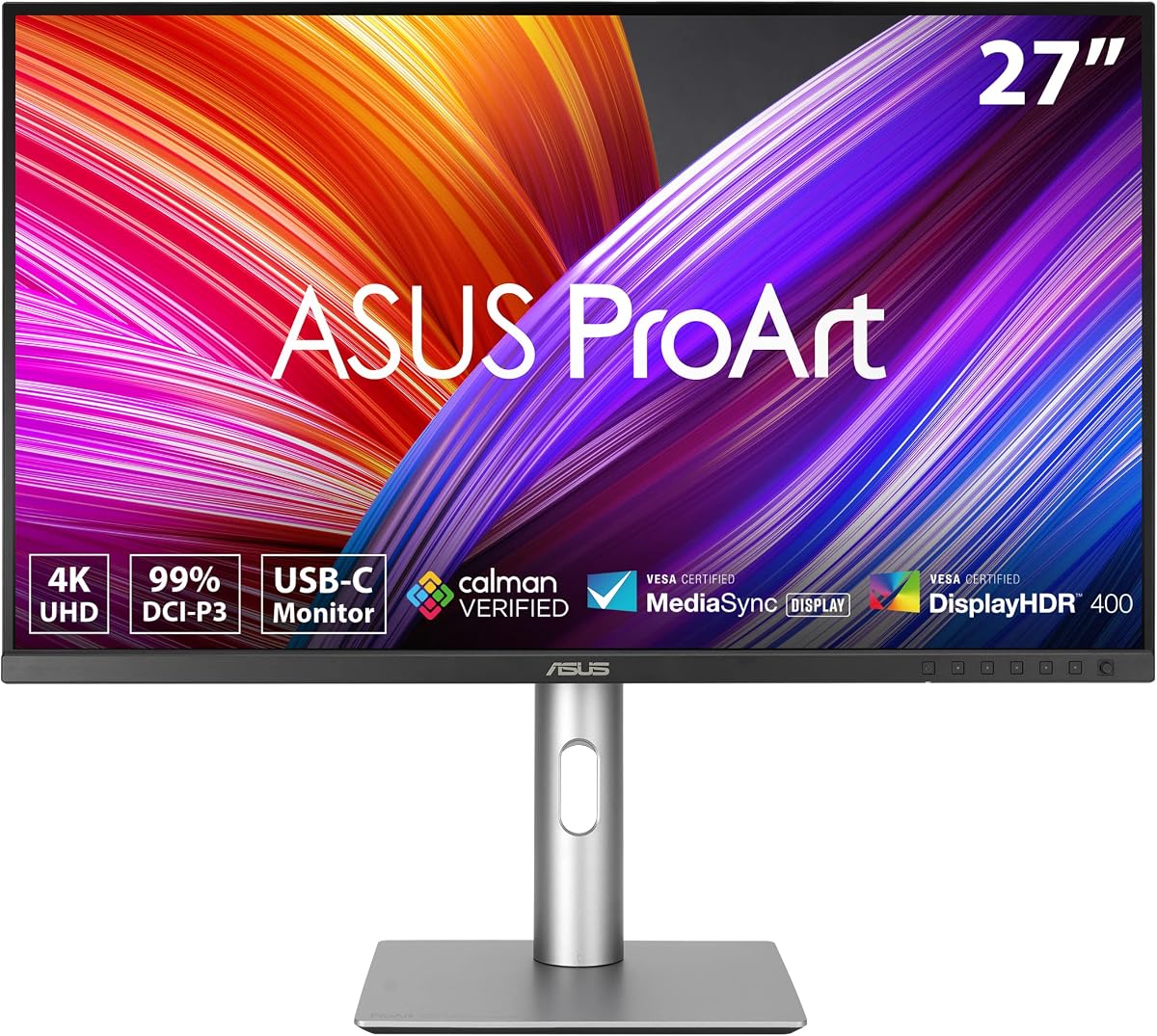
ASUS ProArt PA278CV (27" QHD)

The ASUS ProArt PA278CV is the best value monitor for video editing, a creator-focused display with accurate, factory-calibrated colour at an affordable price. For editing where colour fidelity matters, the calibrated panel means what you grade is true, and USB-C provides 65W charging plus a hub to anchor a laptop-based editing setup over one cable. The ProArt line is built for creators, with an ergonomic stand and useful tools. It's QHD rather than 4K, so it has less timeline space and detail than a 4K panel, but for editors who want professional colour accuracy without spending big, it's an outstanding, value-packed creator monitor.

Panel
27" QHD IPS
Colour
Factory-calibrated
Connectivity
USB-C 65W hub
Use
Creative

What we liked

  • Factory-calibrated accurate colour
  • USB-C charging and hub
  • Great value for editing
  • Ergonomic stand

Worth noting

  • QHD not 4K
  • 60Hz
3Best OLED for Video

ASUS ROG Swift OLED PG32UCDM (32" 4K)

The ASUS ROG Swift OLED PG32UCDM is the best OLED monitor for video editing, a 32-inch 4K QD-OLED that's stunning for previewing and grading footage. Its perfect blacks, wide colour gamut and superb HDR show video exactly as intended — especially HDR content, where OLED's contrast is unmatched — and USB-C plus HDMI 2.1 anchor a creative setup. After hours, it's an elite gaming monitor too. As an OLED it needs basic burn-in care if you keep static editing UIs on screen for many hours, and it's premium-priced, but for editors who want the most impactful, contrast-rich image for video work (and gaming), it's gorgeous.

Panel
32" 4K QD-OLED
Colour
Wide gamut HDR
Connectivity
USB-C, HDMI 2.1
Use
Video + gaming

What we liked

  • Big 4K QD-OLED with superb HDR
  • Wide colour gamut
  • USB-C connectivity
  • Doubles as elite gaming display

Worth noting

  • OLED burn-in care for static UIs
  • Premium price
4Best 27-inch

Dell UltraSharp U2725QE (27" 4K)

The Dell UltraSharp U2725QE is the best 27-inch monitor for video editing, ideal for editors who want the UltraSharp's accurate 4K colour in a more compact, desk-friendly size. Its 27-inch IPS Black panel delivers crisp 4K detail, deep contrast and accurate colour for grading, with Thunderbolt docking to anchor a laptop editing setup over one cable and superb ergonomics. The 27-inch canvas is smaller than the 32-inch model for spreading out a timeline, and it's premium-priced, but for a colour-accurate, well-connected 4K editing display that fits a standard desk and doubles as an excellent work monitor, it's a top choice.

Panel
27" 4K IPS Black
Connectivity
Thunderbolt hub
Colour
Accurate
Refresh
120Hz

What we liked

  • Sharp, colour-accurate 4K in 27"
  • Thunderbolt docking
  • Deep contrast and great colour
  • Superb ergonomics

Worth noting

  • Smaller canvas than 32"
  • Premium price
5Best for Video + Grading

Samsung Odyssey OLED G8 (32" 4K)

The Samsung Odyssey OLED G8 is a superb OLED choice for editors who prioritise how footage looks, a 32-inch 4K QD-OLED with a gorgeous, vivid image. The perfect blacks and rich colour make it excellent for previewing and grading video — particularly HDR projects, where OLED's contrast truly shines — on a big, immersive canvas, with USB-C to simplify connection. It needs basic OLED burn-in care if you keep static editing interfaces on screen for long periods, and the glossy panel can show glare in bright rooms, but for an editor who wants a stunning, contrast-rich display for video work and media, it's a spectacular option.

Panel
32" 4K QD-OLED
Colour
Vivid wide gamut
Connectivity
USB-C, HDMI 2.1
Use
Video + media

What we liked

  • Stunning 4K QD-OLED for footage
  • Perfect blacks for HDR grading
  • Big, immersive 32" canvas
  • USB-C connectivity

Worth noting

  • OLED burn-in care for static UIs
  • Glossy finish shows glare
6Best 4K OLED Alternative

LG UltraGear 32 4K OLED (32GX850A)

The LG UltraGear 32 4K OLED is an excellent 4K OLED alternative for video editing, pairing LG's renowned OLED image quality with a large 32-inch 4K panel. The perfect blacks, vivid colour and wide gamut make footage look superb — especially HDR content — on a big, immersive canvas, and it doubles brilliantly for media and gaming. Like all OLEDs it needs basic burn-in care if you display static editing UIs for long hours, and it's premium-priced, but for editors choosing between LG and Samsung's OLEDs who want a big, beautiful, contrast-rich 4K display for video work, it's an equally gorgeous and capable choice.

Panel
32" OLED
Resolution
4K UHD
Colour
Wide gamut
Connectivity
HDMI 2.1

What we liked

  • Gorgeous 4K OLED image
  • Wide colour gamut
  • Great for video and media
  • HDMI 2.1

Worth noting

  • OLED burn-in care
  • Premium price
7Best Sharp 4K OLED

Alienware AW2725Q (27" 4K QD-OLED)

The Alienware AW2725Q is the best sharp 4K OLED for editing, packing 4K QD-OLED into a 27-inch frame for exceptional pixel density. At this size, 4K footage and detail look astonishingly crisp, and the QD-OLED panel delivers outstanding contrast, perfect blacks and vivid wide-gamut colour — excellent for detailed editing and HDR grading where you sit close. The 27-inch canvas is smaller than a 32-inch panel for spreading out a complex timeline, and it's expensive, but for editors who prize maximum sharpness and OLED image quality in a compact display, it's a stunning, detail-rich choice that doubles as a top gaming monitor.

Panel
27" QD-OLED
Resolution
4K UHD
Colour
Wide gamut
Density
High PPI

What we liked

  • Incredibly sharp 27" 4K
  • QD-OLED contrast and colour
  • Great for detailed editing
  • Premium build

Worth noting

  • Smaller canvas for timelines
  • Expensive
8Best Budget 4K

LG UltraFine 27UP850K (27" 4K)

The LG UltraFine 27UP850K is the best budget 4K monitor for video editing, delivering sharp 4K resolution and wide P3 colour for less than the premium creator displays. The 27-inch IPS panel renders fine detail well with good colour for editing, and 90W USB-C charging plus a hub anchor a laptop-based setup over one cable — great value for a 4K editing display. It isn't factory-calibrated to the same standard as the ProArt (you can calibrate it yourself) and it's 60Hz, but for editors who want genuine 4K resolution and good colour for editing on a budget, the UltraFine is an excellent, sensible value choice.

Panel
27" 4K IPS
Colour
P3 wide gamut
Connectivity
USB-C 90W
Use
Editing value

What we liked

  • Sharp 4K with wide P3 colour
  • 90W USB-C charging and hub
  • Good value for 4K editing
  • One-cable laptop setup

Worth noting

  • Not factory-calibrated like ProArt
  • 60Hz

How to choose a monitor for video editing in 2026

For editors, the monitor is a precision tool, so colour accuracy and resolution lead the decision. Here's how to choose the right one.

Prioritise colour accuracy above all

For video editing, accurate colour is the most important quality, because you judge and grade every shot by what's on screen — if the display is inaccurate, your work will look wrong everywhere else. Look for a monitor with strong colour accuracy and wide colour-gamut coverage (full sRGB at minimum, and most of DCI-P3 for richer work). Factory-calibrated creator monitors like the ASUS ProArt arrive accurate out of the box, while other quality displays (the Dell UltraSharps) offer excellent colour you can calibrate further. For colour-critical work, this is non-negotiable, and for casual editing it still ensures your results translate well. Whatever your budget, make colour accuracy your first priority.

Choose 4K for detail and timeline space

Resolution is the next priority, and 4K is the ideal for editing. It lets you see fine detail in your footage, preview high-resolution video closer to native, and fit more of your timeline, preview window and tool panels on screen at once — a real productivity benefit. A larger 32-inch 4K display (Dell U3225QE, the OLEDs) gives the most workspace, while a 27-inch 4K (Dell U2725QE, Alienware) is sharper per inch and fits smaller desks. A calibrated QHD monitor (ASUS ProArt) is a more affordable option that prioritises colour over resolution. If you can, choose 4K for the best editing experience; if budget is tight, a colour-accurate QHD display is a reasonable compromise.

Weigh OLED against calibrated IPS

The panel decision balances image impact against reliability. OLED panels (ASUS ROG Swift OLED, Samsung G8, LG) deliver perfect blacks, infinite contrast and vivid colour that's stunning for previewing footage and, crucially, for grading HDR content where their contrast is unmatched. Calibrated IPS panels (Dell UltraSharp, ASUS ProArt) offer excellent, consistent, accurate colour with no burn-in risk from the static interface elements that fill editing software all day. For HDR-focused grading and maximum image impact, OLED is compelling (with basic burn-in care); for accurate, worry-free all-day SDR editing, calibrated IPS is the safer, more practical choice. Many editors choose IPS for reliability, or OLED specifically for HDR work.

Anchor your setup with the right connectivity

Editing involves a lot of gear — external drives full of footage, a second display, peripherals, and often a laptop — so connectivity matters. A monitor with USB-C or Thunderbolt (the Dell UltraSharps, ASUS ProArt, LG UltraFine) can anchor your setup, charging a laptop and connecting everything over a single cable, with Thunderbolt offering high bandwidth for fast external SSDs. Ample ports (USB-A, additional video inputs, an SD reader on some) reduce the need for dongles. If you edit on a desktop, standard ports suffice, but for laptop-based editors, a USB-C/Thunderbolt monitor that doubles as a dock is a major workflow convenience worth prioritising.

Consider size, ergonomics and your desk

Screen size affects both your workspace and how the monitor fits your space. A 32-inch 4K display gives the most room to spread out a timeline and panels, ideal for complex projects, but needs a deeper desk. A 27-inch 4K monitor is sharper per inch and fits standard desks, great if space is limited or you sit close. Some editors run dual monitors (one for the timeline, one for full-screen preview). Ergonomics matter for long editing sessions: a fully adjustable stand (the Dell UltraSharps, ASUS ProArt) lets you set a comfortable position, and VESA support allows a monitor arm. Match the size and setup to your desk, projects and whether you prefer one large display or a multi-monitor workspace.

Match the spend to your editing level

Finally, align your budget with how serious your editing is. A professional editor delivering colour-critical work benefits from a large, accurate 4K display (Dell U3225QE) or a calibrated creator panel, and should budget for calibration. An editor who also values HDR grading or image impact may prefer a 4K OLED (ASUS ROG Swift OLED, Samsung G8). But excellent value exists: the factory-calibrated ASUS ProArt delivers professional colour at QHD affordably, and the LG UltraFine offers genuine 4K editing on a budget. Decide whether colour accuracy, 4K detail, screen size, HDR capability or value matters most for your work, and choose the monitor that delivers those — rather than overpaying for capabilities your editing doesn't require.

Calibrate and consider a reference workflow

To get truly accurate results, think beyond the panel to your colour-management workflow. Factory-calibrated monitors (the ASUS ProArt) arrive ready for accurate work, while other good displays benefit from periodic calibration with a hardware colorimeter — an inexpensive accessory that keeps colour accurate and consistent over time as panels age. For professional delivery, this matters: your grades must look right on other screens, in broadcast, or in print. Many editors also use a calibrated reference setup, with the editing monitor for the interface and a separate accurate display (or a calibrated second monitor) for full-screen preview. If your work is colour-critical, budget for calibration regardless of which monitor you choose, and consider how a reference display fits your pipeline. For casual editing, a good out-of-the-box panel is fine — but the more professional your output, the more a calibrated, consistent workflow pays off.

The bottom line: the Dell UltraSharp U3225QE is the best monitor for video editing, with a spacious, colour-accurate 4K canvas and Thunderbolt docking. Choose the ASUS ProArt PA278CV for calibrated value, the ASUS ROG Swift OLED PG32UCDM or Samsung Odyssey OLED G8 for OLED image quality, and the LG UltraFine 27UP850K for budget 4K. Use our ranked picks above to find the right editing display for your work.

How we picked

We compared monitors for video editing on the factors that define them: colour accuracy and wide-gamut coverage (sRGB, DCI-P3) for grading; resolution (4K for detail and timeline space); panel quality (calibrated IPS for accuracy, OLED for contrast); connectivity (USB-C/Thunderbolt docking, ample ports); ergonomics; build; and value. We weighted colour accuracy and resolution most heavily, since they matter most for editing, and included calibrated creator panels, premium OLEDs and value 4K options across budgets so there's a strong pick for every editor.

Frequently asked questions

What is the best monitor for video editing in 2026?

The Dell UltraSharp U3225QE is the best monitor for video editing, a spacious 31.5-inch 4K display with accurate colour, deep contrast and Thunderbolt docking. For value, the factory-calibrated ASUS ProArt PA278CV; for the best OLED image, the ASUS ROG Swift OLED PG32UCDM or Samsung Odyssey OLED G8; and for a budget 4K option, the LG UltraFine 27UP850K. The right pick depends on your need for screen size, colour accuracy, and budget.

What specs matter most for a video editing monitor?

Colour accuracy and resolution matter most. You want a display that shows colour accurately (ideally factory-calibrated, like the ASUS ProArt) with wide colour-gamut coverage (most of DCI-P3) so your grades look right everywhere, and 4K resolution for fine detail and timeline space. Beyond that, good connectivity (USB-C/Thunderbolt to anchor your setup and connect drives), ample screen size for spreading out an editing workspace, and a comfortable, ergonomic stand all matter. Refresh rate is far less important for editing than for gaming.

Do I need a 4K monitor for video editing?

It's strongly recommended. 4K resolution lets you see fine detail in your footage, preview high-resolution video closer to its native resolution, and fit more of your timeline and tool panels on screen — all valuable for editing. A QHD monitor (like the calibrated ASUS ProArt) is a usable, more affordable option with the benefit of accurate colour, but 4K gives a meaningfully better editing experience. If your budget allows, a colour-accurate 4K monitor is the ideal editing display; if not, prioritise colour accuracy at QHD.

Is OLED or IPS better for video editing?

Both have strengths. OLED (ASUS ROG Swift OLED, Samsung G8, LG) offers perfect blacks, infinite contrast and vivid colour that's stunning for previewing footage and grading HDR content, where its contrast is unmatched. Calibrated IPS (Dell UltraSharp, ASUS ProArt) offers excellent, consistent colour accuracy out of the box, no burn-in risk from static editing UIs, and reliable performance for all-day SDR editing. For HDR-focused work and image impact, OLED; for accurate, worry-free all-day editing, calibrated IPS. Many editors use IPS for the safety, or OLED for HDR grading with care.

How important is colour accuracy and calibration?

Critical for professional video work. If your monitor shows colours inaccurately, your edits and grades will look wrong on other screens and in delivery. A factory-calibrated monitor (the ASUS ProArt) arrives accurate, while other good displays benefit from calibration with a hardware colorimeter — an inexpensive accessory worth investing in for serious work. For colour-critical projects, accurate, calibrated colour with wide gamut coverage is essential. For casual editing, a good out-of-the-box display is fine, but anyone delivering professional work should prioritise accuracy and calibrate regularly.

Should an editing monitor have USB-C or Thunderbolt?

It's very useful, especially for laptop-based editors. A monitor with USB-C or Thunderbolt (the Dell UltraSharps, ASUS ProArt, LG UltraFine) can charge your laptop, carry video, and connect drives and peripherals over a single cable — anchoring your editing setup and keeping the desk tidy. Thunderbolt in particular offers high bandwidth for fast external drives full of footage. If you edit on a desktop, standard DisplayPort/HDMI is fine. But for laptop editors who dock and undock, a USB-C/Thunderbolt editing monitor is a genuine workflow upgrade.