Best Monitors for Home Office in 2026
We may earn a commission from links on this page, at no extra cost to you. Learn more.
A home office monitor is where you'll spend your whole working day, so it should make long hours comfortable and productive: sharp text for documents and spreadsheets, an ergonomic stand to set the perfect height, ideally USB-C docking to power your laptop and tidy your desk, and a panel that's easy on the eyes. Raw gaming speed matters far less than clarity, ergonomics and connectivity. After researching and comparing the top options, these are the eight best monitors for a home office in 2026, for every desk and budget.
Quick comparison
| Keyboard | Best for | Rating | Price | |
|---|---|---|---|---|
| 1Dell UltraSharp U2725QE (27" 4K)Dell | Best Overall | 4.7 | $$$ | Check Price |
| 2ASUS ProArt PA278CV (27" QHD)ASUS | Best Value Productivity | 4.6 | $$$ | Check Price |
| 3Dell UltraSharp U3225QE (31.5" 4K)Dell | Best Big Screen | 4.6 | $$$ | Check Price |
| 4LG UltraFine 27UP850K (27" 4K USB-C)LG | Best 4K USB-C Value | 4.5 | $$$ | Check Price |
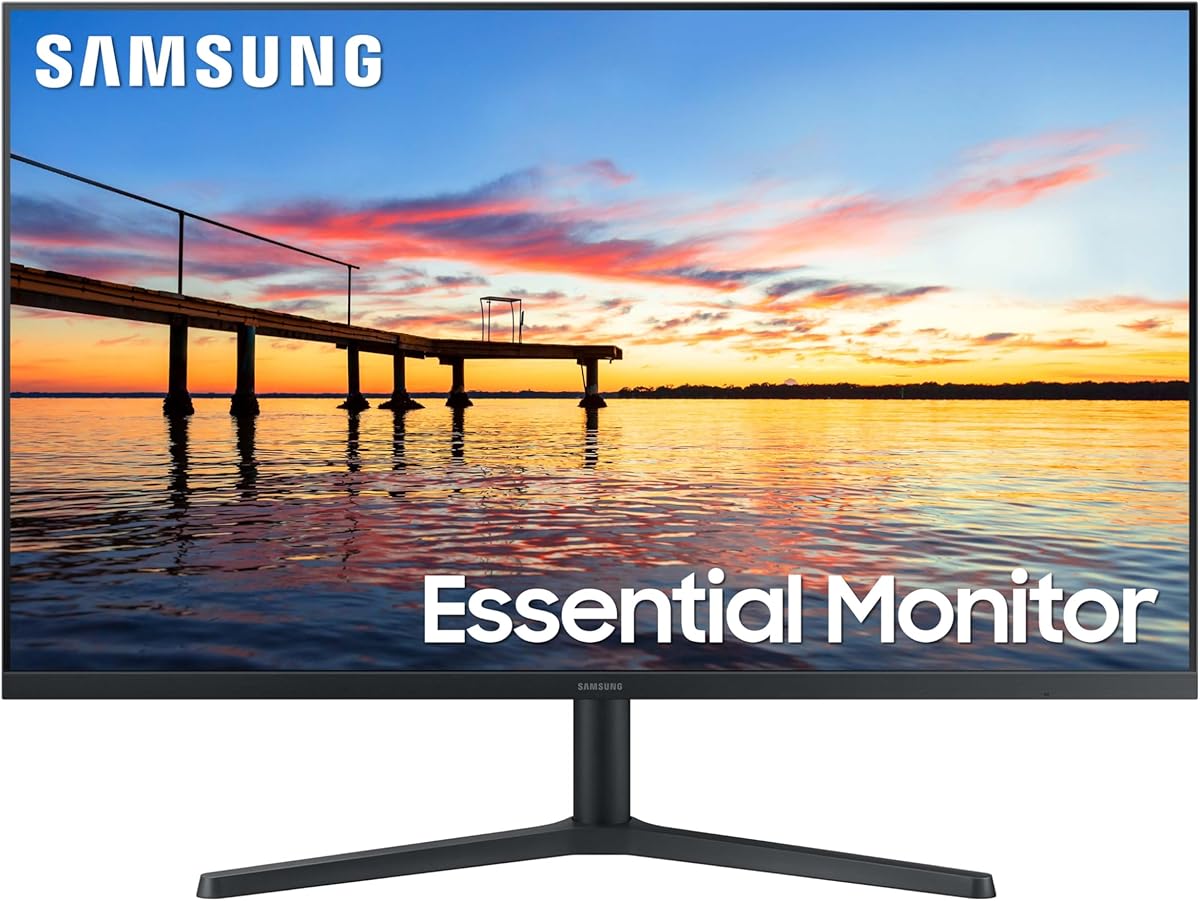
| 5Samsung ViewFinity S65UA (34" UW)Samsung | Best Ultrawide | 4.5 | $$$ | Check Price |
| 6Gigabyte M27Q2 (27" QHD)Gigabyte | Best All-Rounder Value | 4.5 | $$$ | Check Price |
| 7Sceptre Prime 27 (27")Sceptre | Best Budget | 4.3 | $$$ | Check Price |
| 8Samsung ViewFinity S50GC (34" UW)Samsung | Best Budget Ultrawide | 4.4 | $$$ | Check Price |
Our top 8 picks, reviewed
Dell UltraSharp U2725QE (27" 4K)
The Dell UltraSharp U2725QE is the best home office monitor, the modern benchmark for productivity. Its 27-inch 4K IPS Black panel renders crisp text and deep contrast that's a pleasure for documents, spreadsheets and reading all day, and the Thunderbolt/USB-C hub connects and charges your laptop over a single cable while feeding peripherals — the cleanest possible desk. The stand adjusts every way for an ergonomic setup, and the panel is flicker-free and comfortable for long sessions. It's premium-priced and not for fast gaming, but for serious all-day home-office work, nothing is more complete or better made.
- Panel
- 27" 4K IPS Black
- Connectivity
- Thunderbolt/USB-C hub
- Ergonomics
- Full adjust
- Use
- Productivity
What we liked
- Sharp 4K text and deep contrast
- Thunderbolt hub powers a laptop on one cable
- Excellent fully-adjustable stand
- Flicker-free, easy on the eyes
Worth noting
- Premium price
- Not for fast gaming
ASUS ProArt PA278CV (27" QHD)
The ASUS ProArt PA278CV is the best value home office monitor, packing genuinely useful features into an affordable QHD display. The 27-inch IPS panel is sharp and factory-calibrated for accurate colour — a bonus for any light creative work — and USB-C delivers 65W charging plus a hub to connect a laptop and peripherals over one cable. The fully adjustable stand makes an ergonomic setup easy. It's QHD rather than 4K and runs at 60Hz, so it's not for gaming, but for a colour-accurate, well-connected, well-built work monitor at a sensible price, it's outstanding value and a perennial favourite.
- Panel
- 27" QHD IPS
- Connectivity
- USB-C (65W) hub
- Colour
- Factory-calibrated
- Ergonomics
- Full adjust
What we liked
- Sharp QHD with accurate colour
- USB-C charging and hub
- Excellent ergonomic stand
- Great value
Worth noting
- QHD, not 4K
- 60Hz
Dell UltraSharp U3225QE (31.5" 4K)
The Dell UltraSharp U3225QE is the best big-screen home office monitor, scaling the excellent UltraSharp formula up to a spacious 31.5-inch 4K canvas. The extra room is wonderful for multi-window workflows, large spreadsheets and side-by-side documents, a smooth 120Hz refresh makes everyday scrolling feel fluid, and the Thunderbolt hub keeps your laptop charged and your desk tidy over one cable. The contrast, colour and ergonomics are top-notch. It's large for small desks and premium-priced, but for professionals who want a big, sharp, do-it-all 4K workspace that doubles as a dock, it's superb.
- Panel
- 31.5" 4K IPS Black
- Refresh
- 120Hz
- Connectivity
- Thunderbolt hub
- Use
- Productivity
What we liked
- Big, immersive 32" 4K workspace
- Thunderbolt docking
- Smooth 120Hz feel
- Excellent contrast and ergonomics
Worth noting
- Large for small desks
- Premium price
LG UltraFine 27UP850K (27" 4K USB-C)
The LG UltraFine 27UP850K is the best value 4K USB-C home office monitor, delivering sharp 4K resolution and high-power 90W USB-C charging for less than the premium docking displays. It connects and charges a laptop over one cable, has good wide-gamut colour for both work and light creative tasks, and the 27-inch 4K panel is crisp for text and detail. It runs at 60Hz and the stand isn't quite as refined as Dell's, but for anyone who wants a genuine 4K USB-C docking monitor without paying flagship money, the UltraFine is an excellent, sensible choice.
- Panel
- 27" 4K IPS
- Connectivity
- USB-C (90W)
- Colour
- Wide gamut
- Ergonomics
- Adjustable
What we liked
- Sharp 4K with 90W USB-C charging
- Good colour coverage
- One-cable laptop setup
- Strong value for 4K USB-C
Worth noting
- 60Hz
- Stand less premium than Dell
Samsung ViewFinity S65UA (34" UW)
The Samsung ViewFinity S65UA is the best ultrawide for a home office, offering a 34-inch 21:9 curved canvas that effectively replaces a dual-monitor setup with one seamless screen. It's brilliant for multitasking — spreadsheets and documents side by side, or a big timeline and tool panels — and USB-C connectivity helps tidy the desk and connect a laptop. The gentle curve adds immersion and reduces head-turning across the width. The WQHD resolution means standard (not 4K) vertical sharpness and the curve isn't for everyone, but for spreading out your work on one wide screen, it's an excellent productivity pick.
- Panel
- 34" curved WQHD UW
- Aspect
- 21:9
- Connectivity
- USB-C
- Use
- Multitasking
What we liked
- Wide canvas replaces dual monitors
- USB-C connectivity
- Immersive gentle curve
- Great for multitasking
Worth noting
- WQHD vertical space only
- Curve not for everyone
Gigabyte M27Q2 (27" QHD)
The Gigabyte M27Q2 is the best value all-rounder for a home office that also doubles for gaming after hours. Its sharp 27-inch QHD IPS panel is great for work, and the high refresh rate means it games smoothly too. A standout for home offices is its built-in KVM switch, which lets you control two computers (say a work laptop and a personal PC) with one keyboard and mouse — genuinely useful for hybrid setups — plus a USB hub for peripherals. The stand is basic and there's no USB-C charging, but for a do-everything work-and-play monitor at a keen price, it's excellent.
- Panel
- 27" QHD IPS
- Refresh
- High-refresh
- Extras
- KVM, USB hub
- Use
- Work + play
What we liked
- Sharp QHD that also games well
- KVM switch for two computers
- USB hub
- Great value all-rounder
Worth noting
- Basic stand
- No USB-C charging
Sceptre Prime 27 (27")
The Sceptre Prime 27 is the best budget home office monitor, delivering a comfortable 27-inch IPS screen and a smooth 100Hz refresh for very little money. It covers the everyday essentials of office work — documents, email, browsing, video calls — reliably, the 100Hz refresh makes scrolling feel pleasant, and the IPS panel offers decent colour and viewing angles for the price. The stand and build are basic and there's no USB-C, so you'll connect via HDMI or DisplayPort, but for setting up an affordable home office or adding a second screen without spending much, the Sceptre Prime is honest, sensible value.
- Panel
- 27" IPS
- Refresh
- 100Hz
- Connectivity
- DisplayPort/HDMI
- Use
- Everyday work
What we liked
- Very affordable
- Smooth 100Hz for everyday use
- Decent IPS image
- Good size for the price
Worth noting
- Basic stand and build
- No USB-C
Samsung ViewFinity S50GC (34" UW)
The Samsung ViewFinity S50GC is the best budget ultrawide for a home office, bringing the multitasking benefits of a 34-inch 21:9 screen to a friendly price. The wide canvas lets you work with multiple windows side by side without a second monitor, the 100Hz refresh keeps everyday motion smooth, and the image quality is good for the money. It's WQHD rather than higher resolution and keeps features basic, but for anyone who wants the productivity boost of an ultrawide — more horizontal space for documents, research and communication — without spending much, it's a smart, affordable choice.
- Panel
- 34" WQHD UW
- Aspect
- 21:9
- Refresh
- 100Hz
- Use
- Multitasking
What we liked
- Affordable ultrawide multitasking
- Smooth 100Hz
- Wide canvas for the price
- Good everyday image
Worth noting
- WQHD resolution
- Basic features
How to choose a monitor for your home office in 2026
A home office monitor is a daily comfort and productivity tool, so prioritise clarity, ergonomics and connectivity over flashy specs. Here's how to choose.
Prioritise text clarity and resolution
Since office work is mostly reading and writing — documents, spreadsheets, emails, web pages — text sharpness is the foundation of a good work monitor. A higher resolution renders crisper, cleaner text that's easier on the eyes over a long day. A 27-inch 4K monitor (the Dell UltraSharp, LG UltraFine) offers beautifully sharp text using display scaling, while a 27-inch QHD panel (the ASUS ProArt, Gigabyte M27Q2) is a more affordable step up from 1080p that's still noticeably sharp. Avoid a 1080p panel at 27 inches, where text starts to look coarse. Match the resolution to your budget, but treat sharp, comfortable text as a non-negotiable for all-day work.
Make ergonomics a priority
Because you'll spend hours at this monitor daily, ergonomics directly affect your comfort and health. A fully adjustable stand — height, tilt and swivel — lets you position the screen with its top at roughly eye level and at a comfortable distance, which prevents the neck, back and eye strain that come from looking down at a fixed, too-low display. The Dell UltraSharps and ASUS ProArt have excellent ergonomic stands. If a monitor you want has only a basic tilt stand, check that it supports VESA mounting so you can add an inexpensive monitor arm. Good ergonomics are easy to overlook when comparing specs, but you'll feel them every working day.
Value USB-C docking for laptops
If your home office is built around a laptop, a monitor with USB-C or Thunderbolt docking is one of the most worthwhile upgrades you can make. With a single cable, it displays your screen, charges your laptop, and connects your keyboard, mouse, webcam and other peripherals — so sitting down to work (or packing up) takes seconds, and your desk stays free of cable clutter. The Dell UltraSharps (Thunderbolt), ASUS ProArt and LG UltraFine (USB-C) all offer this. Check the charging wattage matches your laptop's needs (65W for ultrabooks, 90W+ for more powerful machines). For desktop-only setups, standard ports are fine and you can save the USB-C premium.
Choose a comfortable size and consider ultrawide
Screen size shapes both productivity and desk fit. A 27-inch monitor suits most desks and gives ample space for everyday work; a 32-inch 4K screen offers more room for heavy multitasking if your desk can accommodate it. An ultrawide (34-inch 21:9, like the Samsung ViewFinity) is a compelling alternative to two monitors, giving one seamless wide canvas for side-by-side windows without a dividing bezel — excellent for spreadsheets, research and communication-heavy work. Consider your desk depth and how you work: if you constantly juggle multiple windows, an ultrawide or a large 4K screen pays off; if your work is more focused, a single 27-inch display is simpler and cheaper.
Look after your eyes
Eye comfort matters enormously when you stare at a screen all day, so look for features that reduce strain. A flicker-free backlight and a low-blue-light mode (now standard on quality monitors, including all these picks) ease eye fatigue during long sessions. Good brightness and an anti-glare (matte) coating help in a bright room, preventing reflections that make you squint. A higher resolution also reduces strain by rendering smoother text. These factors won't show up dramatically in a spec comparison, but over months of daily work they make a real difference to comfort and even productivity, so favour monitors known for being easy on the eyes.
Balance features against your budget
Finally, match the spend to your real needs. A premium docking 4K monitor like the Dell UltraSharp is worth it for a heavy-use professional home office, justifying its cost through clarity, ergonomics and one-cable convenience over years of daily use. But you don't have to spend big: the ASUS ProArt offers most of the productivity benefits for less, and the Sceptre Prime or a budget ultrawide cover the essentials affordably. Decide which features you genuinely value — 4K sharpness, USB-C docking, ultrawide multitasking, or just a comfortable everyday screen — and buy the monitor that delivers those, rather than paying for capabilities your work doesn't need.
Consider a dual-monitor or single-ultrawide setup
How you arrange your screens shapes your productivity, so think about whether one monitor is enough. Many home-office workers benefit from extra screen space — for keeping email or chat visible alongside your main task, or comparing documents side by side. You can achieve this two ways: a dual-monitor setup (two matching screens, which lets you keep a vertical or secondary display for reference), or a single ultrawide (the Samsung ViewFinity), which gives one seamless wide canvas with no dividing bezel. Ultrawides are tidier and avoid the bezel gap, while dual monitors are more flexible (you can rotate one to portrait for reading long documents or code). If your work involves heavy multitasking, factor in the extra screen real estate from the start — it's often a bigger productivity boost than any single spec, and many monitors here support daisy-chaining or have the inputs to make multi-screen setups simple.
The bottom line: the Dell UltraSharp U2725QE is the best home office monitor overall, with sharp 4K, great ergonomics and Thunderbolt docking. Choose the ASUS ProArt PA278CV for value, the Dell U3225QE for a big screen, the Samsung ViewFinity S65UA for ultrawide multitasking, and the Sceptre Prime 27 on a budget. Use our ranked picks above to build a comfortable, productive home office.
How we picked
We compared home office monitors on what matters for all-day work: text sharpness and resolution, ergonomics (height, tilt, swivel adjustment), connectivity (especially USB-C/Thunderbolt docking and USB hubs), panel quality and eye comfort (flicker-free, low blue light), screen size and multitasking space, build quality, and value. We prioritised productivity and comfort over gaming performance, and included 4K, QHD and ultrawide options across budgets so there's a strong pick whether you want a premium docking display or an affordable everyday work screen.
Frequently asked questions
What is the best monitor for a home office in 2026?
The Dell UltraSharp U2725QE is the best home office monitor, with sharp 4K text, excellent ergonomics, and Thunderbolt docking that powers your laptop and connects peripherals over one cable. For value, the ASUS ProArt PA278CV (QHD, USB-C); for a big screen, the Dell U3225QE; and on a budget, the Sceptre Prime 27. The right pick depends on your resolution needs, whether you want USB-C docking, and your budget.
Is USB-C or Thunderbolt docking worth it for a work monitor?
If you use a laptop, yes — it's one of the best home office upgrades. A monitor with USB-C or Thunderbolt can display video, charge your laptop, and connect your keyboard, mouse and other peripherals all through a single cable, so docking and undocking is effortless and your desk stays tidy. The Dell UltraSharps (Thunderbolt), ASUS ProArt and LG UltraFine (USB-C) all offer this. If you only use a desktop PC, standard DisplayPort/HDMI is fine, but for laptop users it's genuinely transformative.
What size and resolution is best for office work?
A 27-inch 4K or QHD monitor is the sweet spot for most home offices — sharp text and plenty of space without dominating the desk. 32-inch 4K (like the Dell U3225QE) gives more room for heavy multitasking. Ultrawide 34-inch screens replace a dual-monitor setup with one seamless canvas, great for side-by-side work. For text clarity, 4K is excellent (you'll use display scaling), while QHD is a more affordable sharp option. Match size to your desk and resolution to your budget and clarity needs.
Why do ergonomics matter for a home office monitor?
Because you'll sit at it for hours daily, and poor positioning causes neck, back and eye strain over time. A monitor with a fully adjustable stand (height, tilt, swivel) lets you set the top of the screen at roughly eye level and the right distance, which is far healthier for long sessions. Monitors with only tilt adjustment force compromises (or buying a separate arm). The Dell UltraSharps and ASUS ProArt have excellent ergonomic stands; if a monitor you like has a basic stand, check it supports VESA mounting so you can add an adjustable arm.
Do I need a high refresh rate for office work?
Not really, but a little helps. Office tasks don't require gaming-grade refresh rates, but a 100–120Hz panel (like the Dell U3225QE or Sceptre Prime) makes everyday scrolling, window movement and cursor motion feel noticeably smoother and more pleasant than a standard 60Hz screen. It's a nice quality-of-life bonus rather than a necessity. Don't pay a big premium for very high refresh rates you won't use for work — prioritise resolution, ergonomics and connectivity instead, and treat a modest refresh boost as a welcome extra.
Can a home office monitor double for gaming?
Many can. Monitors with a high refresh rate and good response, like the Gigabyte M27Q2, handle both productivity and gaming well, making them great for a home office that's also a gaming setup after hours. Pure productivity monitors (Dell UltraSharp, ASUS ProArt) run at 60–120Hz, which is fine for casual gaming but not competitive play. If you want one monitor for serious work and serious gaming, choose a high-refresh QHD model that balances both; if work is the priority, a productivity-focused display is the better fit.