Best Monitors for Dual Setup in 2026
We may earn a commission from links on this page, at no extra cost to you. Learn more.
A dual-monitor setup is one of the cheapest ways to work faster, giving you room to keep a document open beside your research, or a chat window beside your code. But building one well is about more than buying two screens. The bezels have to be thin so the join between panels is barely there, the mounts need to support VESA so arms and stands work cleanly, and the panels should match in size and colour. This guide ranks eight of the best displays for a dual setup in 2026, covering pre-matched desktop pairs, single screens designed to sit side by side, and clever portable stacked monitors for working on the move.
Top 8 Best Monitors for Dual Setup
Our top 8 picks, reviewed
VisionOwl Portable Dual 15.6in Stacked Monitor
The VisionOwl is the most complete dual solution here, folding two matched 15.6-inch Full HD panels into one metal-bodied unit that sets up in seconds. The 107% sRGB colour and HDR make it pleasant for design as well as spreadsheets, and it ships with every cable, a power adapter and a padded case. VESA support and a 120-degree kickstand mean it fits a desk or a hotel table equally well.
- Screens
- Two 15.6in FHD
- Colour
- 107% sRGB, HDR
- Connectivity
- USB-C, Mini-HDMI
- Mounting
- VESA, kickstand
What we liked
- Two matched 15.6in panels in one unit
- Rich 107% sRGB colour with HDR
- Full-metal body and VESA mountable
- Every cable and a case included
Worth noting
- Stacked, not a continuous wide view
- Premium price for the segment
Sceptre 22in Gaming Monitor (144Hz)
Buy two of the Sceptre 22-inch and you have a tidy, responsive dual setup for well under most rivals. Its minimal bezel is designed specifically to disappear when two panels sit together, and the 144Hz refresh makes it enjoyable for gaming as well as work. Built-in speakers and both HDMI and DisplayPort inputs keep the desk uncluttered. The tilt-only stand is the main compromise at the price.
- Size
- 22in FHD 1080p
- Refresh
- Up to 144Hz
- Ports
- HDMI, DisplayPort
- Design
- Minimal bezel
What we liked
- Near bezel-free for a seamless dual join
- Fast 144Hz refresh rate
- HDMI and DisplayPort inputs
- Built-in speakers save desk space
Worth noting
- Tilt-only stand, no height adjust
- 22in is on the smaller side
ASUS ZenScreen 15.6in Portable Monitor
For a laptop-plus-one travel dual setup, the ASUS ZenScreen is the neat, dependable choice. A single USB-C cable carries power and video, the 15.6-inch IPS panel is anti-glare for cafe work, and at 0.78kg it slips into any bag. The 360-degree kickstand and auto-rotate software make portrait reading easy, and ASUS backs it with a three-year warranty that budget rivals rarely match.
- Size
- 15.6in FHD IPS
- Weight
- 0.78kg, 11.8mm
- Connectivity
- USB-C, Mini-HDMI
- Stand
- 360 kickstand
What we liked
- Single-cable USB-C plug and play
- Very light 0.78kg, 11.8mm thin
- Anti-glare IPS with auto-rotate
- Trusted ASUS three-year warranty
Worth noting
- One screen, not a matched pair
- Portable, so lower brightness
InnoView 15.6in Foldable Dual Monitor
The InnoView packs two matched 15.6-inch IPS panels into a foldable stacked unit that turns any laptop into a three-screen workstation. Windows users get true plug and play with no driver, and the 315-degree hinge with gravity sensors auto-orients each screen. Extended, split and duplicate modes cover most workflows, though Mac extended mode needs a driver and you will want a 30W or higher power source for stability.
- Screens
- Two 15.6in IPS
- Resolution
- 1920x1080
- Connectivity
- USB-C, HDMI
- Rotation
- 315 degrees
What we liked
- Two matched IPS screens fold together
- No driver needed on Windows
- 315-degree screen adjustment
- 18-month warranty and support
Worth noting
- Mac extended mode needs a driver
- Needs a 30W+ power source
Gigastone 22in Monitor (2-Pack)
The Gigastone two-pack is the easiest way to buy a matched dual setup: two 22-inch frameless panels arrive together, so colour and size are guaranteed to line up. The frameless design keeps the seam tight, VESA holes let you mount them on an arm, and a three-year warranty adds peace of mind. At 75Hz it is aimed at productivity rather than competitive gaming, but for work it is excellent value.
- Size
- Two 22in FHD
- Refresh
- 75Hz
- Design
- Frameless, VESA
- Ports
- HDMI, VGA
What we liked
- Matched pair in one box
- Frameless for a clean dual join
- VESA mount ready
- Three-year warranty
Worth noting
- 75Hz only, not for fast gaming
- VA panel, tilt from stand only
MAGICRAVEN Portable Dual Monitor 15.6in
The MAGICRAVEN is the pick for people who want maximum screen real estate on the move, expanding a laptop into a three-panel or ultra-wide 23.8-inch view. Dual 15.6-inch IPS panels cover 100% sRGB with HDR, and each screen has independent brightness and colour control, which is genuinely useful. It is a touch heavier at 3.7 lb, and Apple silicon Air owners lose extended mode, a macOS limitation rather than a fault.
- Screens
- Two 15.6in IPS
- Colour
- 100% sRGB, HDR
- Modes
- Five layouts
- Weight
- 3.7 lb
What we liked
- Turns a laptop into three screens
- 100% sRGB with HDR and 300 nits
- Five flexible display layouts
- Independent per-screen colour control
Worth noting
- No extended mode on M1/M2/M3 Air
- Heavier at 3.7 lb
ASUS BE24EQK 24in Business Monitor
If your dual setup doubles as a home-office video station, the ASUS BE24EQK is the smart choice. Its frameless 24-inch IPS panel pairs cleanly side by side, and the integrated 2MP webcam, beamforming mic array and stereo speakers mean fewer accessories cluttering the desk. TUV-certified Eye Care tech reduces fatigue over long days. It is a 60Hz business panel rather than a gaming screen, which suits meetings and documents perfectly.
- Size
- 24in FHD IPS
- Panel
- Frameless IPS
- Extras
- 2MP webcam, mic, speakers
- Ports
- DisplayPort, HDMI
What we liked
- Built-in webcam, mic array and speakers
- Frameless IPS for dual pairing
- ASUS Eye Care, TUV certified
- Reliable business-grade brand
Worth noting
- 60Hz, not for fast gaming
- One screen, buy two to pair
Packard Bell airFrame Dual Monitor Workstation
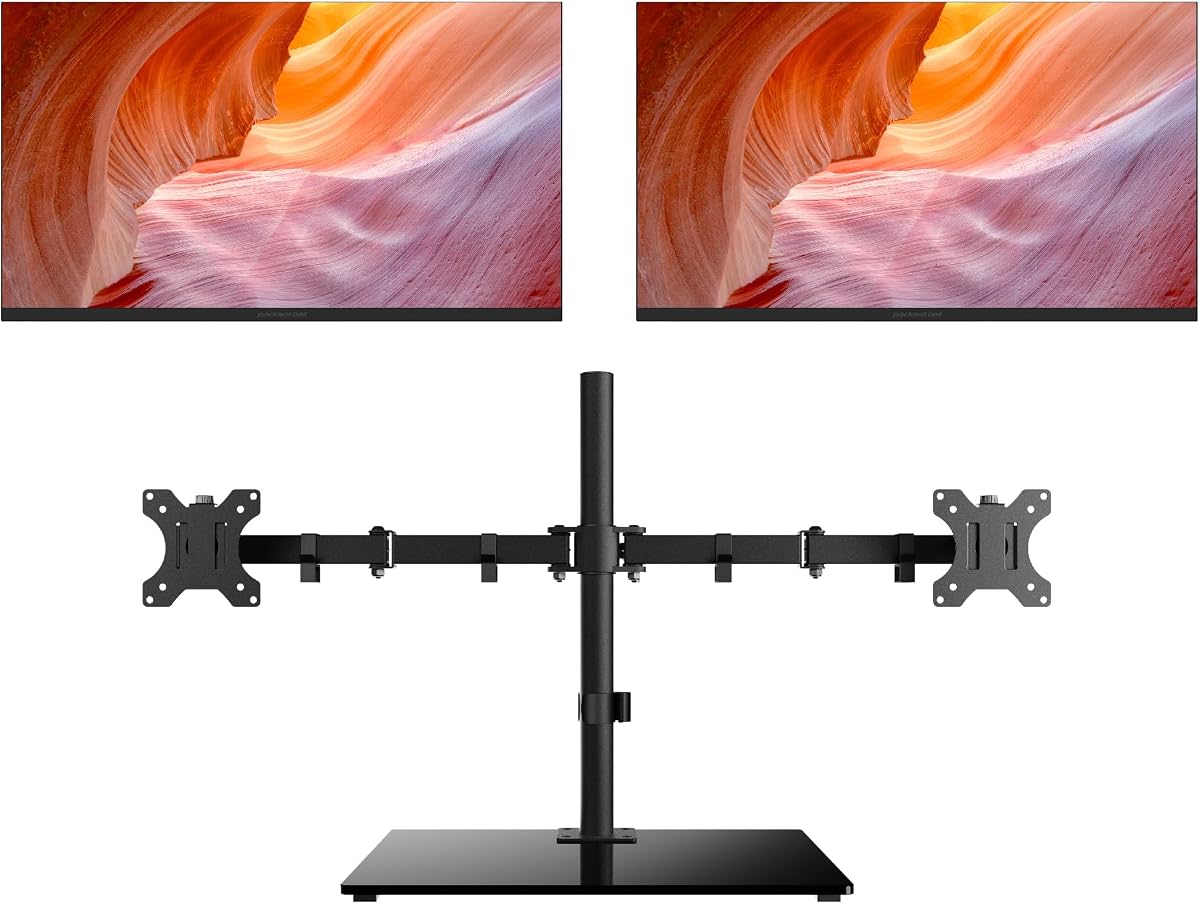
The Packard Bell airFrame is a ready-made dual workstation: two matched 21.5-inch Full HD screens with slim bezels, VESA mounting and tilt adjustment, sold together so setup is painless. HDMI and VGA inputs keep it compatible with older machines and consoles alike. It carries the lowest rating here and its 5ms response suits only light gaming, but as an affordable, self-contained pair for office multitasking it does the job.
- Screens
- Two 21.5in FHD
- Refresh
- 75Hz
- Mounting
- VESA, tilt
- Ports
- HDMI, VGA
What we liked
- Complete two-screen workstation in a box
- Slim bezels for a tight join
- VESA mount and tilt included
- HDMI and VGA for wide compatibility
Worth noting
- Lowest rating on this list
- 5ms response, light gaming only
How We Chose the Best Monitors for a Dual Setup

Building a two-screen workspace is not simply a matter of buying a pair of displays and pushing them together. The difference between a setup that feels like one continuous canvas and one that feels like two disconnected boxes comes down to a handful of details, and those details guided every choice on this list. We started with the bezel, the frame around the panel, because it dictates how wide the dead zone is where two screens meet. A thick bezel doubles up in the middle of your view and constantly reminds you that you are looking at two separate things; a thin or frameless design almost vanishes.
From there we looked at how each monitor mounts. VESA support is the quiet hero of a good dual setup, because it lets you fit both panels to a dual arm and dial in exactly matching height, tilt and spacing, something a pair of factory stands can rarely achieve. We also weighed panel matching, since two screens that differ in size, resolution or colour temperature will always look slightly off next to each other. Finally, we considered the practical realities of connectivity and value, and we deliberately mixed matched desktop pairs, individual side-by-side panels and foldable portable screens so the list works for a fixed office, a growing desk or a travelling laptop.
Desktop Pairs Versus Portable Stacked Screens
The first decision when planning a dual setup is whether your two screens live permanently on a desk or travel with a laptop. It is a bigger fork in the road than it first appears, and the right answer reshapes everything else. A desktop pair, whether that is two of the Sceptre 22-inch, a Gigastone two-pack, or the Packard Bell airFrame workstation, gives you large, bright panels, full-size stands and proper VESA mounting. This is the setup for a home office or study where the screens rarely move and you want the most usable area for the money.
Portable stacked monitors take a completely different approach. The VisionOwl, InnoView and MAGICRAVEN each fold two 15.6-inch panels into a single unit that travels in a bag and unfolds beside a laptop. You trade screen size and brightness for the freedom to build a genuine multi-screen workstation in a cafe, a hotel room or a hot desk. For anyone who works on the move, that flexibility is worth more than a few extra inches of glass. The ASUS ZenScreen sits between the two worlds, adding one portable screen to a laptop for the simplest travel dual arrangement of all.
Why Bezel Thickness Matters So Much
Of every specification that affects a dual setup, bezel thickness is the one people underestimate most. When two monitors sit side by side, their inner bezels add together to form a single vertical strip down the centre of your combined view. On a chunky older monitor that strip can be well over a centimetre wide, and your eye catches it every time you drag a window across or read a line of text that spans both screens. It is a small thing that quietly nags at you all day.
This is why almost every screen on this list is described as frameless, near bezel-free or slim-bezel. The Sceptre 22-inch is explicitly designed so its edge disappears in a dual arrangement, the Gigastone pair and ASUS BE24EQK use frameless IPS panels, and the Packard Bell airFrame leans on slim bezels for its two-screen workstation. The foldable portables sidestep the issue in their own way by stacking rather than spreading, so there is no side seam at all. Whichever style you choose, prioritising a thin bezel is the single easiest way to make two screens feel like one.
VESA Mounting and Ergonomics
A dual setup lives or dies on ergonomics, and VESA mounting is the key that unlocks it. The VESA standard is a simple grid of threaded holes on the back of a monitor, and it lets you detach the factory stand and attach the screen to an arm or a dual-monitor stand instead. Two panels on a dual arm can be aligned to precisely the same height, tilted inward slightly to wrap around you, and spaced with their bezels touching, none of which is reliably possible with two separate desk stands.
The payoff is comfort over long sessions. When both screens sit at eye level and curve gently toward you, your neck and shoulders stop compensating for a display that is too low or angled awkwardly. Every desktop pick here supports VESA, and even the VisionOwl portable is VESA mountable, so an arm is always on the table as an upgrade. If your chosen monitors ship with only a tilt stand, as the Sceptre and Samsung-style essential panels often do, a modest VESA arm is one of the best value additions you can make to a two-screen workspace.
Matching Your Panels for a Seamless Look
Two screens that do not match are a constant low-level distraction. If one panel is brighter, warmer in colour or a slightly different resolution, your eye notices every time it crosses from one to the other, and no amount of careful positioning fully hides it. The cleanest way to avoid this is to buy a matched pair. The Gigastone two-pack and Packard Bell airFrame ship two identical panels in one box, so size, resolution and colour are guaranteed to align, and the foldable VisionOwl, InnoView and MAGICRAVEN each contain two panels cut from the same production run.
If you prefer to buy individual screens, the trick is to buy two of the exact same model rather than two different monitors that happen to share a size. Purchasing a pair of the Sceptre 22-inch or the ASUS BE24EQK gives you the matching benefit while letting you scale from one screen to two as your budget allows. Whichever route you take, resist the temptation to pair a screen you already own with a bargain of a different make, unless you are happy to accept a visible mismatch down the middle of your workspace.
A Closer Look at the Top Picks
The VisionOwl takes our top spot because it delivers the most complete dual experience in a single, well-built package. Two matched 15.6-inch panels, 107% sRGB colour with HDR, a full-metal body, VESA support and a box that includes every cable and a case mean you are productive within minutes of unpacking, whether at a desk or on the road. It is the pick we would hand to most people who want two screens without assembling a setup piece by piece.
Behind it, the Sceptre 22-inch is the best individual panel to buy in pairs, thanks to a bezel built to vanish side by side and a quick 144Hz refresh, while the ASUS ZenScreen is the neatest travel companion for adding one screen to a laptop over USB-C. The InnoView and MAGICRAVEN cover portable buyers who want two or even three panels in one folding unit, the Gigastone two-pack is the value route to a guaranteed-matched desktop pair, and the ASUS BE24EQK earns its place for anyone whose dual setup doubles as a video-call station. The Packard Bell airFrame rounds things out as an affordable, self-contained workstation for straightforward office multitasking.
Getting the Most From Your Two Screens
A well-chosen pair of monitors is only half the job; how you use them decides how much faster you actually work. Set your operating system to extend rather than mirror the displays, then assign each screen a role, perhaps your main task on one and reference material, chat or email on the other, so you stop shuffling windows and start using the space with intent. On Windows, snapping windows to the edges of each panel keeps everything tidy, and most portable units here also offer split-screen and portrait modes for reading long documents or code.
Cable management is worth a few minutes too. Running both screens to a single USB-C dock, where your setup allows, cuts clutter and makes it easy to unplug a laptop and walk away. If you have gone the VESA arm route, thread the cables through the arm's channels for a clean finish. Finally, take advantage of the eye-care features many of these monitors include, low blue light and flicker-free modes on the ASUS, Gigastone and Packard Bell panels, to keep long dual-screen sessions comfortable. With the right pair and a little setup, two screens quickly become impossible to give up.
Final Recommendation
For most buyers, the VisionOwl portable dual monitor is the best all-round way to build a two-screen setup in 2026, combining matched panels, strong colour, a rugged build and everything-in-the-box convenience. If you want a fixed desktop pair, buy two of the Sceptre 22-inch for a fast, near-seamless join, or grab the Gigastone two-pack for a guaranteed-matched budget setup. Laptop users travelling light should choose the ASUS ZenScreen, while the InnoView and MAGICRAVEN suit those who want two or three portable panels in one folding unit. Home-office callers will appreciate the ASUS BE24EQK, and bargain hunters can lean on the Packard Bell airFrame. Match the screens to where you work, mind the bezels and the mounts, and a dual setup will pay for itself in productivity many times over.
How we picked
We judged each pick on bezel thinness for a seamless side-by-side join, VESA mount support for arms and stands, panel quality and matching, connectivity, and value for a two-screen setup. Because dual setups range from a fixed desk to a travelling laptop rig, we included matched desktop pairs, individual side-by-side monitors, and foldable portable screens so there is a sensible answer for every kind of workspace.
Frequently asked questions
What makes a monitor good for a dual setup?
Thin or frameless bezels come first, because they minimise the gap where two screens meet, so content flows across the join more naturally. VESA mount support matters next, letting you use a dual arm or stand to align both panels at the same height. Matching size, resolution and colour also helps, which is why pre-matched pairs like the Gigastone two-pack or Packard Bell airFrame make life easy.
Do I need VESA mounts for two monitors?
Not strictly, but they help a lot. VESA holes let you attach a monitor to a dual arm, which frees desk space and lets you align both screens precisely in height and angle for a seamless setup. Most picks here, including the Gigastone pair, Packard Bell airFrame and even the VisionOwl portable, support VESA mounting, so an arm is an option whenever you want it.
Should both monitors be the same model?
Ideally, yes. Matching models guarantees identical size, resolution, brightness and colour, so the two halves of your view look consistent rather than mismatched. Buying a pre-matched pair like the Gigastone two-pack removes the guesswork. If you buy two of a single model such as the Sceptre 22-inch or ASUS BE24EQK, you get the same benefit while keeping flexibility over quantity.
Can I use a portable monitor for a dual setup?
Absolutely, and it is the best route for laptops. Portable screens like the ASUS ZenScreen add a second display over a single USB-C cable, while foldable stacked units such as the VisionOwl, InnoView and MAGICRAVEN carry two matched panels in one travel-friendly unit. They are ideal for working from cafes, hotels or a shared desk where fixed monitors would not fit.
How do I connect two monitors to one computer?
Most laptops and desktops can drive two screens through a mix of HDMI, DisplayPort and USB-C outputs; check how many video ports your machine has. Desktop picks here offer HDMI, DisplayPort or VGA, while the portable units use USB-C or Mini-HDMI. If you run short of ports, a USB-C dock or hub is an inexpensive way to add the outputs you need.