Best Mice for Productivity in 2026
We may earn a commission from links on this page, at no extra cost to you. Learn more.
A productivity mouse is one of the cheapest upgrades that changes how a workday feels. The right pointer glides accurately, scrolls through long documents in a single flick, switches between your laptop and desktop with one click, and keeps your wrist relaxed hour after hour. The wrong one leaves you cramped by lunchtime. This guide ranks eight of the best mice for productivity in 2026, spanning fast-scrolling desktop workhorses, vertical and trackball designs built to ease strain, and quiet everyday options for shared offices. Whether you live in spreadsheets, juggle three devices, or just want a comfortable all-day companion, there is a sensible pick here.
Top 8 Best Mice for Productivity
Our top 8 picks, reviewed
Logitech Productivity Plus Wireless Mouse
The Logitech Productivity Plus tops the list by nailing the essentials cheaply. Its nearly frictionless metal wheel lets you fly through long pages, the sculpted right-hand shape keeps your hand relaxed, and two thumb buttons speed up navigation. Best of all, it sips power, running up to three years per battery with a tiny Unifying receiver you can leave plugged in permanently.
- Connection
- 2.4GHz Unifying
- Scroll
- Hyper-fast metal wheel
- Buttons
- 2 thumb buttons
- Battery
- Up to 3 years
What we liked
- Hyper-fast metal scroll wheel
- Up to three years on one battery
- Sculpted right-hand shape
- Two customizable thumb buttons
Worth noting
- Right-handed shape only
- No Bluetooth or multi-device switching
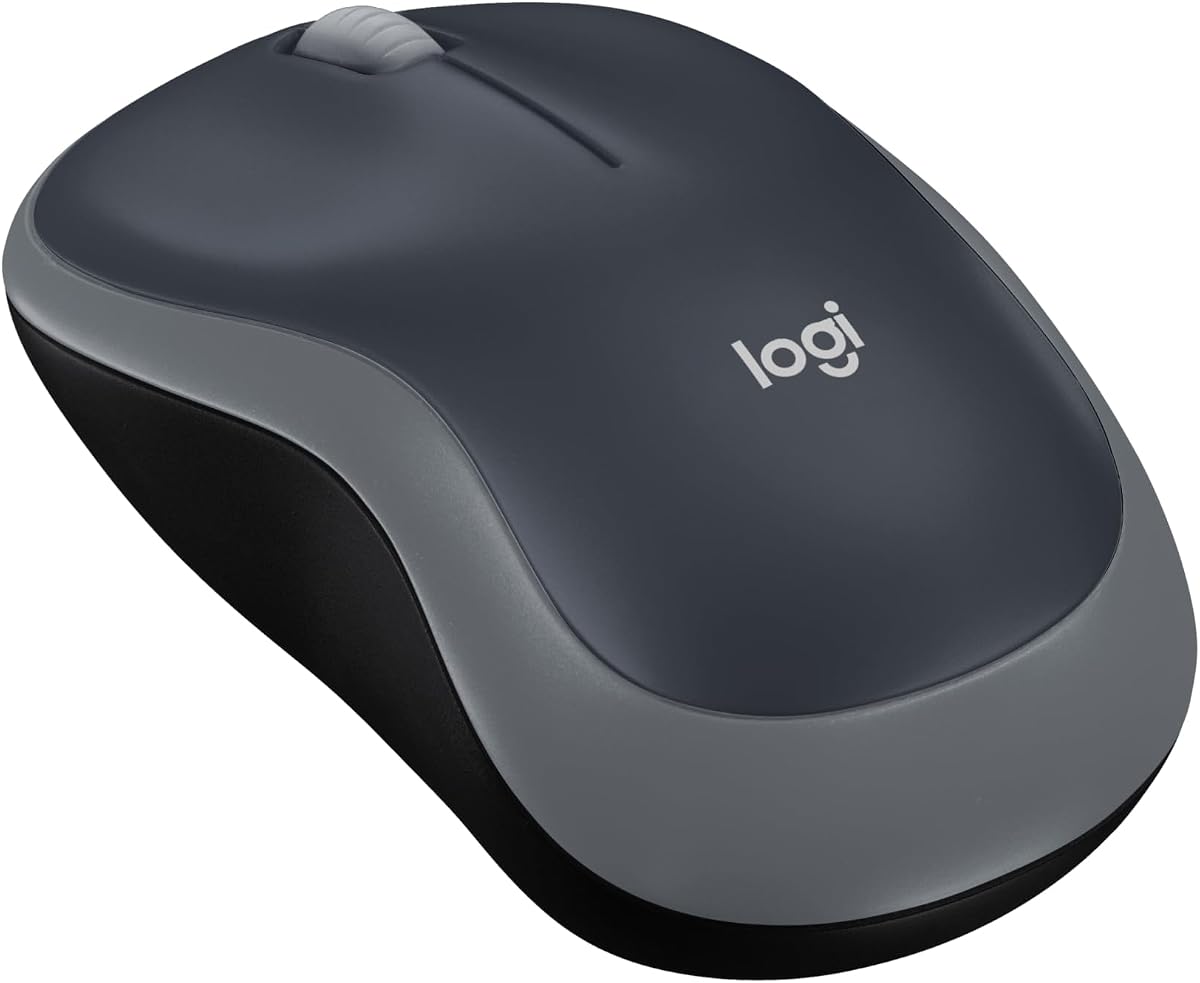
Logitech M185 Wireless Mouse
The Logitech M185 is the value pick, a compact ambidextrous mouse that simply works. The contoured shape suits left or right hands, the nano receiver delivers a stable connection up to ten metres, and a smart sleep mode stretches the included battery to a full year. It is far more productive than a laptop touchpad and costs next to nothing, making it an easy everyday upgrade.
- Connection
- 2.4GHz USB
- DPI
- 1000 optical
- Shape
- Ambidextrous
- Battery
- 12 months
What we liked
- Works in either hand
- Reliable plug-and-play receiver
- Long 12-month battery life
- Included battery in the box
Worth noting
- Basic 1000 DPI sensor
- No extra thumb buttons
Logitech MX Ergo S Wireless Trackball
If desk space is tight or your wrist aches from moving a mouse all day, the Logitech MX Ergo S is a revelation. You control the cursor with your thumb on the trackball, so your arm stays still, while an adjustable 20-degree tilt improves forearm posture. Six programmable buttons, precision-speed switching, and up to 120 days per charge make it a serious productivity tool once you adapt.
- Connection
- Bluetooth + dongle
- Shape
- 20-degree tilt trackball
- Buttons
- 6 programmable
- Battery
- Up to 120 days
What we liked
- Thumb trackball needs almost no desk space
- Adjustable 20-degree tilt eases forearm strain
- Six programmable buttons via Logi Options+
- Quick USB-C charging, 120-day life
Worth noting
- Trackballs take time to master
- Sized for medium to large hands
Logitech MX Master 4 for Mac
The Logitech MX Master 4 for Mac is the flagship productivity mouse, built for people who want every workflow shortcut at their fingertips. Its MagSpeed wheel flies through a thousand lines per second yet stops on a pixel, a haptic Sense panel adds tactile feedback, and the app-aware Actions Ring surfaces your most-used tools at the cursor. The sculpted, tilted body keeps long editing sessions comfortable.
- Connection
- Bluetooth
- Scroll
- MagSpeed + thumb wheel
- Buttons
- Actions Ring + haptics
- Charging
- USB-C
What we liked
- MagSpeed wheel scrolls 1,000 lines per second
- Haptic feedback panel for tactile shortcuts
- Customizable Actions Ring overlay per app
- Natural ergonomic tilt with thumb wheel
Worth noting
- Premium price
- Tuned mainly for the Apple ecosystem
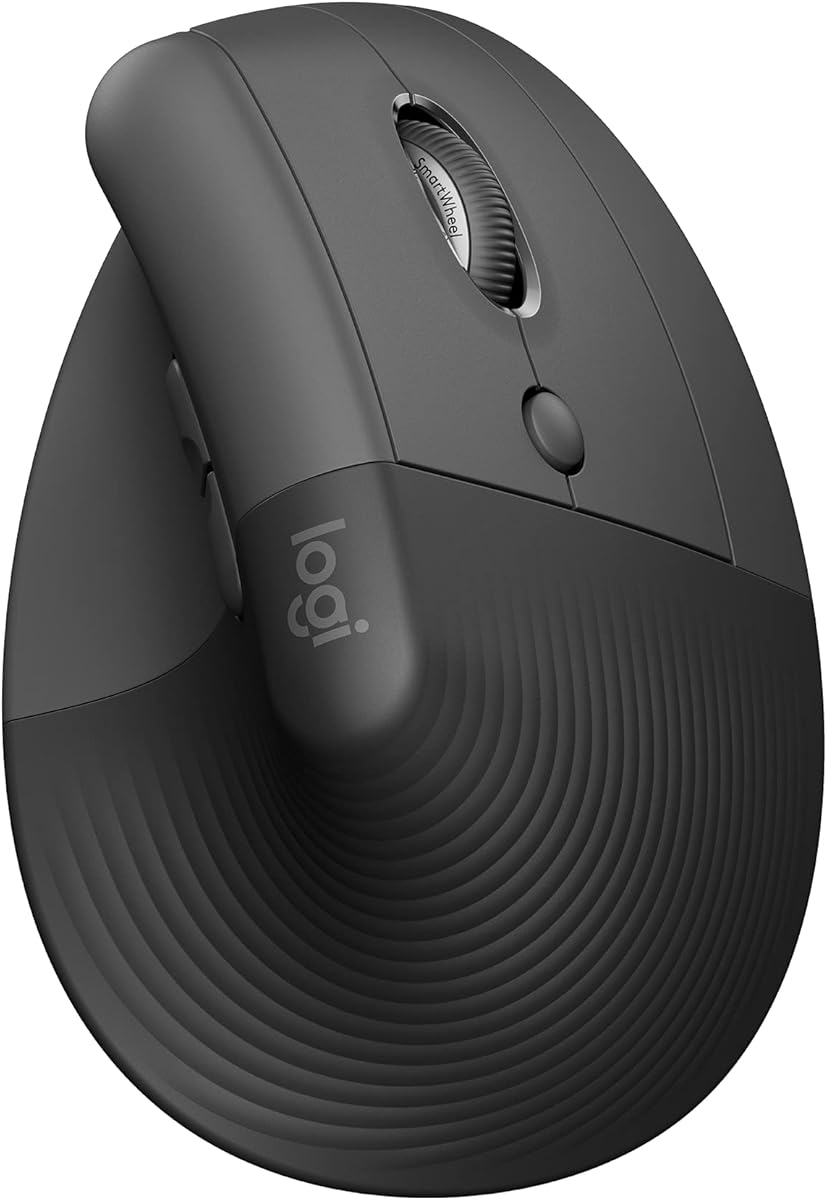
Logitech Lift Vertical Ergonomic Mouse
The Logitech Lift brings vertical ergonomics to smaller hands that the bigger MX Vertical never suited. Its 57-degree angle puts your forearm into a more natural handshake posture, and the ergonomist-certified shape has a textured grip and snug thumb rest for all-day coziness. Quiet clicks, six customizable buttons, and dual Bluetooth or Bolt connectivity make it a comfortable, distraction-free desk companion.
- Connection
- Bluetooth or Bolt USB
- Shape
- 57-degree vertical
- Buttons
- 6
- Clicks
- Quiet
What we liked
- 57-degree vertical shape eases wrist strain
- Ergonomist-certified design
- Six buttons with a SmartWheel
- Whisper-quiet clicks for shared offices
Worth noting
- Best for small to medium right hands
- Vertical grip has a learning curve
Logitech MX Master 2S Bluetooth Edition
A former flagship that still earns its place, the Logitech MX Master 2S pairs the beloved MX ergonomic shape with multi-surface tracking that works even on glass. It flows across up to three Mac or PC computers at the tap of a button, its hyper-fast wheel devours long pages, and it recharges rather than eating batteries. For a proven, comfortable workhorse at a fair price, it is hard to beat.
- Connection
- Bluetooth
- Scroll
- Hyper-fast scrolling
- Devices
- Up to 3
- Charging
- Rechargeable
What we liked
- Tracks on almost any surface, even glass
- Controls up to three computers
- Hyper-fast scroll wheel for long documents
- Proven ergonomic MX Master shape
Worth noting
- Older model than the MX Master 4
- Right-handed shape only
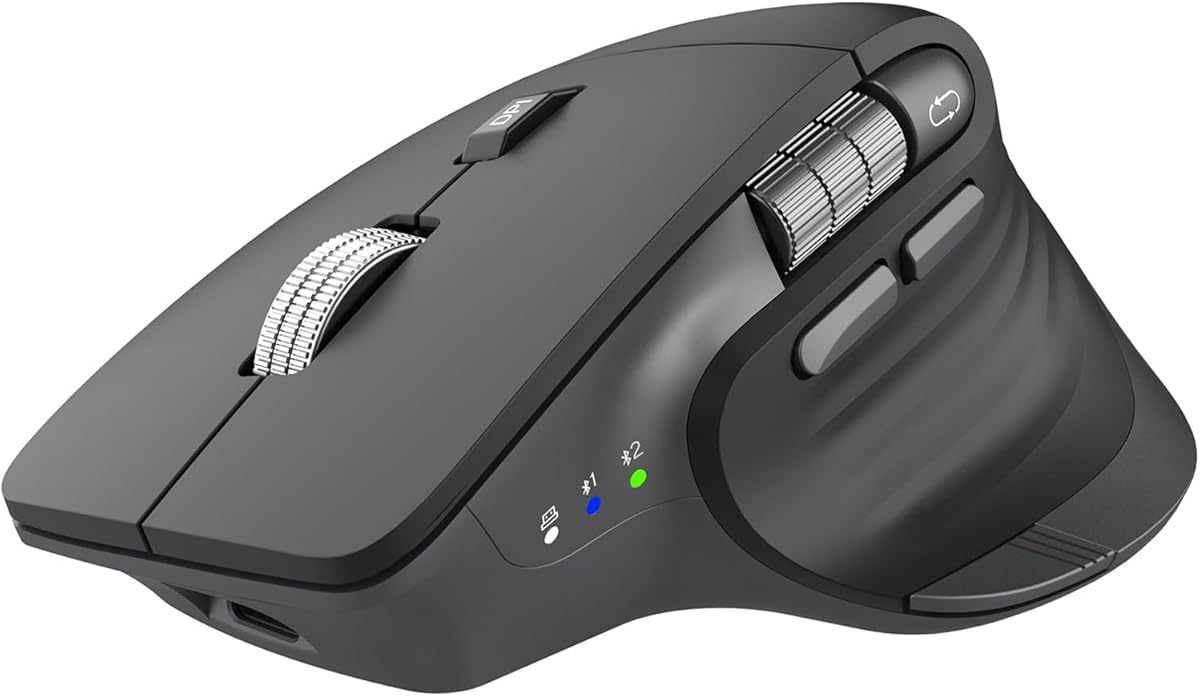
CITLLA Ergonomic Bluetooth Mouse
The CITLLA is built for people bouncing between a laptop, desktop, and tablet. Dual Bluetooth plus a 2.4G receiver let you pair three devices and swap with one click, while a metal flying scroll wheel and a dedicated horizontal thumb wheel make Excel and long documents far quicker. Silent clicks keep the peace in shared spaces, and USB-C charging lasts up to sixty days between top-ups.
- Connection
- Dual BT + 2.4G
- DPI
- 4800
- Scroll
- Flying + thumb wheel
- Clicks
- Silent
What we liked
- Switches across three devices instantly
- Horizontal thumb wheel speeds up spreadsheets
- Near-silent clicks for quiet offices
- USB-C rechargeable, up to 60 days
Worth noting
- Lesser-known brand
- Contoured for right hands
Anker Wireless Vertical Ergonomic Mouse
The Anker Vertical Ergonomic Mouse is the cheapest way to try a handshake-style grip. Its upright design keeps your wrist and forearm in a healthy, neutral position to reduce strain, and three DPI levels plus forward and back buttons cover everyday browsing and office work. A power-saving sleep mode and an 18-month warranty round out a budget pick that punches above its price for comfort.
- Connection
- 2.4GHz USB
- DPI
- 800/1200/1600
- Shape
- Vertical
- Buttons
- 5
What we liked
- Vertical shape promotes a neutral wrist
- Three switchable DPI levels
- Next and previous browsing buttons
- Very affordable with an 18-month warranty
Worth noting
- 2.4GHz only, no Bluetooth
- Batteries not included
How We Chose the Best Mice for Productivity

Choosing a productivity mouse is less about chasing headline numbers and more about how a device feels after four straight hours of work. We began by defining what productivity actually asks of a mouse: it must be comfortable enough to disappear into your workflow, quick enough to move through long documents and busy spreadsheets, and flexible enough to keep pace when your setup spans more than one screen or device. A mouse that scores well on paper but cramps your hand by mid-afternoon fails the only test that matters.
From there we weighed the features that genuinely change a working day. Scroll performance came first, because a fast, precise wheel is transformative when you review long files. Ergonomics came a close second, since the shape of a mouse determines whether your wrist stays relaxed or slowly tightens. We then considered button count and customization, multi-device switching, click noise for shared spaces, battery life, and overall value. Finally, we kept the list deliberately varied, mixing traditional right-hand shapes with vertical and trackball designs, so there is a right answer whatever your hands, desk, and habits demand.
We also paid attention to the software behind each mouse, because in productivity terms a remappable button is worth far more than a fixed one. A mouse that lets you assign application switching, copy and paste, or a favourite macro to a spare key removes small frictions that add up across a working week. Where a product offered that flexibility, as several Logitech models here do through Logi Options+, we gave it credit; where a mouse was locked to its defaults, we judged it on how sensible those defaults were out of the box.
Ergonomics, Scrolling, and Why Shape Matters
The single biggest driver of comfort is the angle your wrist sits at. A conventional mouse holds your forearm nearly flat, palm down, which is a slightly twisted position most of us never notice until the aches begin. Vertical mice such as the Logitech Lift and the Anker Vertical rotate your hand into a natural handshake posture, easing the tension in the forearm. Trackballs go further still: with the Logitech MX Ergo S, your thumb moves the cursor while your arm stays anchored, which suits both small desks and shoulders that tire from repetitive movement.
Scrolling is the other feature that separates a productivity mouse from an ordinary one. A hyper-fast metal wheel, found on the Logitech Productivity Plus and the MX Master line, can spin freely to whip through a hundred-page document, then click into a ratcheted mode for precise line-by-line control. Horizontal scrolling matters too, and the CITLLA's dedicated thumb wheel makes wide spreadsheets far less tedious. Once you have lived with fast, dual-axis scrolling, a basic clicky wheel feels genuinely slow by comparison.
Matching the Mouse to Your Needs
For All-Day Desk Comfort
If you spend most of your day at a fixed desk and comfort is your priority, an ergonomic shape pays for itself. The Logitech Lift suits small to medium right hands with its 57-degree vertical angle and quiet clicks, while the MX Ergo S trackball keeps your arm still altogether. For a budget entry into vertical grips, the Anker Vertical delivers the same neutral-wrist benefit at a fraction of the cost. Any of these can meaningfully reduce the low-grade strain that builds over a long week.
For Heavy Scrolling and Shortcuts
Workers who live in long documents, code, or dense spreadsheets should prioritize scroll speed and programmable buttons. The Logitech MX Master 4 for Mac is the ultimate expression of this, with its lightning MagSpeed wheel, haptic feedback, and app-aware Actions Ring. The MX Master 2S offers most of that value for less, and the affordable Productivity Plus delivers a superb metal wheel and thumb buttons without the premium price.
For Multiple Devices
If your day moves between a laptop, a desktop, and perhaps a tablet, choose a mouse that switches devices at a touch. The CITLLA pairs three devices over dual Bluetooth and a 2.4G receiver, swapping with a single click, and the MX Master 2S flows across three computers just as smoothly. Both spare you the clutter and confusion of using a separate mouse for each machine.
For Simple, Reliable Everyday Use
Not everyone needs bells and whistles. If you just want a dependable pointer that beats a touchpad, the Logitech M185 is compact, ambidextrous, and runs a full year on one battery. It is the pick for a second desk, a travel bag, or anyone who values a fuss-free connection over advanced features.
Specifications That Matter Most
Two things shape the day-to-day experience more than any spec sheet suggests: the mouse's physical shape and its scroll mechanism. Match the shape to your hand size and grip, because a mouse that is too large or too small will never feel right no matter how good its sensor is. The Lift and MX Ergo S are explicit about the hand sizes they suit, which is worth heeding. For scrolling, favour a free-spinning metal wheel over a stepped plastic one if you handle long files, and look for horizontal scrolling if spreadsheets fill your day.
Connection type and battery life deserve attention too. Bluetooth with multi-device switching, as on the CITLLA and MX Master 2S, is the most flexible for modern setups, while a 2.4GHz receiver like the one on the Productivity Plus offers a rock-solid, low-latency link you can leave plugged in and forget. Battery expectations vary enormously here, from the three-year run of the Productivity Plus to the rechargeable cells of the MX models that top up over USB-C. Finally, if you share an office or take frequent calls, silent clicks, offered by the CITLLA and Lift, are a small feature that makes a surprisingly large difference to everyone around you.
A Closer Look at the Top Picks
The Logitech Productivity Plus earns the top spot by getting the fundamentals exactly right at a low price. Its frictionless metal wheel, sculpted shape, and thumb buttons cover the core of what productivity demands, and its extraordinary three-year battery life means you can set it up and forget about it. It is the mouse we would hand to most office workers without hesitation.
Behind it, the M185 is the humble value champion for anyone who simply wants a reliable wireless pointer, while the MX Ergo S trackball and Logitech Lift address the comfort of people who work long hours and feel it. At the premium end, the MX Master 4 for Mac is the feature-rich flagship for power users who want haptics and app-aware shortcuts, with the MX Master 2S offering much of that pedigree for less. The CITLLA rounds things out for multi-device jugglers, and the Anker Vertical stands ready as the cheapest route to a healthier wrist posture.
Tips for a More Comfortable, Productive Setup
A great mouse is only half the equation; how you use it matters just as much. Keep the mouse close to your keyboard so you are not reaching, and set your desk height so your forearm stays roughly parallel to the floor. If you switch to a vertical or trackball design like the Lift or MX Ergo S, give yourself a few days to adjust before judging it, as the muscle memory takes a little time to settle.
Take advantage of the software these mice offer. Logi Options+ lets you remap the buttons on the MX Master and MX Ergo S models to your most common shortcuts, which compounds into real time savings over a week. Assign one button to switch applications, another to open a frequently used tool, and let the scroll wheel handle the rest. It is also worth setting up multi-device switching properly if your mouse supports it, pairing your laptop and desktop once so that moving between them later is a single button press rather than a fresh setup each time.
Finally, look after the battery and the fundamentals. Use the sleep modes, charge over USB-C before long sessions, and keep the sensor clean so tracking stays crisp. If you have chosen a rechargeable model like the MX Master 2S, a quick top-up at the start of the day removes any worry of it dying mid-task. Treated well, a good productivity mouse will serve you reliably for years, quietly saving you a little effort with every document you scroll and every device you switch to.
Final Recommendation
For most people, the Logitech Productivity Plus is the best productivity mouse in 2026, blending a superb scroll wheel, comfortable shape, and a battery you rarely think about into an affordable package. If comfort over long hours is your chief concern, the Logitech Lift or the MX Ergo S trackball are the ergonomic answers, and the Anker Vertical offers the same idea on a budget. Power users who want every workflow shortcut should reach for the MX Master 4 for Mac, while the MX Master 2S delivers proven value and the CITLLA shines for anyone working across several devices. Match the shape and features to how you actually work, and the right mouse quietly makes every task a little smoother.
How we picked
We assessed each mouse on ergonomic comfort for long sessions, scroll speed and precision, button count and customization, multi-device switching, battery life, click noise, and value. Because productivity depends on how a mouse feels over hours rather than raw specs, we weighted real-world comfort and workflow features heavily, and we deliberately mixed traditional, vertical, and trackball shapes so different hands and desks are covered.
Frequently asked questions
What makes a mouse good for productivity?
A productivity mouse combines comfort over long sessions with features that speed up navigation: a fast scroll wheel for long documents, extra thumb buttons for shortcuts, and multi-device switching if you use several computers. The Logitech Productivity Plus and MX Master 2S both excel here, while vertical or trackball designs like the Lift and MX Ergo S add ergonomic relief.
Are vertical mice actually more comfortable?
For many people, yes. A vertical mouse such as the Logitech Lift or Anker Vertical holds your wrist in a natural handshake position rather than twisting your forearm flat, which can reduce strain during long workdays. There is a short adjustment period of a few days, but most users adapt quickly and notice less fatigue.
Should I choose a trackball for a small desk?
A trackball like the Logitech MX Ergo S is ideal when desk space is tight, because you move the cursor with your thumb while the mouse stays put. That also keeps your arm still, which some people find easier on the shoulder. Expect a short learning curve as you build muscle memory for the ball.
How important is multi-device switching?
If you regularly use a laptop and a desktop, or a computer and a tablet, one-click switching saves real time and desk clutter. The CITLLA and MX Master 2S both pair with up to three devices and swap instantly, so you control everything from a single mouse instead of juggling several.
Do quiet mice really help in an office?
Silent-click mice like the CITLLA and Logitech Lift noticeably cut the sharp clicking sound of a standard mouse, which is welcome in shared offices, libraries, or during video calls. The click still feels tactile; it is just far quieter, so you stay productive without disturbing people nearby.