Best 4K USB-C Desk
LG 27UP850K-W

- 27" 4K IPS with DisplayHDR 400 and up to 95% DCI-P3
- USB-C power delivery up to 90W plus HDMI, DP, USB hub
- Height/tilt/pivot stand and built-in speakers in a white finish
Expert Review & Guide
A USB-C monitor earns its keep when one cable carries video, data, and enough watts to retire your laptop brick. Miss the wattage, and you still juggle chargers. Miss color accuracy, and creative work looks wrong beside your notebook’s screen. The best USB-C displays balance power delivery, panel quality, and ports that turn the monitor into a quiet dock.
We sorted ten pack options from full 4K desktop anchors to a travel portable. Wattage spans matter: LG’s 27-inch UltraFine offers up to 90W, Philips and ASUS ProArt land at 65W, some office panels advertise only 15W (handy for phones, useless as a MacBook charger), and Samsung’s 24-inch ViewFinity pairs 90W with Ethernet and KVM tricks.
If you want a white 4K creator desk, start with LG 27UP850K-W. If color-critical QHD work is the job, ASUS ProArt PA278CV remains a Calman-verified classic. Compact docks should look at Samsung ViewFinity S6. Everyone else should match PD watts to their laptop before falling for bezels.


As an Amazon Associate we earn from qualifying purchases. We may earn a commission at no additional cost to you.
Read the PD wattage column mentally even when the table lists it inside specs—15W and 90W are different products wearing the same USB-C label. Resolution and ergonomics decide the rest.

INNOCN’s 27-inch 4K USB-C monitor is the gateway for people still stuck on a 1080p office panel. At 3840×2160 on IPS with a frameless design, text in IDEs and browser windows snaps into focus in a way that makes going back feel punishing. The listing’s color story—ΔE under 2, 1.07 billion colors via 8-bit+FRC, HDR400—positions it for photo hobbyists and hybrid workers who want better than generic business bland without jumping straight to a ProArt budget.
Ports are intentionally modern: USB-C, DisplayPort, HDMI, and a 3.5mm jack, with legacy VGA/DVI left behind. That USB-C path is why MacBook and USB-C Windows laptop owners shortlist it—signal without an adapter dance. USB-C implementations still vary, though; if your goal is charging a hungry 14–16 inch laptop while editing, verify the Power Delivery wattage on the offer page rather than assuming every USB-C monitor is automatically a 65W dock.
Ergonomics are a quiet win here. Height, swivel, tilt, and pivot (±90°) plus VESA 75×75 mean you can align the panel with an existing arm or share the screen in portrait for long documents and code reviews. For developers reading logs or writers drafting longform, portrait mode is fewer scrolls and less wrist strain—not a gimmick.
Brightness around 400 nits and a 1000:1 contrast ratio suit indoor offices and apartments. HDR400 adds punch to streaming nights; it will not replace a reference HDR cinema display, and the 60Hz ceiling is honest—smooth enough for UI work and movies, not what competitive FPS players should hunt.
Buy INNOCN when you want 4K clarity and a fully adjustable stand without overspending on brand chrome. Pair it with a quality USB-C cable rated for your resolution and keep a separate charger handy when PD falls short of your notebook’s appetite under load.
Who thrives with it: analysts, students, and light creators moving up from HD. Who should look at LG’s 90W 27-inch instead: anyone who refuses to keep a laptop brick on the desk at all.
Windows users should try 150–200% scaling at 4K/27". macOS usually feels natural at default 4K arrangements—fine-tune Arrangement if the menu bar looks soft.
Use a high-quality USB-C cable rated for video and charging. Bargain cables are why “USB-C monitors don’t work” threads exist.
We may earn a commission at no additional cost to you.

BenQ built the GW2490TC for the person whose desk is also the dining table. At 23.8 inches with IPS eye-care technology, it targets home office, study, and daily productivity rather than RGB esports branding—yet the 144Hz refresh rate quietly upgrades how Chrome scrolling and window dragging feel after years on 60Hz panels.
The USB-C story is the purchase reason: one cable for video, data, and power delivery to a compatible laptop or MacBook. That is how you reclaim the outlet strip and stop losing the HDMI dongle in a backpack pocket. BenQ’s Visual Optimizer and flicker-free/low blue light heritage matter when your workday is twelve browser hours, not three game hours.
Ergonomics include height and tilt—enough for most apartment desks even if you do not get a full pivot. Corporate deployment language in the listing hints at fleets; individuals benefit the same way with consistent comfort settings and fewer cable tickets to IT.
Full HD on 24 inches remains sharp for documents and spreadsheets. It is not a 4K creative canvas, and that is fine for writers, analysts, and students who prioritize tidy docking over pixel-peeping timelines. Casual evening gaming still benefits from the higher refresh versus a stodgy office panel.
If your laptop supports DisplayPort Alt Mode and adequate PD negotiation, this BenQ becomes the simplest compact “open lid or close lid, one plug” monitor in the pack. Measure your desk depth first; small rooms love 24 inches more than they love 32-inch aspirations.
Skip it only if you already know you need side-by-side research on a 27–32 inch 4K field—those buyers should jump to the LG or Philips options later in this guide.
Match heights carefully—eye-care features cannot fix a crooked dual-monitor neck angle.
If you edit photos daily, jump to ProArt QHD or LG 4K. Keep GW2490TC for pure knowledge work.
We may earn a commission at no additional cost to you.
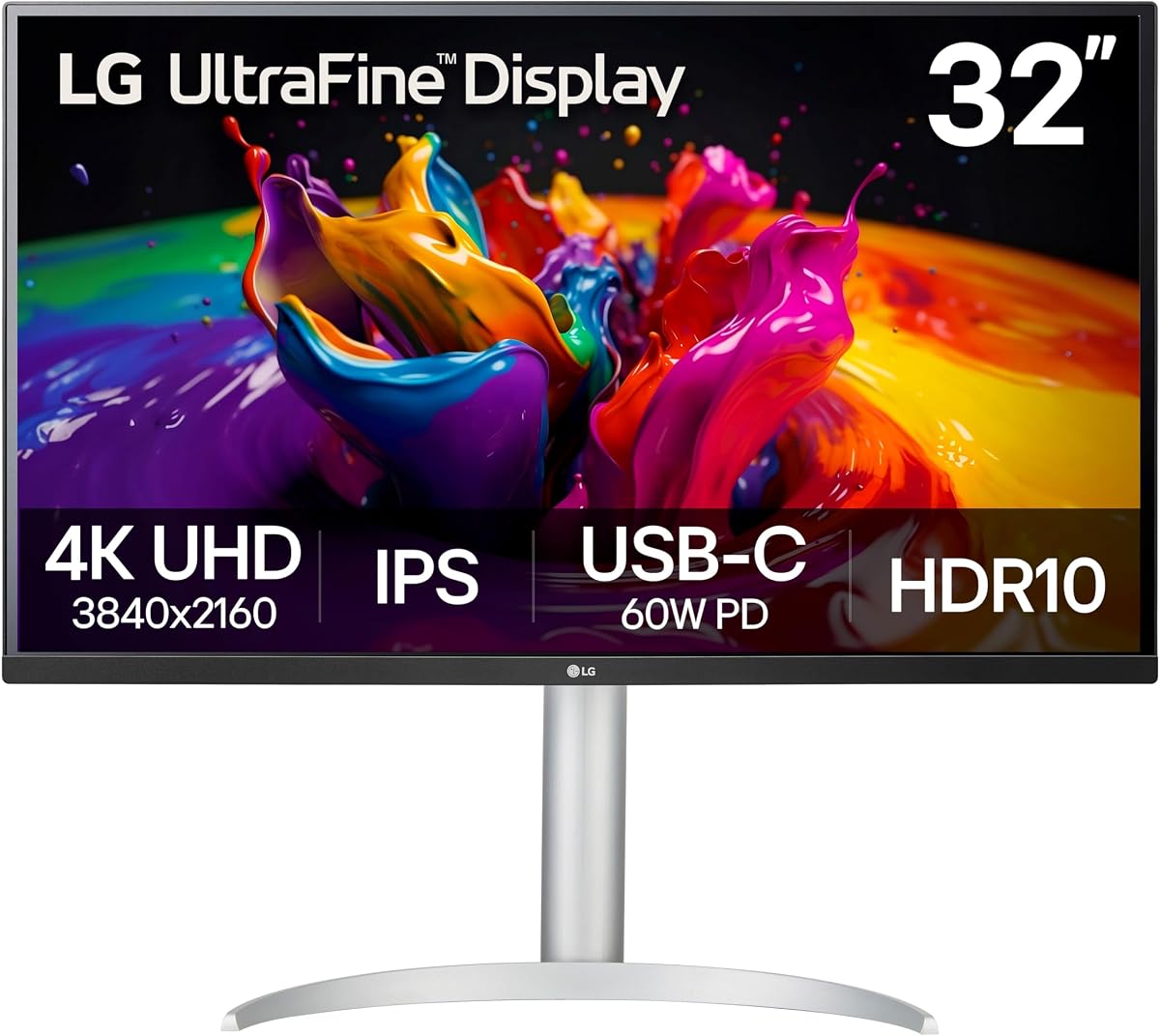
Step up to roughly 32 inches of 4K and window management changes overnight. The LG 32UP83AK-W’s UltraFine-style pitch—over eight million pixels on an IPS panel—lets you park Slack, a browser, and a document without microscopic fonts. Hybrid workers who hate constant alt-tabbing feel the difference within a day of real projects.
HDR10 and up to roughly 95% DCI-P3 color expression support movies, console-adjacent gaming, and color-aware hobbies. It remains a 60Hz panel, so competitive shooters should look at the 144Hz class elsewhere; creators and knowledge workers are the core audience, and built-in speakers cover quick calls when headset batteries die mid-afternoon.
USB-C joins HDMI and DisplayPort so laptops can land with fewer adapters. Reader Mode and Flicker Safe messaging align with LG’s office comfort toolkit for long documentation stretches after the creative work is done. White/office-friendly styling fits bright workspaces better than aggressive gaming skins when your camera faces the desk.
Physically, measure before you buy. A 32-inch panel wants depth and a mount strategy; VESA planning prevents the monitor chin sitting on your keyboard. At correct distance, 4K scaling on Windows or macOS becomes a readability dial—not a blur tax.
Pick this LG when spacious 4K productivity with USB-C convenience is the brief. If you need 90W charging certainty in a smaller footprint, the 27UP850K-W is often the sharper primary desk choice, while this 32-inch wins on pure canvas.
Console and living-room-adjacent use is possible thanks to HDR10, but sit at a proper desk distance—32-inch 4K shines when you are not nose-to-glass during a raid menu.
At 32-inch 4K, an arm’s length usually beats nose-to-glass. If you sit very close, 27-inch 4K may look sharper.
Pick 32-inch for size; pick 27-inch 90W for denser pixels and stronger charging.
We may earn a commission at no additional cost to you.
The 27UP850K-W is our overall USB-C pick because it nails what people actually mean by “USB-C monitor”: high-wattage Power Delivery plus a sharp 4K IPS panel. Ninety watts is the difference between video-only convenience and leaving the laptop charger in your bag. MacBook Pro and many Windows ultrabook owners can sit down, plug one cable, and work through a full afternoon.
Color and HDR credentials—DisplayHDR 400 and up to about 95% DCI-P3—support photo review, grading-adjacent hobbies, and HDR streaming without forcing a dedicated ProArt purchase. Text clarity at 27-inch 4K remains excellent for coding and research once you pick a comfortable OS scale factor.
The stand’s height, tilt, and pivot adjustments matter for long days. Portrait mode helps documentation sprints; landscape stays the default for timelines and wide sheets. The white chassis photographs nicely in home studios and looks less like a gaming battlestation—useful if the monitor faces a webcam all day.
Ports beyond USB-C round out dual-machine desks: dock the laptop on USB-C while a desktop rides DisplayPort or HDMI. Confirm your exact port map if you need a full USB hub, but the PD headline alone already separates this LG from 15W “USB-C labeled” office panels that cannot charge anything serious.
Choose it as a primary work monitor if your laptop accepts high-watt PD. Creators who need factory Calman verification and daisy-chain dual-QHD workflows should also shortlist the ASUS ProArt in this same guide before deciding.
Cable quality is part of the product: use a lead certified for high-speed USB-C/Thunderbolt video and charging. Cheap charge-only cables explain most mysterious “no signal” tickets on otherwise excellent panels.
Confirm your notebook accepts ~90W over USB-C PD, supports DisplayPort Alt Mode or Thunderbolt, and that you own a cable rated for both power and video.
DCI-P3 coverage helps Mac-like wide color previewing; still soft-proof for print workflows that live in sRGB/CMYK realities.
Prefer LG for 90W headroom. Prefer Philips if MultiView dual-input tricks and a longer advance-replacement warranty pitch matter more than peak watts.
We may earn a commission at no additional cost to you.

Philips aims the 27E1N5900R at people who live in two computers. USB-C with 65W Power Delivery handles the laptop side for many ultrabooks and 13–14 inch machines, while HDMI 2.0 and DisplayPort 1.2 keep a tower or console connected. MultiView then lets those sources coexist—handy for IT admins, traders watching a work PC beside a personal laptop, or creators mirroring a second machine.
DisplayHDR 400 and IPS wide viewing keep visuals credible for design-adjacent work and evening streaming. Four-kilometer-pixel density on 27 inches (the useful cliché) makes spreadsheets denser without shrinking readability into pain—if you set scaling thoughtfully for your viewing distance.
Ergonomic stand features—height, pivot, and related adjustments—match Philips’ office DNA. If you write or analyze for hours, spend ten minutes dialing eye line on day one; the hardware is there, and necks remember when you skip that step.
Sixty-five watts is the honest middle of the PD spectrum: plenty for lots of modern thin laptops, potentially shy for gaming notebooks that want 100W+ while rendering. Know your notebook’s PD profile before you throw the OEM brick into a drawer forever.
Buy Philips when MultiView dual-input layouts and balanced 4K USB-C matter more than peak 90W charging or Calman paperwork. It is a productivity specialist dressed as a beautiful 4K panel.
Ultrabook owners in the 45–65W charging club will feel the one-cable magic immediately; workstation-class laptops may still want their OEM charger under sustained CPU load even with video over USB-C.
Show a work laptop and a desktop status board side by side during launches—ultrawide not required when inputs split cleanly.
Register the product immediately and keep serial photos. Advance replacement only helps if paperwork is ready.
We may earn a commission at no additional cost to you.
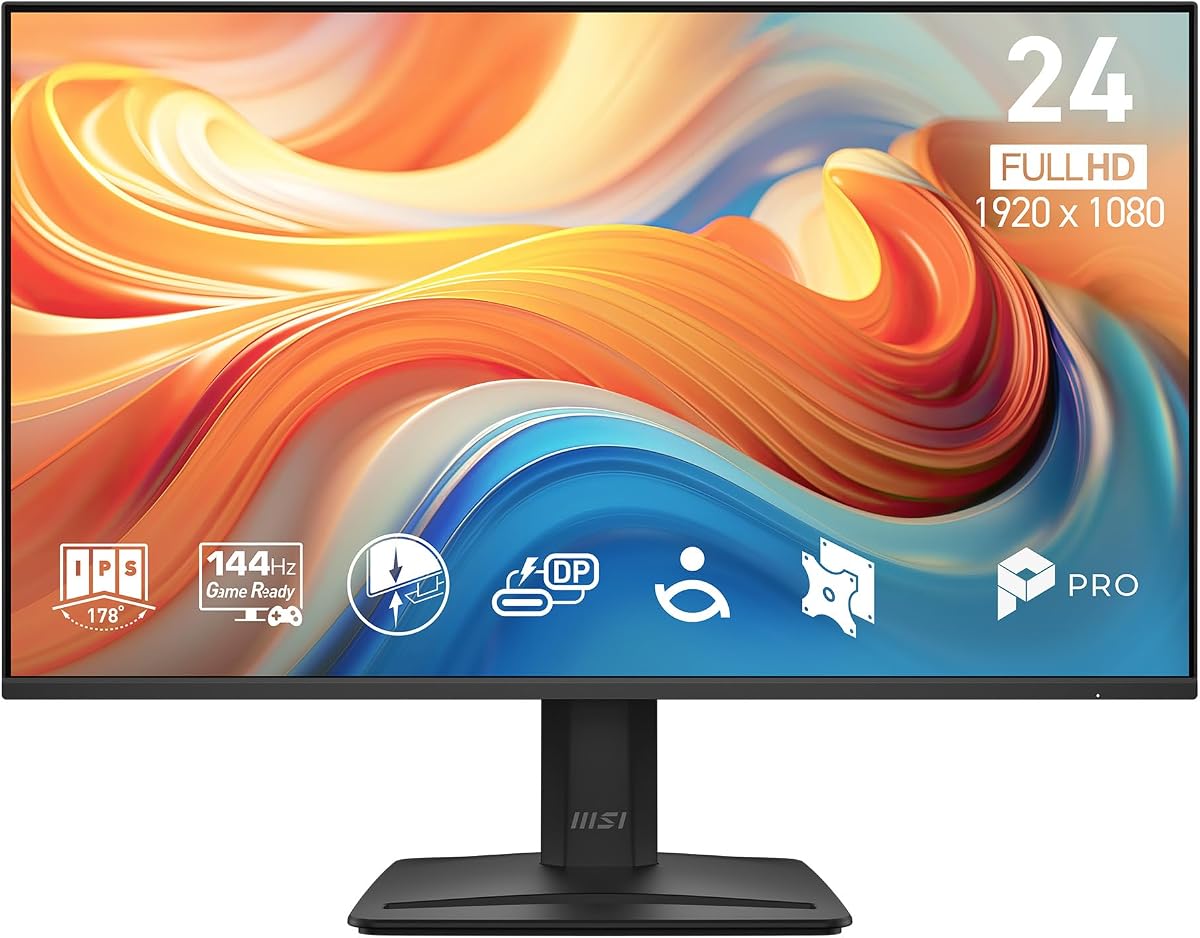
MSI’s PRO MP242 E14C is what you buy when you want smoother motion on a budget desk and a USB-C connector for signal—not when you expect the monitor to power your notebook. Fifteen watts of Power Delivery is phone-adjacent territory; your laptop will still want its own charger for real work sessions, and marketing that implies otherwise sets you up for disappointment.
Where it still earns a seat: 144Hz on IPS with FreeSync, flicker-free and low blue light certifications, and a compact 24-inch footprint that fits bootcamp desks and student apartments. Everyday Windows motion feels less choppy than legacy 60Hz panels, which helps even if you only game casually on weekends after homework.
Tilt and VESA support cover basic ergonomics. If you need built-in height adjustment, BenQ’s GW2490TC or Samsung’s ViewFinity S6 may fit better; the MSI is happiest on an arm where you can nail eye level precisely.
Given the softer pack rating, inspect seller fulfillment and keep the return window on your calendar. Panel quality lottery exists across budget monitors—a good unit is a steal for secondary desks, and a bad unit should go back quickly without second-guessing.
Use it as a second screen beside a charged laptop, or as a dorm/office panel where USB-C mainly replaces an HDMI adapter. Do not sell yourself a one-cable docking fantasy the 15W PD budget cannot keep.
Students and analysts who already solved power with a brick will appreciate 144Hz smoothness; creators chasing 4K color should look higher in this list.
Students wanting 144Hz on a budget and a USB-C video input without paying for 65–90W docking.
Anyone whose primary goal is one-cable charging—look at LG 90W, Samsung 90W, Philips 65W, or ProArt 65W instead.
We may earn a commission at no additional cost to you.
ProArt exists for people burned by “vivid” retail modes that lie about skin tones. The PA278CV’s Calman Verified Delta E < 2 claim and 100% sRGB coverage are why creatives shortlist it even when flashier 4K panels cost similar street prices. If you retouch portraits or prepare print-adjacent graphics, that factory verification language matters more than another RGB lighting strip.
USB-C with 65W Power Delivery plus an onboard USB hub turns the monitor into a mini creative dock: one cable for the laptop, peripherals hanging off the display. Daisy-chain DisplayPort support helps when you graduate to two matching screens without running a cable maze back to the notebook every morning.
The 27-inch QHD IPS sweet spot keeps macOS and Windows UI elements readable without the aggressive scaling some 27-inch 4K setups demand. Pivot to portrait for code or long pages; the ergonomic stand expects you to work for hours, not pose for unboxings.
Gamers chasing 180Hz should look at IPS gaming guides instead. This is a color-and-cable product first. Speakers, if present in a given config, remain secondary to a proper monitoring pair when audio work pays the bills.
Choose ProArt when trust in color and docking convenience outrank sheer pixel count. Pair it with even a simple calibration workflow if client deliverables depend on consistency across laptop and desk glass.
Versus LG’s 27-inch 4K 90W champion: pick ASUS for Calman/sRGB certainty plus hub/daisy-chain; pick LG for denser 4K pixels and higher charging headroom on hotter laptops.
Install/retain the ProArt color profile, soft-proof in your editor, and recalibrate periodically even when factory Delta E claims were excellent.
Use quality DP cables and confirm GPU MST support. Daisy-chain convenience dies on flaky cables.
We may earn a commission at no additional cost to you.
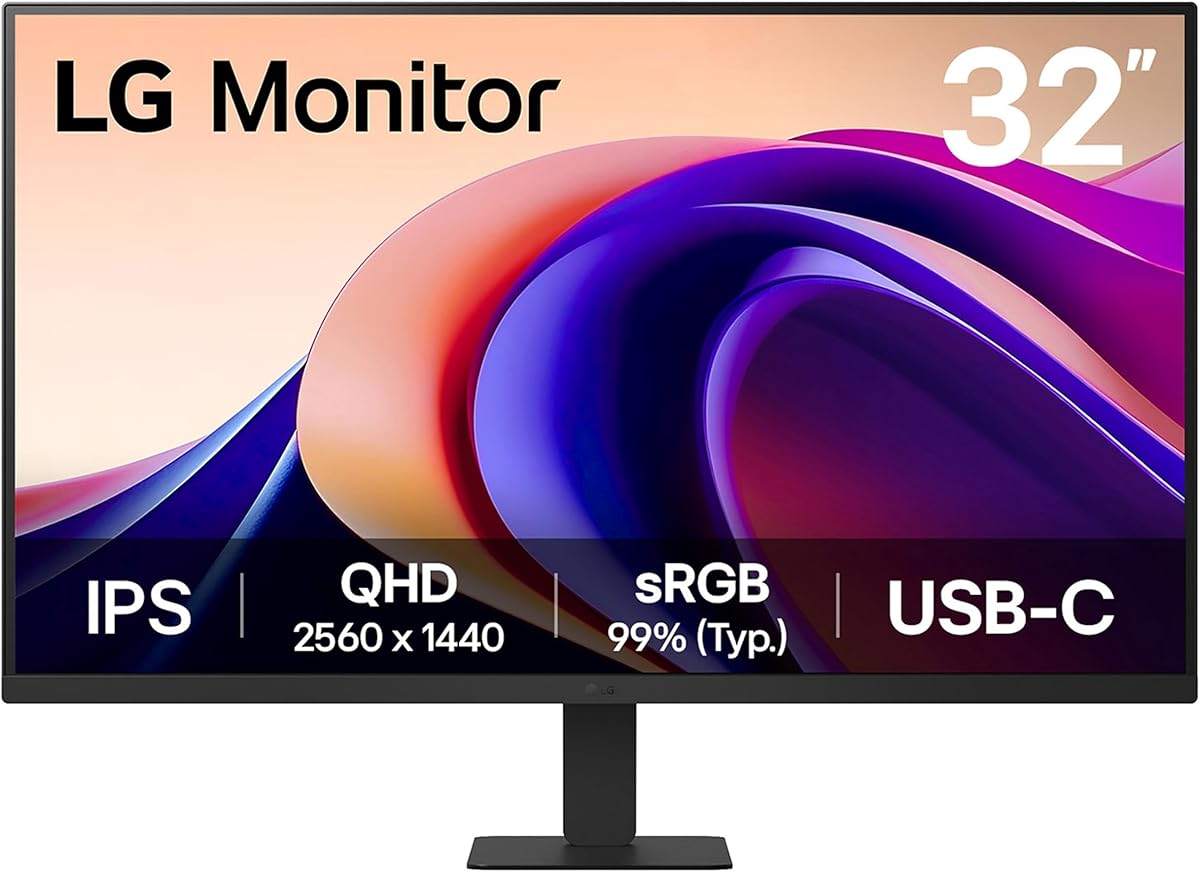
Not every big screen needs to be 4K. The LG 32U631A-B’s QHD IPS panel is a productivity bargain for people whose GPUs or laptops prefer driving 2560×1440 over 3840×2160—especially on integrated graphics. One hundred hertz and a 5ms response claim make window motion and casual gaming nicer than static 60Hz corporate panels without punishing frame times.
USB Type-C with up to 15W Power Delivery is best understood as a convenience video input with light accessory power—not a docking charger. Plan to keep laptop charging separate and enjoy the cleaner video cable story anyway. HDMI remains available for desktops and consoles that still speak that language.
HDR10 and up to about 99% sRGB help games and streaming pop, while Reader Mode softens long document stretches. That combination fits hybrid “work until six, game until eight” desks without buying two specialized monitors for one apartment.
Sit a proper distance from a 32-inch screen. If you are closer than about an arm’s length plus a bit, consider 27-inch instead so UI chrome does not dominate your field of view. VESA planning helps if the stock stand’s adjustability does not match your chair height.
Buy this LG when you want acreage and smoother refresh on a USB-C-capable laptop without paying the 4K GPU tax. Skip it if one-cable charging is non-negotiable—look at the 90W Samsung ViewFinity or LG 27UP850K-W instead.
Integrated-graphics laptop users often find QHD at 100Hz the happier daily target than 4K60 when battery life and thermals still matter between wall outlets.
Enable Reader Mode for long PDF contracts, then switch back to standard/HDR modes for media so color is not permanently muted.
At 32" QHD, 100–125% scaling usually keeps text bold without huge icons.
We may earn a commission at no additional cost to you.
Samsung stuffed a dock into a sharp 24-inch QHD panel. USB-C at 90W, a built-in LAN port, daisy-chain capability, and a KVM switch are why IT-minded buyers and dual-machine freelancers care. If your MacBook or Windows ultrabook needs wired Ethernet for VPN quirks or stable standups, onboard LAN via the monitor is quietly delightful.
QHD at 24 inches yields unusually crisp text—excellent for coding and dense sheets—though multitaskers who tile six windows may still prefer 27–32 inches of raw space. One hundred hertz and HDR10 keep the panel from feeling like a dusty corporate leftover from a bulk IT bid.
The Easy Setup stand’s tool-free story matters when you reconfigure rooms often or move between offices. KVM features let one keyboard and mouse jump between two sources—ideal for a locked-down work laptop beside a personal machine on the same desk without a KVM box cluttering the drawer.
Daisy chaining two monitors can declutter cable runs if your second panel cooperates. Validate cable standards and GPU support before you commit to a mirrored Samsung stack and rearrange every power brick.
This is the USB-C monitor to pick when docking features outrank sheer size. It is a specialist—and a very good one—for consultants, developers, and anyone converting a thin notebook into a full desk station.
Tape a 24-inch outline on your desk first. If that rectangle feels tiny for your workflow, step up to the 27-inch 90W LG and keep a travel Ethernet adapter instead.
One USB-C cable for laptop video/power, Ethernet via the monitor LAN, peripherals on the hub/KVM—leave the brick at home if 90W covers your load.
Match a second ViewFinity-compatible panel and use quality DP cabling. Confirm OS detect order after the first boot.
ViewFinity wins resolution, 90W charging, LAN, and KVM. BenQ wins simpler eye-care office focus and 144Hz motion if you do not need a dock.
We may earn a commission at no additional cost to you.

Portable monitors are how USB-C becomes a travel superpower. The MNN 15.6-inch FHD IPS panel packs into a sleeve, weighs about 694 grams, and can run from a single full-feature USB-C cable when your laptop speaks DisplayPort Alt Mode or Thunderbolt. That is a second Chrome window on a hotel desk that only had room for your notebook.
Dual Type-C ports and HDMI paths cover mixed devices—Windows, MacBooks, phones, Switch—though you must respect the listing’s note about Alt Mode support. Charge-only phone cables will disappoint you every time; bring data/video-capable leads and label them in your kit.
The smart cover doubles as a stand for landscape or portrait. Portrait on a portable is fantastic for reading long specs or editing documents while the laptop runs chat and music. Speakers are small but useful when packing light for overnight trips.
HDR mode and low-blue/flicker-care claims help travel media and late work sessions. You will not mistake it for the LG 27-inch DisplayHDR 400 desktop experience, and that is fine—these products have different jobs in a hybrid week.
Buy MNN for mobility. Keep a desktop USB-C 4K at home for color-critical days. Together they cover modern hybrid work better than one compromised panel that is too heavy to carry and too small to love at home.
Before a work trip, plug the portable into your exact laptop USB-C port. If you get power without video, switch ports or fall back to the HDMI path instead of debugging in an airport lounge.
Confirm DP Alt Mode. Some phones and older Ultrabooks need a powered hub. MacBooks with Thunderbolt generally behave; always test before a client trip.
Pack the USB-C cable you tested, a soft sleeve, and a tiny HDMI adapter as backup when hotel TVs steal your attention.
We may earn a commission at no additional cost to you.
15W is not a dock. 60–65W covers many ultrabooks. 90W is the comfort zone for pro notebooks under load. Match the number to your laptop’s PD input before you shop bezels.
27" 4K is the sharp creative default. 24" QHD is incredibly crisp for text. 32" 4K is sprawling but less dense. Portables trade all of that for grams.
ProArt-style Calman verification helps client delivery in sRGB. DCI-P3 HDR400 panels help media and Mac-like wide color. Office Eye-Care FHD panels help comfort, not print proofs.
Ethernet, KVM, daisy-chain, and USB-A ports can retire a separate dock. Samsung ViewFinity shows how valuable that bundle is at 24 inches.
USB-C cables vary wildly. Buy marked high-watt / video-capable cables. Most “my monitor won’t charge” tickets are cable or host-limit problems.
Common causes: the monitor only offers 15W, the laptop demands more watts than the monitor provides, the cable is charge-only or data-only, or the laptop limits charging on that specific port. Check the monitor’s PD rating (65W/90W ideal), try a known 100W-rated cable, and test another USB-C port on the notebook.
Not for every ultralight, but it provides headroom when compilers, cameras, and bright panels spike power draw. LG 27UP850K-W and Samsung ViewFinity’s 90W options are safer for pro laptops than 60–65W units—though many Air-class machines are content at 65W.
Pick 27" 4K for maximum density and Mac-like sharpness. Pick 27" QHD ProArt when calibrated sRGB accuracy and scalable UI matter more than pixel counting. Both can be excellent; your software scaling preferences decide.
Sometimes. Models with USB hubs, Ethernet (ViewFinity), and high PD watts come closest. If you need many legacy ports, dual 4K outputs, or SD readers, you may still want a dedicated dock feeding the monitor over DP/HDMI.
Nice to have for casual games and tear reduction; irrelevant for spreadsheets. Prioritize wattage, ergonomics, and color first.
Yes as second screens for travel and pair programming on the go. No as your only color-critical display. MNN’s 15.6-inch model is a backpack tool, not an UltraFine replacement.
White LG 4K panels often match aluminum laptop aesthetics and HDR media flair. ProArt black QHD signals calibrated workmanship. Choose based on workflow optics and whether clients see your desk on Zoom.
It lets you connect a second monitor through the first via DisplayPort MST, reducing cable runs to the PC. ASUS ProArt and Samsung ViewFinity advertise this—GPU/OS support required.
Not necessarily—just a bad match if you expected charging. As a 144Hz FHD IPS screen with USB-C video, it can still serve. As a one-cable dock, it fails the brief. Read wattage first every time.
Laptop workers wanting 4K: LG 27UP850K-W. Color pros in sRGB: ASUS ProArt PA278CV. Compact dock fans: Samsung ViewFinity S6 24". Travelers: MNN portable. Everyone: verify watts.
USB-C monitors succeed when power delivery, panel quality, and ports agree with your laptop’s habits. LG’s 27UP850K-W is the 4K 90W desk hero, ASUS ProArt PA278CV remains the calibrated QHD craftsman’s choice, and Samsung’s 24-inch ViewFinity S6 is the surprisingly complete compact dock with LAN and KVM.
Treat 15W USB-C models as video inputs, not chargers. Use portables as travel multipliers. Buy a cable that can actually carry the watts you paid for.
Do that, and the phrase “one-cable desk” stops being marketing—and starts being how you start work every morning.