Detailed review
Pixel density is the quiet hero. Samsung notes QHD delivers roughly 1.7 times the pixel density of Full HD, and on a 27-inch diagonal that difference shows up in UI text, distant foliage, minimaps, and the crispness of competitive HUDs. If you have been gaming on a soft 1080p 27-inch panel, switching to this Odyssey often feels like cleaning a window rather than simply raising a refresh slider. Creators doing light photo edits or spreadsheet work between sessions will notice the same clarity benefit.
Motion features are tuned for practical play rather than brochure fantasy. A 180Hz panel shortens the time between frames enough that tracking strafing targets in shooters and camera pans in action RPGs feels more continuous. FreeSync keeps the image from tearing when your GPU cannot hold a locked high frame rate—common in open-world titles and GPU-heavy story games. HDR10 adds brighter highlights and more nuanced shadows when content supports it, though you should treat HDR as a situational boost rather than expecting reference-grade peak brightness from a value gaming monitor.
Samsung’s game-facing toolkit is more useful than gimmick lists suggest. Black Equalizer lifts crushed dark areas so you can spot opponents in shadow-heavy maps without nuking the whole image into a washed gray. Virtual Aim Point overlays a targeting reference for games that hide or remove crosshairs. Auto Source Switch+ reduces the annoyance of juggling a console and a PC on the same desk. None of these replace good aim or a strong GPU, but they remove friction that cheaper office monitors never address.
Ergonomics separate this pick from several otherwise similar QHD budget options. The stand supports tilt, pivot, and height adjustment, which matters if you share a desk, alternate between sitting and standing, or want a vertical orientation for code, Discord, or long documents on a second layout. Many budget screens only tilt a few degrees on a short plastic stem; after a long ranked night, that missing height range becomes the difference between a neutral neck and a stiff one.
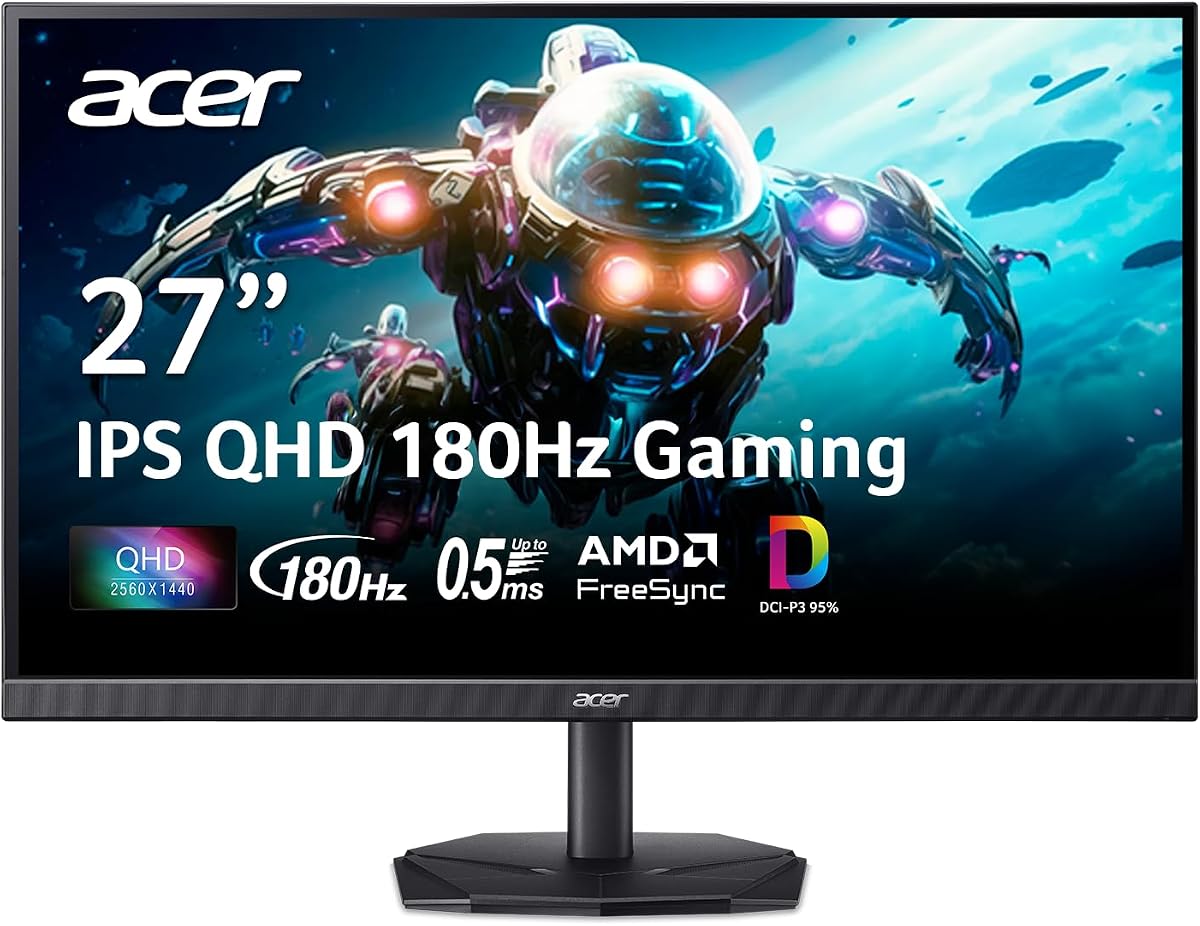
Who should buy it: PC gamers with at least a midrange GPU who want one monitor for competitive sessions and clearer everyday use, and anyone upgrading from an aging 60Hz 1080p display who is willing to learn QHD settings. Who should skip it: players on very entry-level graphics cards who cannot approach high frame rates at 1440p, and buyers who specifically want IPS viewing angles or a wider DCI-P3 color story—those shoppers should look at the Acer Nitro in this same roundup.
Setup tip: connect with a cable that can actually carry QHD at high refresh (DisplayPort is typically the safest path on PC), enable FreeSync in both the monitor OSD and your GPU control panel, and start with a calibrated brightness rather than leaving the panel at a factory “showroom” mode. Spend ten minutes with Black Equalizer on your darkest multiplayer map; a modest lift often helps more than cranking overall brightness and bleaching midtones.
Who this Odyssey G5 fits best
Choose the G51F if your priority stack is sharpness, high refresh, and a stand that adapts to real desks. It is especially strong as a single-monitor battlestation where you game, watch, and work on the same panel. Dual-PC or PC-plus-console users will appreciate source switching more than pure esports minimalists who only ever plug one DisplayPort cable.
If your GPU is happier at 1080p ultra settings, you can still run this monitor and enjoy the QHD clarity in productivity, then lower in-game presets or use upscaling technologies to keep frame rates healthy. The panel gives you headroom to grow into as you upgrade graphics hardware later.
Practical caveats before you click buy
Budget QHD gaming monitors vary in panel character; expect Samsung’s tuning to favor punchy contrast and game modes over perfectly neutral office color out of the box. If you edit photos professionally, plan on a quick calibration rather than trusting default vibrancy.
Also remember that 180Hz only helps when your system feeds it frames. A quiet office PC that tops out near 60 FPS will still look sharp on QHD, but you will not feel the full motion advantage until the GPU catches up.