Best Mac-Native 4K
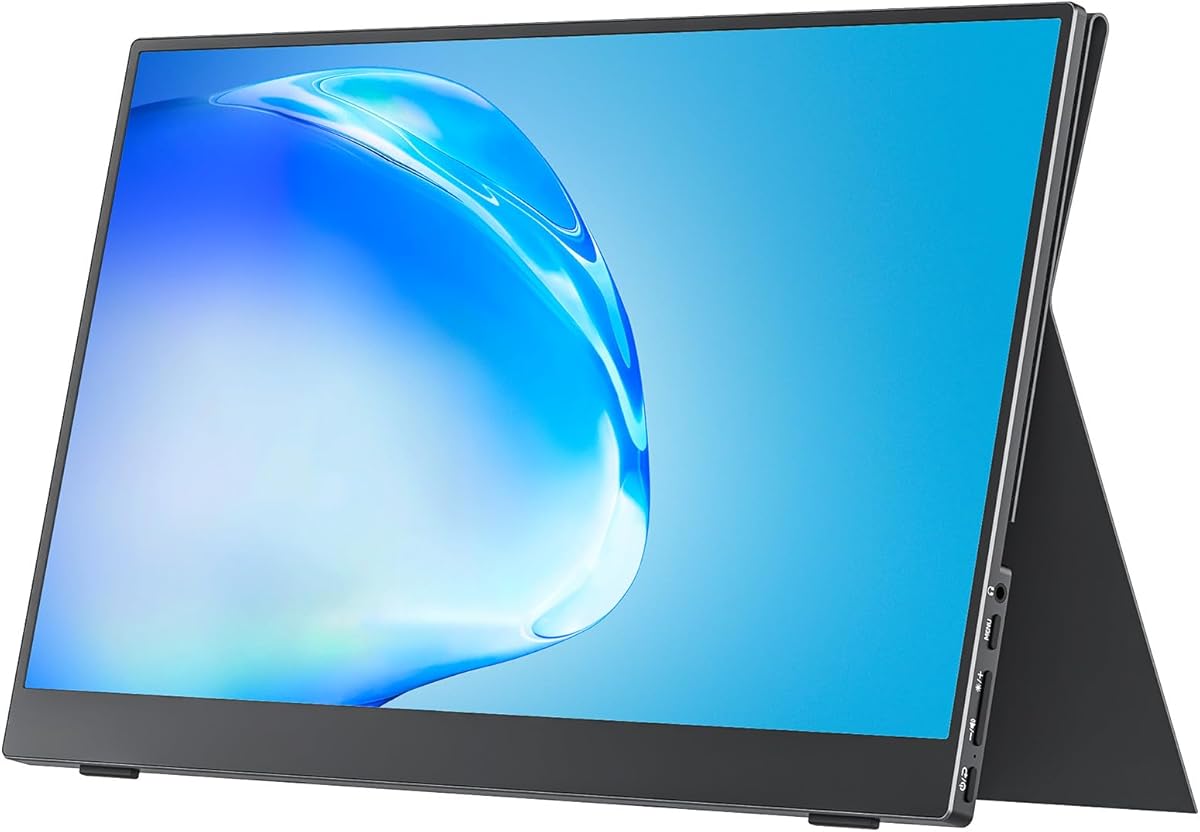
BenQ MA270UP 27” 4K

- Mac Color Match with P3 gamut tuned for MacBook Pro/Air
- Dual USB-C with 90W laptop PD and 15W accessory charge
- Brightness/volume control from the MacBook keyboard
Expert Review & Guide
The best monitor for a MacBook is the one that respects how Macs actually connect and how Retina users judge sharpness. In 2026 that usually means USB-C with DisplayPort Alt Mode or Thunderbolt for one-cable video—and ideally power delivery back to the laptop—plus a panel dense enough that text does not look soft after you leave the built-in Liquid Retina display. HDMI-only office panels still work with the right dongle, but they are a different purchase philosophy than a Mac-tuned USB-C 4K.
This pack spans practical Mac desk and travel options: a Philips 24-inch FHD 100Hz VA value screen, MNN and cocopar 15.6-inch portable USB-C monitors, an INNOCN 27-inch 4K USB-C with HDR400, the BenQ MA270UP built specifically around Mac color match and 90W dual USB-C, LG 27UP650K-W and 27US500-W UltraFine-style 4K IPS whites, a CRUA 27-inch curved FHD HDMI/VGA display, a CIDETTY 14-inch laptop screen extender with important M-series compatibility caveats, and the LG 34SR60QC-W ultrawide smart monitor with AirPlay 2.
Match the cable to your MacBook’s ports, match resolution to how close you sit, and read compatibility notes before buying portable extenders. Reviews follow pack order with Mac-specific caveats and no dollar prices.

As an Amazon Associate we earn from qualifying purchases. We may earn a commission at no additional cost to you.
Prioritize USB-C/Thunderbolt path, resolution (FHD vs 4K vs ultrawide), power delivery watts, and any M-series compatibility warnings before reading the deeper Mac notes.

Philips’ 241V8LB-class 23.8-inch Full HD VA monitor is the honest spare-bedroom Mac display: 1920×1080, 100Hz, 4ms GtG, Adaptive Sync, flicker-free and low blue light features, HDMI 1.4, tilt, and VESA mounting. It will not mimic a Studio Display. It will give you a bigger window for Docs, Slack, and Netflix when you are tired of hunching over a 13-inch Air.
MacBook owners must plan the cable. Modern MacBooks speak USB-C/Thunderbolt natively; this Philips speaks HDMI. Budget a multiport adapter or dock that includes HDMI, and accept that you will still power the MacBook separately unless your dock handles PD. That is the entire category difference versus BenQ/INNOCN USB-C panels.
VA panel contrast is the visual consolation prize—deeper blacks for movies than many budget IPS panels, with 178-degree viewing angles Philips emphasizes for consistent color off-axis. EasyRead mode aims at long document days. The three-side virtually bezel-free design helps if you eventually add a second matching screen.
100Hz is a quiet quality-of-life bump over dusty 60Hz office panels for scrolling and light casual games via Apple Game Porting Toolkit or cloud clients. It is not a 160Hz esports story. Text scaling at FHD will look larger/softer than the MacBook’s internal panel—sit a bit farther back or lean into larger UI sizes.
Versus LG 27-inch 4K options: much less sharpness and Mac-desk prestige, much simpler spare-room utility. Versus portable USB-C screens: this is a stationary VESA citizen, not a backpack panel.
Buy as a Simple HDMI Desk Spare when you already own a dock. Skip if one-cable USB-C charging is non-negotiable—jump to BenQ or INNOCN.
Prefer a USB-C hub with HDMI and PD pass-through so one laptop cable still charges. A dumb HDMI-only dongle means two cables forever.
Two 24-inch FHD panels can flank a MacBook in clamshell mode cheaply. Color match will not be BenQ-grade—fine for code and tickets.
We may earn a commission at no additional cost to you.

MNN’s 15.6-inch portable is the café dual-screen kit for MacBook travelers who refuse to edit spreadsheets on one cramped laptop panel. A Full HD IPS glossy-leaning portable with HDR mode, low blue light, built-in speakers, and a PU leather smart cover stand lands near 694 grams and roughly 0.76 cm thin—easy beside a 14-inch MacBook Pro.
The Mac-critical detail is in the fine print: your device needs Thunderbolt 3 or USB-C with DP Alt Mode for one-cable video. That covers modern MacBooks, but you should still keep the HDMI path in mind for older machines or when a port is occupied. Dual full-feature Type-C ports give flexible power/signal arrangements when a single cable is thirsty.
Display modes—copy, extend, second screen, portrait—matter more on the road than at a fixed desk. Portrait mode turns the portable into a chat/docs column beside the MacBook’s landscape keyboard deck. HDR mode brightens travel movie nights; do not expect reference HDR400 desktop behavior.
Versus cocopar’s portable: similar mission, different brand ecosystem and accessories; cocopar’s rating and VESA story may win desk dual-use. Versus CIDETTY extender: MNN is a classic second monitor, not a clip-on triple-screen hinge product with M-chip warnings.
Speakers are “better than silent,” not studio monitors—fine for call soft-monitoring with headphones preferred. Flicker-free/low blue claims help long train work sessions.
Choose the Cafe Dual-Screen Kit when your MacBook already has a full-featured USB-C port and you live in Extend mode. If you need 4K color-managed desk work, this is a travel accessory, not your primary creative monitor.
After connecting, arrange displays in System Settings so the portable sits logically left/right. A wrong arrangement makes the cursor feel haunted.
If the panel flickers or stays black on one cable, add power to the second USB-C while video rides the first—common portable-monitor behavior.
We may earn a commission at no additional cost to you.
INNOCN’s 27C1U-D-style 27-inch 4K monitor is the pragmatic Mac creative desk: 3840×2160 IPS, HDR400, ∆E<2 targeting, up to about 400 nits, 1.07 billion colors (8-bit+FRC), 60Hz, built-in speakers, and a stand that height-adjusts, swivels, tilts, and pivots. Framing explicitly calls out MacBook/Mac mini USB-C convenience—music to anyone allergic to dongle spiders.
At 27 inches, 4K is the resolution sweet spot for macOS. Text stays crisp at sensible scaled resolutions, timelines show more scrubbing room, and Safari windows stop feeling like phone browsers. HDR400 improves compatible video highlights; still grade critical color with proper profiles if you deliver print or cinema.
Ports are modern on purpose: USB-C, DisplayPort, HDMI, and headphone jack—no legacy VGA theater. Plug a MacBook into USB-C for signal (and often power, depending on PD implementation—confirm with your unit whether charging is included and at what wattage). Keep DP/HDMI for a desktop PC sharing the same desk.
Ergonomics separate this from bargain tilt-only panels. Pivot to portrait for code review or long PDFs; raise the panel to neutral neck height. VESA 75×75 covers arms if you eventually mount dual 4Ks.
Versus BenQ MA270UP: INNOCN wins mixed-ecosystem value and ergo completeness; BenQ wins Mac-specific color match, keyboard brightness control, and clearer 90W PD storytelling. Versus LG 27UP650K-W: similar 4K HDR400 ambitions with different stand/software ecosystems (LG Switch app vs INNOCN simplicity).
Best 4K USB-C Value when you want sharpness and Mac cable sanity without paying for BenQ’s Mac-exclusive tuning layer.
Start with the default scaled “Looks like 2560×1440” style option on 27-inch 4K, then adjust until UI size matches your MacBook comfort.
After connecting USB-C, check the battery menu. If the Mac discharges while “charged,” add a power brick or choose BenQ’s explicit 90W PD design.
Portrait 4K is excellent for long files. Put Slack on the MacBook and the IDE on the pivoted INNOCN.
We may earn a commission at no additional cost to you.
If this pack has a “bought for MacBook on purpose” centerpiece, it is the BenQ MA270UP. A 27-inch 4K 3840×2160 monitor with P3 color, Mac Color Match tuning, dual USB-C (90W Power Delivery for the MacBook, 15W for iPad/iPhone), dual HDMI, a USB hub, and the unusual ability to ride MacBook keyboard brightness and volume keys for the external display. Height, tilt, swivel, and pivot complete the ergonomic brief.
Mac Color Match exists because Retina users notice when an external panel looks like a different universe. BenQ’s exclusive tuning aims to keep skin tones and UI chrome from clashing when you drag a window from laptop to desk. P3 wide gamut further echoes Apple’s display targets for photo and video adjacent work.
The 90W PD cable is the lifestyle feature. One USB-C lead carries video, data hub functions, and enough power for many MacBook Air/Pro workloads so the official charger can live in a travel pouch. The second USB-C at 15W acknowledges the iPhone/iPad gravity well on every Mac desk.
Keyboard brightness/volume control sounds minor until you live it—no more OSD archaeology for a dim afternoon. Designers and writers who constantly tweak luminance will feel the quality-of-life bump daily.
Versus INNOCN 27 4K: clearer Mac software/hardware integration and PD wattage storytelling on BenQ; INNOCN remains a formidable generic USB-C 4K with strong ergo. Versus LG UltraFine-style whites: BenQ leans functional Mac controls; LG leans HDR/DCI-P3 + Switch app ecosystems.
Best Mac-Native 4K when your desk is Mac-primary and you want one-cable sanity with color continuity. Choose LG/INNOCN if you split time evenly with gaming PCs and need different I/O priorities.
Park a short, high-quality USB-C cable on the BenQ permanently. Your MacBook becomes a clamshell or laptop-open workspace in two seconds.
Mac Color Match is a huge help, not a substitute for a hardware calibrator on print-critical jobs. Know which tier of color trust you need.
Households that constantly hot-swap a Windows gaming PC may prefer HDMI/DP-first LG panels and a separate Mac dock.
We may earn a commission at no additional cost to you.

LG’s 27UP650K-W wears the UltraFine-inspired white 4K uniform Mac desks love: 3840×2160 IPS, DisplayHDR 400, up to roughly 95% DCI-P3, Reader Mode, Flicker Safe, and a stand with height, tilt, and pivot. It is a color-forward work monitor that looks at home beside a silver MacBook even if the cable story is HDMI/DisplayPort rather than magical USB-C.
For Final Cut, Lightroom, and wide-gamut web work, that DCI-P3 coverage is the pitch. HDR400 helps streaming and HDR timelines show more highlight range than SDR office panels. macOS handles 4K scaling cleanly at 27 inches when you pick a comfortable HiDPI mode.
Connectivity reality for MacBook: expect a USB-C-to-DisplayPort cable, HDMI adapter, or dock. That is extra hardware versus BenQ/INNOCN USB-C natives, but docks often add Ethernet and SD readers freelancers need anyway. Gaming-oriented Black Stabilizer and Dynamic Action Sync are bonuses if you also boot Boot Camp/Game Porting titles.
The Switch app’s multitasking layouts (up to six sections, hotkeys, platform switching language) can organize a chaotic freelance day. Treat it as optional software sugar; the panel quality is the meal.
Versus 27US500-W: UP650K typically brings richer ergo (height/pivot) and stronger HDR/P3 marketing. Versus BenQ MA270UP: LG wins white UltraFine vibes and HDR gaming extras; BenQ wins Mac PD and keyboard control integration.
Pick the White UltraFine HDR Desk when aesthetics and DCI-P3 matter and you already live on a CalDigit/Anker-style dock. If you refuse dongles, prioritize USB-C BenQ/INNOCN.
Pair with a Thunderbolt dock that offers DisplayPort or HDMI plus SD and Ethernet. The LG becomes the eye; the dock becomes the nervous system.
Enable Reader Mode for long Notion/PDF days to reduce harsh blue punch without killing 4K clarity.
We may earn a commission at no additional cost to you.

The 27US500-W is LG’s simpler UltraFine-flavored 27-inch 4K: IPS borderless white design, HDR10, about 90% DCI-P3, 1000:1 contrast, Reader Mode, Flicker Safe, HDMI and DisplayPort, plus Onscreen Control/Switch app support. The box includes an HDMI cable—small, appreciated when you are already buying a USB-C hub.
MacBook users get the same sharp 4K canvas philosophy as the UP650K with a more essential stand. If you already use a VESA arm, the tilt-only limitation matters less. If you need height range from a stock stand, spend attention on the UP650K or INNOCN/BenQ ergo models instead.
Color and HDR10 coverage remain suitable for photo hobbyists, students in digital media, and general wide-gamut browsing. Professional print shops may still want calibration. Wide viewing angles help when a client glances from the side during a living-room review.
Versus Philips 24 FHD: massive clarity upgrade for Retina refugees. Versus portable cocopar/MNN: this is the stay-home hero, not the backpack screen. Versus BenQ: fewer Mac-native conveniences, familiar LG white aesthetic.
Connection path remains adapter/dock territory. Once solved, macOS HiDPI scaling makes 27-inch 4K one of the most comfortable coding and writing surfaces available in this pack.
Borderless 4K Essential fits Mac users who want LG white 4K without paying for every ergo knob. Step up to UP650K or BenQ when HDR400, height adjust, or 90W USB-C become must-haves.
If your desk chair and laptop riser already set eye height, a tilt stand is adequate. Fix posture with books before blaming the monitor.
Enjoy brighter highlights in supported apps; do not assume cinema HDR mastering accuracy without a calibrated pipeline.
We may earn a commission at no additional cost to you.

CRUA’s white 27-inch 1800R curved FHD monitor is an aesthetic and immersion buy, not a Retina-matching productivity buy. 1920×1080 VA, 100Hz, 5ms, 120% sRGB marketing, 3000:1 contrast language, HDMI 1.4 plus VGA, tilt, and 100×100 VESA give you a living-room-friendly curved screen that happens to look nice near aluminum Apple gear.
MacBook owners should enter with eyes open: pixel density at 27-inch FHD is the opposite of a 14-inch Retina laptop. Fine text and design kerning suffer unless you sit farther away. For Netflix, casual console nights, and big Zoom faces, the curve and contrast can feel great.
Cable plan mirrors the Philips: HDMI via adapter/dock, separate Mac power. VGA is a legacy footnote for old classrooms, irrelevant to modern Macs. Narrow three-side bezels help multi-monitor white setups if you embrace FHD.
Versus LG 4K whites: CRUA wins curve and potential price comfort, loses the sharpness Mac users usually chase. Versus portable FHD panels: CRUA is a fixed desk curve, not a 1.5 lb travel screen.
Blue light and flicker-free features support long study sessions. Tilt -5° to 15° covers basic ergonomics; VESA is the long-term upgrade.
Buy the Curved White HDMI Curve for media-first Mac desks that prioritize vibe over PPI. Choose 4K IPS (BenQ/LG/INNOCN) if you write code or edit photos eight hours a day.
If you hate how large FHD looks next to your MacBook, you will hate this at 27 inches. Trust that instinct and spend on 4K.
Straight-line UI design and spreadsheet grids can feel warped on 1800R. Creators who live in Figma may prefer flat IPS.
We may earn a commission at no additional cost to you.
cocopar’s 15.6-inch portable monitor is the pack’s Best Portable Second Screen for MacBook life on the move: 1080P, 60Hz, 85% sRGB, HDR, low blue light IPS, speakers, dual full-featured USB-C, HDMI, a smart stand case, and VESA mount holes. At about 1.5 lb without the cover (roughly 2.4 lb with it) and as slim as 4mm at the thinnest point, it disappears into the same backpack sleeve as a charger brick.
MacBook compatibility follows the portable-monitor rules: Thunderbolt 3/4 or USB-C DP Alt Mode enables one-cable Extend/Mirror modes for meetings and hotel desks. Power pass-through reverse charging language helps some setups keep devices tidy—still verify behavior with your exact MacBook generation.
VESA mountability is the secret desk mode. At home, put the cocopar on a small arm in portrait for Slack/email while the BenQ/LG 4K handles timelines. On Monday, fold the cover and take the same panel to a client site. Few desktop monitors offer that duality.
Versus MNN: similar portable category with cocopar’s particularly strong review halo and explicit MacBook mentions. Versus CIDETTY: fewer M-series “won’t work” landmines in the marketing, more traditional second-screen behavior.
Speakers and HDR modes cover travel entertainment; headphones still win on flights. Extend mode for work, Mirror mode for presentations when you want the audience to see exactly your deck.
Buy this when travel dual-screen is the feature you will use weekly. Keep a 27-inch 4K at home for Retina-level desk work.
MacBook on the left, cocopar on the right in Extend, notifications on the portable. Your laptop screen stays focused on the active doc.
A mini VESA arm on the home desk prevents the portable from feeling like a toy when you are not traveling.
Full-feature USB-C cable, HDMI cable, and a small USB-C PD brick. That trio covers 95% of portable-monitor surprises.
We may earn a commission at no additional cost to you.

CIDETTY’s 14-inch laptop screen extender is a specialized hinge/portable display designed to add dual or triple screen real estate around a laptop lid. It offers FHD IPS, blue light filtering, anti-glare, speakers, dual USB-C, an HDMI pathway, and a full cable gift set. On the right Windows laptop with two full-featured Type-C ports—or Type-C plus HDMI—it can transform a kitchen table into a temporary trading floor.
MacBook shoppers must read the bold warning: the listing states it is not compatible with MacBook models using M1, M2, or M3 chips or Surface devices with only one Type-C port. That single sentence disqualifies a huge slice of the “best monitors for MacBook” audience in 2026. If your Mac is Apple silicon with limited full-function video ports, do not fight this product—buy MNN/cocopar or a desk 4K instead.
Why include it? Because packs sometimes mix cross-platform accessories, and honesty is the review job. Intel Mac holdouts with the required port combination might experiment; everyone else should treat CIDETTY as a Windows-centric extender that wandered into a Mac roundup.
If compatibility somehow lines up, the efficiency pitch is real: mirror/extend modes, up to dual expansion, and a portable workstation vibe. The protective case and certifications (FCC, CE, RoHS language) support travel abuse expectations.
Versus cocopar/MNN: those remain the safe Mac portable answers. Versus BenQ 4K: different jobs entirely—desk color versus clip-on expansion.
Triple-Screen Caveat King earns a cautious rank: fascinating for the right laptop, wrong for most modern MacBooks. Believe the compatibility note.
If you are on M1/M2/M3/M4 MacBook Air/Pro, skip CIDETTY and shortlist cocopar, MNN, BenQ, or LG instead. Do not buy hoping adapters will invent ports.
A Windows work laptop with two full-featured USB-C ports that shares a household with a Mac. Buy for the Windows machine; use BenQ for the Mac.
We may earn a commission at no additional cost to you.

LG’s 34SR60QC-W is the AirPlay Ultrawide Hub: a 34-inch 3440×1440 21:9 1800R curved smart monitor with webOS23, HDR10, about 99% sRGB, 100Hz, built-in speakers, dual HDMI, USB ports, AirPlay 2, HomeKit compatibility, Screen Share, Bluetooth, and ThinQ app control in a white multi-purpose shell. It can be a MacBook productivity ultrawide by day and an Apple TV app streaming billboard by night—without waking the laptop.
For Mac creators, 21:9 is the timeline gift. Final Cut, Logic, and wide browser research layouts breathe. Compared with 27-inch 4K, you trade some PPI denseness for horizontal real estate; many editors prefer the width once they adjust scaling.
AirPlay 2 is the Apple glue. Mirror or extend wirelessly from macOS/iOS when a cable feels like friction, accepting that wireless display has latency and compression tradeoffs versus USB-C/DP. HDMI remains the reliable graded-work path from a dock.
Smart monitor independence matters in shared apartments: someone can watch Disney+ from webOS while your MacBook sleeps in a bag. Cloud access to Microsoft 365/Google apps from the monitor’s OS even covers light tasks without a PC, though serious work still belongs on the MacBook.
Versus BenQ MA270UP: different philosophies—ultrawide smart living room vs Mac-tuned 4K USB-C creator desk. Versus CRUA curve: vastly more resolution and smart features. Versus portables: this is furniture, not luggage.
Choose the AirPlay Ultrawide Hub when you want one white panel for Mac productivity and Apple-friendly streaming. Choose BenQ/INNOCN when color-managed 4K USB-C desk work is the entire job.
Edit and write over HDMI/USB-C dock links. Use AirPlay for Quick Look presentations and casual mirroring.
Create Spaces for “comms” and “deep work” on the 21:9 canvas so Slack does not permanently steal half your timeline.
Built-ins beat silence for news; pair Bluetooth or Mac speakers for music mixing.
We may earn a commission at no additional cost to you.
MacBooks output video over Thunderbolt/USB-C. Monitors with USB-C DP Alt Mode (BenQ, INNOCN, portables) minimize dongles. HDMI/DP-only panels (Philips, CRUA, many LGs) need adapters or docks. If you want charging over the same cable, prioritize explicit Power Delivery wattage—BenQ’s 90W claim is the clearest in this pack.
After a MacBook Retina panel, 27-inch 4K feels natural; 27-inch FHD often feels soft; 24-inch FHD is acceptable for secondary tickets. Ultrawide 3440×1440 trades density for width. Portables at 1080P are for space, not PPI bragging rights.
P3 / wide DCI-P3 coverage (BenQ, LG UP650K, strong LG/INNOCN claims) aligns better with Apple displays than skinny office sRGB panels. Mac Color Match on the BenQ is the most explicit “made for MacBook” color feature here.
Buy cocopar/MNN when hotels and classrooms are your desk. Buy 27-inch 4K when your neck and timelines matter. Do not expect a 15.6-inch portable to replace a color-managed 4K.
LG’s ultrawide smart monitor adds webOS streaming and AirPlay 2—excellent for Apple households, unnecessary for silent code caves. Factor OS updates and app ecosystems into the purchase.
Read extender warnings. CIDETTY’s M1/M2/M3 note is a hard stop for most modern MacBooks. Portables that require DP Alt Mode still work on MacBooks with full-featured ports—just confirm your exact model.
Need? No—HDMI/DP via a dock works. Want? Usually yes. USB-C monitors like the BenQ MA270UP and INNOCN 27-inch 4K reduce cable clutter and can charge the laptop when PD is supported. If you already own a Thunderbolt dock, LG HDMI/DP panels are excellent.
27-inch 4K is the crowd-pleaser for Retina refugees. 24–27-inch FHD is softer. 34-inch 3440×1440 ultrawide is fantastic for horizontal workflows if you accept different PPI. 15.6-inch 1080P portables prioritize space over density.
Only if it supports Power Delivery at a useful wattage. BenQ’s MA270UP advertises 90W to the MacBook—strong desk replacement energy. Other USB-C panels may provide video without enough charge. Always check the battery menu after connecting.
For Mac-specific conveniences—Color Match, keyboard brightness/volume, dual USB-C PD—yes. For white HDR DCI-P3 desks already wired through a dock, LG 27UP650K-W can be equally satisfying. Pick by cable lifestyle.
Yes—MNN and cocopar are built for that—provided you use a full-featured USB-C/Thunderbolt port with DP Alt Mode. Keep a spare cable for power if one-cable mode is unstable.
Because the manufacturer warns it is not compatible with MacBooks using M1, M2, or M3 chips (and similar single-port Surfaces). Most modern MacBooks fall into that incompatible camp. Choose traditional portable monitors instead.
For presentations, video, and casual mirroring on the LG smart ultrawide, AirPlay 2 is convenient. For color-critical editing or low-latency design work, use a wired HDMI/USB-C/DP connection.
Ultrawide 21:9 curves (LG 34) can boost timeline and multitasking comfort. Aggressive FHD TV-style curves (CRUA) are more media-oriented and can distract from pixel-precise UI design. Match curve to task.
BenQ MA270UP for Mac-native 4K USB-C, INNOCN 27-inch 4K for value USB-C sharpness, cocopar 15.6-inch for travel, and LG 34SR60QC-W if you want AirPlay ultrawide smart streaming in one white panel.
MacBook monitors succeed when they respect ports, sharpness, and color—not when they merely offer a big HDMI rectangle. In this pack, the BenQ MA270UP is the clearest Mac-first 4K desk (Color Match, 90W PD, keyboard control), INNOCN delivers 4K USB-C value with a serious ergonomic stand, and cocopar remains the high-confidence portable second screen for travel Extend mode.
LG’s white 4K and ultrawide smart options shine when you already dock over HDMI/DP or want AirPlay-friendly living-room flexibility. Treat HDMI-only FHD curves as media spares, and treat M-series compatibility warnings on extenders as absolute. Cable plan first, panel second—that order saves returns.