Samsung SSD 990 PRO 1TB
- PCIe 4.0 speeds up to 7,450/6,900 MB/s in a slim laptop-friendly 2280 module
- Strong random IOPS and improved performance per watt versus 980 PRO
- Samsung Magician support for health monitoring, firmware, and migration help
Expert Review & Guide
A laptop that feels old is often limited by storage, not by the CPU sticker on the palm rest. Swapping a grinding hard disk—or a tiny, worn factory SSD—for a modern solid state drive remains one of the highest-impact upgrades you can perform without buying an entirely new notebook. Boots shrink from minutes to seconds, apps stop hitching when several projects open at once, and a backpack full of travel days becomes quieter because the drive no longer spins or seeks.
The catch in 2026 is choosing the right interface for the chassis you actually own. Many ultrabooks and gaming thin-and-lights expose an M.2 2280 NVMe slot that can run PCIe Gen3 or Gen4 sticks at several gigabytes per second. Plenty of older business and budget machines still rely on a 2.5-inch SATA bay where a quality 560 MB/s-class SSD is the correct ceiling. Buying the fastest Gen4 drive in existence does nothing if your laptop only speaks SATA—or worse, has soldered storage you cannot replace at all.
This ReviewConsensus roundup sticks to the drives in our laptop SSD product pack: flagship and value Gen4 NVMe options from Samsung, WD_Black, Crucial, Kingston, and Acer Predator, plus proven and budget SATA upgrades from Samsung, PNY, KingSpec, and fanxiang. You will get three headline picks, a full comparison table, detailed reviews with honest tradeoffs, and a buying guide covering bay types, cloning, thermals, endurance, and capacity planning so the drive you order fits both the screw hole and the way you work.
As an Amazon Associate we earn from qualifying purchases. We may earn a commission at no additional cost to you.
The table below includes every drive in our laptop SSD pack, spanning PCIe Gen4 M.2 NVMe sticks and 2.5-inch SATA upgrades. Specs highlight interface, peak sequential performance, and practical laptop fit rather than street pricing, so you can match the bay in your service manual before you order.
If your laptop already has an empty M.2 2280 bay—or you are replacing a slow factory drive—the Samsung 990 PRO 1TB is the clearest all-around choice in this pack. Sequential reads up to 7,450 MB/s and writes up to 6,900 MB/s sit at the practical ceiling of PCIe 4.0, which is exactly what most 2022–2026 ultraportables, creator notebooks, and midrange gaming laptops expose. You are not paying for a desktop-only heatsink brick; you are getting a D8-slim stick with a nickel-coated controller that Samsung designed to manage heat without relying on a chunky aftermarket sink that many laptop lids cannot clear.
Laptop upgrades are won or lost on random performance and sustained responsiveness as much as on marketing sequential numbers. Samsung claims roughly 40% faster random reads and 55% faster random writes versus the 980 PRO, with up to 1,400K/1,550K IOPS. That shows up when Windows resumes from sleep, when Chrome and Slack reopen a dozen profiles, and when a game launcher, Discord, and a browser all fight for the same drive. For creators, the same IOPS profile helps Lightroom catalogs, Premiere media caches, and Node or Docker project folders feel less sticky on a mid-power CPU.
Power efficiency is not a footnote on a laptop guide. Samsung markets up to 50% better performance per watt over the 980 PRO, which matters when the chassis has a 28–45W CPU budget and limited airflow under the palm rest. A cooler, quieter NVMe stick also means less thermal throttling during long compiles or large game updates. The 990 PRO will still get warm under synthetic fills, but in real laptop shells with even a thin motherboard pad or shield, it stays in a usable band for daily work and travel days packed with meetings.
Capacity planning is the main reason someone might skip this exact SKU. One terabyte is excellent as a primary OS and app drive, and it still leaves room for a focused game set or a working media folder. If your laptop only has one M.2 slot and you refuse cloud archives, the WD_Black SN7100 2TB later in this list may fit better. If your machine only has a 2.5-inch SATA bay and no NVMe support, jump to the Samsung 870 EVO instead—form factor compatibility beats any Gen4 brochure every single time.
Installation on a laptop is usually a 15–30 minute job: back up, crack the bottom panel with the correct bits, seat the 2280 stick at an angle, secure the screw, then clone or clean-install. Samsung Magician helps with health monitoring and firmware after the drive is online. Pair that with Windows Storage settings to confirm TRIM is active. If you are dual-booting or keeping BitLocker, decrypt or suspend encryption before cloning so you do not strand a recovery key on an old partition map.
Honest tradeoffs remain. You will not feel every megabyte of the sequential ceiling when copying small office documents. Gen3-only laptops still benefit from the 990 PRO’s controller and NAND quality, but they will top out far below the advertised Gen4 peaks. And if budget is the binding constraint, Kingston NV3 or Crucial P310 deliver most of the daily snappiness for less money. For readers who want one drive that balances speed, efficiency, software support, and brand reliability in a laptop-friendly package, the 990 PRO 1TB is still our top pick in 2026.
Choose this drive if your notebook has a Gen3 or Gen4 M.2 2280 slot, you want a primary OS disk with flagship responsiveness, and you value Magician’s monitoring tools. It is especially strong for creator laptops, engineering notebooks, and gaming thin-and-lights where one high-quality terabyte beats a bargain stick that throttles early under sustained writes.
Confirm bay length is 2280 and that there is no secondary RF shield colliding with a tall sticker stack. Most OEM shields act as passive heat spreaders—reinstall them. Avoid bulky desktop heatsinks that prevent the bottom cover from seating. If your laptop BIOS lists NVMe as RAID or Intel RST, update firmware before cloning and keep a USB installer ready.
Versus Crucial P310, the 990 PRO pushes harder on peak sequential and random IOPS with a more mature software ecosystem. Versus WD_Black SN7100, you trade the 2TB capacity and handheld-focused efficiency story for Samsung’s Magician stack and slightly higher headline reads. Versus Acer Predator GM7, you get a more established laptop-upgrade track record even if both chase similar Gen4 territory.
We may earn a commission at no additional cost to you.
The WD_Black SN7100 2TB is the laptop pick when capacity is the bottleneck. Plenty of modern notebooks only expose one M.2 slot. Filling that slot with a fast Gen4 drive that also holds two terabytes means Windows, creative apps, and a serious game library can coexist without constant uninstall rituals. Sandisk’s next-generation TLC 3D NAND and a PCIe Gen4 interface deliver reads up to 7,250 MB/s and writes up to 6,900 MB/s on the 1–2TB models—performance that feels immediate when launching Unreal Engine projects or staging large Steam downloads overnight on hotel Wi-Fi.
What separates the SN7100 in a laptop context is the efficiency claim: up to 100% more power efficiency versus the previous generation. Handheld gaming devices and thin gaming laptops punish hot, power-hungry SSDs. Lower draw keeps the chassis cooler and preserves more of the battery for the GPU and display. If you dock at a desk most days, efficiency still helps fan noise; if you travel with a Steam Deck-class handheld or a ROG Ally-style device that accepts 2280 upgrades, that efficiency story becomes central to comfort.
Everyday productivity gains are obvious when replacing a spinning drive or a tired eMMC module, but the SN7100 also makes sense as a secondary upgrade when your laptop already has a small factory NVMe you refuse to wipe. Some chassis offer a second 2280 bay under a shield. Putting the OS on a modest factory drive and games on the SN7100 2TB is a clean split. If there is only one bay, clone the old drive to the SN7100 and expand into the free space with Disk Management or a partition tool after the first successful boot.
WD_BLACK Dashboard on Windows lets you check health and keep the drive tuned. That is useful after heavy write weeks—video exports, game updates, ISO archives. Linux users can still run smartctl and vendor-agnostic tools; they simply will not get the same Dashboard polish. macOS Boot Camp or Asahi users should treat this like any NVMe: verify T2/Apple Silicon machines often solder storage and cannot use internal upgrades at all before purchasing anything from this list.
We like the SN7100 as the high-capacity laptop champion in this pack because it pairs near-flagship Gen4 bandwidth with a portable-first design brief. It is not the absolute sequential leader versus the Samsung 990 PRO’s 7,450 MB/s read claim, but the gap is academic for game loads and office work. The real differentiator is living with two terabytes without an external enclosure dangling from USB-C on a conference table or airplane tray.
Buy the SN7100 2TB when your laptop or handheld is storage-starved, supports Gen3/Gen4 NVMe 2280, and you want one internal drive to end the upgrade conversation for a few years. If you need only 1TB and prefer Samsung’s software ecosystem, the 990 PRO remains the sharper OS-drive pick. If your laptop is SATA-only, none of the NVMe advantages apply—choose the 870 EVO instead and save yourself a returns headache.
Gamers who keep Call of Duty, Fortnite, and several offline RPGs installed will feel the 2TB headroom immediately. Pair the drive with DirectStorage-friendly titles on capable hardware and you get faster traversal streaming, though CPU and GPU still dominate frame rates more than the SSD after levels are resident.
Confirm your handheld’s supported lengths (2230 vs 2280) before ordering this 2280 model. Laptops are usually 2280; many handhelds are not. When the bay matches, the SN7100’s efficiency focus and TLC NAND make it one of the better large upgrades for portable play sessions away from a wall outlet.
We may earn a commission at no additional cost to you.
Crucial’s P310 1TB is the pragmatic Gen4 laptop upgrade: fast enough to transform a SATA or HDD machine, efficient enough for thin chassis, and packaged with Acronis tooling that helps less experienced upgraders clone without drama. Sequential performance up to 7,100 MB/s read and 6,000 MB/s write sits in the modern Gen4 mainstream. You will notice it most when installing large creative suites, extracting multi-gig archives, or moving project folders between internal scratch space and an external backup disk after a shoot day.
Micron’s G8 NAND and thermal control messaging matter because laptop M.2 slots often sit under a keyboard deck with limited airflow. Drives that spike heat can force fans up even when the CPU is idle. The P310 is positioned for casual gamers and home users who want standard Gen4 performance without chasing every last sequential megabyte. That is the right brief for most student notebooks, home-office ThinkPad-class machines, and midrange gaming laptops that shipped with a slow 256GB or 512GB drive from the factory.
Compatibility is a quiet strength. Crucial calls out laptops, desktops, and select handheld gaming consoles including devices in the ROG Ally X, Lenovo Legion Go, and AYANEO families, plus backward compatibility with PCIe Gen3 hosts. Always verify your exact model’s service manual—some handhelds need 2230 modules—but for conventional 2280 laptop bays the P310 is a low-drama fit. Gen3 systems still gain responsiveness; they simply will not hit Gen4 peaks printed on the retail box.
Productivity framing in Crucial’s materials—faster Windows boots, quicker Adobe app launches, snappier Office work—is honest. Those tasks are latency and queue-depth sensitive more than they are 7 GB/s sequential sensitive. The P310’s controller and NAND stack are tuned for that real-world mix. Compared with older Gen3 sticks, Crucial cites up to 2x generation-over-generation gains, which matches what people feel when they finally leave a 2018-era NVMe behind on a machine they otherwise still like.
The included Acronis Data Recovery Software is a practical onboarding perk. Cloning remains the scariest step for first-time laptop openers. Having a branded path to image the old drive reduces the chance you reinstall Windows from scratch on a weeknight before a deadline. Still keep a separate backup of documents before you start; recovery software is not a substitute for a known-good copy of your files on another disk or cloud tier you have already tested.
Choose the P310 when you want a trustworthy 1TB Gen4 stick for daily laptop life and light gaming without paying flagship tax. Step up to the Samsung 990 PRO if you want maximum IOPS and Magician polish. Step up to the SN7100 2TB if capacity is non-negotiable. Stay on SATA with the 870 EVO if your chassis has no NVMe slot at all—no amount of Gen4 marketing will invent a connector that is not there.
Photograph cable routes before removing the bottom cover. Use a non-conductive nylon spudger near clips. Ground yourself. After seating the P310, boot to BIOS once to confirm the drive is detected before you begin cloning. Update chipset and NVMe drivers after Windows is happy on the new disk.
It beats Kingston NV3 on peak sequential claims while staying in the same everyday-upgrade lane. It beats budget SATA options whenever an M.2 bay exists. It trails Samsung 990 PRO on absolute performance and trails SN7100 on raw capacity for single-slot machines.
Confirm screw type, shield clearance, and whether your handheld voids warranty when opened. Some devices require a specific SSD height. If the manual says 2230 only, do not force a 2280 P310 into a shorter bay with adapters unless the manufacturer explicitly supports that path.
We may earn a commission at no additional cost to you.
Not every laptop upgrade is an M.2 story. Countless business notebooks, older gaming machines, and budget machines still rely on a 2.5-inch SATA bay. The Samsung 870 EVO 1TB remains the gold-standard SATA SSD for those chassis. Sequential speeds up to 560 MB/s read and 530 MB/s write effectively saturate SATA III, so you are extracting everything the interface allows without pretending to be NVMe.
Reliability and firmware maturity are why the 870 EVO keeps winning recommendation slots years after launch. Samsung highlights a larger variable buffer to sustain write performance, S.M.A.R.T. support, and compatibility testing across chipsets, motherboards, NAS boxes, and recording devices. For a laptop that also moonlights as a light NAS client or video ingest deck, that boring compatibility work matters more than a flashy retail box.
Endurance up to 600 TBW under a 5-year limited warranty (as Samsung states for this class of drive) gives IT-minded buyers confidence for heavy write users—developers with constant build artifacts, photographers dumping cards daily, or students who treat the laptop as a primary archive. Pair that with AES 256-bit encryption features for environments that care about hardware crypto, and the 870 EVO still feels like a professional tool rather than a disposable upgrade.
Real-world laptop impact versus a hard disk is night and day: quieter operation, better shock resistance in a backpack, faster boots, and application launches that stop punishing you for opening Photoshop twice. Versus a tired early SATA SSD, gains are smaller but still worthwhile if the old drive is nearly full, heavily written, or showing reallocated sectors. Versus any Gen4 NVMe in this guide, the 870 EVO is slower—and that is fine when the laptop physically cannot accept NVMe.
Installation is usually easier than M.2 for first-timers: one SATA data cable, one power cable (or a single combo connector in many laptops), and a caddy screw. Some thin laptops need a plastic or metal adapter bracket. If you are replacing an HDD, reuse the bracket. Clone with Samsung’s migration tooling or a bootable clone utility, then verify boot order in firmware. Keep the old drive briefly as an external backup if you have a USB dock.
Pick the 870 EVO when your laptop’s service manual shows a 2.5-inch bay and you want the most trustworthy SATA experience in this pack. If you have an M.2 slot free, prefer the 990 PRO, P310, or SN7100 instead. If you only need a cheap half-terabyte rescue or OS disk on a tight budget, the PNY CS900 500GB is the lighter SATA alternative.
Ultrabooks with soldered storage cannot use this drive internally. Older 15-inch and 17-inch machines, many workstation laptops with dual-drive bays, and desktops sharing the same upgrade parts are the sweet spot. Also consider the 870 EVO as a secondary media disk even if the OS already lives on NVMe.
The sustained-write behavior and Magician monitoring make this a safer long-term SATA pick than no-name drives for client machines you must support remotely. Document the serial number and warranty start date when you deploy a fleet of student or staff laptops.
We may earn a commission at no additional cost to you.
The Kingston NV3 1TB is the value Gen4 answer for laptop owners who want NVMe snappiness without shopping exclusively in the flagship aisle. Rated up to 6,000 MB/s reads on a PCIe 4.0 x4 M.2 2280 module, it is still dramatically faster than any SATA SSD in this roundup and fast enough that Windows, browsers, and modern games feel unlocked on midrange hardware. For many students and remote workers, the NV3 is the point where further sequential gains stop changing the workday.
Kingston emphasizes high-speed, low-power storage—language that maps cleanly to laptop priorities. Lower power draw reduces heat under the keyboard and leaves more of a 50–70Wh battery for the panel and radios. You will not get the elaborate handheld compatibility essays that Crucial publishes, but any standard 2280 NVMe laptop bay is the intended home. Consoles and desktops are supported in Kingston’s broader messaging, which helps if you later move the drive into a mini-PC.
Where the NV3 makes strategic sense is as a factory-drive replacement on laptops that shipped with 256GB or 512GB soldered-plus-slot configurations. Moving the OS to a fresh 1TB NV3 eliminates constant external SSD juggling. Creative users who keep current projects local and archives in the cloud will find 1TB workable; 4K video shooters may still want the SN7100 2TB or an external scratch disk.
Benchmark chasers should know the NV3’s 6,000 MB/s read target trails the 7,100–7,450 MB/s class leaders here. In file explorer copies of huge game folders you may see the gap. In application launch and OS interactivity, the difference shrinks. That is why we rank it as best value rather than best overall: it delivers the upgrade people actually feel at a more approachable tier.
Installation mirrors every other 2280 NVMe in this guide. Back up, open the chassis, swap the stick, clone or clean install, then enable TRIM and check SMART. Kingston’s documentation is typically straightforward. If your laptop uses a proprietary screw or a secondary SSD daughterboard, follow the OEM manual rather than generic YouTube steps filmed on a different brand.
Buy the NV3 when Gen4 NVMe is available, budget matters, and you want a clean 1TB primary drive. Stretch to Crucial P310 or Samsung 990 PRO when you want higher peaks and richer software extras. Stay on SATA options if the machine has no M.2 slot—spending on NVMe speed you cannot use is the wrong kind of thrift.
College laptops, home-office notebooks, and living-room mini PCs that need quiet, cool, low-power storage. Also fine as a secondary game drive in dual-slot gaming laptops when the primary OS disk is already adequate.
You are buying responsiveness and capacity, not a leaderboard sequential trophy. If your workload is continuous 4K timeline scrubbing on a mobile workstation, prioritize the 990 PRO or SN7100 instead.
Against KingSpec SATA models, the NV3 wins whenever NVMe is supported. Against fanxiang’s 128GB SATA, it is in another league for capacity and interface. Against Acer Predator GM7, you trade some peak speed for Kingston’s simpler value positioning.
We may earn a commission at no additional cost to you.
Acer’s Predator GM7 1TB chases the enthusiast Gen4 lane with reads up to 7400 MB/s and writes up to 6500 MB/s over PCIe 4.0 x4 and NVMe 2.0. On a gaming laptop with a proper Gen4 slot, that puts it in the same conversation as Samsung’s 990 PRO for big sequential transfers. Content creators copying raw footage onto a mobile workstation and gamers staging multi-hundred-gig titles will see the benefit in shorter waiting rooms between downloads and play.
Host Memory Buffer support plus SLC cache is a meaningful laptop detail. Many DRAMless or HMB-assisted designs borrow system RAM to keep latency in check. On notebooks with 16GB or more of memory, that trade is usually fine; on 8GB machines you should leave headroom so Windows does not fight the SSD for RAM during Chrome-heavy days. The SLC cache accelerates bursts—game level loads, project opens, package installs—then settles into TLC NAND rates for long writes.
Predator’s thermal throttling and power management story aims at the classic Gen4 laptop problem: fast NAND that cooks itself in a sealed chassis. Automatic temperature control will trim speeds before the drive endangers itself. You may see benchmark scores dip during long synthetic fills inside a hot gaming laptop; for ordinary game sessions and office work, the behavior is preferable to uncontrolled heat soaking the motherboard near the battery.
Biwin Intelligence software covers performance tests, data migration, cloning, and drive management for Predator-branded storage. That lowers the friction of moving from a cramped factory SSD. It is not as widely discussed as Samsung Magician, but it covers the checklist most upgraders need. Keep Windows BitLocker and OEM recovery partitions in mind before you clone; imaging tools can miss recovery environments if you rush the wizard defaults.
We place the GM7 as the enthusiast alternative rather than the default laptop pick because ecosystem familiarity and long-term firmware expectations still favor Samsung and Crucial for many readers. Performance on paper is excellent. If you like Predator branding, want near-top Gen4 numbers, and your laptop has the cooling path to sustain them, the GM7 is a compelling 1TB option with real sequential muscle.
Skip it only when you need 2TB in one stick (SN7100), when you need SATA (870 EVO), or when you want the most conservative brand choice for a work laptop that must just work quietly for five years of ticket queues and VPN days.
Install in the secondary M.2 bay when possible so you can keep the OEM drive as a recovery safety net until you verify stability. Update GPU and chipset drivers after the swap; storage upgrades sometimes coincide with forgotten firmware that limits NVMe speeds.
Use the GM7 as active media storage while archiving finished projects to external disks. The sequential write claim helps ingest days; sustained multi-hour writes still benefit from leaving free space so cache and wear leveling have room to work.
We may earn a commission at no additional cost to you.
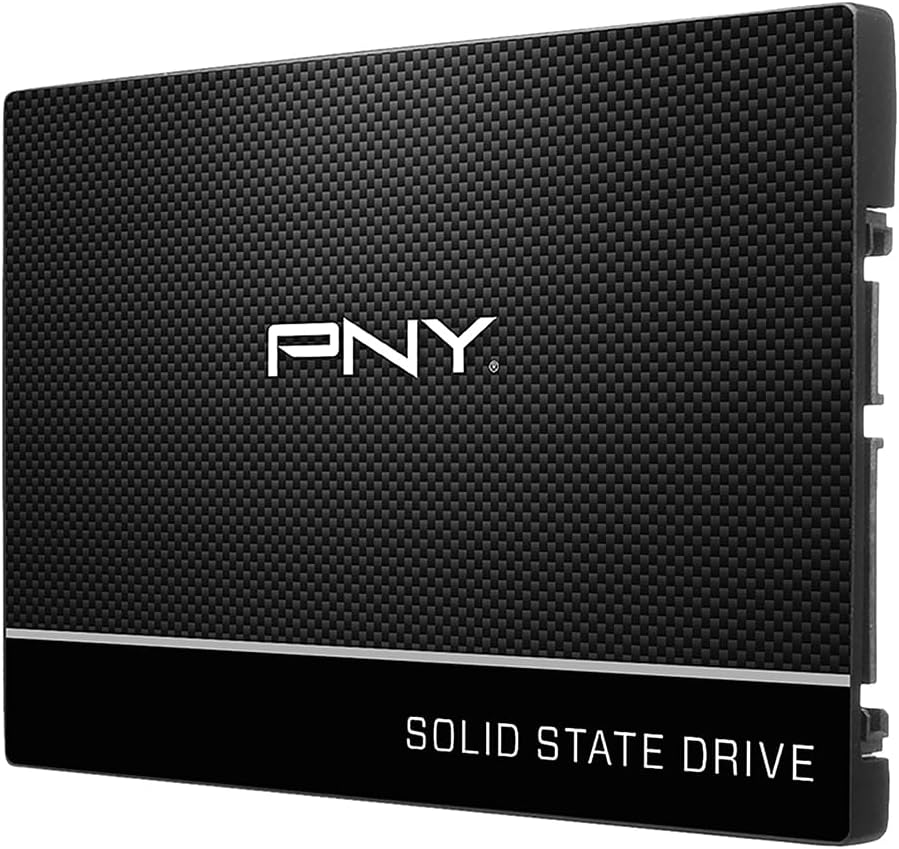
The PNY CS900 500GB is the classic budget laptop rescue drive: a 2.5-inch SATA III SSD that turns a grinding hard-disk notebook into something usable again. Sequential reads up to 550 MB/s and writes up to 500 MB/s are enough to saturate typical SATA paths and transform boot times, browser cache behavior, and application installs. If your laptop still clicks and whirrs, this is the cheapest meaningful architectural change you can make without buying an entirely new machine.
PNY positions the CS900 around everyday upgrades—faster OS boots, quicker app loads, lower power than HDDs, and shock resistance that matters in backpacks. Those claims match the lived experience of replacing a 5400 RPM laptop drive. You will not unlock Gen4 NVMe magic, and you should not expect to store a sprawling game library on 500GB. You will get a responsive Windows install, Office suite, browsers, and a handful of larger apps with room to spare if you keep media in the cloud.
Backward compatibility with SATA II 3Gb/s hosts is a quiet gift for older business laptops from the early 2010s that never grew a SATA III controller. The drive will run at the older bus speed, but it still beats a hard disk on access time. Confirm whether your chassis uses a slim 7mm bay; most CS900-class drives fit, though some ultra-slim machines need a spacer or will not accept 2.5-inch disks at all.
For students and secondary household laptops, 500GB is a deliberate constraint that encourages tidy storage habits. Keep the OS and working files internal; park movies and disk images on a USB drive. If you know you need a full terabyte on SATA, the Samsung 870 EVO or KingSpec 1TB in this list are better matches. If an M.2 slot exists, spend the upgrade energy on Crucial P310 or Kingston NV3 instead—the interface leap matters more than brand loyalty to SATA.
Cloning a nearly full HDD onto a 500GB SSD requires shrinking partitions first. Use a clone tool that can resize, or clean install Windows and copy documents manually. Leaving about 20% free space helps maintain SSD write performance over time. Enable TRIM in Windows and avoid defragmentation utilities meant for hard disks, which waste write cycles without helping flash.
The CS900 earns its spot as the budget half-terabyte SATA pick: honest speeds, familiar form factor, and a rating that suggests widespread buyer satisfaction. It is not glamorous, and that is the point for aging laptops that deserve a new lease on life without a flagship NVMe invoice or a confusing M.2 adapter kit.
Older consumer laptops with mechanical drives, office hand-me-downs, and desktop PCs that share the same 2.5-inch bay. Also useful as a dedicated scratch or backup target in an external USB 3 enclosure when you need a cheap portable boot or recovery disk.
If your current HDD shows more than about 350GB used, strongly consider a 1TB SATA model instead of squeezing into 500GB. Migration pain spikes when you must delete first, and modern Windows updates love to reclaim whatever free space you thought you had.
Both target the same bay and speed class. Choose based on availability, warranty comfort, and seller reputation at purchase time; performance expectations are similar within SATA limits, so the better fulfillment and return policy usually wins.
We may earn a commission at no additional cost to you.
KingSpec’s 1TB 2.5-inch SATA SSD exists for laptop owners who need terabyte-class space without an M.2 slot. Rated up to 550 MB/s read and 520 MB/s write with 3D NAND, it delivers the same interface-limited performance class as other modern SATA drives while aiming at aggressive value. For a family laptop that stores years of photos locally, or a student machine that must hold offline lecture videos, that extra capacity versus 500GB models is the entire product.
KingSpec calls out shockproof behavior, silent operation, low power, and temperature tolerance—traits that map to real laptop abuse: dorm desks, car rides, and bags dropped from chair height. No SSD likes impact, but removing spinning platters already eliminates the most fragile failure mode in older notebooks. Faster boots and program loads follow as soon as the clone finishes and Windows relearns search indexes.
On the reliability feature checklist, the drive advertises wear leveling, garbage collection, over-provisioning, native command queuing, TRIM, and S.M.A.R.T.—the standard toolkit you want even on a budget stick. A 3-year limited warranty plus lifetime technical support messaging provides a service backstop. Still photograph the packaging labels and register if the vendor offers a portal; value brands vary in support friction depending on where you bought the drive.
Compatibility spans Windows 10/8.1/8/7 and later, plus DOS, Linux, and Unix environments, with SATA Rev 3.0 backward compatible to Rev 2.0. That breadth helps dual-boot Linux laptops and older lab machines. macOS users with 2.5-inch bays can often run SATA SSDs as well, though cloning tools differ and newer Macs have abandoned user-upgradable storage entirely.
Compared with the Samsung 870 EVO, you are trading brand heritage, Magician polish, and Samsung’s endurance storytelling for more capacity per dollar in the budget aisle. Compared with KingSpec’s own 512GB sibling, the 1TB model is the one to buy whenever your data already exceeds roughly 400GB. Compared with any NVMe drive here, it remains the fallback for SATA-only hardware—and a perfectly rational one.
Install with a proper caddy, clone carefully, and leave free space. If the laptop supports NVMe and SATA simultaneously, consider NVMe for the OS and this KingSpec as a media disk—best of both worlds inside larger workstation laptops that still hide a spinner bay under the optical-drive-sized tray.
Budget-conscious upgraders on SATA-only laptops who need room for photo libraries, offline media, and a full Office-plus-browser lifestyle without monthly cloud fees eating the household budget.
Buy new from reputable storefronts, keep invoices, and run a full-capacity write/read test after installation before you delete the old drive’s backup copy. Early failure detection is cheaper than discovering corruption a month later.
We may earn a commission at no additional cost to you.
The KingSpec 512GB SATA SSD is the middle child of budget 2.5-inch upgrades: more breathing room than tiny 128GB rescue drives, less bulk than a full terabyte bill. Sequential rates up to 550/520 MB/s put it in the standard modern SATA performance band. For a laptop that currently holds a 320GB or 500GB hard disk with modest used space, this capacity is often the cleanest clone target without forcing a week of deletions first.
Feature messaging mirrors the 1TB KingSpec—3D NAND, shock resistance, silent running, TRIM, SMART, wear leveling, garbage collection, and a 3-year limited warranty. That consistency is useful: you are not guessing at a radically different controller story between sizes. Choose capacity based on your data footprint, not on imagined speed differences within the same SATA family, because the interface is the governor.
This drive makes particular sense for office laptops that must remain offline-capable but do not store raw video. A Windows image, browser profiles, Slack, Zoom, and a few creative apps fit comfortably with documents. Steam libraries and 4K footage do not. If your installer folders alone exceed 200GB, jump to the 1TB KingSpec or Samsung 870 EVO immediately and thank yourself later.
Linux users on older ThinkPads and HPs will appreciate the stated distribution support and SATA backward compatibility. Pair the SSD with an encrypted LVM install if you travel with client data. The silent operation and low power draw also help fanless or near-fanless industrial laptops where HDD vibration was previously audible in quiet rooms and meeting spaces.
Versus PNY CS900 500GB, expectations are similar; shop whichever is the better-warrantied offer when you buy. Versus fanxiang 128GB, KingSpec 512GB is the saner primary OS disk. Versus NVMe picks, only choose this path when the chassis demands SATA—otherwise you are leaving responsiveness on the table for no good reason.
Clone, verify boot, confirm TRIM, and keep backups. Budget SATA upgrades succeed when the process is careful, not when the box promises miracles beyond the SATA ceiling. Treat the drive as infrastructure: boring, reliable, and sized for the next couple of years of documents rather than forever archives.
Light document work, cloud-first photo libraries, and schoolwork laptops that stream media instead of storing it. Also fine as a dedicated OS drive beside a second HDD if the chassis still has a spinner bay for bulk files.
Measure used space on the old disk first. Cloning fails late and painfully when the source is larger than the destination. Delete installers and empty the recycle bin before imaging, and move movies to an external disk temporarily.
Acceptable for computer-lab refreshes where machines are reimaged often and data lives on network shares. Standardize on one capacity to simplify spare stock and imaging scripts across a cart of identical notebooks.
We may earn a commission at no additional cost to you.
The fanxiang S101 128GB is not trying to win a capacity contest. It is a tiny SATA III 2.5-inch SSD aimed at bringing dead-slow laptops back to life when the budget and the data footprint are both small. Reads up to 500 MB/s are enough to feel transformative versus a clicking HDD. A carefully trimmed Windows install, browser, office suite, and a couple of utilities will fit; Adobe Creative Cloud suites and AAA games will not, and you should plan accordingly before the low-disk warnings start.
fanxiang highlights 3D NAND TLC chips for better write lifespan than QLC alternatives in the same bargain aisle. For a rescue OS disk that mostly reads and occasionally writes updates, that is a sensible emphasis. The company also cites roughly 50% faster boots than HDDs and broad compatibility with Windows, Linux, and Mac OS on machines that still expose 2.5-inch bays—exactly the aging fleet this drive targets.
Think of this drive as a utility player. It can become the internal boot disk on a secondary household laptop that only hits email and homework portals. It can live in a USB 3 enclosure as a portable toolkit disk with appropriate licensing and recovery tools. It can serve as a lightweight Linux appliance disk in a small desktop. It should not be the forever drive for a photographer’s primary notebook or anyone who downloads installers without deleting them.
Modern Windows 11 installs grow quickly with recovery partitions, cumulative updates, and vendor bloat. Plan to disable hibernation if you need space, store documents in OneDrive or Google Drive, and keep installers off the internal disk. If your used space already exceeds 100GB, skip straight to 512GB or 1TB SATA options in this guide instead of fighting disk cleanup weekly.
A 3-year quality assurance period provides a baseline safety net. As with other value brands, purchase hygiene matters: buy new, test promptly, and do not wipe your only backup until the S101 proves stable for a week of daily use. Run CHKDSK and a manufacturer or third-party surface test if the old HDD was failing; bad cables can mimic bad drives.
We include the S101 because laptop upgrade guides that only recommend flagship 1–2TB NVMe sticks ignore real-world constraints. Sometimes the winning move is a small, honest SATA SSD that costs little and restores usability for a parent’s email machine or a child’s homework Chromebook-alternative. Just be ruthless about what you store on it, and graduate to larger capacities the moment local files start to matter.
Emergency HDD replacements, children’s homework laptops with cloud accounts, and DIY utility machines. Also reasonable as a dedicated scratch disk for light temporary files if a larger NVMe already holds the OS in a dual-drive chassis.
Skip if you need local game installs, raw photo archives, or a low-maintenance drive that will not nag you about disk space weekly. The KingSpec 512GB, PNY 500GB, or Samsung 870 EVO are healthier primary-disk starting points for almost everyone else.
We may earn a commission at no additional cost to you.

Open the service manual or a reputable teardown for your exact model before you fall in love with sequential speed claims. You are looking for one of three realities: a user-accessible M.2 2280 NVMe slot, a 2.5-inch SATA bay, or soldered storage with no upgrade path. Soldered machines need external USB/Thunderbolt SSDs instead of anything in this internal roundup. Dual-bay workstation laptops can mix NVMe for the OS and SATA for media, which is often the happiest arrangement for creators who want speed and bulk in one chassis.
A Gen4 drive will negotiate down in a Gen3 slot, so buying Gen4 for future-proofing is usually safe. You simply will not see 7,000 MB/s reads on a Gen3-only CPU and chipset path. Conversely, a Gen3 drive in a Gen4 slot wastes headroom. For most Windows Ultrabooks and midrange gaming laptops from recent years, Gen4 2280 is the right default. Confirm length: 2280 is standard in notebooks; some handhelds need 2230 modules that are not the same physical part as the 2280 sticks in this pack.
Windows 11 plus browsers and office tools can live in 256GB, but the experience is miserable once updates and caches land. 512GB is the practical minimum for a primary laptop disk in 2026. 1TB is the sweet spot for OS, apps, and a curated game or photo set. 2TB is worth it when the laptop has only one slot and you refuse to uninstall games monthly. 128GB drives remain rescue tools, not comfortable long-term homes for modern software stacks and creative suites.
Laptop M.2 slots often sit under metal shields that double as heat spreaders—reinstall them. Avoid aftermarket desktop heatsinks that prevent the bottom cover from closing. Efficiency-focused drives such as the WD_Black SN7100 and low-power Kingston NV3 are friendlier in thin chassis than older high-power Gen4 parts. If your laptop already runs hot under CPU load, a cooler SSD will not fix paste or dust problems, but it will avoid adding another heat source near the battery and keyboard deck.
TBW ratings estimate how much you can write under warranty assumptions; laptop users who are not rendering constantly rarely exhaust modern TLC drives. DRAMless designs that use Host Memory Buffer can perform very well for client workloads if the system has enough RAM. Creators on 8GB machines should leave memory headroom. Prefer TLC marketing over bargain QLC when the drive will be the only copy of important data, and always keep an external or cloud backup regardless of NAND type or brand promises.
Cloning preserves programs and settings; clean installs often feel faster because vendor bloat disappears. If the laptop uses BitLocker, suspend or decrypt before cloning. If it uses Intel RST RAID mode for a single NVMe, switch carefully and keep recovery media ready. After migration, confirm TRIM, update NVMe drivers, and keep the old drive untouched until you have used the new one for several days without missing files or license activations.
No. You need the correct keying and length—almost always M.2 2280 NVMe for modern Windows laptops—plus a physically free slot. Some machines use SATA-keyed M.2 slots that will not run NVMe, and some ultrabooks have no user slot at all. Always match the service manual. The Gen4 drives in this guide assume a NVMe-capable 2280 bay, not a mystery adapter from a parts bin.
Yes, when that is the bay you have. A Samsung 870 EVO or solid budget SATA stick will transform HDD machines and still feels fine for office work. If your laptop has an NVMe slot, prefer Gen3/Gen4 M.2 instead because the interface leap is large. SATA remains ideal as a secondary media disk in dual-drive chassis where NVMe already holds the operating system.
Usually yes, with automatic negotiation down to Gen3 speeds. You keep the newer controller and NAND benefits but lose the headline 7 GB/s reads. Confirm the slot is NVMe rather than SATA-only M.2. BIOS updates occasionally improve compatibility on older boards after a storage swap.
512GB is the realistic minimum for comfort in 2026. 1TB fits most students, professionals, and light gamers. Choose 2TB when the laptop has a single slot and you keep large game libraries or local media. 128GB drives are emergency or utility options, not pleasant primary disks for modern Windows with creative apps installed.
Rarely the tall desktop kind. OEM metal shields and motherboard pads are usually enough and must be reinstalled for clearance and thermals. Bulky aftermarket sinks often prevent the bottom cover from seating. Efficiency-focused drives help more than ornamental aluminum in thin notebooks that already struggle with CPU heat.
Most modern MacBooks have soldered storage and cannot use the internal drives in this pack. Older models with proprietary blades are also not standard 2280 NVMe or 2.5-inch SATA. Mac users should look at external Thunderbolt or USB4 SSDs instead unless they have a specifically user-upgradable vintage machine with a documented parts path.
Clone when you need the same apps and licensing state quickly. Clean install when the laptop is slow from bloat or malware and you are willing to reconfigure. Either way, back up documents first. Suspend BitLocker before cloning and keep recovery keys printed or stored safely offline.
Sustained writes generate heat; idle and light office work should stay modest. Missing shields, blocked vents, or a gaming laptop already near thermal limits can make any Gen4 stick feel hot. Throttling under synthetic benchmarks inside a thin chassis is normal. If temperatures seem extreme at idle, reseat the drive and shield and check for background indexing storms after migration.
TLC generally offers stronger sustained write behavior and endurance characteristics for a primary disk. QLC can be fine for cool, read-mostly storage. Several value drives market TLC specifically for that reason. Regardless of NAND type, leave free space and keep backups—NAND technology is not a substitute for a second copy of irreplaceable files.
Ordering the wrong form factor. The second biggest is cloning a fuller larger disk onto a smaller SSD without shrinking data first. Verify bay type and used capacity, then buy. Speed SKUs only matter after the drive physically fits and can hold your files with room to spare.
The best SSD for your laptop is the fastest drive that matches the bay you actually have and the capacity your files demand. In this pack, the Samsung 990 PRO 1TB is the all-around NVMe champion for modern M.2 machines, the WD_Black SN7100 2TB solves single-slot storage hunger with portable-friendly efficiency, and the Samsung 870 EVO 1TB remains the SATA gold standard when NVMe is not an option.
Value seekers can land happily on the Crucial P310 or Kingston NV3 for everyday Gen4 upgrades, or on PNY and KingSpec SATA models when the budget and the bay say so. Treat the fanxiang 128GB as a rescue tool, not a forever archive. Confirm fitment, back up twice, clone carefully, and your “slow laptop” problem often disappears for years without replacing the rest of the machine.
If you only remember one rule from this guide, make it this: interface compatibility first, capacity second, peak sequential marketing third. Follow that order and any of the top recommendations above will feel like a new machine without the new-machine receipt.