Detailed review
Random performance is where the 9100 PRO separates itself from drives that only look good on sequential charts. With up to 1,850,000 random read IOPS and 2,600,000 random write IOPS, the drive handles the small-file chaos of operating system tasks, compilation workloads, and game level loads without the stutter that slower QD1 performance can introduce. Samsung positions the 9100 PRO explicitly for AI computing, and that is not empty branding—local inference pipelines that constantly read and write weight shards benefit from both high sequential bandwidth and strong random throughput when datasets do not fit neatly into one contiguous file.
Samsung's 5nm controller is a meaningful generational step, not a footnote. The company claims up to 49% better power efficiency compared with the 990 PRO SSD, which matters when you install the drive in a compact ITX build or a laptop bay where every watt converts to heat. PCIe 5.0 controllers run warm by nature, and efficiency gains help sustain boost clocks on adjacent components rather than forcing the motherboard VRM or CPU cooler to compensate for a storage hotspot.
Thermal management is handled through advanced thermal control firmware rather than a bulky included heatsink, which keeps the 2280 form factor compatible with laptops and consoles that enforce strict height limits. On desktop boards with a factory M.2 heatsink, the 9100 PRO typically holds peak performance through typical gaming and editing sessions. If your motherboard leaves the drive bare under a warm GPU, plan on adding airflow or a low-profile heatsink—this is true for every Gen5 drive, but flagships like the 9100 PRO push hard enough that cooling deserves advance planning.
The 2TB capacity hits a sweet spot for enthusiasts who want one fast primary drive without jumping to the cost and thermal load of a 4TB flagship. You can host Windows or Linux, a growing Steam library, DaVinci Resolve cache files, and several large creative projects simultaneously without constant capacity management. Samsung also offers the 9100 PRO line up to 8TB for users who need a single-volume archive, but 2TB remains the most practical starting point for builders upgrading from a 1TB Gen4 boot drive.
Magician Software rounds out the ownership experience. Firmware updates, drive health monitoring, performance optimization presets, and encryption options arrive through a polished Windows application that Samsung maintains for its PRO lineup. That ongoing support matters on Gen5 hardware where early firmware revisions occasionally refine compatibility with new chipsets. Samsung produces NAND, DRAM, and controller firmware in house, which reduces the variability you sometimes see with white-label drives that swap flash suppliers between batches.
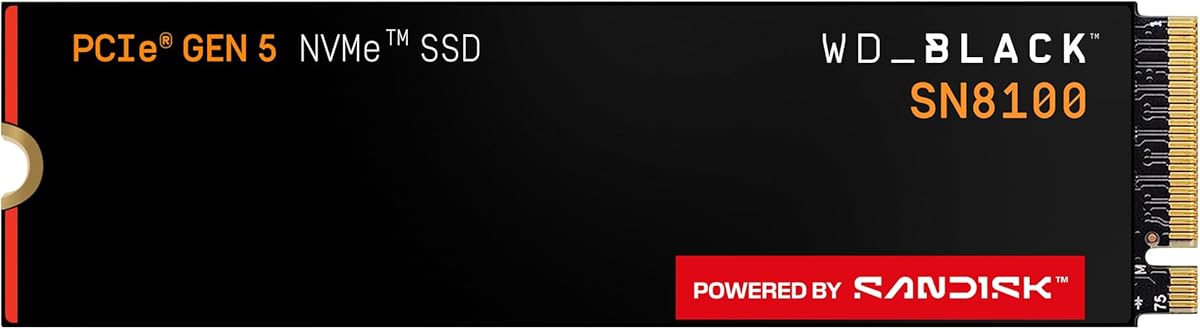
If your platform supports PCIe 5.0 x4 and you want one drive that covers gaming, creative work, and emerging AI workflows without compromise, the 9100 PRO 2TB is the default recommendation in this guide. It is not the absolute peak read number in our table—the WD_Black SN8100 edges it slightly on paper—but Samsung's combination of random IOPS, efficiency, software, and brand-level reliability support makes it the most complete package for most builders.
Who Should Buy the 9100 PRO 2TB
Choose this drive if you are building or upgrading a Ryzen 9000-series or Intel desktop with a CPU-direct Gen5 M.2 slot and want a single fast volume for OS, games, and creative projects. It fits power users running local AI tools, 4K video editors working off internal storage, and gamers who install multiple large titles at once. Skip it if your board only offers Gen4 lanes—you will pay Gen5 premiums without Gen5 speeds—or if 2TB is insufficient and you already know you need the 4TB sibling.
Installation and Cooling Tips
Install the 9100 PRO in the M.2 slot your manual identifies as PCIe 5.0 x4, usually the first slot nearest the CPU on high-end boards. Enable Gen5 mode in UEFI if the board defaults to Gen4 for compatibility. Use the motherboard's included M.2 heatsink whenever possible, and verify the thermal pad makes full contact with the drive label side. After installation, run Samsung Magician to confirm firmware revision and enable periodic health checks.