Expert Review & Guide

Best Mouse for Programming in 2026: Precision, Comfort, and Daily

Programming is not a reflex test, yet the wrong mouse turns every pull request review into a wrist negotiation. Eight-hour IDE sessions, terminal tabs, documentation rabbit holes, and spreadsheet-heavy planning all punish a pointer that drifts, clicks too loudly for a shared desk, or forces your forearm into the same flat pronation that ergonomic guides warn about. In 2026, the best mouse for programming usually means predictable tracking on dense monitors, enough programmable inputs to map build shortcuts without keyboard yoga, and a shape that survives month six without numb fingers.

This ReviewConsensus guide covers ten mice from our programming pack only: wired precision legends like the Logitech G502 Hero, wireless lightweight options such as the G309 and TMKB Falcon M1, vertical ergonomics from Logitech Lift and UGREEN, budget staples including the Redragon M602 and Logitech M185, and productivity-focused wireless picks like the TECKNET with side scroll and the Lenovo Yoga with whisper-quiet clicks. We also include the Razer Naga V2 for developers who treat macros like a second keyboard. Ratings reflect Amazon listing averages at research time. We omit dollar prices because promotions shift constantly—use each link for current offers.

Start with our three top picks if you want a macro-friendly wired daily driver, a vertical mouse for posture-first comfort, or a quiet multi-device pointer with horizontal scrolling for spreadsheets and design tools. Otherwise scan the comparison table for sensor class, connection type, and the trait that defines each pick, then read every review for honest tradeoffs about software, hand size, battery approach, and whether a gaming-first shell still makes sense on a code desk.

Top Programming Mouse Picks for 2026

Best for Macro-Heavy Workflows

Logitech G502 Hero Wired Gaming Mouse

★★★★★9.2/10
Logitech G502 Hero Wired Gaming Mouse
  • HERO 25,600 DPI sensor with 11 programmable buttons and onboard memory profiles
  • Dual-mode hyper-fast scroll wheel ideal for long documentation and log dumps
  • Adjustable weight system and crisp mechanical switches for repeatable daily clicks
Check Price →
Best Ergonomic for Long Coding Days

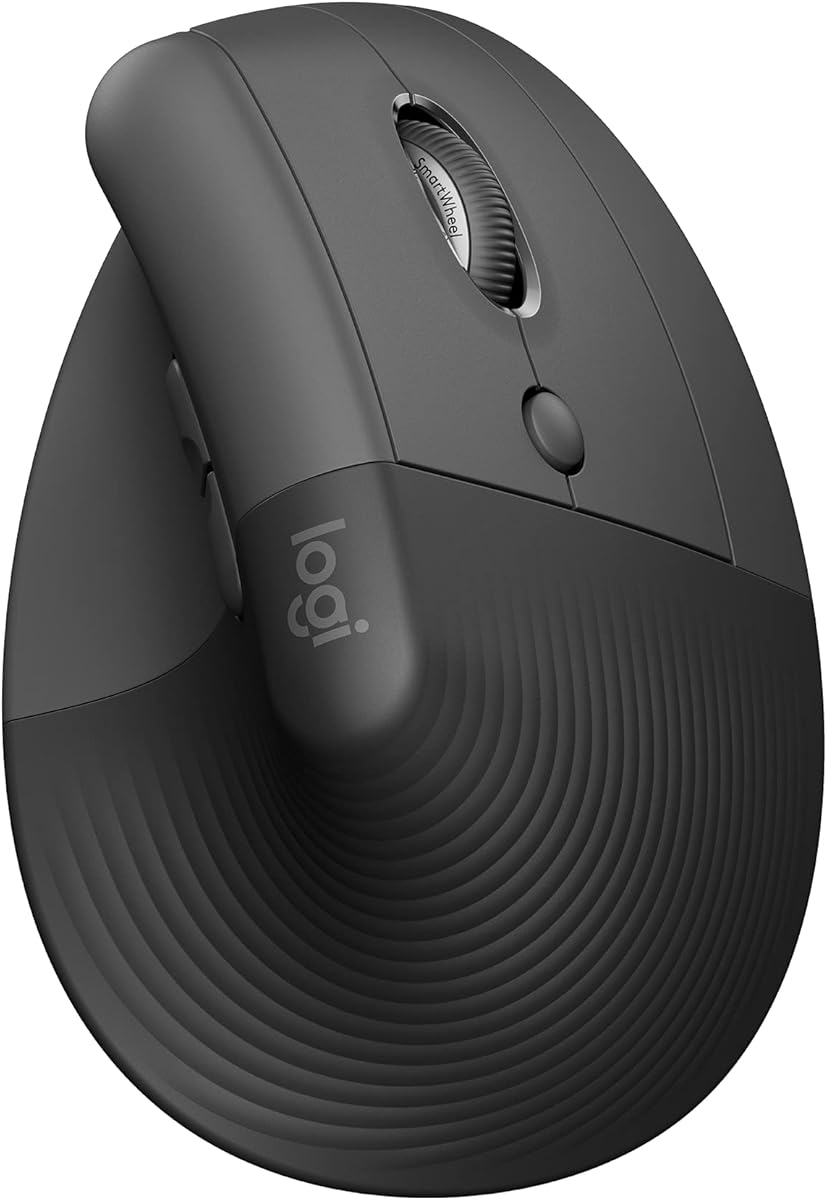
Logitech Lift Vertical Ergonomic Wireless Mouse

★★★★☆8.8/10
Logitech Lift Vertical Ergonomic Wireless Mouse
  • 57-degree vertical handshake grip reduces forearm pronation during marathon IDE sessions
  • Quiet clicks, SmartWheel scrolling, and four customizable buttons via Logi Options+
  • Bluetooth or Logi Bolt connectivity with up to two years of battery life on AA cells
Check Price →
Best Spreadsheet and Multi-Device Productivity

TECKNET Wireless Mouse

★★★★★9/10
TECKNET Wireless Mouse
  • Side-mounted scroll wheel for horizontal navigation in spreadsheets and wide canvases
  • Tri-mode Bluetooth and 2.4 GHz switching across three devices with quiet clicks
  • Rechargeable pack with six DPI steps and metal main scroll wheel for precise line control
Check Price →

As an Amazon Associate we earn from qualifying purchases. We may earn a commission at no additional cost to you.

Programming Mouse Comparison: Sensors, Ergonomics, and Connectivity

Filter by what actually changes a coding day: programmable button count versus simple five-button layouts, wired reliability versus tri-mode wireless, vertical posture versus classic palm grip, and whether you need side scroll for data work. Specs below stay price-free so you can compare behavior and fit first.

#ProductSpecificationsScore
1
  • HERO 25,600 DPI wired sensor, 11 programmable buttons
  • Hyper-fast dual-mode scroll, adjustable weights
  • On-board memory, LIGHTSYNC RGB, PC and Mac
9.2
2
  • 24,000 DPI optical, 90 g honeycomb shell
  • Tri-mode 2.4G, BT5.2, USB-C wired at 1000 Hz
  • 6 programmable buttons, 180-hour battery ECO mode
8.6
3
  • 57° vertical grip for small-to-medium right hands
  • Quiet clicks, SmartWheel, 4 of 6 buttons customizable
  • Bluetooth or Logi Bolt, up to 2-year AA battery life
8.8
4
  • 7200 DPI wired sensor, 9 programmable buttons
  • Ergonomic shell with RGB lighting modes
  • Redragon software for macros, PC and Mac
9.2
5
  • Vertical ergonomic shell, quiet 5-button layout
  • Dual wireless BT 5.4 and 2.4G, 3-device switching
  • 4 DPI steps to 4000, AA battery with smart sleep
8.8
6
  • Compact ambidextrous shell, 2.4 GHz nano receiver
  • Plug-and-play optical tracking, line scroll wheel
  • Up to 12-month AA battery, PC and Mac ready
9
7
  • Bluetooth 5.3, three-device pairing
  • Whisper-quiet clicks, programmable buttons
  • 36-month AA battery, 3-level DPI adjustment
9
8
  • 19 programmable buttons, Focus Pro 30K sensor
  • HyperSpeed 2.4G and Bluetooth dual wireless
  • HyperScroll free-spin or tactile, 400-hour BT battery
8.2
9
  • HERO 25K sensor, 68 g with POWERPLAY or 86 g with AA
  • LIGHTSPEED 2.4G plus Bluetooth dual mode
  • 6 programmable buttons, 300+ hour AA battery life
9.2
10
  • Side scroll wheel plus metal main wheel, 7 buttons
  • BT5.3/5.0 and 2.4G tri-device switching
  • 6 DPI levels to 4800, USB-C rechargeable pack
9

1. Logitech G502 Hero Wired Gaming Mouse - Best for Macro-Heavy

Logitech G502 Hero Wired Gaming Mouse

Logitech G502 Hero Wired Gaming Mouse

9.2/10★★★★★

The Logitech G502 Hero remains one of the most recommended mice in software circles because it treats programming like a control problem, not a fashion statement. Eleven programmable buttons surround a right-hand shell that has survived a decade of iteration for good reason: the layout places forward and back under the thumb, DPI shift within reach, and additional keys along the left flank where your ring finger can learn them over a few weeks. Logitech G HUB maps keystrokes, multi-step macros, and application-specific profiles that stay on the mouse thanks to onboard memory—ideal when IT locks down installer permissions on a corporate laptop but your personal tower runs the full suite.

  • HERO 25,600 DPI sensor with zero smoothing on wired link
  • 11 programmable buttons plus dual-mode hyper-fast scroll
  • Adjustable 3.6 g weights and onboard profile memory
Check Price →
✓ Pros
  • Eleven remappable inputs cover IDE macros, browser shortcuts, and media controls without Alt-tab churn
  • Hyper-fast scroll wheel blazes through long documentation then locks to tactile mode for log lines
  • HERO sensor tracks sub-micron movement for precise text selection on 4K monitors
  • On-board memory stores profiles for swapping between work laptop and home desktop
  • Adjustable weights let you tune balance for palm grip stability during long reviews
✕ Cons
  • Wired-only design adds cable routing friction on minimalist desks
  • Right-hand sculpted shell excludes left-handed developers without mirroring options
  • Heavier than modern ultralight mice once weights are installed

Detailed review

Tracking comes from the HERO sensor rated up to 25,600 DPI with zero smoothing, filtering, or acceleration in its native pipeline. You will not run DPI that high for coding, but the headroom means stable performance at sensible 1600–3200 settings on ultrawide and 4K panels. Text selection in dense diffs, pixel nudging in design handoffs, and snapping between three IDE panes all feel deliberate rather than floaty. Mechanical switch tensioning on the primary buttons delivers a crisp click with fast reset, which matters when you execute the same run-test gesture hundreds of times per week.

The dual-mode scroll wheel is the hidden productivity feature. Free-spin mode sends you through API reference pages and generated changelogs with a flick, while tactile mode returns line-by-line control for stack traces and CSV previews. That dichotomy mirrors how developers actually read: skim, then scrutinize. RGB LIGHTSYNC is present but easy to disable or dim for office credibility. Adjustable weights in the base let you add or remove 3.6 gram modules until the mouse feels planted without wrist fatigue—a small tuning knob most ultralight gaming mice skip entirely.

Tradeoffs are honest. The G502 is wired, so you manage cable slack with a bungee or routed hub unless you accept drag on the pad edge. The shape favors medium-to-large right hands in palm or claw grip; small-handed users may find the hump tall. Weight with all modules installed exceeds modern 60-gram esports targets, yet many coders prefer the heft because it reduces accidental lifts during precise highlighting. macOS support through G HUB is solid though slightly behind Windows; Linux users often rely on community tools or onboard profiles configured elsewhere.

Compared with the Redragon M602 in this pack, the G502 offers a stronger sensor, more inputs, and superior scroll modes at a higher tier of build consistency. Against the wireless G309, you gain button count and wired latency simplicity but lose cable-free desk aesthetics. For developers who compile, test, and browse documentation in the same session, the G502 Hero is the pack's most complete wired daily driver—provided you have desk space for the cable and a right-hand grip.

Who should buy the G502 Hero

Choose this mouse if you already know you want programmable inputs for IDE shortcuts, you prefer wired reliability at a fixed desk, and you read long technical documents daily. Backend engineers, devops practitioners living in log tail windows, and frontend developers who jump between browser dev tools and editor tabs benefit most from the hyper-fast scroll and deep remapping.

Setup tips for coding profiles

Create one G HUB profile per machine but duplicate macro layouts so muscle memory transfers. Map thumb buttons to back and forward in browsers, use a side key for build or test commands, and reserve DPI shift for temporary precision when designing UI spacing. Disable RGB during video calls if your webcam picks up desk reflections.

Check Price on Amazon →

We may earn a commission at no additional cost to you.

2. TMKB Falcon M1 Wireless Gaming Mouse - Best Lightweight Wireless

TMKB Falcon M1 Wireless Gaming Mouse

TMKB Falcon M1 Wireless Gaming Mouse

8.6/10★★★★☆

The TMKB Falcon M1 targets developers who want modern wireless flexibility without surrendering to a software stack that runs forever in the tray. Its headline trick is a browser-based configurator: set DPI steps, polling rate, RGB, and button maps in a tab, then close it—no persistent daemon required. For corporate laptops where IT scrutinizes background processes, that workflow is genuinely useful even if you never launch a game on the machine.

  • 24,000 DPI sensor, 1000 Hz polling in 2.4G and USB-C wired
  • Tri-mode 2.4G, BT5.2 dual-device, USB-C wired connectivity
  • 90 g honeycomb shell, 6 programmable buttons, web-based driver
Check Price →
✓ Pros
  • Tri-mode wireless covers office PC, personal laptop, and wired fallback without buying a second mouse
  • Web driver configures DPI and buttons without permanent background software draining CPU
  • 180-hour ECO battery life reduces charging interruptions during travel sprints
  • 1000 Hz polling in 2.4 GHz mode feels responsive for fast IDE navigation
  • Honeycomb shell keeps weight near 90 grams while maintaining structural rigidity
✕ Cons
  • Six buttons limit macro-heavy workflows compared with the G502 or Naga
  • Honeycomb aesthetic and RGB strip may look out of place in conservative offices
  • Newer brand with fewer long-term durability reports than Logitech or Razer

Detailed review

Connectivity spans 2.4 GHz at up to 1000 Hz, Bluetooth 5.2 with dual-device pairing, and USB-C wired mode also at 1000 Hz. Store up to four device profiles and switch with a dedicated bottom button when you rotate between a docked workstation, a MacBook, and a Linux test board. The optical sensor adjusts from 200 to 24,000 DPI with visual feedback on the wheel LED and RGB strip, which is more gamer-flashy than office-subtle but makes DPI verification instant when you sit down at an unfamiliar desk.

At roughly ninety grams in a medium honeycomb shell, the Falcon M1 sits between ultralight esports mice and heavier ergonomic bricks. PTFE feet and 50-million-click rated switches aim for smooth glides and consistent actuation through long compile waits. Battery life reaches up to 180 hours in ECO mode or about 48 hours with RGB active—respectable for a rechargeable pack that tops up over USB-C in about an hour. Smart sleep timers wake on movement or button press depending on idle depth, which prevents dead-battery surprises Monday morning if you forgot to power down Friday.

For programming specifically, six programmable buttons cover essentials—primary pair, wheel click, DPI, and two thumb keys—without the learning cliff of an MMO grid. Pair that with high polling in wireless mode and you get snappy pointer response when jumping between terminal, browser, and chat without the cable snag of a wired hero mouse. macOS and Windows are both supported through the web tool; Linux users can fall back to wired mode and manual DPI cycling if browser support is inconsistent on their distro.

Honest downsides include the gamer visual language—white honeycomb and RGB may not suit every conference room—and a button count that macro hoarders will outgrow. Durability data is thinner than decade-old Logitech SKUs, though the spec sheet targets enthusiast-grade switch life. If you want tri-mode wireless, minimal resident software, and a lightweight shell for mixed coding and occasional gaming, the Falcon M1 earns its place early in this list.

Ideal desk scenarios

Freelancers who split time between a client-provided Windows laptop and a personal Mac mini will appreciate tri-mode switching and the web driver. Students carrying one mouse between dorm desktop, library laptop, and lab machine get similar value without juggling dongles in every bag pocket.

Versus Logitech G309 in this pack

Both offer dual wireless and lightweight shells. The G309 brings Logitech ecosystem maturity and optional POWERPLAY charging; the Falcon M1 counters with explicit 1000 Hz tri-mode wired fallback and zero-install browser configuration. Choose Falcon if background software is a hard no; choose G309 if brand-longevity and HERO sensor branding matter more.

Check Price on Amazon →

We may earn a commission at no additional cost to you.

3. Logitech Lift Vertical Ergonomic Wireless Mouse - Best Vertical Ergonomic

Logitech Lift Vertical Ergonomic Wireless Mouse

Logitech Lift Vertical Ergonomic Wireless Mouse

8.8/10★★★★☆

Logitech Lift answers a specific developer complaint: my wrist feels fine until Thursday. The 57-degree vertical orientation rotates the forearm into a handshake posture that ergonomic research favors for prolonged pointer work. Instead of pinning your palm flat and twisting the wrist to move horizontally, Lift lets the entire arm participate in smaller arcs. That difference is subtle in hour one and meaningful by hour six when you are reviewing pull requests across three monitors.

  • 57° vertical handshake grip for small-to-medium right hands
  • Quiet clicks with SmartWheel vertical scrolling
  • Bluetooth LE or Logi Bolt, up to 2-year AA battery
Check Price →
✓ Pros
  • Vertical posture reduces forearm pronation during full-stack coding marathons
  • Quiet clicks and SmartWheel suit open offices and late-night debugging sessions
  • Logi Options+ remaps four buttons with app-specific profiles on Windows and Mac
  • Bluetooth or Bolt receiver covers laptops lacking USB-A without dongle juggling
  • Ergo-certified design with recycled plastic content in multiple colorways
✕ Cons
  • Sized for small-to-medium right hands; large palms may feel cramped on the thumb shelf
  • Not ideal for FPS-style low-DPI arm aiming due to vertical angle learning curve
  • Fewer programmable inputs than gaming-first mice in this pack

Detailed review

Lift is deliberately not a gaming mouse. Quiet click switches reduce acoustic chatter on calls and in shared pods. The SmartWheel shifts between ratchet lines and free spin depending on scroll speed—handy when skimming release notes then slowing for semver details. Six buttons appear, with four customizable through Logi Options+ for gestures like mission control, desktop swap, or paste plain text. Connectivity uses Bluetooth Low Energy or the included Logi Bolt USB receiver, spanning Windows, macOS, iPadOS, Chrome OS, and Linux without proprietary drama.

Battery life targets up to two years on a single AA cell thanks to low-energy radio and smart sleep. That longevity suits developers who travel with a personal mouse because TSA-friendly AA replacements exist in every convenience store. Graphite, sand, off-white, and rose colorways include certified post-consumer recycled plastic percentages—small sustainability notes that matter for corporate procurement policies.

Adaptation time is real. Vertical mice feel awkward for the first several days, especially when precision-highlighting code or dragging timeline clips. Small-to-medium right-hand sizing is explicit; large-handed users should try in-person if possible or consider the UGREEN vertical in this pack for a slightly different contour. Lift also will not satisfy macro power users who map eight IDE shortcuts to thumb keys—you buy it for posture and calm operation, not button density.

Against flat mice here, Lift trades gaming flair for ergonomic certification and whisper-quiet operation. Pair it with a split keyboard and you have a credible anti-RSI desk for data engineers, technical writers, and senior developers who already feel twinges during long refactor branches. It is our top ergonomic pick because Logitech's software maturity and multi-OS pairing beat most vertical clones on consistency alone.

Who feels Lift most

Developers with early wrist discomfort, remote workers on video calls who need silent clicks, and MacBook-first engineers who want Bluetooth without a dongle dangling from a USB-C hub. Technical PMs who live in Notion and Figma also benefit from SmartWheel scrolling through long specs.

Two-week adaptation plan

Use Lift for email, browsing, and light editing days one through three while keeping your old mouse for heavy gaming or CAD if needed. By week two, attempt full IDE days. Lower pointer speed slightly during adaptation so micro-corrections feel controlled. If thumb rest pressure persists, compare with the UGREEN vertical shape before abandoning vertical ergonomics entirely.

Check Price on Amazon →

We may earn a commission at no additional cost to you.

4. Redragon M602 Gaming Mouse - Best Budget Programmable Wired

Redragon M602 Gaming Mouse

Redragon M602 Gaming Mouse

9.2/10★★★★★

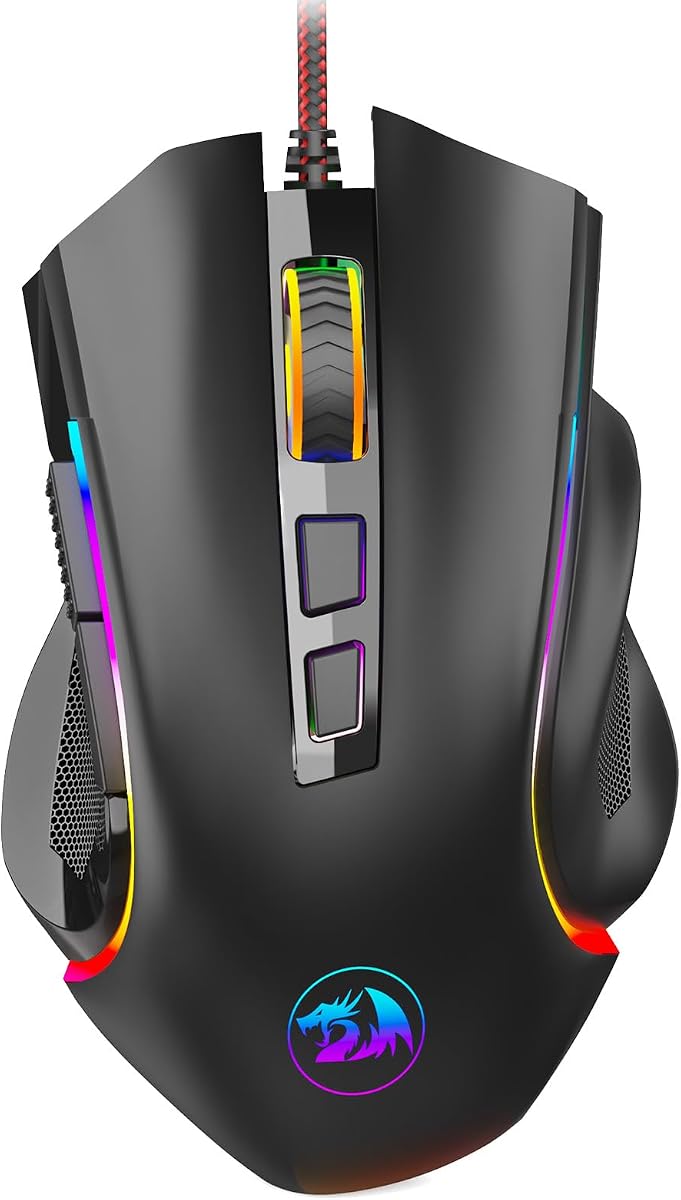
The Redragon M602 is proof that programmable buttons are not exclusive to flagship Logitech shells. Nine inputs and macro editing arrive in a wired package that has accumulated a large ownership base since 2015—unusual longevity in a category flooded with annual rebrands. For bootcamp graduates, startup engineers furnishing a first desk, or anyone who wants IDE shortcuts without financing a premium peripheral habit, the M602 delivers meaningful control surface area.

  • 7200 DPI wired optical sensor with stable tracking
  • 9 programmable buttons and macro editor via Redragon software
  • Ergonomic shell with RGB modes, PC and Mac support
Check Price →
✓ Pros
  • Nine programmable buttons at a budget tier rare among office-branded mice
  • Strong Amazon rating backed by years of market presence since 2015 launch
  • Ergonomic contours with dedicated finger rests suit mixed palm-claw grips
  • 7200 DPI ceiling handles multi-monitor setups without premium sensor branding
  • RGB can be toned down or disabled for office environments
✕ Cons
  • Wired-only with no wireless option for clean travel bags
  • Redragon software is functional but less polished than Logitech G HUB
  • Not as refined scroll wheel feel as G502 hyper-fast dual mode

Detailed review

The optical sensor adjusts up to 7200 DPI—more than adequate for 1440p and 4K coding layouts when OS sensitivity is sanely configured. Tracking stays consistent for daily development tasks: navigating file trees, selecting JSON blocks, and scrubbing timelines. Dedicated finger rests and an ergonomic hump support palm and claw hybrids, though left-handed developers must look elsewhere. RGB lighting offers seven modes including solid and off states; disable effects if your desk aesthetic skews minimalist.

Software downloads from Redragon's site rather than a polished unified app store pipeline. Once installed, you remap buttons, tune DPI stages, and record macros for repetitive admin tasks. macOS compatibility exists though community reports occasionally mention limited feature parity versus Windows—test your must-have remaps early in the return window. Build quality is not metal-hinge Logitech tier, yet the 4.6 average rating across a huge sample suggests acceptable reliability for the segment.

Scroll wheel behavior is standard ratchet—not free-spin—so massive log dumps require more finger repeats than on a G502. Primary clicks feel responsive for office work without the optical-mechanical hybrid speed of newer Logitech G lines. Cable management matches any wired mouse: route behind the monitor stand or use a bungee to prevent snags when moving between standing and sitting heights.

Compare the M602 with the G502 when budget is the deciding factor. You sacrifice sensor headroom, scroll modes, and weight tuning but keep most of the button-count advantage at a lower tier. Compare with the M185 when you realize you never mapped macros and just need simplicity—the M602 is for developers who will actually configure those nine keys.

Macro ideas for nine buttons

Map two thumb keys to git stash and pop, one to terminal clear, DPI cycle to temporary low sensitivity for UI pixel work, and wheel tilt if available on your firmware build to desktop switch. Keep at least two buttons native to avoid overfitting macros you forget after vacation.

Check Price on Amazon →

We may earn a commission at no additional cost to you.

5. UGREEN Vertical Mouse - Best Large-Hand Vertical Value

UGREEN Vertical Mouse

UGREEN Vertical Mouse

8.8/10★★★★☆

UGREEN's vertical mouse fills a gap Logitech Lift leaves open: developers with larger palms who still want handshake posture without jumping to premium MX Vertical pricing. The shell emphasizes natural wrist alignment with a taller grip channel and generous thumb landing compared with Lift's small-to-medium targeting. Quiet-click switches align with open-office norms and remote standups where microphone pickup matters.

  • Vertical handshake shell with quiet 5-button layout
  • BT 5.4 and 2.4G dual wireless, 3-device switching
  • 4 DPI levels to 4000, AA battery with smart sleep
Check Price →
✓ Pros
  • Vertical design explicitly targets larger hands left cramped by Logitech Lift
  • Silent clicks keep shared workspaces and home offices peaceful
  • Dual wireless with three-device switching suits laptop-desktop-tablet rotations
  • PTFE feet glide smoothly on cloth pads and many hard desks
  • Broad OS support including Linux and ChromeOS for mixed dev environments
✕ Cons
  • Only four fixed DPI steps—no software fine-tuning beyond presets
  • Five-button layout lacks dedicated macro grid for power users
  • Vertical learning curve still applies; not a drop-in feel day one

Detailed review

Dual wireless connects over Bluetooth 5.4 or bundled 2.4 GHz receiver with roughly ten-meter range, switching among up to three paired devices. That workflow fits engineers who code on a desktop, review tickets on a company laptop, and occasionally control a tablet for read-only dashboards. DPI presets lock to 1000, 1600, 2000, and 4000—enough granularity for most monitors though tinkerers may miss arbitrary step editing.

An AA battery powers the mouse with smart sleep to stretch cell life between replacements. PTFE glide pads reduce friction for long horizontal sweeps across ultrawide timelines. Compatibility spans Windows, macOS, Linux, ChromeOS, and Android, making the UGREEN a flexible spare for homelab enthusiasts running multiple OS VMs on different machines.

Button count stays pragmatic: five inputs without a software suite for complex macros. You gain simplicity and lose the G502's shortcut density. Scroll wheel operation is vertical-only—no horizontal side wheel for spreadsheets like TECKNET offers. If your primary pain is wrist rotation rather than spreadsheet navigation, that trade is acceptable.

Versus Logitech Lift, UGREEN skews larger and more budget-oriented with dual wireless but less mature customization software. Versus flat office mice, it demands adaptation yet pays dividends for developers who already notice forearm fatigue. Try it when Lift felt too small but vertical ergonomics still resonate.

Linux and Chromebook developers

Because UGREEN advertises Linux and ChromeOS support explicitly, homelab engineers and Chromebook-first students avoid the driver hunt that gaming mice sometimes trigger. Pair over Bluetooth for Chromebook simplicity or use 2.4 GHz on desktops where latency matters slightly more.

Battery and travel

Pack one spare AA for multi-day conferences. Smart sleep prevents overnight drain when the mouse stays in a backpack, though removing the battery during long storage is still wise on humid trips.

Check Price on Amazon →

We may earn a commission at no additional cost to you.

6. Logitech M185 Compact Ambidextrous Wireless Mouse - Best Simple Travel

Logitech M185 Compact Ambidextrous Wireless Mouse

Logitech M185 Compact Ambidextrous Wireless Mouse

9/10★★★★★

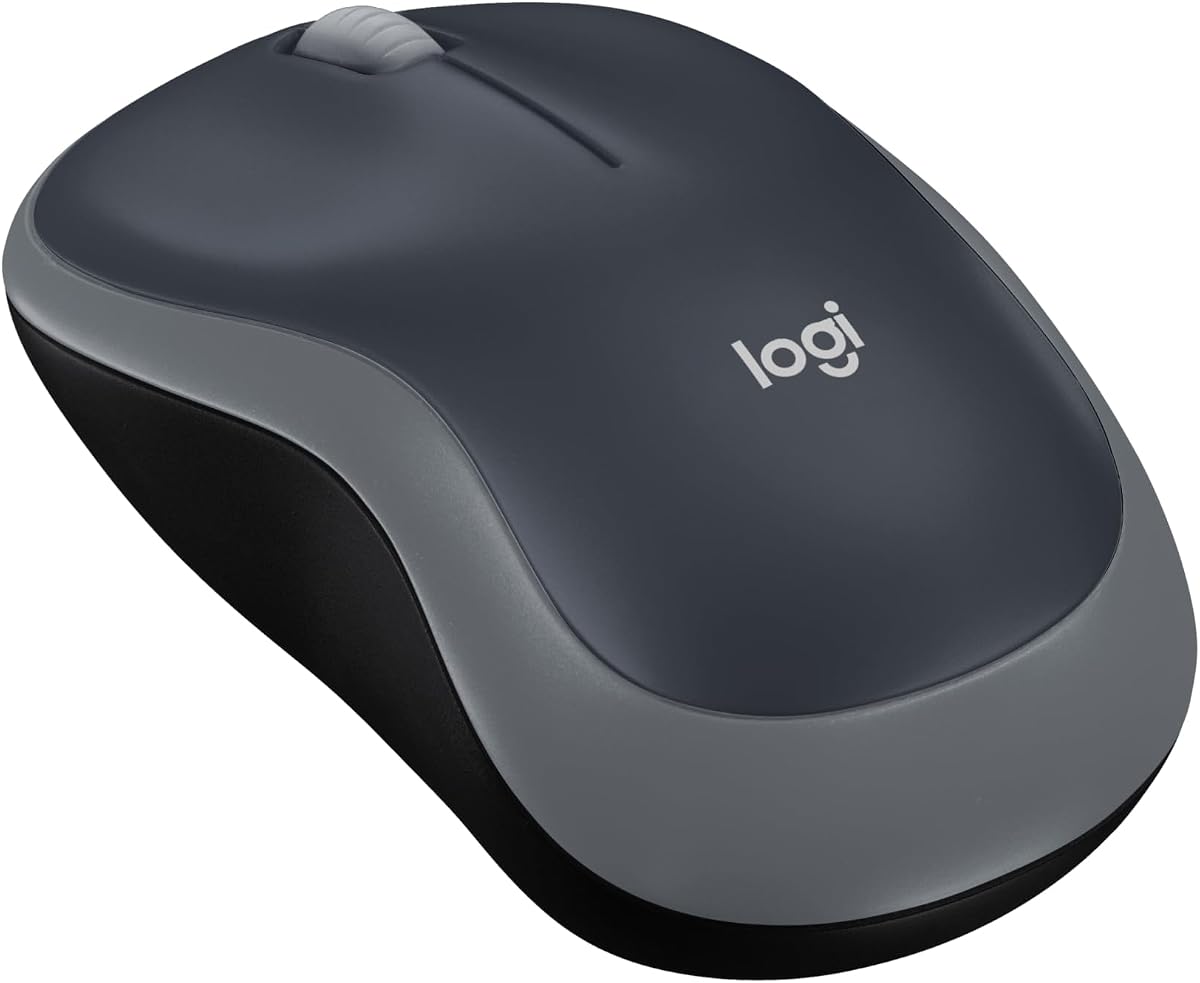
Sometimes the best mouse for programming is the one that never interrupts your flow with configuration dialogs. The Logitech M185 is that mouse: compact, ambidextrous, wireless over a 2.4 GHz nano receiver, and stubbornly simple. Plug the receiver, insert the included AA battery, and pointer movement begins within seconds—no account creation, no firmware nag screens, no RGB to mute.

  • Compact ambidextrous shell with 2.4 GHz nano receiver
  • Plug-and-play optical tracking, line-by-line scroll wheel
  • Up to 12-month AA battery life with smart sleep mode
Check Price →
✓ Pros
  • Ambidextrous shape supports left-handed developers and shared team desks
  • True plug-and-play with no software required—ideal for locked-down corporate laptops
  • Compact footprint fits laptop bags and crowded café tables
  • Logitech reliability with multi-year ownership reports across millions of units
  • Recycled plastic content in multiple color options for sustainability policies
✕ Cons
  • No programmable buttons or advanced scroll modes for power users
  • USB-A nano receiver only—USB-C-only MacBooks need a hub or adapter
  • Small shell may cramp large hands during full eight-hour IDE days

Detailed review

Logitech targets productivity claims against touchpads for good reason. Laptop-only developers often tolerate trackpad precision until the first multi-file refactor demands accurate selections. The M185 upgrades that experience with a contoured shell that fits small-to-medium hands and a line-by-line scroll wheel suited to code review rather than hype features. Range reaches about ten meters, enough for presenting from a couch while controlling a hooked laptop.

Battery life stretches up to a year with smart sleep—excellent for consultants who forget peripherals in bags between client sites. The ambidextrous body means left-handed teammates can borrow the same spare from IT closet stock without hunting mirrored SKUs. Build includes certified post-consumer recycled plastic depending on colorway, aligning with corporate sustainability checklists even at entry tier.

Limitations are clear. There is no Bluetooth if you hate dongles. No side buttons beyond the standard five. No horizontal scroll for wide sheets. Large-handed developers may cramp over long sessions and should treat M185 as travel backup rather than primary battlestation gear. USB-C-only ultrabook owners need a hub or A-to-C adapter for the receiver—plan that before airport coding sessions.

Within this programming pack, M185 is the sanity check against over-buying. If you never mapped a macro in your life, carrying a G502 or Naga adds weight and complexity without benefit. Keep an M185 in your go bag while a richer mouse stays at home, or choose it as a first upgrade from a rattling OEM mouse before investing in vertical or macro shells.

When M185 beats gaming mice

Locked-down enterprise laptops, hot-desking offices with unknown USB policies, and pair-programming stations where you need a neutral left-or-right mouse in thirty seconds. Also excellent as a loaner for QA contractors who should not reconfigure your primary profiles.

Check Price on Amazon →

We may earn a commission at no additional cost to you.

7. Lenovo Yoga Bluetooth Silent Mouse - Best Quiet Bluetooth

Lenovo Yoga Bluetooth Silent Mouse

Lenovo Yoga Bluetooth Silent Mouse

9/10★★★★★

Lenovo's Yoga Silent Mouse imagines a developer desk as part office, part living room, part café booth. Whisper-quiet clicks address the most common WFH complaint: mouse percussion bleeding into Zoom, Teams, and recorded demos. When you explain architecture diagrams on a call, silent switches keep attention on your voice instead of plastic percussion.

  • Bluetooth 5.3 with three-device pairing
  • Whisper-quiet clicks and programmable buttons
  • 36-month AA battery life, 3-level DPI adjustment
Check Price →
✓ Pros
  • Whisper-quiet switches protect call audio during standups and pair programming
  • Three-device Bluetooth pairing covers laptop, desktop, and tablet without dongles
  • 36-month battery claim reduces IT closet AA churn for team deployments
  • Soft-touch coating and cosmic blue finish look professional on modern desks
  • Programmable buttons add shortcuts without gaming-mouse aesthetics
✕ Cons
  • Bluetooth-only—no 2.4 GHz fallback for latency-sensitive gaming after hours
  • Three DPI levels may feel limiting on dual 4K monitor setups
  • Yoga-branded pairing features shine most on Lenovo hardware

Detailed review

Bluetooth 5.3 pairs up to three devices simultaneously—typical pattern: company ThinkPad, personal Mac mini, and an iPad for read-only dashboards. Switching hosts avoids reaching for a second mouse when your workflow hops machines every hour. Lenovo advertises tap-to-pair convenience on Yoga PCs and Swift pairing elsewhere; non-Lenovo owners still get standard Bluetooth setup without proprietary lock-in.

Battery life claims reach 36 months on one AA cell under Lenovo's testing—a bold number that assumes moderate use and smart power management. Even if real-world coding drains faster, you are still measuring replacement cycles in seasons, not weeks. Three DPI levels cover basic sensitivity tuning though precision enthusiasts may want finer steps. Programmable buttons add limited customization for mute, desktop overview, or snippet paste without diving into gaming software.

Cosmic blue soft-touch coating and smooth finish differentiate the shell from anonymous black slabs while staying professional. The mouse complements Lenovo laptop buyers but stands alone for any Bluetooth-first desk. Lack of 2.4 GHz means after-hours gaming latency depends on Bluetooth stack quality—acceptable for casual play, not ideal for ranked sessions.

Compare with TECKNET when you need side scroll and tri-mode radios; choose Lenovo Yoga when silence and multi-device Bluetooth simplicity dominate. Compare with Lift when wrist posture hurts—Yoga stays flat but wins on acoustic stealth for microphone-heavy roles like developer advocates and engineering managers.

Remote meeting heavy roles

Developer advocates, streamers who code on camera, and leads who live in back-to-back video calls benefit most from whisper-quiet primary switches. Pair with a boom mic and the mouse stops competing for audio headroom.

Three-device workflow example

Device one: employer laptop for Jira and email. Device two: Linux workstation for builds. Device three: tablet for PDF specs during standup. One button cycle swaps control without dongle swaps.

Check Price on Amazon →

We may earn a commission at no additional cost to you.

8. Razer Naga V2 HyperSpeed Wireless MMO - Best Macro Grid

Razer Naga V2 HyperSpeed Wireless MMO Gaming Mouse

Razer Naga V2 HyperSpeed Wireless MMO Gaming Mouse

8.2/10★★★★☆

The Razer Naga V2 HyperSpeed is the extreme answer to a simple question: what if my mouse carried an entire shortcut layer? Nineteen programmable buttons—most clustered in a thumb grid—let you map build pipelines, debugger steps, Git commands, or CAD macros without keyboard chords that twist fingers. It is overkill for minimalist developers and transformative for automation-heavy roles: game tooling engineers, data pipeline authors, and power users of VS Code with dozens of extensions.

  • 19 programmable buttons with Focus Pro 30K sensor
  • HyperSpeed 2.4G and Bluetooth dual wireless modes
  • HyperScroll free-spin or tactile, up to 400-hour BT battery
Check Price →
✓ Pros
  • Nineteen programmable inputs map entire IDE command layers to thumb grid
  • Focus Pro 30K sensor tracks on more surfaces including some glass desks
  • HyperScroll toggles between rapid document skim and precise line control
  • Dual wireless: low-latency HyperSpeed for work, Bluetooth for battery longevity
  • Gen-2 mechanical switches rated for 60 million clicks
✕ Cons
  • Lowest pack rating at 4.1—some owners report button layout learning fatigue
  • Side button grid adds bulk unsuitable for small hands or minimal travel kits
  • Razer Synapse software required for full macro potential on some setups

Detailed review

Focus Pro 30K sensor brings flagship tracking that handles varied desk surfaces, including some glass without a pad, supported by intelligent aim features you may disable for coding sanity. HyperScroll alternates free-spin and tactile modes like Logitech's dual wheel philosophy—skim documentation fast, then notch through stack traces. HyperSpeed 2.4 GHz wireless targets low latency during active sessions; Bluetooth stretches battery toward 400 hours when you prioritize endurance over esports response.

Gen-2 mechanical switches use gold-plated contacts rated to 60 million clicks—relevant when the same thumb key runs tests fifty times daily. Razer Synapse stores macros and DPI stages, with guidance to disable Windows pointer acceleration for consistent movement. The shell is inherently wide; small-handed users struggle to reach the full grid comfortably.

Rating sits at 4.1, lowest in this pack, often reflecting MMO gamers who wanted different side plate ergonomics or Bluetooth quirks—not necessarily coding failures. Approach the Naga as a specialty tool: astonishing when you invest setup time, cumbersome when you only need back and forward. Office aesthetics skew gaming unless you disable flashy lighting in Synapse.

Versus G502, Naga wins raw button count and wireless dual mode; G502 wins universal shape familiarity and wired simplicity. Versus TECKNET productivity focus, Naga destroys spreadsheet ergonomics but dominates IDE macro density. Buy when you already know you will maintain a macro spreadsheet; skip when simplicity keeps you faster.

Sample IDE macro grid

Thumb grid top row: build, test, debug step. Middle row: find references, rename symbol, format document. Bottom row: terminal focus, git panel, browser dev tools. Keep emergency defaults on HyperSpeed profile and a travel Bluetooth profile with fewer macros for laptop-only days.

Hand size warning

Measure thumb reach to the innermost grid button before keeping the mouse past return deadlines. Developers with short thumbs often prefer G502's side stack or TECKNET's simpler seven-button layout.

Check Price on Amazon →

We may earn a commission at no additional cost to you.

9. Logitech G309 Lightspeed Wireless Gaming Mouse - Best Lightweight Logitech

Logitech G309 Lightspeed Wireless Gaming Mouse

Logitech G309 Lightspeed Wireless Gaming Mouse

9.2/10★★★★★

Logitech G309 LIGHTSPEED bridges gaming pedigree and developer desk restraint. It shares the HERO 25K sensor family with the wired G502 Hero, delivering sub-micron tracking without smoothing—valuable when selecting tightly spaced UI tokens or aligning design system components. Six programmable buttons cover essential remaps without the grid complexity of MMO shells, and LIGHTFORCE optical-mechanical switches aim for fast actuation with familiar click feel.

  • HERO 25K sensor, 68 g with POWERPLAY or 86 g with AA
  • LIGHTSPEED 2.4G plus Bluetooth dual connectivity
  • 6 programmable buttons, LIGHTFORCE optical-mechanical switches
Check Price →
✓ Pros
  • HERO 25K sensor matches wired G502 precision in wireless LIGHTSPEED mode
  • Dual LIGHTSPEED and Bluetooth supports desk rig plus travel laptop seamlessly
  • LIGHTFORCE switches combine optical speed with mechanical tactility
  • Optional POWERPLAY mat enables unlimited battery on supported setups
  • 86 g with AA battery still lighter than classic G502 fully weighted
✕ Cons
  • Only six programmable buttons—far fewer than G502 or Naga
  • POWERPLAY charging system costs extra beyond the mouse itself
  • AA-based weight balance differs from dedicated lithium packs

Detailed review

Connectivity dualism matters for hybrid workers. LIGHTSPEED 2.4 GHz with included receiver handles primary workstation duty at low latency. Bluetooth pairs a travel MacBook or test ultrabook without stealing USB ports. Weight lands at 86 grams with the included AA battery—a middle ground between ultralight honeycomb mice and weighted tanks—or 68 grams when paired with optional POWERPLAY wireless charging hardware that removes the cell entirely.

Battery life exceeds 300 hours on AA in typical use, with POWERPLAY offering unlimited charge on compatible mats for engineers who dislike swapping cells. G HUB configures DPI, buttons, and lighting though many developers dim or disable RGB for office credibility. Grip shape follows modern Logitech G wireless ergonomics suited to claw and palm hybrids with medium hands.

Tradeoffs versus G502: you lose five programmable buttons, adjustable weights, and hyper-fast scroll modes but gain cable-free desk aesthetics and Bluetooth fallback. Versus TMKB Falcon M1: G309 offers Logitech ecosystem longevity and HERO branding; Falcon counters with tri-mode wired USB-C and browser-only configuration. G309 fits developers who trust Logitech sensors, want wireless cleanliness, and need at most six well-chosen macros.

If your workflow already centers G HUB profiles from a G502 at home, G309 is the natural travel partner—similar sensor behavior, fewer buttons, no cable snake in coworking spaces. Skip it if macro density or side scroll wheels define your day; choose TECKNET or Naga instead.

POWERPLAY worth it?

Only if you already own or plan a fixed desk with Logitech's charging mat ecosystem. Otherwise standard AA replacement every several months is simpler and travel-friendly. Do not buy POWERPLAY solely for coding unless you also game nightly at the same station.

Check Price on Amazon →

We may earn a commission at no additional cost to you.

10. TECKNET Wireless Mouse - Best Side-Scroll Productivity Pick

TECKNET Wireless Mouse

TECKNET Wireless Mouse

9/10★★★★★

TECKNET's wireless mouse earns a top-pick badge because it solves a programming-adjacent pain point most gaming mice ignore: horizontal scrolling. Data engineers, technical analysts, full-stack developers reviewing wide JSON, and anyone living in Excel or Google Sheets knows the wrist twist required to reach horizontal bars on flat mice. A side-mounted scroll wheel lets the index finger flick sideways through columns while the main hand stays anchored—small ergonomic win multiplied across hundreds of daily interactions.

  • Side scroll wheel plus metal main wheel, 7 buttons total
  • BT5.3/5.0 and 2.4G tri-device switching
  • 6 DPI levels to 4800, USB-C rechargeable battery
Check Price →
✓ Pros
  • Side-mounted scroll wheel reduces wrist zig-zags in wide spreadsheets and canvases
  • Tri-mode wireless connects three hosts with one-button switching
  • Quiet clicks suit open offices, libraries, and late-night coding near sleeping roommates
  • Metal main scroll wheel adds tactile precision for line-by-line log review
  • Rechargeable pack lasts months with typical two-hour daily use patterns
✕ Cons
  • Buttons are not programmable despite seven physical inputs
  • macOS side button support limited per manufacturer notes
  • Brand software ecosystem less mature than Logitech Options+ or G HUB

Detailed review

Connectivity covers two Bluetooth channels—5.3 and 5.0 compatibility layers—and 2.4 GHz via a USB-A receiver stored in the mouse belly. Switch among three paired devices with one button: common pattern is work laptop, home Linux tower, and a tablet for monitoring builds. Six DPI presets up to 4800 adjust through a hardware cycle with LED blink feedback, avoiding mandatory software installs on locked corporate images.

Quiet clicks reduce acoustic footprint in shared pods and home apartments. The metal main scroll wheel adds heft and consistent rotation feel when ratcheting through stack traces or PDF documentation. USB-C recharging fills the pack in roughly ninety minutes to two hours and supports months of typical two-hour daily use—exact endurance varies with LED usage and sleep settings. Auto sleep after ten minutes of idle saves power; a click wakes instantly.

Honest limitation: TECKNET states buttons are non-programmable. You buy this mouse for hardware ergonomics and connectivity, not Synapse-style macro grids. macOS users should note side button limitations flagged in listing copy—verify your must-have gestures on a return-friendly timeline. Versus Lenovo Yoga, TECKNET adds side scroll and 2.4 GHz fallback; versus G502, you lose macro depth but gain silent wireless flexibility for spreadsheet-heavy sprints.

Place TECKNET on desks where documentation and data outweigh compile-debug loops that devour macro keys. It complements a mechanical keyboard beautifully: keyboard handles snippets, mouse handles dimensional navigation. For many full-stack developers, that division matches real task time more accurately than a nineteen-button grid ever could.

Spreadsheet and data workflows

Financial analysts learning Python, backend devs inspecting ORM exports, and QA engineers validating wide CSV diffs all benefit from side scroll. Map muscle memory: vertical wheel for row speed, side wheel for column jumps.

Corporate laptop caveat

Non-programmable buttons mean you cannot remap keys to bypass IT restrictions—feature or bug depending on policy. Recharge via USB-C from the same hub that powers your laptop to keep cable count minimal.

Check Price on Amazon →

We may earn a commission at no additional cost to you.

Best Mouse for Programming in 2026: Precision, Comfort, and Daily

How to Choose the Best Mouse for Programming

Start with your desk posture, not the spec sheet

Before you chase maximum DPI, decide how your wrist actually rests during a normal workday. Flat palm-grip mice dominate because they feel familiar, but vertical designs like the Logitech Lift and UGREEN shell rotate the forearm into a handshake angle that many developers find easier during eight-hour stretches. Small-handed coders often prefer compact shells such as the M185 or the Lift sizing, while larger palms may outgrow honeycomb gaming shapes unless grip style is claw or fingertip. Take thirty minutes with your current mouse and note where pressure builds—thumb pinch, outer palm, or ulnar side—then shortlist shapes that redistribute that load.

Monitor size matters too. A 27-inch or ultrawide display at native resolution rewards sensors that stay precise at higher DPI without acceleration smoothing. Programming rarely needs esports-level polling, yet wired 1000 Hz or strong 2.4 GHz wireless can still feel snappier when snapping between IDE panes, browser dev tools, and terminal windows. If you dock a laptop and external monitor daily, prioritize multi-device switching so one mouse controls both without re-pairing rituals.

Programmable buttons: useful, but easy to overbuy

Macro buttons shine when they map repeatable actions: run tests, toggle breakpoints, switch Git branches, or paste boilerplate snippets. The G502's eleven inputs and the Naga's nineteen-button grid are extreme examples—powerful for IDE power users, overwhelming if you only need back, forward, and one custom key. Most productive setups land between five and nine buttons. Map two side keys to browser navigation, one to a build shortcut, and leave the rest untouched until muscle memory forms. Onboard memory profiles help when you move between a work laptop and a personal desktop without reinstalling software.

Remember that software quality varies. Logitech G HUB and Logi Options+ are mature; Redragon and TMKB offer usable configurators; TECKNET explicitly notes non-programmable buttons despite rich hardware. If your workflow depends on cross-platform remapping, verify macOS and Linux support before buying a Windows-first gaming mouse.

Scroll wheels and silent clicks for real office life

Documentation-heavy roles punish a mediocre scroll wheel. Free-spin modes on the G502, Naga HyperScroll, and similar designs let you fly through Stack Overflow threads and generated API docs, then switch to tactile notches for precise line-by-line log reading. Horizontal scrolling is underrated for programming adjacent work: TECKNET's side wheel saves wrist zig-zags in wide spreadsheets, Figma canvases, and database result grids. If you share a room or take calls at the same desk, quiet switches on Lift, Lenovo Yoga, UGREEN, and TECKNET reduce the audible tap track that cheap office mice broadcast on microphone.

Battery philosophy splits the pack. AA-powered longevity—Lift, M185, Lenovo Yoga, UGREEN, G309—suits travelers and anyone who hates charging cables on a cluttered desk. Rechargeable packs on TECKNET and TMKB Falcon M1 mean fewer disposables but require remembering a USB-C top-up every few weeks. Wired options like the G502 and Redragon M602 eliminate battery anxiety entirely at the cost of cable routing.

Connection type and latency expectations

Frequently Asked Questions

01

Does a programming mouse need a high DPI sensor?

Not for typing code itself. Most developers perform best between 800 and 3200 DPI depending on monitor resolution and personal arm movement. High-DPI sensors like the HERO 25K or Focus Pro 30K matter because they maintain accurate tracking at those sensible settings without smoothing or acceleration artifacts, not because you should run maximum DPI daily. Prioritize consistent tracking on your desk surface over headline numbers.

02

Are vertical mice worth the awkward first week for coders?

For many developers with forearm fatigue or wrist discomfort, yes—after adaptation. Vertical designs like Logitech Lift and UGREEN rotate the wrist into a handshake angle that reduces pronation during long IDE sessions. Expect several days of reduced precision while selecting text. If pain persists after two weeks, the shell may be wrong sized rather than vertical ergonomics failing outright.

03

How many programmable buttons do developers actually use?

Most productive setups settle on two to four custom mappings beyond standard clicks: browser back and forward, one build or test trigger, occasionally a desktop or terminal focus key. Mice with eleven or nineteen buttons reward engineers who invest time maintaining macro layouts; others leave extra keys unused. Start with a five-to-seven-button mouse unless you already know you want a grid.

04

Is wired or wireless better for programming?

Wired mice like the G502 and Redragon M602 eliminate battery and pairing variables—ideal for fixed desks. Modern 2.4 GHz wireless from Logitech LIGHTSPEED, Razer HyperSpeed, or TECKNET's receiver mode latency is low enough for coding and light gaming. Bluetooth excels when switching among laptop, desktop, and tablet without dongles. Choose based on desk mobility, not superstition about wireless lag.

05

Will gaming mouse software run on locked corporate laptops?

Often no—or only with IT approval. Logitech G HUB and Razer Synapse may be blocked. Mice with onboard memory like the G502 store profiles on-device after configuration on a personal machine. TMKB Falcon M1's browser driver avoids persistent installs. TECKNET and M185 need no software for basic use. Verify policy before buying macro-dependent hardware.

06

What mouse helps with long documentation reading sessions?

Look for strong scroll implementations: G502 and Naga HyperScroll offer free-spin modes for rapid skimming with tactile fallback for precise lines. TECKNET adds horizontal side scroll for wide pages. Quiet clicks on Lift, Lenovo Yoga, and TECKNET reduce fatigue during silent reading blocks. Match scroll features to whether you skim API docs or scrutinize line-by-line logs.

07

Can left-handed developers use mice in this pack?

Only the Logitech M185 is explicitly ambidextrous among these ten picks. Vertical Lift targets right-hand small-to-medium grips. Most sculpted gaming shells—including G502, Redragon M602, Naga, and G309—assume right-hand palm or claw ergonomics. Left-handed programmers should prioritize ambidextrous or dedicated left-hand models outside this pack unless willing to adapt to right-hand shells.

08

Do I need a mouse pad for programming work?

A consistent surface improves sensor behavior, especially on glossy or glass desks. Focus Pro 30K and some Logitech sensors tolerate glass better than budget optics, but cloth or hybrid pads still reduce wear on PTFE feet and stabilize glide. Clean the pad and feet quarterly; jitter often comes from lint rather than sensor failure.

09

How do I reduce mouse noise on video calls?

Choose silent-switch models: Logitech Lift, Lenovo Yoga, UGREEN, and TECKNET emphasize quiet clicks. Mechanical gaming mice with crisp switches—including G502 and Naga—transmit more percussion through desks and microphones. A thick desk mat dampens sound slightly, but switch choice matters more than mat thickness.

10

Should I match my programming mouse to my keyboard brand?

No requirement—cross-brand desks are normal. Logitech Options+ and G HUB coexist fine with non-Logitech keyboards. Prioritize ergonomics and workflow features over logo matching. The exception is ecosystem perks like POWERPLAY charging if you already invested in Logitech G wireless infrastructure.

Conclusion

The best mouse for programming in 2026 is the one that disappears into your workflow: accurate enough for dense UI work, comfortable enough for back-to-back sprint weeks, and connected in a way that matches how many machines you actually touch. Our pack spans wired macro tanks, quiet vertical ergonomics, budget workhorses, and wireless multi-device tools—no single shape wins every desk.

If you want one recommendation for most developers, start with the Logitech G502 Hero when you live in programmable shortcuts and do not mind a cable, pair it mentally with the Logitech Lift if wrist posture is already a concern, and look at the TECKNET when spreadsheets or design tools demand horizontal scrolling across three hosts. Read the individual reviews above for hand-size caveats, software limits, and who should skip gaming-first shells entirely.

Check current availability at the links above, confirm return policies if ergonomics are new to you, and treat ratings as a crowd signal—not a guarantee that a vertical or honeycomb shell will fit your grip on day one. A thoughtful mouse upgrade pays off in fewer micro-pauses and less end-of-day stiffness long after the unboxing excitement fades.