Expert Review & Guide

Best Mouse for MacBook Pro 2026: Expert Picks for Apple

MacBook Pro trackpads are excellent until they are not—eight-hour spreadsheet days, precision photo edits, and multi-monitor dock setups expose why so many M-series owners add an external mouse. Apple's Magic Mouse still splits opinion: gestures are clever, yet flat tops fatigue wrists, the charging posture frustrates travelers, and silent mechanical clicks from third-party options often feel better in shared spaces. In 2026, the best mouse for MacBook Pro usually means reliable Bluetooth pairing on Apple silicon, optional USB-C dongle fallback for flaky RF environments, and a shape that matches how you actually work—mobile on a 14-inch lid or docked behind a Studio Display.

This guide ranks ten wireless mice drawn exclusively from our MacBook Pro product pack. We emphasize Apple silicon Bluetooth behavior, dual-mode receivers that cover USB-C-native MacBook Pro ports and legacy USB-A hubs, silent switches for open offices and bedroom WFH, rechargeable versus long-life AA strategies, and productivity extras such as MagSpeed scrolling, vertical ergonomics, horizontal thumb wheels, and optional jiggler modes that keep sessions awake during downloads or remote tasks. We also flag honest macOS caveats: side buttons sometimes need remapping, Bluetooth-only SKUs may omit cables, and not every Windows-first feature behaves identically on macOS.

Ratings reflect Amazon listing averages at writing time. We omit dollar prices because promotions shift constantly—focus on connection style, ergonomics, and defining traits instead. Use the comparison table to shortlist by specs, then read each review for who the mouse fits and who should skip it.

Our Top MacBook Pro Mouse Picks for 2026

Best Overall for MacBook Pro

Logitech MX Master 3S Bluetooth

★★★★★9.2/10
Logitech MX Master 3S Bluetooth
  • MagSpeed electromagnetic scrolling and Quiet Clicks built for long MacBook Pro document sessions
  • 8000 DPI glass-capable sensor tracks on polished desks common beside aluminum laptops
  • Pairs up to three devices with Logi Options+ app-specific macOS customization
Check Price →
Best Ergonomic Wrist Relief

Logitech Lift for Mac

★★★★★9/10
Logitech Lift for Mac
  • 57-degree vertical handshake grip reduces wrist pronation during docked MacBook Pro work
  • Bluetooth LE designed for macOS and iPadOS with quiet clicks and SmartWheel
  • Four customizable buttons via Logi Options+ with two-year AA battery life
Check Price →
Best Multi-Mode Value Pick

Normdecos MacBook Pro Jiggler Mouse

★★★★☆8.8/10
Normdecos MacBook Pro Jiggler Mouse
  • Bluetooth 5.2/3.0 plus USB-A/USB-C dual-port 2.4 GHz receiver for mixed docks
  • Built-in jiggler mode keeps MacBook Pro awake during downloads and remote sessions
  • Silent rechargeable shell with 800/1200/1600 DPI for everyday Apple silicon tasks
Check Price →

As an Amazon Associate we earn from qualifying purchases. We may earn a commission at no additional cost to you.

Best Mouse for MacBook Pro Comparison: Connectivity, Silence, and Fit

Scan connection type, battery approach, and the trait that defines each pick before you commit to a shell shape. Specs stay price-free so you can focus on MacBook Pro-friendly behavior and workflow fit.

#ProductSpecificationsScore
1
  • Bluetooth-only edition, pairs up to three Mac and PC hosts
  • Quiet Clicks, MagSpeed scroll, 8000 DPI glass-capable sensor
  • Logi Options+ app profiles and FLOW cross-computer control
9.2
2
  • BT 5.2/3.0 plus USB-A/USB-C dual-port 2.4 GHz receiver
  • Built-in jiggler mode via long DPI press, silent clicks
  • 800 mAh rechargeable pack, 800/1200/1600 DPI optical
8.8
3
  • BT 5.2/3.0 and dual-port USB-A/USB-C 2.4 GHz receiver
  • Silent slim contour, rechargeable 800 mAh pack
  • Three DPI steps up to 1600 for MacBook Pro and PC
8.8
4
  • BT 5.2/3.0 and dual-port 2.4 GHz USB-A/USB-C receiver
  • Silent slim contour, 800 mAh USB-C rechargeable pack
  • 800/1200/1600 DPI optical tracking for Mac and iPad
8.8
5
  • Dual Bluetooth 5.1 with multi-device quick pairing
  • Programmable buttons, silent clicks, metal two-way scroll wheel
  • Blue optical sensor up to 4000 DPI, USB-C rechargeable
9
6
  • Bluetooth 5.3 with three-device pairing, no dongle required
  • Single AA cell rated up to 36 months, whisper-quiet clicks
  • Three DPI levels, programmable buttons, Luna Grey soft-touch finish
9
7
  • 2.4 GHz USB-A Unifying nano receiver, Mac compatible
  • Ambidextrous full-size shell with soft rubber grips
  • Two-year AA battery life, back/forward programmable buttons
9.2
8
  • Bluetooth Mac mouse with 30-foot wireless range
  • Quiet silicone-damped clicks, slim ambidextrous shell
  • Four DPI steps to 2400, USB-C rechargeable battery
8.8
9
  • 57-degree vertical handshake grip, designed for Mac and iPadOS
  • Bluetooth LE only, quiet clicks, SmartWheel scrolling
  • Four customizable buttons, up to two-year AA battery life
9
10
  • Bluetooth plus USB-A/USB-C dual-mode 2.4 GHz receiver
  • Seven-color breathing RGB and built-in jiggler mode
  • 65 g slim shell, silent clicks, 800/1200/1600 DPI
8.8

1. Logitech MX Master 3S Bluetooth - Best Overall for

Logitech MX Master 3S Bluetooth

Logitech MX Master 3S Bluetooth

9.2/10★★★★★

The Logitech MX Master 3S Bluetooth edition is the pointer most MacBook Pro power users eventually land on after trying flatter alternatives. This Graphite listing is Bluetooth-only: no Logi Bolt receiver and no charging cable in the box, so plan on pairing through macOS System Settings and using your own USB-C cable for top-ups. What you get in return is the industry reference shape for eight-hour spreadsheet, design, and editing days—tall thumb rest, sculpted palm support, and controls placed where your hand naturally rests after years of trackpad-only MacBook Pro use.

  • Bluetooth-only edition, pairs up to three Mac and PC hosts
  • Quiet Clicks, MagSpeed scroll, 8000 DPI glass-capable sensor
  • Logi Options+ app profiles and FLOW cross-computer control
Check Price →
✓ Pros
  • MagSpeed electromagnetic wheel dominates long PDF and timeline scrolling on MacBook Pro
  • Quiet Clicks cut meeting noise without sacrificing tactile feedback
  • 8000 DPI Darkfield-class tracking works on glass desks beside aluminum MacBooks
  • Options+ delivers mature macOS button and gesture customization
  • FLOW transfers text and files between MacBook Pro and Windows when configured
✕ Cons
  • Bluetooth-only SKU ships without USB receiver or charging cable
  • Right-hand ergonomic bulk is awkward inside slim MacBook Pro sleeves
  • Premium feature set is overkill for casual Safari-only browsing

Detailed review

Quiet Clicks are the unsung MacBook Pro upgrade. They preserve the decisive switch feel while cutting click volume roughly ninety percent versus conventional mice, which matters when your MacBook Pro mic is hot on Zoom, FaceTime, or Slack huddles. MagSpeed scrolling is the feature that converts skeptics: flick the wheel for near-silent high-speed travel through hundred-page Keynote exports or Safari research tabs, then ratchet into precise line-by-line control for pixel work on a connected Studio Display. On a MacBook Pro driving an ultrawide through a hub, that dual personality saves measurable wrist travel every afternoon.

The 8000 DPI sensor tracks on glass conference tables and polished standing desks that defeat cheaper optical mice bundled with travel bags. Thumb controls sit exactly where MX Master veterans expect them, and Logi Options+ on macOS unlocks app-specific bindings for Final Cut Pro, Photoshop, Chrome, Slack, and Logic. Pair up to three devices and jump between a work MacBook Pro, a home iMac, and a Windows desktop without rebuilding Bluetooth pairings each morning. FLOW can move cursor focus and transfer text, images, and files across those machines when everything shares a network and Options+ is configured.

Ergonomics favor right-handed desk workers. If you migrated from Magic Mouse or MacBook Pro trackpad-only workflows, day one feels bulky; by day three most people refuse to return to flat tops for primary work. Left-handers and one-bag travelers who need a sleeve-flat pointer should look at Macally or the slim Normdecos models later in this guide. Battery life on MX Master class mice is typically excellent for rechargeable flagships, though the missing cable in this SKU is an annoying unboxing surprise—verify you already own a compatible USB-C charger before a deadline week.

MacBook Pro software integration is why MX Master stays at rank one here. Options+ is mature on Apple silicon, gesture buttons remap cleanly, and the horizontal thumb wheel feels native once muscle memory forms. Linux and Chrome OS users get solid basics even when deep customization thins out. Recycled plastic content in the Graphite shell is a modest sustainability note for buyers who track materials in premium peripherals.

Compared with Logitech Lift for Mac in this pack, MX Master wins on MagSpeed feel, glass tracking, and horizontal scroll versatility. Lift wins when vertical handshake posture and wrist relief matter more than electromagnetic scrolling. Compared with Lenovo Yoga Pro, MX Master offers deeper macOS software and a more proven productivity story, while Yoga Pro counters with included USB-C recharge and dual-mode Bluetooth in a lighter teal aesthetic.

Choose MX Master 3S Bluetooth when your MacBook Pro anchors a real workstation—external display, long documents, creative timelines—not just coffee-shop browsing. Accept the Bluetooth-only packaging quirks, keep a spare USB-C cable in your desk drawer, and treat this as the quietest high-end scroll experience widely available for Apple silicon laptops in 2026.

Who it is for

MacBook Pro creatives, analysts, and developers who want MagSpeed scrolling, glass-capable tracking, Quiet Clicks, and serious Options+ customization across up to three computers at a primary desk.

MacBook Pro setup notes

Pair in Bluetooth settings, then install Logi Options+ for app-specific profiles. If you dock through a USB-C hub, Bluetooth usually stays stable; keep pointer speed tuned in System Settings > Mouse after changing DPI in Options+.

Packaging caveat

This SKU is Bluetooth-only with no USB receiver and no charging cable included. MacBook Pro Bluetooth is sufficient for most users; supply your own USB-C cable for charging sessions.

Check Price on Amazon →

We may earn a commission at no additional cost to you.

2. Normdecos MacBook Pro Jiggler Mouse - Best Multi-Mode Value

Normdecos MacBook Pro Jiggler Mouse

Normdecos MacBook Pro Jiggler Mouse

8.8/10★★★★☆

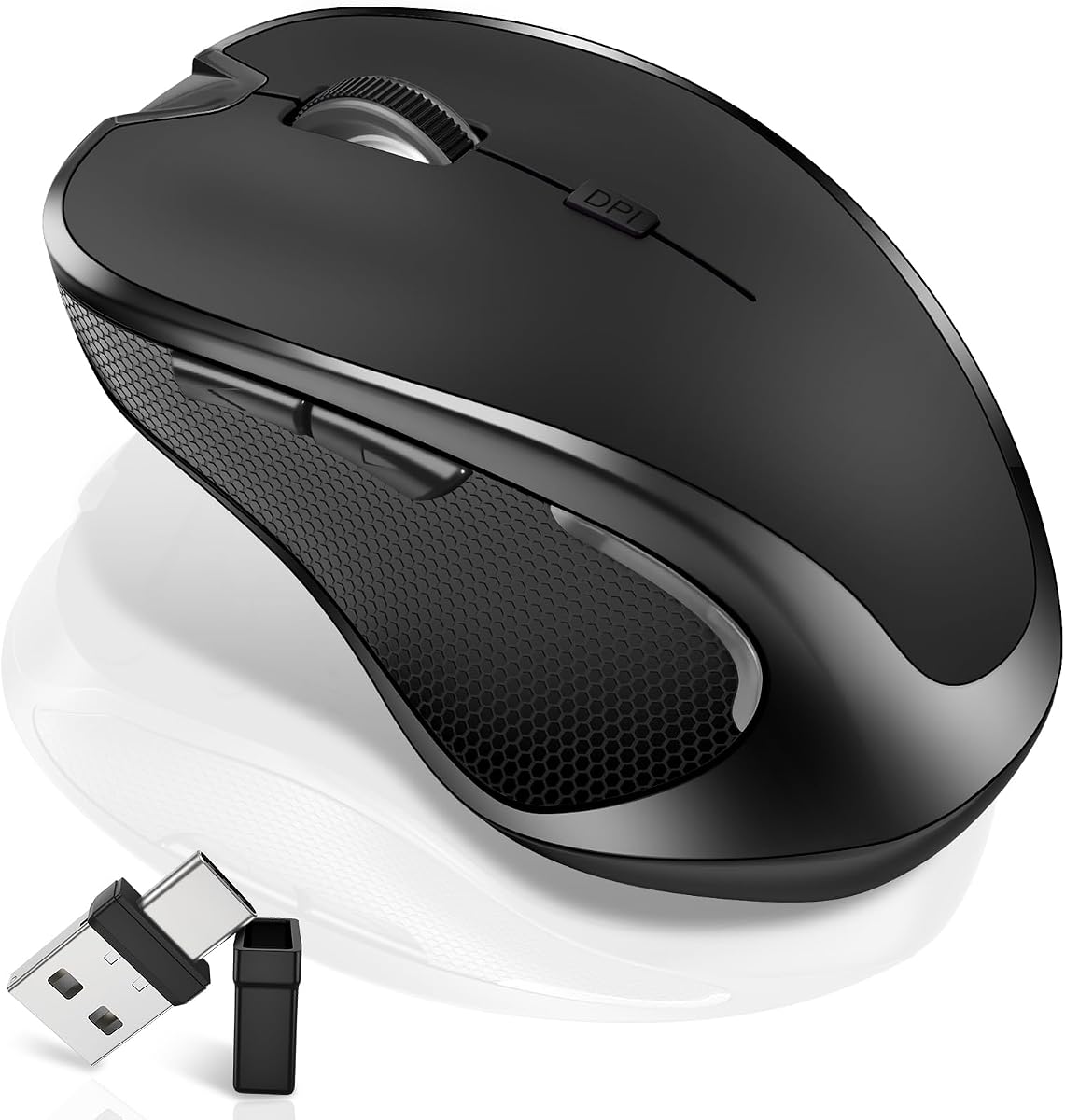
If you want a practical Magic Mouse alternative that still feels at home beside a MacBook Pro on a café table, this Normdecos dual-mode pointer is the pack's most feature-dense value pick. It pairs over Bluetooth 5.2 or Bluetooth 3.0, then keeps a dual-port 2.4 GHz receiver that flips between USB-A and USB-C. That matters on modern MacBook Pro models with limited ports and on older docks that still expect a classic A-style plug. A single switch helps you bounce between two remembered hosts—enough for most people who keep a primary MacBook Pro and a secondary Windows machine or iPad in weekly rotation.

  • BT 5.2/3.0 plus USB-A/USB-C dual-port 2.4 GHz receiver
  • Built-in jiggler mode via long DPI press, silent clicks
  • 800 mAh rechargeable pack, 800/1200/1600 DPI optical
Check Price →
✓ Pros
  • Four connection paths cover MacBook Pro Bluetooth and mixed USB-C dock setups
  • Built-in jiggler keeps screens active during downloads or remote idle policies
  • Silent clicks suit open offices and late-night MacBook Pro sessions
  • Forward/back side controls speed browser navigation on supported hosts
  • Rechargeable battery avoids disposable cells for frequent travelers
✕ Cons
  • 1600 DPI ceiling is fine for office work but below premium sensors
  • Slim shell lacks the palm cradle of full-size ergonomic mice
  • Jiggler mode may conflict with corporate keep-awake policies

Detailed review

The headline upgrade is jiggler mode. A short press on the DPI button cycles 800, 1200, and 1600 DPI for normal tracking; a long press toggles random pointer movement that can prevent sleep or idle lock during video meetings, large downloads, online classes, or remote sessions. Treat it as a convenience tool, not a productivity philosophy—turn it off when you leave a shared machine or corporate MacBook Pro managed by IT. Optical tracking is responsive for email, Pages, Notion, and light creative work, though it will not replace an 8000 DPI sensor for pixel-level photo retouching on a calibrated display.

Comfort is the quiet strength. The contoured slim shell and rubberized scroll wheel reduce slip during long Safari tabs, while soft silent clicks keep open-plan noise down when your MacBook Pro sits inches from a colleague. Side forward and back buttons help when you bounce through documentation or research threads. The built-in 800 mAh pack claims multi-week use from a couple of hours of charging, with idle sleep after roughly eight minutes. That rhythm fits hybrid workers who forget to plug accessories in until Sunday night before the next sprint.

MacBook Pro pairing is straightforward: enable Bluetooth, select the mouse, and confirm pointer speed in System Settings. If Bluetooth is congested in a dense apartment full of AirPods and HomePods, drop to the 2.4 GHz receiver through a USB-C adapter or hub. Windows and Linux hosts behave similarly, which makes this a sensible shared household mouse. Android tablets are listed as compatible for basic navigation, though gesture expectations differ from iPadOS Stage Manager workflows when you extend your MacBook Pro screen.

Who should skip it? Large-handed users who want a tall MX Master-style palm rest, designers who need glass-surface tracking, and anyone who already owns a polished Logi Options+ setup may prefer the MX Master 3S Bluetooth edition. Everyone else shopping for a silent, rechargeable MacBook Pro mouse with a clever keep-awake trick will find this Normdecos model unusually complete for the category.

Build quality feels like typical ABS travel mice: light enough for a sleeve pocket, sturdy enough for daily bag life, and not trying to look like a sculpture on an Apple Store table. The black finish hides desk wear better than glossy white Magic Mouse clones that show every fingerprint on aluminum MacBook Pro lids. Warranty language on the listing mentions a money-back window and year-long coverage, which is reassuring for a feature-dense value brand.

Bottom line for MacBook Pro users: buy this when you need dual Bluetooth plus dual-port 2.4 GHz flexibility, silent office manners, and an onboard jiggler without buying a separate mouse mover. It is the pack's strongest all-mode MacBook Pro companion when you refuse to carry two pointers between home and office.

Who it is for

MacBook Pro and iPad owners who switch between Bluetooth and a USB-C dock, remote workers who occasionally need a keep-awake jiggler, and quiet-office users who want rechargeable convenience without MagSpeed complexity.

Versus the silvery Normdecos sibling

This black jiggler variant adds the long-press jiggler toggle on the DPI button. The silvery Normdecos model in this pack omits jiggler mode but otherwise shares the dual-radio story—pick by whether keep-awake automation matters to your MacBook Pro routine.

MacBook Pro travel tip

Store the dual-port receiver inside your cable pouch so it survives TSA checks. Bluetooth remains your backup on Apple silicon when the dongle disappears into a seat cushion.

Check Price on Amazon →

We may earn a commission at no additional cost to you.

3. Normdecos Dual-Mode Silvery - Best Slim Match for Space

Normdecos Dual-Mode Silvery

Normdecos Dual-Mode Silvery

8.8/10★★★★☆

Normdecos silvery dual-mode mouse targets MacBook Pro owners who want a clean aesthetic match without paying Magic Mouse prices. The pale metallic shell sits quietly beside Space Gray and Silver aluminum without screaming third-party accessory. Under the finish you get the same practical radio stack as other Normdecos models in this pack: Bluetooth 5.2, legacy Bluetooth 3.0 compatibility, and a dual-port 2.4 GHz receiver that serves both USB-C native MacBook Pro ports and USB-A hubs on older desks.

  • BT 5.2/3.0 and dual-port USB-A/USB-C 2.4 GHz receiver
  • Silent slim contour, rechargeable 800 mAh pack
  • Three DPI steps up to 1600 for MacBook Pro and PC
Check Price →
✓ Pros
  • Silvery finish blends with Space Gray and Silver MacBook Pro lids
  • Dual Bluetooth generations plus 2.4 GHz cover docked and mobile setups
  • Silent clicks keep library and coworking noise down
  • Rechargeable USB-C battery avoids AAA swaps during travel
  • Simple three-DPI cycling suits everyday MacBook Pro document work
✕ Cons
  • No built-in jiggler mode unlike the black Normdecos jiggler variant
  • 1600 DPI max is adequate, not specialty-sensor territory
  • Slim shape can feel cramped for large palms during marathon sessions

Detailed review

This listing omits the jiggler mode found on the black Normdecos jiggler mouse ranked above. That is a meaningful fork: if keep-awake pointer automation matters for your MacBook Pro workflow, choose the jiggler SKU instead. If you simply want silent, rechargeable, multi-radio pointing with a color that matches Apple hardware, the silvery model is the cleaner pick without niche firmware toggles IT might question.

Silent click tuning makes shared spaces tolerable. Soft switches reduce the click percussion that travels through thin MacBook Pro lids when you work on a kitchen table beside family. The slim ergonomic curve favors small-to-medium hands; large palms may prefer Lenovo Yoga Pro or MX Master at a fixed desk. Rubberized scroll wheel grip helps during long Notion or Safari sessions when finger moisture would slip on glossy plastic.

Three DPI steps—800, 1200, and 1600—cover cafe tables, hotel desks, and home offices without overwhelming casual users. Optical tracking is smooth on wood, fabric pads, and most matte surfaces common in MacBook Pro travel. It is not guaranteed on high-gloss glass like MX Master's sensor, so plan a pad if your coworking desk is literally a window.

Battery claims follow the Normdecos family script: a couple of hours on USB-C for a full charge, multi-week runtime at typical eight-hour days, and sleep after eight idle minutes. MacBook Pro users who already charge phones and AirPods from the same cable will find the rhythm natural. Pair once in Bluetooth settings, adjust tracking speed in System Settings, and forget the mouse until you intentionally switch hosts with the hardware toggle.

Compared with Macally's Apple-branded marketing, Normdecos wins on dual-port dongle flexibility and side navigation buttons. Macally wins on explicit Apple aesthetic language and four DPI steps including 2400. Compared with FYBC RGB later in this list, Normdecos is the understated office choice without breathing LED effects that drain attention during focused MacBook Pro work.

Choose the silvery Normdecos when you want dual-mode radios, silence, and rechargeable convenience in a finish that complements MacBook Pro industrial design—without jiggler complexity or flagship pricing.

Who it is for

MacBook Pro users who prioritize color-matched minimalism, silent clicks, and dual Bluetooth plus 2.4 GHz flexibility without jiggler firmware.

Dock switching workflow

Leave Bluetooth paired to your MacBook Pro for mobile work. Plug the dual-port receiver into a USB-C dock at home and flip the hardware switch when you want lower-latency 2.4 GHz on a cluttered RF environment.

Versus Magic Mouse

You trade surface gestures for a traditional grip, silent mechanical clicks, and a charging port that does not force the mouse upside down. Most spreadsheet-heavy MacBook Pro users prefer that trade within a week.

Check Price on Amazon →

We may earn a commission at no additional cost to you.

4. Normdecos Dual-Mode Slim Black - Best Simple Dual-Mode Pick

Normdecos Dual-Mode Slim Black

Normdecos Dual-Mode Slim Black

8.8/10★★★★☆

The black Normdecos dual-mode mouse is functionally the stealth sibling of the silvery model ranked above: same Bluetooth 5.2 and 3.0 support, same dual-port 2.4 GHz receiver, same silent slim shell, same three DPI steps, same 800 mAh rechargeable pack. Color is the primary decision variable unless you specifically need jiggler firmware—in which case the separate black jiggler Normdecos listing is the correct SKU, not this one.

  • BT 5.2/3.0 and dual-port 2.4 GHz USB-A/USB-C receiver
  • Silent slim contour, 800 mAh USB-C rechargeable pack
  • 800/1200/1600 DPI optical tracking for Mac and iPad
Check Price →
✓ Pros
  • Identical core feature set to silvery Normdecos in a stealth black finish
  • Dual-port receiver eliminates dongle adapter hunting on MacBook Pro docks
  • Silent switches suit bedroom WFH beside a sleeping partner
  • Side forward/back buttons help research-heavy browsing sessions
  • Rechargeable pack with auto-sleep saves disposable battery waste
✕ Cons
  • No jiggler mode—choose the black jiggler SKU if keep-awake matters
  • Listing overlap with silvery variant can confuse buyers
  • Not ergonomic enough for eight-hour desk-only MacBook Pro users

Detailed review

Black finishes hide travel scuffs better than light shells when the mouse lives in the same sleeve as your MacBook Pro charger and cables. For consultants who live out of backpacks, that durability illusion matters even if ABS plastic is ABS plastic. Silent clicks remain the social feature: you can answer email at midnight without audible switch percussion traveling through apartment walls.

MacBook Pro pairing follows the same playbook as every Normdecos in this guide. Enable Bluetooth, select the device, tune pointer speed once, and optionally store the dual-port receiver in your home dock for days when cafeteria Wi-Fi and Bluetooth congestion make 2.4 GHz preferable. Switching between two hosts uses the hardware toggle rather than software gymnastics—fine for MacBook Pro plus iPad, less ideal if you need three simultaneous channels like MX Master or Lenovo Yoga Silent.

Side forward and back buttons accelerate browser history navigation on hosts that recognize them. macOS support varies by app; Safari and Chrome behavior may differ from Windows expectations. If those buttons are mission-critical on MacBook Pro, budget time to remap or accept keyboard shortcuts. Primary clicking, scrolling, and DPI changes work universally without drivers.

Optical performance tops out at 1600 DPI—enough for 14-inch and 16-inch MacBook Pro built-in displays plus a single external monitor at reasonable pointer speeds. Stack two 4K panels and you may crave higher ceilings like Lenovo Yoga Pro's 4000 DPI software cap or MX Master's 8000 DPI sensor. For student note-taking, email, and light photo culling, 1600 is perfectly comfortable.

Who should buy black over silvery? Pure aesthetic preference and bag practicality. Who should buy the jiggler black instead? Anyone whose MacBook Pro must stay awake during unattended downloads, remote desktop sessions, or long video renders. Who should skip Normdecos entirely? Desk-primary professionals who need MagSpeed, glass tracking, or vertical ergonomics—keep reading through Lenovo and Logitech Lift entries.

This is the honest everyday MacBook Pro travel mouse: not glamorous, not loaded with software ecosystems, but competent across Apple and Windows hosts with silent manners and USB-C recharge. It earns its rank by being the simplest Normdecos story without paying for features you will never toggle.

Who it is for

Budget-conscious MacBook Pro owners who want dual-mode connectivity and silent rechargeable pointing without jiggler or RGB extras.

Avoid duplicate confusion

Normdecos lists multiple near-identical SKUs. This black dual-mode model lacks jiggler mode. The separate black jiggler listing adds long-press DPI jiggler toggling—verify the ASIN before checkout.

Hand-size note

Medium and smaller hands fit best. Large-handed MacBook Pro users should trial return policies or move up to Lenovo Yoga Pro or MX Master for palm support.

Check Price on Amazon →

We may earn a commission at no additional cost to you.

5. Lenovo Yoga Pro Mouse - Best Premium Alternative

Lenovo Yoga Pro Mouse

Lenovo Yoga Pro Mouse

9/10★★★★★

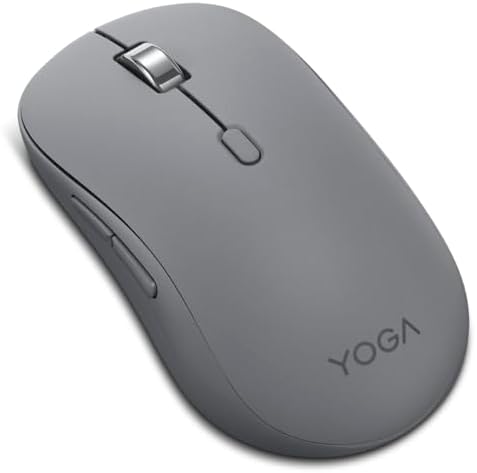
Lenovo Yoga Pro Mouse is the sleeper pick for MacBook Pro owners who want flagship ergonomics without joining the MX Master crowd at every coworking table. The Tidal Teal shell is divisive—some love the personality on otherwise identical aluminum desks—but the hardware underneath is serious: full-size right-hand contour, soft side grips, programmable buttons, silent primary switches, and a metal two-way scroll wheel that handles both vertical Safari marathons and horizontal Numbers navigation.

  • Dual Bluetooth 5.1 with multi-device quick pairing
  • Programmable buttons, silent clicks, metal two-way scroll wheel
  • Blue optical sensor up to 4000 DPI, USB-C rechargeable
Check Price →
✓ Pros
  • Full-size ergonomic shell with soft side materials beats slim travel mice for long sessions
  • Metal scroll wheel supports vertical and horizontal movement for wide spreadsheets
  • 4000 DPI software ceiling helps multi-monitor MacBook Pro dock setups
  • USB-C recharge reaches full battery in under two hours
  • Tidal Teal finish stands out from generic black office mice
✕ Cons
  • Lenovo software is less mature on macOS than Logi Options+
  • Right-hand-only shape excludes left-handed MacBook Pro users
  • Teal color may clash with minimalist silver-and-gray Apple desks

Detailed review

Dual Bluetooth 5.1 pairing targets multi-device professionals. Connect your MacBook Pro, an iPad, and a Windows test machine, then switch with the bottom pairing button instead of digging through System Settings each time. Swift Pair support helps on Windows hosts; macOS pairing is standard Bluetooth LE without exotic drivers. For hybrid workers whose MacBook Pro is the hub but Windows still appears weekly, that flexibility matters more than logo loyalty.

The blue optical sensor advertises three on-the-fly DPI stages with software tuning up to 4000 DPI. That headroom helps when a MacBook Pro drives a 34-inch ultrawide from a CalDigit or Belkin dock where 800 DPI feels sluggish. Multi-surface tracking covers most desks though ultra-gloss glass may still want a pad—Lenovo does not claim glass-native tracking like Logitech's Darkfield marketing on MX Master.

Rechargeable USB-C battery life lands in the two-to-three month range per Lenovo's claims after a sub-two-hour charge cycle. MacBook Pro users already drowning in USB-C cables will find maintenance easy: same charger as your laptop, phone, and earbuds. Silent left and right buttons keep video calls civil when you click through approval workflows between speaking turns.

Software customization exists through Lenovo's companion apps, but macOS depth trails Logi Options+. Expect solid defaults and button remapping rather than app-specific Photoshop macros out of the box. If your MacBook Pro workflow depends on deep per-app profiles, MX Master still wins. If you want hardware quality and horizontal scroll without Logitech ubiquity, Yoga Pro competes seriously.

Build impressions emphasize balance: not as heavy as MX Master, not as flimsy as bargain slim mice. Thumb rest placement suits medium-to-large right hands. Travelers who squeeze a 16-inch MacBook Pro into a tight sleeve may still prefer Normdecos or Macally for weight, but Yoga Pro belongs in a home office kit bag that never leaves the apartment.

Buy Lenovo Yoga Pro when your MacBook Pro docks for long stretches and you want programmable buttons, metal scroll feel, and 4000 DPI headroom in a non-Logitech envelope. Skip it when you need glass tracking, FLOW file transfer, or vertical wrist posture—those stories live in MX Master and Lift entries elsewhere in this pack.

Who it is for

Docked MacBook Pro professionals who want ergonomic full-size hardware, horizontal scroll, and dual Bluetooth without MX Master ubiquity.

Color and desk aesthetics

Tidal Teal pops against silver MacBook Pro stands and gray felt desk mats. If you curate an all-space-gray setup, consider whether the accent color energizes or distracts before committing.

Versus MX Master 3S

Yoga Pro includes USB-C recharge in the box and offers competitive DPI with a metal wheel. MX Master counters with MagSpeed electromagnetic scrolling, glass-capable tracking, Quiet Clicks pedigree, and deeper Options+ on macOS.

Check Price on Amazon →

We may earn a commission at no additional cost to you.

6. Lenovo Yoga Bluetooth Silent Mouse - Best AA Battery

Lenovo Yoga Bluetooth Silent Mouse

Lenovo Yoga Bluetooth Silent Mouse

9/10★★★★★

Lenovo Yoga Bluetooth Silent Mouse answers a specific MacBook Pro complaint: another rechargeable gadget to babysit. A single AA battery drives up to thirty-six months of claimed life—real-world results will vary with daily hours and battery brand, but even half the marketing number beats weekly USB-C top-ups for forgetful travelers. Luna Grey soft-touch coating looks at home beside Space Gray MacBook Pro lids without the gamer RGB noise that dominates budget Amazon listings.

  • Bluetooth 5.3 with three-device pairing, no dongle required
  • Single AA cell rated up to 36 months, whisper-quiet clicks
  • Three DPI levels, programmable buttons, Luna Grey soft-touch finish
Check Price →
✓ Pros
  • Extraordinary claimed battery life suits MacBook Pro users who forget charging routines
  • Bluetooth 5.3 connects three devices for MacBook Pro, iPad, and PC rotation
  • Luna Grey soft-touch coating complements Apple neutral palettes
  • Whisper-quiet switches reduce call and bedroom noise
  • No USB receiver to lose when moving between cafes and offices
✕ Cons
  • AA battery adds weight versus rechargeable slim travel mice
  • No 2.4 GHz fallback if Bluetooth becomes unreliable in dense RF environments
  • Smaller shell than Yoga Pro—less palm support for all-day desk use

Detailed review

Bluetooth 5.3 handles three-device pairing simultaneously. Keep your MacBook Pro, an iPad for Sidecar or standalone work, and maybe a Windows desktop mapped without swapping dongles. Tap-to-pair shortcuts target Lenovo Yoga PCs but standard macOS Bluetooth pairing still works predictably: open System Settings, connect once, adjust tracking speed, and move on. There is no USB receiver in the box, which frees MacBook Pro USB-C ports but removes a fallback when airplane Bluetooth gets weird.

Whisper-quiet clicking is the social selling point for open-plan offices and bedroom WFH setups where MacBook Pro speakers and mics pick up everything. Programmable buttons add light customization through Lenovo utilities—helpful, though not as deep as Options+ on MX Master. Three DPI stages cover typical document work; ultrawide multi-monitor MacBook Pro docks may want higher ceilings available on Yoga Pro or MX Master instead.

The shell is smaller and smoother than Yoga Pro's full ergonomic contour. That makes it easier to slip into a slim sleeve pocket next to a 14-inch MacBook Pro, but large-handed users may cramp during eight-hour editing sessions. Treat this as a balanced everyday pointer for moderate use hours, not a marathon ergonomic throne.

Soft-touch materials feel premium for the category and resist the cold plastic sensation of bare ABS travel mice. Lenovo's quality messaging emphasizes thousand-day durability testing—marketing, yes, but the brand has more corporate accountability than anonymous white-label sellers flooding MacBook Pro accessory searches.

Compared with Logitech M510 in this pack, Yoga Silent stays Bluetooth-native with modern 5.3 and three-device memory, while M510 relies on 2.4 GHz USB-A nano receivers better suited to desktop setups. Compared with Macally, both target Apple-friendly aesthetics, but Lenovo adds tri-device Bluetooth and exceptional battery claims without nightly charging.

Choose Yoga Silent when your MacBook Pro lifestyle punishes recharge discipline and you want quiet tri-device Bluetooth in a neutral gray finish. Skip it when you need dongle fallback, horizontal scroll hardware, or a tall palm rest—Yoga Pro and MX Master cover those needs better.

Who it is for

MacBook Pro owners who want set-and-forget AA battery life, tri-device Bluetooth, and whisper-quiet clicks without carrying charging cables.

Battery reality check

Thirty-six months is a best-case Lenovo claim. Plan on months—not weeks—of real endurance, keep a spare AA in your laptop bag, and treat the mouse like a smoke detector: replace the cell when responsiveness dips rather than on a calendar.

Versus Yoga Pro

Yoga Pro adds USB-C recharge, larger ergonomics, metal two-way scroll, and higher DPI. Yoga Silent wins on battery hassle, Bluetooth 5.3 tri-device simplicity, and softer travel weight.

Check Price on Amazon →

We may earn a commission at no additional cost to you.

7. Logitech M510 - Best Docked Desktop Companion

Logitech M510

Logitech M510

9.2/10★★★★★

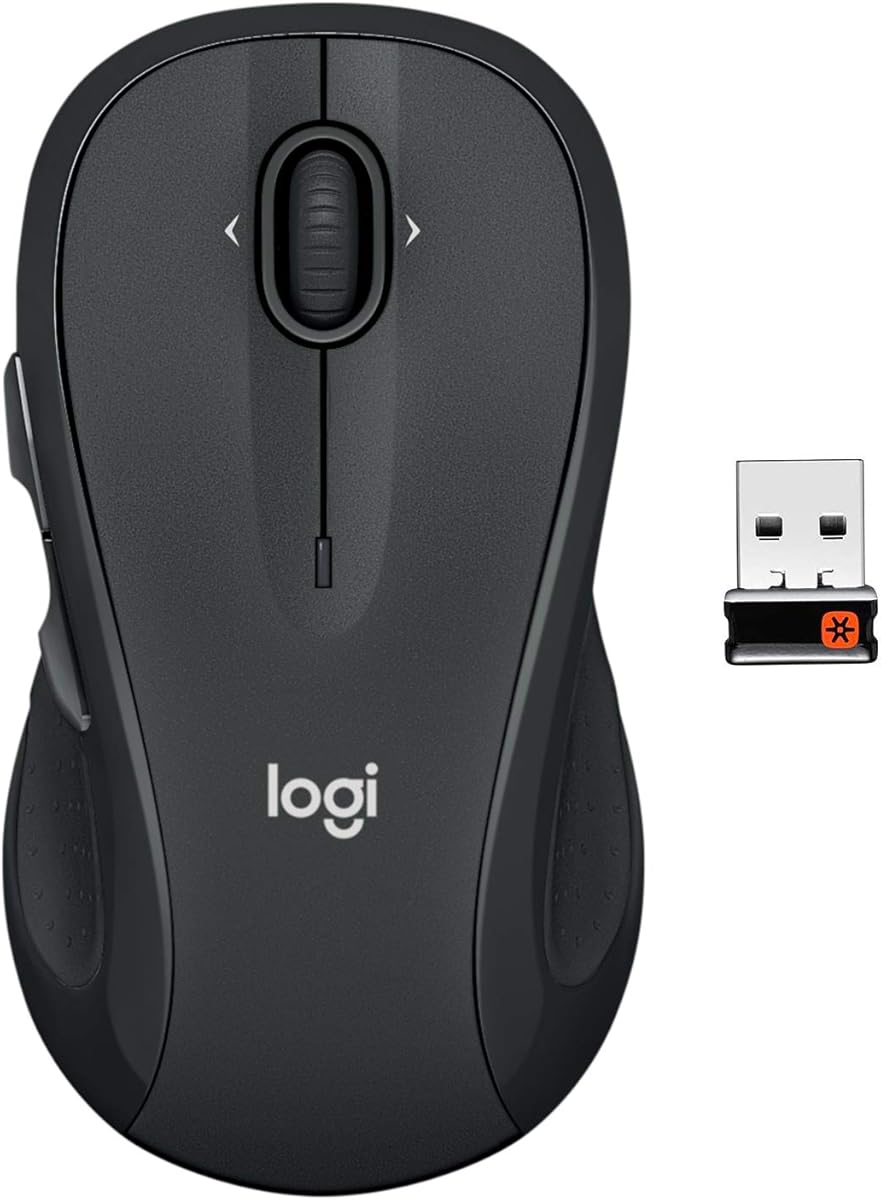
Logitech M510 is the pragmatic choice when your MacBook Pro lives docked ninety percent of the time and you want a full-size ambidextrous mouse that simply works. This is not the flashy flagship story—it is a proven 2.4 GHz workhorse with soft rubber grips, a broad palm area, and back/forward buttons that remap through Logitech Control Center on macOS when you invest five minutes in setup.

  • 2.4 GHz USB-A Unifying nano receiver, Mac compatible
  • Ambidextrous full-size shell with soft rubber grips
  • Two-year AA battery life, back/forward programmable buttons
Check Price →
✓ Pros
  • Ambidextrous shape serves left- and right-handed MacBook Pro users
  • Full-size palm support beats slim travel mice for docked desk days
  • Back and forward buttons remap with Logitech Control Center on macOS
  • Two-year battery life minimizes maintenance on a stationary setup
  • Unifying receiver stays plugged into a hub while MacBook Pro docks
✕ Cons
  • Requires USB-A receiver—modern MacBook Pro needs a hub or adapter
  • No Bluetooth means no direct iPad pairing without extra hardware
  • Design shows its age versus Quiet Clicks and USB-C recharge newcomers

Detailed review

The USB-A nano receiver expects a hub. Plug it into your CalDigit, Anker, or Apple adapter, leave it there, and treat the MacBook Pro as a laptop that slides onto a desktop pointer without re-pairing Bluetooth every evening. Unifying receiver compatibility also means you could add a Logitech keyboard to the same dongle if you standardize on Logitech peripherals across a home office.

Ambidextrous contours matter more than marketing teams admit. Left-handed MacBook Pro users often force right-hand ergonomic mice and wonder why wrists hurt. M510's symmetrical shell with side buttons on the left edge gives lefties a fair option in this pack without hunting specialty mirrored models outside our product set.

Tilt-to-scroll wheel adds horizontal movement when Logitech software is installed—handy for wide spreadsheets on a MacBook Pro driving a 27-inch display. Battery life stretches toward two years on AA cells with smart sleep and an physical power switch. That endurance profile suits a mouse that never leaves the desk drawer, unlike rechargeable travel models that die mid-flight if you forget a cable.

Silence is not the headline feature. M510 clicks sound like traditional Logitech office mice—not loud, but not Quiet Clicks either. Open-office MacBook Pro users on endless calls may prefer MX Master or the silent Lenovo and Normdecos entries. Bedroom workers might notice the difference at 11 p.m.

MacBook Pro travelers should think carefully. Carrying a USB-A receiver and depending on hub availability makes M510 awkward on airplane tray tables where Bluetooth-only mice shine. Buy it for the home office dock, not the backpack unless your bag always includes a known hub with a free USB-A port.

M510 earns its place as the reliable, left-friendly, long-battery dock mouse for MacBook Pro professionals who already own Logitech ecosystem software and accept 2.4 GHz as a desktop standard. It will not wow anyone with MagSpeed or glass tracking, but it will still feel comfortable on year three.

Who it is for

Docked MacBook Pro setups with a permanent USB-A hub, especially left-handed users who need ambidextrous contours and long AA battery life.

Hub placement tip

Leave the nano receiver in the rear port of your powered hub so it stays clear of USB-C power cables that can cause 2.4 GHz interference. Line-of-sight to the mouse still matters through aluminum monitor stands.

Versus Bluetooth-only picks

MX Master 3S Bluetooth and Macally pair directly with MacBook Pro radios. M510 wins when Bluetooth congestion is chronic in your apartment or when you want Unifying multi-device on a stationary desk.

Check Price on Amazon →

We may earn a commission at no additional cost to you.

8. Macally Bluetooth Mouse for Mac - Best Apple-Style Aesthetic

Macally Bluetooth Mouse for Mac

Macally Bluetooth Mouse for Mac

8.8/10★★★★☆

Macally built its reputation selling peripherals that look like they belong in an Apple Store bag beside a MacBook Pro. This silver Bluetooth mouse continues that story: ultra-thin silhouette, rechargeable battery, quiet silicone-damped clicks, and explicit compatibility messaging for MacBook Pro, MacBook Air, iPad, iMac, and Windows PCs without driver installs. If your desk aesthetic is silver aluminum and white keys, Macally fits visually better than black gaming-adjacent mice cluttering search results.

  • Bluetooth Mac mouse with 30-foot wireless range
  • Quiet silicone-damped clicks, slim ambidextrous shell
  • Four DPI steps to 2400, USB-C rechargeable battery
Check Price →
✓ Pros
  • Silver finish and slim profile mirror Apple Magic Mouse alternatives
  • Up to ninety percent quieter clicks via silicone button membranes
  • Four DPI levels including 2400 help external MacBook Pro displays
  • Driver-free Mac and PC pairing suits non-technical household users
  • Rechargeable pack removes AA hunting during travel
✕ Cons
  • Bluetooth only—no 2.4 GHz fallback for flaky RF environments
  • Slim shape lacks deep palm support for eight-hour ergonomic needs
  • Brand support depth trails Logitech for advanced macOS remapping

Detailed review

Quiet clicking uses silicone membranes under the primary buttons to reduce noise up to ninety percent versus conventional switches—scroll wheel excluded, so wheel ticks may still audible in silent rooms. For MacBook Pro users taking calls at kitchen tables, that reduction matters more than spec-sheet DPI numbers. Precision tracking still feels crisp for Pages, Mail, and Figma at moderate zoom levels.

Four DPI steps—800, 1200, 1600, and 2400—give more headroom than the 1600-cap Normdecos and FYBC travel mice without jumping to MX Master pricing. Cycling DPI uses a dedicated button on the shell bottom or side depending on unit orientation; read the quick-start card once so you do not confuse DPI changes with Bluetooth pairing mode during setup panic.

Bluetooth range claims reach thirty feet, adequate for MacBook Pro connected to a TV across a living room or presenting from a podium while the laptop sits on a side table. Real-world walls and interference shorten that, but conference room use cases rarely stress the spec. No USB receiver means one less dongle to lose and one more USB-C port free for power on a 14-inch MacBook Pro.

Ambidextrous slim design suits both left- and right-handed users who prefer flat-ish travel mice over towering ergonomics. Large palms may feel under-supported compared with Lenovo Yoga Pro or MX Master. Medium hands get a comfortable daily driver for mixed mobile and desk work when the MacBook Pro is not locked into eight-hour spreadsheet marathons.

Compared with Normdecos dual-mode models, Macally trades dongle flexibility for cleaner Apple branding and four DPI steps. Compared with Magic Mouse, Macally offers a traditional button layout, upright USB-C charging, and quieter mechanical clicks without forcing gesture-only navigation during spreadsheet work.

Choose Macally when your MacBook Pro setup values silver aesthetics, quiet Bluetooth simplicity, and driver-free pairing for family members who will never install Logi Options+. Skip it when you need jiggler modes, dual-port receivers, or MagSpeed-class scrolling for professional timelines.

Who it is for

Design-conscious MacBook Pro owners who want a silver silent Bluetooth mouse that looks Apple-native without Magic Mouse ergonomics.

Family sharing tip

Driver-free pairing makes Macally easy when a MacBook Pro, family iMac, and Windows homework laptop rotate the same mouse weekly—just re-pair in Bluetooth settings per host.

Versus Magic Mouse

Macally restores traditional left/right buttons, avoids underside charging absurdity, and keeps a slim travel footprint. You lose Magic Mouse surface gestures unless you keep the trackpad for those motions.

Check Price on Amazon →

We may earn a commission at no additional cost to you.

9. Logitech Lift for Mac - Best Ergonomic Wrist Relief

Logitech Lift for Mac

Logitech Lift for Mac

9/10★★★★★

Logitech Lift for Mac is the wrist intervention mouse for MacBook Pro users who feel forearm tension after months of trackpad and Magic Mouse flat pronation. The 57-degree vertical angle places your hand in a handshake posture that ergonomists recommend for reducing ulnar deviation and wrist extension during long editing, coding, or finance sessions. Off White coloring aligns with Apple desktop palettes better than generic black vertical mice that look like medical devices.

  • 57-degree vertical handshake grip, designed for Mac and iPadOS
  • Bluetooth LE only, quiet clicks, SmartWheel scrolling
  • Four customizable buttons, up to two-year AA battery life
Check Price →
✓ Pros
  • Vertical posture reduces wrist pronation during long MacBook Pro dock sessions
  • Explicit Mac and iPadOS compatibility with Off White Apple-friendly finish
  • Quiet clicks and SmartWheel suit focus work and video calls
  • Ergo-certified design backed by ergonomist testing criteria
  • 54 percent post-consumer recycled plastic in Off White shell
✕ Cons
  • Vertical grip requires adaptation period from flat or trackpad habits
  • Small-to-medium hand sizing—large palms may overflow the shell
  • No USB receiver and no MagSpeed electromagnetic scroll wheel

Detailed review

Bluetooth Low Energy pairs with MacBook Pro, MacBook Air, iMac, and compatible iPad models without a USB receiver—ideal when every USB-C port is already claimed by power and display cables. Quiet clicks and the SmartWheel scrolling system keep noise down during calls while still offering precise ratchet control when you need line-by-line movement through legal PDFs or Xcode logs.

Four customizable buttons integrate with Logi Options+ on macOS for app-specific shortcuts— not as many controls as MX Master, but enough to map undo, mission control, or mute during daily MacBook Pro workflows. Battery life stretches up to two years on a single included AA cell, which appeals to users tired of rechargeable mice dying before important presentations.

Sizing matters: Lift targets small-to-medium hands. Large-handed MacBook Pro users may find fingertips hanging off buttons or thumb rest edges, which defeats the ergonomic purpose. Visit a store display if possible, or buy from a retailer with painless returns. Adaptation takes one to two weeks—muscle memory from horizontal mice feels wrong until it suddenly feels obvious.

Lift will not replace MX Master for users who live on MagSpeed fling scrolling or glass-desk tracking. It replaces flat mice for users whose primary pain is wrist angle, not scroll speed. Pair Lift with an external keyboard at elbow height and your MacBook Pro elevated on a stand for a complete ergonomic upgrade that costs less than a chiropractor visit series.

Sustainability notes include certified post-consumer recycled plastic content in the Off White shell—small but meaningful for buyers aligning Apple silicon purchases with materials consciousness. Ergo certification signals Logitech tested against published ergonomist criteria rather than slapping vertical on a generic shell.

Choose Lift for Mac when wrist posture is your MacBook Pro bottleneck and you want Apple-native Bluetooth simplicity with Options+ customization. Skip it when you need horizontal scrolling speed, jiggler automation, or a mouse that fits large palms without compromise.

Who it is for

MacBook Pro users with wrist or forearm discomfort who want a vertical Bluetooth mouse designed specifically for macOS and iPadOS with quiet clicks.

Adaptation timeline

Expect awkward accuracy for several days. Keep your old mouse nearby for gaming or photo pixel work until vertical aim stabilizes—most users fully commit after two weeks of docked MacBook Pro use.

Versus MX Master 3S

Lift optimizes joint angles; MX Master optimizes scroll productivity and multi-device FLOW. Many MacBook Pro professionals own both: Lift at the health-focused home desk, MX Master at the creative office.

Check Price on Amazon →

We may earn a commission at no additional cost to you.

10. FYBC RGB MacBook Pro Mouse - Best RGB Travel

FYBC RGB MacBook Pro Mouse

FYBC RGB MacBook Pro Mouse

8.8/10★★★★☆

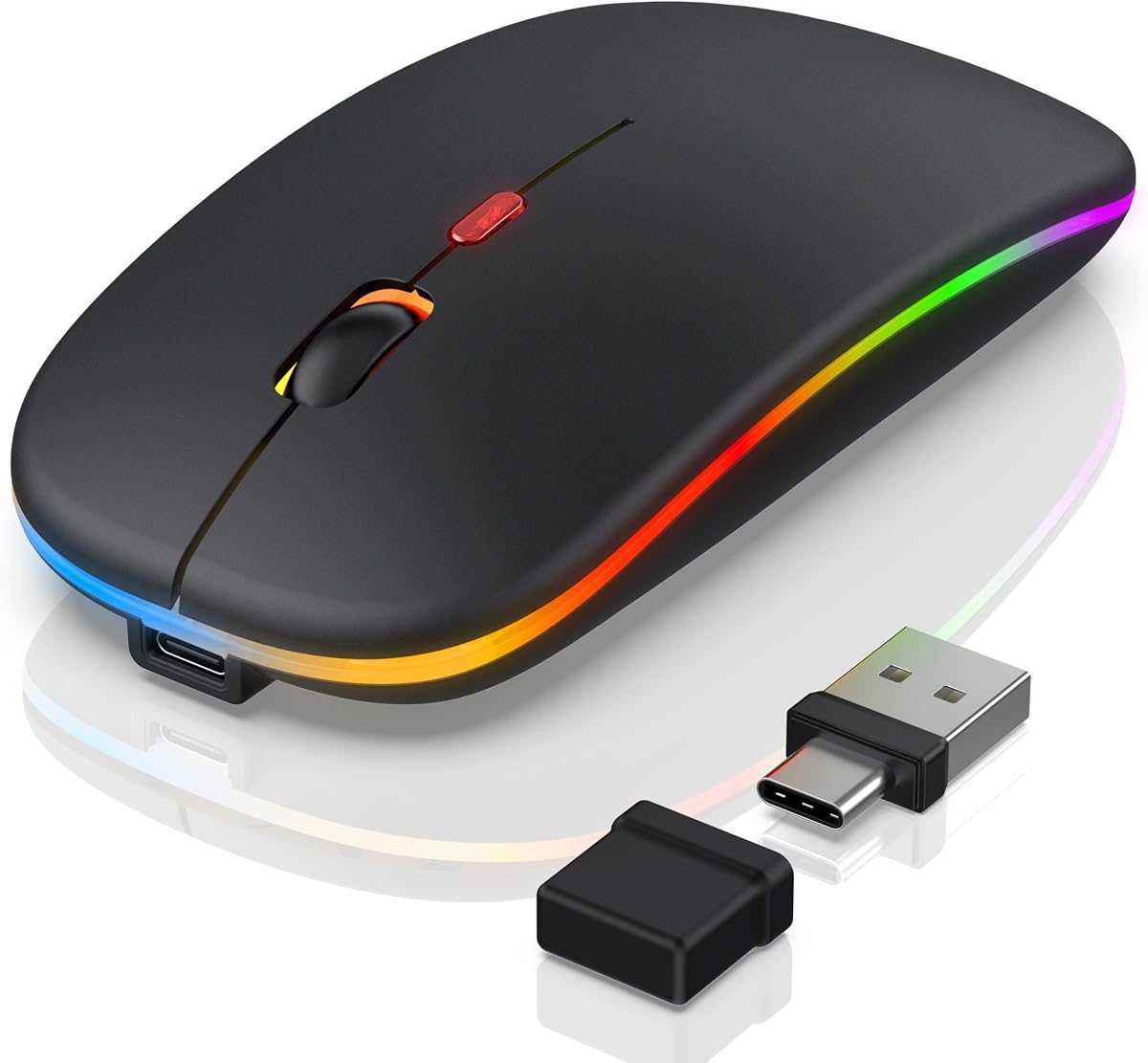
FYBC RGB MacBook Pro mouse is the personality pick at the end of this pack—matte black shell, seven-color breathing LED effects, dual Bluetooth and 2.4 GHz radios, built-in jiggler mode, and a 65 gram weight that barely registers in a MacBook Pro sleeve next to your charger. It targets students, creators, and remote workers who want function and flair without flagship pricing.

  • Bluetooth plus USB-A/USB-C dual-mode 2.4 GHz receiver
  • Seven-color breathing RGB and built-in jiggler mode
  • 65 g slim shell, silent clicks, 800/1200/1600 DPI
Check Price →
✓ Pros
  • Ultra-light 65 g body fits MacBook Pro sleeves without adding bulk
  • Dual-port receiver covers USB-C MacBooks and USB-A hubs
  • Jiggler mode prevents sleep during downloads and remote sessions
  • Seven-color RGB adds personality to minimalist desk setups
  • Silent clicks suit dorms, cafes, and late-night MacBook Pro work
✕ Cons
  • RGB effects may feel unprofessional in conservative corporate environments
  • 1600 DPI ceiling limits ultrawide multi-monitor MacBook Pro docks
  • Feature overlap with Normdecos jiggler makes brand choice subjective

Detailed review

Connectivity mirrors other dual-mode MacBook Pro value mice: Bluetooth 5.2 for direct Apple pairing, plus a combined USB-A and USB-C receiver when café Bluetooth gets crowded. Hold the DPI button several seconds to enable jiggler mode that nudges the pointer during long uploads or remote desktop idle timers; short press cycles 800, 1200, and 1600 DPI for everyday tracking on built-in Retina displays and single external monitors.

RGB lighting auto-cycles through seven soft colors—more mood lighting than esports rainbow strobing. You can disable it if your workplace frowns on glowing peripherals during client-facing MacBook Pro presentations; check the manual for toggle behavior on your firmware revision. Silent clicks keep dorm rooms and open offices tolerable when roommates or coworkers share acoustic space.

Ergonomics favor small-to-medium hands with a slim contour that reduces fatigue versus completely flat shells but will not replace Lenovo Yoga Pro or MX Master for eight-hour palm support. Optical tracking performs well on common desk materials though glass tables may need a pad—same caveat as Normdecos and Macally travel mice in this guide.

Versus Normdecos jiggler black, FYBC adds RGB and slightly lower claimed weight while Normdecos emphasizes four-mode switching language and side scroll navigation. Ratings are similar; choose based on whether you want light show features or stealth black office aesthetics. Versus Macally silver, FYBC wins on dual-radio flexibility and jiggler; Macally wins on Apple-matching silver minimalism without LEDs.

Corporate MacBook Pro users should confirm jiggler and RGB policies before enabling features on managed machines. Personal machines benefit from jiggler convenience during Steam downloads, cloud backup jobs, or three-hour Zoom webinars where you still need the display awake for screen-share return.

Buy FYBC when your MacBook Pro travels constantly, you want jiggler and dual-port dongle flexibility, and a subtle RGB glow sounds fun rather than unprofessional. Skip it when you need 4000-plus DPI, vertical ergonomics, or a mouse that whispers corporate neutrality in every boardroom.

Who it is for

Young professionals, students, and creators who want a lightweight dual-mode MacBook Pro mouse with jiggler mode and RGB personality.

RGB in professional settings

Disable breathing effects before client calls if your MacBook Pro camera picks up desk reflections. Matte black shell still looks restrained even when LEDs run during solo focus sessions.

Versus Normdecos jiggler

Both offer jiggler and dual radios. FYBC is lighter with RGB; Normdecos emphasizes side forward/back buttons and four-mode marketing. Compare current ratings and return policies if click feel is your priority.

Check Price on Amazon →

We may earn a commission at no additional cost to you.

Best Mouse for MacBook Pro 2026: Expert Picks for Apple

How to Choose the Best Mouse for MacBook Pro in 2026

Start with how your MacBook Pro actually moves through the week

Dock-primary users with a Studio Display or ultrawide need different mice than one-bag travelers who mouse on café tables. Docked MacBook Pro setups tolerate full-size ergonomics like MX Master 3S, Lenovo Yoga Pro, or Logitech M510 plugged into a permanent hub. Mobile 14-inch owners should prioritize slim rechargeable models like Macally, Normdecos, or FYBC that survive sleeve pockets without snagging on USB-C cables. Honest workflow mapping prevents buying a flagship desk mouse you never carry—or a 65-gram travel mouse that cramps your palm during home-office marathons.

Bluetooth first, dongle when RF gets messy

Every current MacBook Pro includes Bluetooth, so pure BLE mice like MX Master 3S Bluetooth, Lift for Mac, Macally, and Lenovo Yoga Silent keep USB-C ports free for power and displays. Still keep a dual-mode mouse with a USB-A/USB-C receiver if you also use Windows desktops, older docks, or apartments where Bluetooth congestion from headphones and speakers causes pointer stutter. Normdecos and FYBC models in this pack cover that mixed reality without forcing you to choose one radio forever.

Match shell shape to hours and hand size

Trackpad power users often underestimate how much Magic Mouse flatness contributed to wrist fatigue once they dock for real work. If you mouse more than four hours daily on a MacBook Pro, prioritize contoured shells—MX Master 3S, Lenovo Yoga Pro, or vertical Lift for Mac. Medium travel days suit Macally and Normdecos slim contours. Left-handed MacBook Pro users should shortlist the ambidextrous Logitech M510 before forcing a right-hand ergonomic shape that creates new strain.

Silence matters when the MacBook Pro mic is always hot

Open offices, glass meeting rooms, and bedroom WFH setups punish loud clicks picked up by MacBook Pro microphones on Zoom, Teams, and FaceTime. Quiet Clicks on MX Master, whisper-quiet Lenovo Yoga Silent, silicone-damped Macally buttons, and softened Normdecos/FYBC switches reduce social friction. If you live alone and enjoy tactile clatter, silence drops down the priority list. If anyone shares acoustic space with your MacBook Pro, put quiet switches near the top beside connection type.

Scroll hardware changes spreadsheet and timeline work

A basic vertical wheel suffices for Safari and Mail. Wide Numbers sheets, Final Cut timelines, and design canvases benefit from MagSpeed fling on MX Master or metal two-way scroll on Lenovo Yoga Pro. Jiggler modes on Normdecos and FYBC solve a different problem—keep-awake automation during unattended MacBook Pro tasks—not faster navigation. Buy scroll features for the work you repeat daily, not the marketing bullet you might tap once.

Battery philosophy on Apple silicon travel

Rechargeable USB-C mice fit MacBook Pro owners who already carry phone and laptop cables—MX Master, Macally, Normdecos, FYBC, and Lenovo Yoga Pro. AA-powered options like Lenovo Yoga Silent, Lift for Mac, and M510 win when you hate charge rituals and can keep spare cells in a drawer. Distrust perfect endurance marketing; assume real-world results land below brochure claims, especially if RGB stays enabled on FYBC units overnight.

Frequently Asked Questions

01

What is the best mouse for MacBook Pro in 2026?

For desk-primary professionals, the Logitech MX Master 3S Bluetooth edition is the strongest overall pick thanks to MagSpeed scrolling, Quiet Clicks, glass-capable tracking, and Logi Options+ on macOS. If wrist posture is your bottleneck, Logitech Lift for Mac offers vertical ergonomic relief designed specifically for Apple systems. Travelers who want dual-radio flexibility and a built-in jiggler without flagship pricing should shortlist the Normdecos MacBook Pro Jiggler mouse in this pack.

02

Does MacBook Pro work with any Bluetooth mouse?

Modern MacBook Pro models on Apple silicon pair with standard Bluetooth HID mice without special drivers. Most mice in this pack connect through System Settings in seconds. Differences appear in side-button mapping, software customization depth, and whether advanced features like FLOW or jiggler modes need companion apps. Always confirm the listing mentions macOS compatibility, though every product here targets MacBook Pro explicitly.

03

Do I need a USB receiver for my MacBook Pro mouse?

Not if Bluetooth is stable in your environments. MX Master 3S Bluetooth, Lift for Mac, Macally, and Lenovo Yoga Silent are dongle-free. Keep a dual-mode mouse with USB-A/USB-C receivers if you also use Windows desktops, older USB-A-only hubs, or locations where Bluetooth interference causes stutter. Many value MacBook Pro mice intentionally include both radios so you are not locked into one answer when café Wi-Fi gets crowded.

04

Is Magic Mouse still worth it on MacBook Pro?

Magic Mouse remains fine for light gesture browsing and matching silver aesthetics. Many MacBook Pro users should switch if they feel wrist fatigue, hate underside charging, or want silent mechanical clicks and multi-device radios. Traditional grips still win for spreadsheet, editing, and long-document days on M-series machines. Try a contoured silent Bluetooth mouse for two weeks at your desk; most converts do not return to the flat top for primary work.

05

Why do side buttons behave differently on macOS?

Some value mice document that forward and back buttons are inconsistent on Mac even though primary clicks and scrolling work. This is usually firmware and OS mapping limits rather than a defective unit. If browser history buttons are mandatory on your MacBook Pro, prefer Logitech MX-class Options+ support or budget time to remap with utilities. Otherwise accept keyboard shortcuts and trackpad gestures for navigation.

06

Are mouse jigglers safe to use on MacBook Pro?

Built-in jiggler modes on Normdecos and FYBC mice move the pointer to reduce idle sleep during downloads, remote sessions, or long unattended tasks. They are convenience features, not universal necessities. Some workplaces discourage tools that defeat idle lock policies on managed MacBook Pro units—check norms before enabling them. For personal machines, jiggler mode can replace a separate USB mouse mover if you genuinely need keep-awake behavior during cloud backups or rendering jobs.

07

What DPI should I use on MacBook Pro?

Most MacBook Pro document and browser work feels great between 800 and 1600 DPI with pointer speed tuned in System Settings. Higher ceilings like Lenovo Yoga Pro's 4000 steps or MX Master's 8000 DPI help on ultrawide and multi-monitor docks where low sensitivity feels sluggish. Chasing maximum DPI alone rarely improves comfort. Prioritize shape, silence, and connection flexibility first, then fine-tune sensitivity after a full workday on your actual displays.

08

Can one mouse serve my MacBook Pro and Windows PC?

Yes. MX Master 3S pairs multiple computers and supports FLOW for cross-OS control when configured. Lenovo Yoga Pro and Yoga Silent offer multi-device Bluetooth switching. Normdecos and FYBC dual-mode mice typically toggle between two hosts with hardware switches. Logitech M510 moves between machines by relocating its nano receiver or keeping it in a shared hub. Buy for the number of devices you switch among each day, not the marketing maximum you will never use.

09

Rechargeable or AA batteries for MacBook Pro travel?

Choose rechargeable if you already live on USB-C and remember monthly top-ups—MX Master, Macally, Normdecos, FYBC, and Lenovo Yoga Pro fit that habit. Choose AA if you want long set-and-forget endurance and the ability to revive a dead mouse with a store cell—Lift for Mac, Lenovo Yoga Silent, and M510 fit that habit. Neither is universally better on Apple silicon. Match the maintenance chore you will actually perform when your MacBook Pro bag is already full of cables.

10

Will these mice work with MacBook Pro M4 and older Intel models?

Bluetooth and USB human-interface device standards are unchanged across Apple silicon generations, so every mouse in this pack works with M1 through M4 MacBook Pro models and most Intel MacBook Pro units still in service. Older macOS versions may limit companion app features—verify Logi Options+ or Lenovo software support for your OS version if deep customization matters. Basic pointing and scrolling require no special chip awareness.

Conclusion

The best mouse for MacBook Pro in 2026 depends on whether you optimize for docked comfort, mobile silence, wrist posture, or multi-device hopping with a dongle backup. For most professionals in this pack, the Logitech MX Master 3S Bluetooth edition is the clearest overall pick thanks to Quiet Clicks, MagSpeed scrolling, glass-capable tracking, and mature macOS customization through Logi Options+. If vertical ergonomics define your pain point, Logitech Lift for Mac is the smarter health-focused buy. If you want dual-radio flexibility, silent clicks, and a built-in jiggler without flagship bulk, the Normdecos MacBook Pro Jiggler mouse is the value champion.

Use the comparison table to filter by connection style and battery approach, then read the full reviews for hand-size honesty and macOS caveats. Skip dollar chasing—promotions rotate faster than peripheral firmware updates. Pick the mouse that matches your real MacBook Pro week, confirm what is actually included in the box, and give your wrist two weeks to adapt before judging a new shape.

Every product here stays in our MacBook Pro pack with tag=reviewconsens-20 affiliate links unchanged. Ratings shift as new buyers post feedback; re-check listings before you order if a specific feature like jiggler mode, included cables, or receiver type is non-negotiable for your setup.