Expert Review & Guide

Best Monitors for Programming in 2026: 4K, Ultrawide, and Eye-Care

Programming monitors are not gaming monitors with a different label slapped on the box. A full workday in VS Code, JetBrains, or a browser with twelve tabs open punishes different weaknesses than a Friday night in Apex: text sharpness at arm's length, vertical pixels for reading stack traces, eye comfort when the only light in the room is your IDE theme, and enough horizontal canvas to keep documentation beside your editor without constant alt-tab gymnastics. The wrong panel makes fuzzy 1080p scaling feel acceptable until hour six, when your temples notice. The right one disappears—you stop thinking about the monitor and stay inside the problem you are solving.

This guide ranks every product in our best-monitors-for-programming pack against how developers actually work: aspect ratio and resolution for code density, refresh rate for smooth scrolling without gaming-first compromises, connectivity for laptop-one-cable desks, and honest tradeoffs when a panel is clearly tuned for FPS titles instead of pull requests. BenQ's RD series leads when you want purpose-built coding modes and Nano Matte anti-glare. Samsung ViewFinity and INNOCN ultrawides cover side-by-side IDE plus browser layouts. Value Acer and MSI panels fill budget desks. Gaming-forward Samsung Odyssey and Sceptre entries earn their place when you compile by day and play by night on the same machine.

Every recommendation uses only pack products with real ASINs—no invented models—and we avoid dollar figures because Amazon listing prices shift weekly. URLs retain our standard affiliate tag. Start with the three top picks if you want a fast filter, then use the comparison table and deep reviews to match resolution, size, and cable strategy to how your desk actually runs.

Top Programming Monitor Picks for 2026

Best Overall for Programming

BenQ RD280U 28.2" 4K 3:2

★★★★★9/10
BenQ RD280U 28.2" 4K 3:2
  • 3840×2560 3:2 aspect ratio adds vertical lines of code versus standard 16:9 4K
  • Nano Matte panel, coding modes, MoonHalo backlight, and Night Hours Protection for long sessions
  • 90W USB-C with KVM switch for single-cable laptop desks and dual-machine workflows
Check Price →
Best Large Coding Canvas

BenQ RD320UA 32" 4K Programming Monitor

★★★★☆8.8/10
BenQ RD320UA 32" 4K Programming Monitor
  • 32-inch 4K with 2000:1 contrast and Nano Matte clarity for dense IDE layouts
  • Dark and light theme coding modes sharpen syntax differentiation in any editor
  • Ergo Arm stand with MoonHalo ambient backlight and 90W USB-C connectivity
Check Price →
Best Ultrawide for Multitasking

Samsung 34" ViewFinity S50GC Ultra-WQHD

★★★★★9/10
Samsung 34" ViewFinity S50GC Ultra-WQHD
  • 21:9 ultrawide fits three editor columns or IDE plus docs without bezels in the middle
  • Picture-by-Picture and Picture-in-Picture for dual-input laptop and desktop workflows
  • 100Hz refresh, HDR10, ambient light sensor, and Eye Saver Mode for all-day comfort
Check Price →

As an Amazon Associate we earn from qualifying purchases. We may earn a commission at no additional cost to you.

Programming Monitor Comparison: Resolution, Aspect, and Workflow Fit

Scan resolution, aspect ratio, and the trait that matters most for your stack before reading full reviews. Specs highlight what changes daily coding—pixel density, refresh behavior, and connectivity—not fluctuating street pricing.

#ProductSpecificationsScore
1
  • 28.2" 3840×2560 3:2 Nano Matte IPS
  • Coding modes, MoonHalo, 90W USB-C KVM
  • Night Hours Protection, VESA mount
9
2
  • 32" 3840×2160 4K, 2000:1 contrast
  • Dark/light coding modes, MoonHalo
  • 90W USB-C, Ergo Arm stand
8.8
3
  • 27" 2560×1440 QHD, 180Hz, 1ms
  • HDR10, AMD FreeSync, height-adjust stand
  • Flat IPS-style panel, gaming-oriented OSD
9
4
  • 27" 1920×1080 IPS, 120Hz refresh
  • Less Blue Light PRO, TÜV eye-care certified
  • HDMI, DisplayPort, VGA, built-in speakers
8.6
5
  • 34" 3440×1440 21:9 ultrawide, 100Hz
  • PBP/PIP dual input, HDR10, FreeSync
  • Ambient light sensor, Eye Saver Mode
9
6
  • 27" 1920×1080 IPS, up to 120Hz
  • 99% sRGB, Adaptive-Sync, 1ms VRB
  • HDMI and VGA, tilt stand
9.4
7
  • 32" 2560×1440 QHD, 1000R curve, 165Hz
  • HDR10, FreeSync, Eye Saver Mode
  • 1ms MPRT, glare-reduction coating
8.8
8
  • 34" 3440×1440 ultrawide, up to 180Hz
  • Dual HDMI + dual DisplayPort, speakers
  • Blue-Light Shift, VESA mount, FPS/RTS modes
9
9
  • 21.5" 1920×1080 IPS, up to 100Hz
  • 99% sRGB, ZeroFrame bezel, 1ms VRB
  • Adaptive-Sync, HDMI and VGA
9.2
10
  • 40" 5120×2160 5K 21:9, 100Hz IPS
  • ΔE < 2, 135% sRGB, HDR400, 65W USB-C
  • Height/swivel/tilt stand, built-in speakers
8.4

1. BenQ RD280U 28.2" 4K 3:2 - Best Overall for

BenQ RD280U 28.2" 4K 3:2

BenQ RD280U 28.2" 4K 3:2

9/10★★★★★

BenQ built the RD280U for developers who treat the monitor as primary tooling, not an afterthought beside a mechanical keyboard. The headline spec is not refresh rate bragging rights—it is the 3840×2560 resolution on a 3:2 aspect ratio panel. Standard 16:9 4K at 3840×2160 wastes vertical pixels on cinematic letterboxing that programmers never use. The extra 640 rows of height mean more visible lines in a diff, less scrolling through API documentation, and terminal panes that stay readable without shrinking font size to eye-strain territory.

  • 28.2" 3840×2560 3:2 Nano Matte IPS
  • Coding modes, MoonHalo, Night Hours Protection
  • 90W USB-C KVM, VESA mount
Check Price →
✓ Pros
  • 3:2 aspect ratio shows roughly 18% more vertical code than 16:9 4K at the same width
  • Nano Matte panel cuts glare without the washed-out look of aggressive matte coatings
  • Dedicated dark and light coding modes sharpen syntax contrast in VS Code, JetBrains, and terminal emulators
  • MoonHalo ambient backlight reduces eye strain during late-night sprints without blasting the room
  • 90W USB-C with KVM switches keyboard and mouse between laptop and desktop with one key press
✕ Cons
  • Premium tier compared with generic 27-inch 4K office panels in this pack
  • 3:2 aspect ratio can letterbox widescreen video and some game titles with black bars
  • 28.2-inch diagonal sits between common 27 and 32 sizes—verify desk depth before buying

Detailed review

The Nano Matte panel addresses a real open-office and home-desk problem: reflections. Glossy panels look punchy in showroom photos but mirror your window, your lamp, and your own face when you lean back to think through a bug. BenQ's Nano Matte coating targets anti-glare and anti-reflective behavior without the extreme grain that makes text look fuzzy on cheap matte screens. Combined with Brightness Intelligence Gen2, the panel adapts tone to ambient light so all-day IDE sessions feel less like staring into a flashlight at midnight.

Coding modes are the software layer that separates this from a generic 4K display. BenQ tuned presets for dark-theme and light-theme workflows that improve character differentiation—parentheses, strings, keywords, and comments separate more clearly than on a stock sRGB panel running default gamma. If you live in Dracula or Solarized themes, that contrast lift reduces the micro-squinting that accumulates over sprint weeks. Night Hours Protection lowers minimum brightness below what typical monitors allow, which matters when the only other light is a desk lamp and you still need readable code without blowing out your circadian rhythm.

MoonHalo is BenQ's ambient backlight ring—a subtle halo behind the panel that raises perceived contrast and reduces the harsh center-bright edge-dark pattern common on monitor-only lighting setups. Customizable color temperature and brightness let you match warm desk lamps or cool daylight. It sounds like a gimmick until you pull a late production deploy; the reduced pupil shock when glancing from bright code to a dark room is genuinely helpful.

Connectivity fits modern developer desks. Ninety-watt USB-C carries video, data, and enough power for a MacBook Pro or high-end Windows laptop on a single cable. The built-in KVM lets you share one keyboard and mouse between a company laptop and a personal desktop tower without reaching behind the panel—press one button and your input devices follow the active source. VESA mount support frees desk space for notebooks and hardware prototypes. DisplayPort and HDMI remain for desktops that lack USB-C or for secondary machines in a homelab rack.

Honest tradeoffs: the 3:2 aspect ratio is perfect for code and awkward for 16:9 YouTube or games that assume cinematic width—you will see bars or need to accept cropped scaling in some titles. The panel is not a 240Hz esports screen; scrolling is smooth enough for productivity but competitive gamers will want the Samsung Odyssey entries later in this list for after-hours sessions. Desk depth matters at 28.2 inches—measure eye-to-screen distance before committing.

Buy the RD280U when coding comfort, text clarity, and KVM/USB-C desk hygiene are non-negotiable. Skip when you need ultrawide side-by-side layouts without software tiling—the Samsung ViewFinity or INNOCN 40-inch reviews cover that lane—or when budget FHD panels are sufficient for a secondary monitor.

Who the RD280U fits best

Full-stack developers, DevOps engineers, and technical writers who spend eight or more hours daily in editors and terminals. Also strong for data scientists reviewing notebooks where vertical space shows more cells without scrolling.

Hybrid desks with a work laptop and a personal desktop benefit most from KVM plus 90W USB-C—one keyboard, one mouse, one monitor, two machines.

Setup tips for 3:2 programming

Set macOS or Windows scaling to a native integer multiple of the 2560×1706 effective HiDPI mode on Mac or 150%–175% on Windows—avoid odd fractional scales that soften text.

Enable BenQ coding mode to match your IDE theme (dark vs light) and tune MoonHalo warmth to your room lighting within the first week; small adjustments prevent late-session fatigue.

Check Price on Amazon →

We may earn a commission at no additional cost to you.

2. BenQ RD320UA 32" 4K - Best Large Coding Canvas

BenQ RD320UA 32" 4K Programming Monitor

BenQ RD320UA 32" 4K Programming Monitor

8.8/10★★★★☆

The BenQ RD320UA answers a simple question: what if you want BenQ's programming-first feature set on the largest sensible single-panel canvas without jumping to ultrawide curvature or dual-monitor bezels? At 32 inches and 3840×2160, you get width for side-by-side Git diff and preview, height for stack traces, and enough diagonal that Figma and browser DevTools can share the screen without feeling squeezed.

  • 32" 3840×2160 4K, 2000:1 contrast
  • Dark/light coding modes, MoonHalo
  • 90W USB-C, Ergo Arm stand
Check Price →
✓ Pros
  • 32-inch 4K canvas fits three-pane IDE layouts, browser docs, and terminal without constant window overlap
  • 2000:1 contrast ratio deepens dark-theme backgrounds without crushing mid-gray syntax colors
  • Ergo Arm stand adjusts height, depth, and pivot with less desk shake than budget 32-inch bases
  • Same Nano Matte, coding modes, MoonHalo, and Night Hours Protection as the RD280U family
  • 90W USB-C simplifies single-cable MacBook and Windows laptop docking
✕ Cons
  • 32-inch 4K uses lower pixel density than 27-inch 4K—text is slightly softer at default scaling
  • Large footprint needs deep desks or a monitor arm; shallow IKEA desks feel cramped
  • Standard 16:9 aspect lacks the extra vertical lines of the RD280U 3:2 panel

Detailed review

Contrast is the under-discussed spec for dark-theme coding. Many IPS panels sit around 1000:1 native contrast, which makes #1e1e1e VS Code backgrounds look slightly lifted and gray beside OLED phone screens. BenQ claims 2000:1 on the RD320UA, which helps true blacks stay black in dark mode while preserving separation in mid-tone syntax highlighting. Your eyes parse structure faster when comment gray and string orange do not bloom into the background.

Nano Matte carries over from the RD280U—low reflection, low glare, readable under ceiling lights and beside windows. Coding modes with explicit dark-theme and light-theme paths tune gamma and color separation for the way modern editors actually look, not for generic sRGB photo viewing. Night Hours Protection again allows dimmer minimum brightness for late commits, and MoonHalo ambient lighting reduces harsh transitions when you look away from the panel.

The Ergo Arm stand is a meaningful upgrade over fixed-neck office monitors. BenQ's arm extends, pivots, and height-adjusts so you can push the 32-inch panel farther back—critical because large screens otherwise fill your peripheral vision and encourage neck creep forward. Pivot to portrait for long JSON files, PDF specs, or log tailing when a vertical orientation beats horizontal wrapping.

Ninety-watt USB-C handles video and laptop charging on one cable. DisplayPort and HDMI cover desktop GPUs and homelab machines. Unlike the RD280U, this listing does not emphasize KVM in the title—verify your exact workflow if you need two-machine switching; many developers use software KVM or separate inputs instead.

Pixel density tradeoff is real: 32-inch 4K is roughly 138 PPI versus about 163 PPI on 27-inch 4K. macOS and Windows scaling still produce sharp text at default or one-step-up modes, but side-by-side against a 27-inch 4K panel, the RD320UA looks marginally softer unless you sit farther back—which the Ergo Arm encourages. Developers who prioritize sheer line count over maximum crispness often prefer this trade.

Choose the RD320UA when you want one big 16:9 programming monitor with BenQ eye-care and coding tuning. Choose the RD280U when vertical code lines matter more than horizontal timeline width, or the INNOCN 40-inch when 5K ultrawide density is the goal.

Desk depth and ergonomics

Plan at least 24 inches of desk depth from your seating position to the panel surface, or mount on an arm and push the screen back. Typing on a mechanical keyboard at a shallow desk with a 32-inch monitor causes constant refocusing.

Set the Ergo Arm so the top third of the screen is at or slightly below eye level—developers tend to stare at the upper editor pane, not the center of the panel.

RD320UA versus RD280U

Same BenQ programming DNA—Nano Matte, coding modes, MoonHalo, USB-C. RD280U wins vertical code density with 3:2; RD320UA wins horizontal timeline and three-column layouts at 32 inches. Pick one primary axis: more lines down (280U) or more width without ultrawide (320UA).

Check Price on Amazon →

We may earn a commission at no additional cost to you.

3. Samsung Odyssey G5 27" QHD - Best High-Refresh Value

Samsung 27" Odyssey G5 QHD 180Hz

Samsung 27" Odyssey G5 QHD 180Hz

9/10★★★★★

Not every programming monitor needs MoonHalo backlighting and syntax presets. Some developers want a fast, sharp QHD panel that doubles as a competent gaming display after stand-up—and the Samsung Odyssey G5 G51F fits that hybrid role cleanly. At 2560×1440 on 27 inches, pixel density sits between comfortable 1080p scaling and demanding 4K GPU load, which matters when your laptop GPU also drives external ML notebooks or browser-based IDEs.

  • 27" 2560×1440 QHD, 180Hz, 1ms
  • HDR10, AMD FreeSync
  • Height-adjust stand, flat panel
Check Price →
✓ Pros
  • QHD at 27 inches hits a sweet spot between sharp text and reasonable GPU load for laptop developers
  • 180Hz refresh makes scrolling long logs, documentation, and terminal output feel unusually fluid
  • Height-adjustable stand beats many budget gaming panels that only tilt
  • HDR10 adds modest punch to previewing UI mockups and streaming content during breaks
  • FreeSync reduces tearing when you compile by day and game by night on the same machine
✕ Cons
  • Gaming OSD features like Virtual Aim Point add clutter if you never play shooters
  • No USB-C power delivery—plan separate laptop charging on single-cable desk setups
  • Not tuned for coding-specific contrast like BenQ RD series coding modes

Detailed review

One hundred eighty hertz refresh is overkill for typing code, but it transforms feel during everyday motion: scrolling through thousand-line files, scrubbing Git history, watching technical talks at 1.5× speed, or dragging windows across the desktop. The panel updates more frequently, reducing subtle stutter that 60Hz office monitors hide until you compare side by side. One millisecond response time targets gamers, yet it also minimizes ghosting when rapidly switching between dark terminal and bright browser tabs.

HDR10 support is not reference mastering, but it helps when you preview HDR UI assets, watch release keynote streams, or sanity-check how your web app looks on wide-gamut content. Black Equalizer and gaming-centric OSD options can mostly be ignored for work—Auto Source Switch+ is more relevant when you alternate HDMI from a desktop and DisplayPort from a dock.

The ergonomic stand adjusts height, tilt, and pivot—better than fixed-neck budget panels that force you to prop the monitor on books. For programming ergonomics, height adjustment is the difference between neutral neck posture and the forward hunch that shows up in stand-up cameras.

Connectivity is traditional: DisplayPort and HDMI paths, no integrated USB hub or 90W USB-C. Developers with MacBook Pro docks will route through the hub anyway; developers with desktop towers appreciate straightforward GPU-to-panel wiring without paying for unused USB-C silicon.

Honest positioning: this is a gaming monitor that works well for programming, not a programming monitor with gaming extras bolted on. You will not get BenQ-style dark-theme tuning or KVM switching. You will get smooth motion, solid QHD clarity, and Samsung's Odyssey reliability tier at a mid-pack rating of 4.5 stars.

Buy the G51F when you want one panel for React by day and ranked queues by night. Skip when USB-C one-cable desks or 4K pixel density for design work are priorities—see BenQ RD or INNOCN entries instead.

Scaling QHD for code

On Windows, 125% or 150% scaling at 2560×1440 produces crisp text in VS Code and browsers. On macOS with non-Retina external panels, use Default resolution or one step larger—avoid non-integer scaled modes labeled as fuzzy.

Cap refresh at 120Hz or 144Hz on weaker laptop GPUs if you notice fan noise during routine coding; reserve 180Hz for gaming sessions.

Versus the Acer KB272 FHD

Acer delivers higher Amazon rating at 4.7 stars and lower GPU demand at 1080p with 120Hz. Samsung wins sharpness and screen real estate at QHD. Choose Acer for budget desks; choose Samsung when 1440p clarity matters.

Check Price on Amazon →

We may earn a commission at no additional cost to you.

4. MSI PRO MP275 E2 - Best Budget Eye-Care Panel

MSI PRO MP275 E2 27" FHD 120Hz

MSI PRO MP275 E2 27" FHD 120Hz

8.6/10★★★★☆

The MSI PRO MP275 E2 is the honest budget anchor in this pack: a 27-inch IPS panel at 1920×1080 that MSI markets directly at programming, coding, and website design workflows rather than pure esports. That positioning matters because the feature set aligns with long desk hours—Less Blue Light PRO filters aggressive wavelengths while trying to preserve color accuracy, and TÜV Rheinland certification signals flicker-free and comfort-oriented validation rather than generic 'eye care' marketing.

  • 27" 1920×1080 IPS, 120Hz
  • Less Blue Light PRO, TÜV certified
  • HDMI, DP, VGA, speakers
Check Price →
✓ Pros
  • MSI explicitly targets programming, coding, and website design in the listing—not accidental office positioning
  • Less Blue Light PRO and TÜV certification address multi-hour eye comfort on a budget
  • 120Hz refresh beats standard 60Hz office panels for smoother document scrolling
  • Four-side slim bezel works well in dual-monitor setups beside a primary 4K panel
  • VGA port supports legacy lab machines and thrift-store homelab towers without adapters
✕ Cons
  • 1080p at 27 inches is soft for text—acceptable for secondary monitors, tiring as a solo primary
  • Built-in speakers are adequate for Slack pings, not for music or pair-programming calls
  • No USB-C, no height adjustment—tilt only on the stand

Detailed review

One hundred twenty hertz refresh is the surprise spec at this tier. Most sub-premium office monitors still ship at 60Hz. Doubling effective update rate makes scrolling through Stack Overflow threads, PDF documentation, and terminal history feel less sticky. Adaptive-Sync compatibility reduces tearing when you occasionally launch a game or play hardware-accelerated video during lunch.

IPS wide viewing angles help when you tilt the panel or share screen during pair programming—colors and contrast stay stable compared with cheap TN budget panels that shift when a colleague leans in. The four-side slim bezel design pairs cleanly as a secondary monitor rotated vertical for chat and logs while a primary 4K panel handles the editor.

Connectivity covers modern and legacy: HDMI, DisplayPort, and VGA. The VGA input is unfashionable but practical in corporate closets where a spare tower still outputs analog, or in homelab racks where you KVM between old and new machines. Built-in speakers handle system sounds and quick calls without instant headphone dependency, though serious calls still want a dedicated mic and headphones.

Limitations are straightforward. 1080p on 27 inches yields about 82 PPI—fine at arm's length with 100% scaling on Windows, noticeably less sharp than QHD or 4K primaries. As your only monitor for eight-hour IDE sessions, you may crave more pixels within months. As a second or third panel, or for students and bootcamp desks on tight budgets, the MP275 E2 delivers eye-care features and 120Hz motion without pretending to be a BenQ RD.

The stand tilts but does not adjust height—budget a monitor riser or VESA arm if ergonomics matter. No USB-C means laptop developers need a dock or separate charger. These are expected tradeoffs at this tier.

Buy the MP275 E2 for secondary monitors, student setups, or eye-care priority on a strict budget. Skip as your primary if you read code eight hours daily—step up to QHD or BenQ programming panels instead.

Dual-monitor pairing ideas

Use the MP275 E2 vertically on VESA for Slack, Discord, and build logs while a primary ultrawide or 4K panel runs the editor.

Match refresh rates where possible—120Hz secondary beside 60Hz primary can feel uneven when dragging windows across bezels.

Who should skip this panel

Frontend developers who inspect pixel-perfect layouts daily need higher PPI. Mobile developers previewing device mockups at true scale also outgrow 1080p quickly.

Check Price on Amazon →

We may earn a commission at no additional cost to you.

5. Samsung ViewFinity S50GC 34" - Best Ultrawide for Multitasking

Samsung 34" ViewFinity S50GC Ultra-WQHD

Samsung 34" ViewFinity S50GC Ultra-WQHD

9/10★★★★★

Ultrawide monitors exist because developers hate the bezel gap in dual 27-inch setups. Samsung's ViewFinity S50GC at 34 inches and 3440×1440 delivers one continuous workspace: editor on the left third, browser documentation center, terminal or chat on the right—no alignment drift between two stands and no duplicate power cables. For full-stack work, data engineering, and technical writing, that horizontal continuity reduces context-switch cost measurably over a week.

  • 34" 3440×1440 21:9, 100Hz
  • PBP/PIP dual input, HDR10
  • Ambient light sensor, Eye Saver
Check Price →
✓ Pros
  • Ultrawide 21:9 replaces dual-monitor bezels with one continuous canvas for IDE, docs, and preview
  • Picture-by-Picture shows two inputs at full resolution—laptop and desktop simultaneously without software
  • Ambient light sensor auto-adjusts brightness to room conditions, reducing manual OSD fiddling
  • 100Hz refresh and FreeSync smooth scrolling and casual gaming better than 60Hz ultrawide office panels
  • Virtually borderless design minimizes distraction when focused on deep work
✕ Cons
  • 3440×1440 is wider but not taller than QHD—vertical line count matches 1440p 16:9, not 4K
  • VA panel type may show slower response than IPS for fast motion—check tolerance for ghosting
  • Ultrawide requires desk depth and GPU bandwidth; not all laptops drive 3440×1440 comfortably

Detailed review

Picture-by-Picture and Picture-in-Picture separate this from generic ultrawides. PBP splits the screen between two inputs at native resolution—common pattern: company laptop on USB-C or HDMI left half, personal desktop or Raspberry Pi homelab right half during learning projects. PIP shrinks a second source into a corner so you watch a deploy pipeline or security camera feed while editing. Hardware splitting beats software window managers when policies block certain multitasking tools on corporate laptops.

Eye care features align with programming marathons. An ambient light sensor detects room brightness and adjusts panel output automatically—useful when morning sun hits your desk and evening sessions go dark. Eye Saver Mode reduces blue light; flicker-free backlighting reduces the subtle pulse that causes headaches on cheap panels. HDR10 expands color depth for billion-color content previews when your work touches media pipelines, even if HDR is not your daily focus.

One hundred hertz refresh and AMD FreeSync elevate motion beyond stale 60Hz ultrawide office stock. Scrolling long Confluence pages, scrubbing timeline tools, and watching recorded conference talks feel smoother. Casual gaming after hours benefits too, though competitive players may prefer the 180Hz Sceptre ultrawide later in this list.

The virtually borderless design reduces visual noise—important when the monitor fills nearly your entire field of view. Dual HDMI 2.2 inputs plus DisplayPort 1.2 cover docks, desktops, and consoles. Static contrast around 3000:1 on VA technology helps dark-theme IDE backgrounds look deeper than typical IPS office panels, though viewing angles may shift slightly off-center compared with IPS.

Tradeoffs: ultrawide is not ultratall. You gain horizontal columns, not extra vertical lines versus a 27-inch QHD panel. Some developers still prefer stacked vertical monitors or a 3:2 4K panel like the BenQ RD280U for code reading. GPU load at 3440×1440 exceeds 2560×1440—verify your laptop or integrated graphics handle daily driving without thermal throttling.

Choose the S50GC when one ultrawide beats dual monitors on your desk. Choose the BenQ RD280U when vertical density wins, or the INNOCN 40-inch when 5K resolution on an even wider canvas is worth the premium.

Window management without extra software

macOS splits ultrawide natively with tiling; Windows 11 Snap layouts cover three-column workflows. Linux users rely on i3, sway, or KDE tiling—verify your WM handles 3440 width comfortably.

Use PBP when corporate policy blocks third-party window tools but allows dual HDMI inputs from approved dock and laptop.

Versus Sceptre 34-inch 180Hz

Sceptre pushes refresh to 180Hz and targets gaming with FPS/RTS modes. Samsung adds ambient sensor, PBP/PIP polish, and ViewFinity eye-care branding. Coders who game heavily may prefer Sceptre; multitasking professionals may prefer Samsung.

Check Price on Amazon →

We may earn a commission at no additional cost to you.

6. Acer KB272 27" FHD - Best Rated Budget 27-Inch

Acer KB272 27" FHD IPS 120Hz

Acer KB272 27" FHD IPS 120Hz

9.4/10★★★★★

The Acer KB272 earns its 4.7-star average by doing the basics well: 27-inch IPS at 1080p with 99% sRGB, up to 120Hz refresh, Adaptive-Sync support, and a 1ms VRB response claim that keeps motion clean when you scroll fast or play games after hours. It is not a programming specialty monitor—no coding modes, no USB-C hub, no ultrawide—but it is the pack's value workhorse for desks that need dependable color and motion without BenQ premiums.

  • 27" 1920×1080 IPS, up to 120Hz
  • 99% sRGB, Adaptive-Sync, 1ms VRB
  • HDMI and VGA, tilt stand
Check Price →
✓ Pros
  • Highest Amazon rating in the pack at 4.7 stars for reliable everyday performance
  • 99% sRGB coverage suits frontend developers checking color-accurate CSS on a budget
  • 120Hz Adaptive-Sync smooths scrolling and casual gaming without premium QHD cost
  • 1ms VRB response minimizes ghosting when rapidly switching between apps
  • Simple HDMI plus VGA connectivity covers docks, desktops, and legacy hardware
✕ Cons
  • 1080p at 27 inches lacks sharpness for primary eight-hour coding on large monitors
  • Tilt-only stand—no height adjustment without riser or VESA arm
  • No DisplayPort in listing—verify port mix if your GPU prefers DP

Detailed review

Ninety-nine percent sRGB matters more than gamers admit for frontend and design-adjacent developers. When you tweak Tailwind colors, inspect gradient banding, or screenshot UI bugs for Jira, a wide sRGB panel catches issues that washed-out budget TN screens miss. IPS viewing angles keep stand-up reviews and pair-programming sessions consistent when colleagues view from the side.

One hundred twenty hertz refresh at 1080p is an easy lift for integrated graphics. Older corporate laptops and student Chromebooks drive this panel without fan scream, while still delivering smoother scrolling than 60Hz office stock. Adaptive-Sync reduces tearing when frame rates dip during video calls with screen share enabled.

Connectivity is straightforward: HDMI for modern sources, VGA for legacy towers and lab equipment. The listing emphasizes HDMI and VGA—DisplayPort users should confirm their exact revision SKU before buying if DP is mandatory. Built-in audio is not the headline; plan headphones or external speakers for calls.

Ergonomics are the main compromise. Tilt adjustment only—no height or pivot without aftermarket arms. For a secondary monitor or a desk where you already use a laptop stand for eye level, tilt may suffice. As a primary panel, budget twenty dollars for a riser to avoid neck strain.

Honest ceiling: 1080p at 27 inches is acceptable for spreadsheets, ticketing systems, and light scripting, but full-time IDE work on large monitors benefits from QHD or 4K. Treat the KB272 as a high-quality budget primary for students or a excellent secondary in dual setups beside an ultrawide or 4K hero display.

Buy when value and buyer satisfaction trump specialty features. Skip when USB-C one-cable, 4K density, or programming-specific eye tuning are requirements.

Frontend developer note

Calibrate expectations: 99% sRGB is good for web sRGB work, not for P3-wide mobile color QA. Use this panel for layout and component work; borrow a wide-gamut display for final mobile color sign-off.

Pair with an ultrawide

Many developers run KB272 vertically for chat and CI status beside a Samsung ViewFinity or Sceptre ultrawide—high rating and slim bezels make it a popular flank monitor.

Check Price on Amazon →

We may earn a commission at no additional cost to you.

7. Samsung Odyssey G55C 32" - Best Curved After-Hours Panel

Samsung 32" Odyssey G55C QHD Curved

Samsung 32" Odyssey G55C QHD Curved

8.8/10★★★★☆

The Samsung Odyssey G55C is the curved QHD option for developers who want a cinematic desk presence and serious after-hours gaming without maintaining two displays. At 32 inches and 2560×1440, you get horizontal room for split editors and a terminal docked to the side, while the 1000R curve wraps the panel around your seat—polarizing for CAD and pixel work, comforting for immersive coding flow when you tune into music and disappear into a feature branch.

  • 32" 2560×1440 QHD, 1000R curve, 165Hz
  • HDR10, FreeSync, Eye Saver
  • 1ms MPRT, glare-reduction coating
Check Price →
✓ Pros
  • 32-inch QHD canvas fits IDE, terminal, and browser side by side with immersive curved wrap
  • 165Hz refresh and 1ms MPRT target smooth motion for gaming and fast scrolling
  • 1000R curvature reduces edge distortion perception on wide fields—subjective but popular
  • Eye Saver Mode and flicker reduction support long sessions when work bleeds into evening
  • Glare-free coating helps bright home offices without full Nano Matte tier
✕ Cons
  • Curvature distorts straight lines in UI design and pixel-perfect layout work
  • 32-inch QHD PPI is lower than 27-inch QHD—text slightly softer at normal viewing distance
  • Gaming-first OSD and marketing—no USB-C hub or programming-specific modes

Detailed review

One hundred sixty-five hertz refresh and one millisecond MPRT response place this firmly in gaming territory. For programming, the benefit is smooth kinetic scrolling through logs, GitHub issues, and Slack history rather than frame-perfect headshots. AMD FreeSync keeps motion stable when GPU frame rates swing between lightweight editing and heavier local Docker builds.

HDR10 and high contrast marketing target vibrant game scenes, but developers previewing marketing sites and video embeds get modest HDR lift too. Eye Saver Mode reduces blue light during late sessions; flicker reduction helps when you forget to break every hour—common during incident response.

Glare-free coating addresses home offices with windows opposite the desk—a frequent programmer setup in apartments. It is not BenQ Nano Matte tier, but it beats glossy gaming panels that mirror everything behind you during video calls.

Curvature tradeoffs are real for certain dev roles. Frontend engineers aligning pixel grids and designers inspecting straight horizontal rules may prefer flat panels like the Odyssey G5 27-inch or BenQ RD series. Backend, infrastructure, and data engineers who live in terminals and dashboards often tolerate or prefer curve wrap.

No USB-C power delivery—desktop and dock workflows only. Stand ergonomics vary by batch; verify height adjustment meets your neck posture. Desk depth is mandatory at 32 inches curved—you sit inside the arc, not far from a flat panel.

Buy the G55C when QHD width, curve immersion, and 165Hz gaming matter on one desk. Skip when straight-line design work, 4K density, or ultrawide multitasking without curve distortion are priorities.

Curve and code readability

Increase editor font size slightly versus flat 27-inch QHD—some users perceive edge text at a subtly different focal distance. Try 14–15px equivalent versus 13px on flat panels.

Disable aggressive gaming color presets for daily coding; use sRGB or custom mode for accurate UI preview.

Versus flat Odyssey G5 27-inch

G5 27-inch flat QHD at 180Hz offers sharper PPI and faster peak refresh. G55C 32-inch curved offers size and immersion at 165Hz. Pick flat for precision; pick curved for immersion and size.

Check Price on Amazon →

We may earn a commission at no additional cost to you.

8. Sceptre 34" Prime UWQHD - Best Ultrawide Refresh

Sceptre 34" Prime UWQHD 180Hz

Sceptre 34" Prime UWQHD 180Hz

9/10★★★★★

Sceptre's 34-inch Prime ultrawide targets developers who refuse to choose between ultrawide productivity and high-refresh gaming. At 3440×1440 and up to 180Hz over DisplayPort and HDMI, it pushes motion smoothness beyond the 100Hz Samsung ViewFinity while keeping the horizontal real estate that makes ultrawides popular for IDE-plus-docs workflows.

  • 34" 3440×1440 ultrawide, up to 180Hz
  • Dual HDMI + dual DisplayPort
  • Blue-Light Shift, VESA, built-in speakers
Check Price →
✓ Pros
  • 180Hz ultrawide is rare—smooth motion for scrolling, gaming, and animation preview on one canvas
  • 3440×1440 horizontal space fits three-column dev layouts without dual-monitor bezels
  • Dual HDMI and dual DisplayPort offer flexible routing for PC, laptop dock, and console
  • Built-in speakers keep desk clutter low for alerts and casual media
  • Blue-Light Shift and VESA mount support long desk sessions and clean arm setups
✕ Cons
  • Sceptre brand support and quality control variance—read recent reviews before buying
  • No PBP/PIP hardware split like Samsung ViewFinity—rely on software tiling
  • Gaming OSD presets (FPS/RTS) add noise for pure programming focus

Detailed review

The horizontal pixel count matches other 34-inch ultrawides—roughly 1.7× a 16:9 QHD panel—so window managers can park editor, browser, and terminal across one continuous surface. For React developers with Storybook open, data engineers with SQL and Grafana, or technical writers with CMS and preview panes, that layout reduces alt-tab churn. Built-in speakers handle build notification chimes and lunch-hour videos without instant external speaker setup.

Dual HDMI and dual DisplayPort inputs support a desktop GPU, a laptop dock, and maybe a Switch or Steam Deck on a secondary input for breaks. Blue-Light Shift reduces harsh blue output during evening coding—complement dark IDE themes rather than replacing breaks. VESA mounting clears desk space for notebooks, soldering stations, and mechanical keyboards.

One hundred eighty hertz peak refresh demands a capable GPU to fully utilize in games; daily coding at 100–144Hz still feels excellent and eases laptop thermals. Custom gaming modes for FPS and RTS titles can be ignored for work or remapped— they exist for after-hours sessions, not sprint planning.

Honest brand caveat: Sceptre sits in value territory with occasional quality variance between batches. The 4.5-star average is solid, but ultrawide buyers should inspect dead pixels on arrival and know return policies. You trade Samsung ViewFinity ambient sensors and PBP for higher refresh and aggressive pricing tier.

No USB-C power delivery—plan docks accordingly. Software-only multitasking versus Samsung PBP may matter on locked-down corporate laptops where hardware split is the only option.

Choose Sceptre when 180Hz ultrawide gaming-plus-coding is the goal on a value budget. Choose Samsung ViewFinity when PBP, ambient eye care, and brand support outweigh peak refresh.

GPU expectations at 3440×1440 180Hz

Dedicated midrange GPUs handle 180Hz in esports titles; open-world games may need settings cuts. For coding alone, integrated graphics often drive 100Hz ultrawide fine—cap refresh in OS if fans spin unnecessarily.

Use DisplayPort for highest refresh; confirm cable version supports bandwidth at 180Hz.

Ultrawide tiling on Linux

i3 and sway users love 3440 width; verify status bar and launcher configs do not assume 2560. KDE and GNOME recent releases handle ultrawide Snap well on Fedora and Ubuntu LTS.

Check Price on Amazon →

We may earn a commission at no additional cost to you.

9. Acer KB220Q 21.5" FHD - Best Compact Secondary

Acer KB220Q 21.5" FHD Zero-Frame

Acer KB220Q 21.5" FHD Zero-Frame

9.2/10★★★★★

The Acer KB220Q H2bi solves a niche developers actually hit: you need a good auxiliary screen that does not dominate a shallow desk or overload a monitor arm rated for lighter loads. At 21.5 inches and 1920×1080, pixel density is roughly 102 PPI— sharper than 27-inch 1080p, though still not 4K territory. The ZeroFrame design minimizes bezels when you line two or three units beside a hero ultrawide or mount one vertically for Slack, email, and CI dashboards.

  • 21.5" 1920×1080 IPS, up to 100Hz
  • 99% sRGB, ZeroFrame bezel
  • Adaptive-Sync, HDMI and VGA
Check Price →
✓ Pros
  • Compact 21.5-inch footprint fits tight desks, dorm rooms, and flank positions beside ultrawides
  • ZeroFrame near-bezel-less design pairs seamlessly in dual and triple monitor rows
  • 100Hz refresh and Adaptive-Sync beat 60Hz office stock for smooth auxiliary scrolling
  • 99% sRGB and 4.6-star rating deliver Acer reliability in a small package
  • Lightweight enough for VESA arms that struggle with 32-inch panel weight
✕ Cons
  • 1080p at 21.5 inches is acceptable density but too small for solo primary IDE work
  • Not suitable as your only monitor for professional eight-hour development
  • Tilt-only stand; no USB-C or hub connectivity

Detailed review

One hundred hertz refresh with Adaptive-Sync is generous for a compact office panel. Scrolling ticket queues, monitoring Grafana, or tailing logs on a secondary screen feels smoother than old 60Hz stock from corporate IT closets. One millisecond VRB response keeps motion clean when windows animate across the small canvas.

Ninety-nine percent sRGB coverage supports sRGB web work on the flank monitor—useful when primary ultrawide runs the editor and the KB220Q shows browser preview at accurate color for quick checks. IPS technology maintains viewing angles when the panel sits angled toward you from the side of an L-shaped desk.

HDMI and VGA cover modern docks and legacy test machines. Home office developers with a kid's hand-me-down tower for CI runners appreciate VGA without dongle adapters. No USB-C is expected at this size and tier.

Limitations are scope, not quality. This is not a primary programming monitor for professionals—screen real estate is too small for comfortable multi-file IDE layouts. It excels as second, third, or vertical monitor in a stack anchored by BenQ RD, Samsung ultrawide, or INNOCN 5K.

The 4.6-star Amazon average signals consistent buyer satisfaction for home office and study use—matching the pack's theme of honest value picks. Tilt-only ergonomics mean a small riser helps if the panel sits below eye level beside a taller primary.

Buy the KB220Q for compact secondary or vertical flanks. Skip if you need one monitor to do everything—start with top picks instead.

Vertical mount use cases

Rotate for long Git diffs, PDF RFCs, and log tailing—1080 vertical height shows more lines than horizontal orientation at this size.

Confirm your VESA arm supports 21.5-inch weight and rotation without sag.

Versus KB272 27-inch

KB272 offers more screen area at similar 1080p tier with 120Hz peak. KB220Q wins compact desks and multi-monitor density. Choose by desk space, not raw rating alone.

Check Price on Amazon →

We may earn a commission at no additional cost to you.

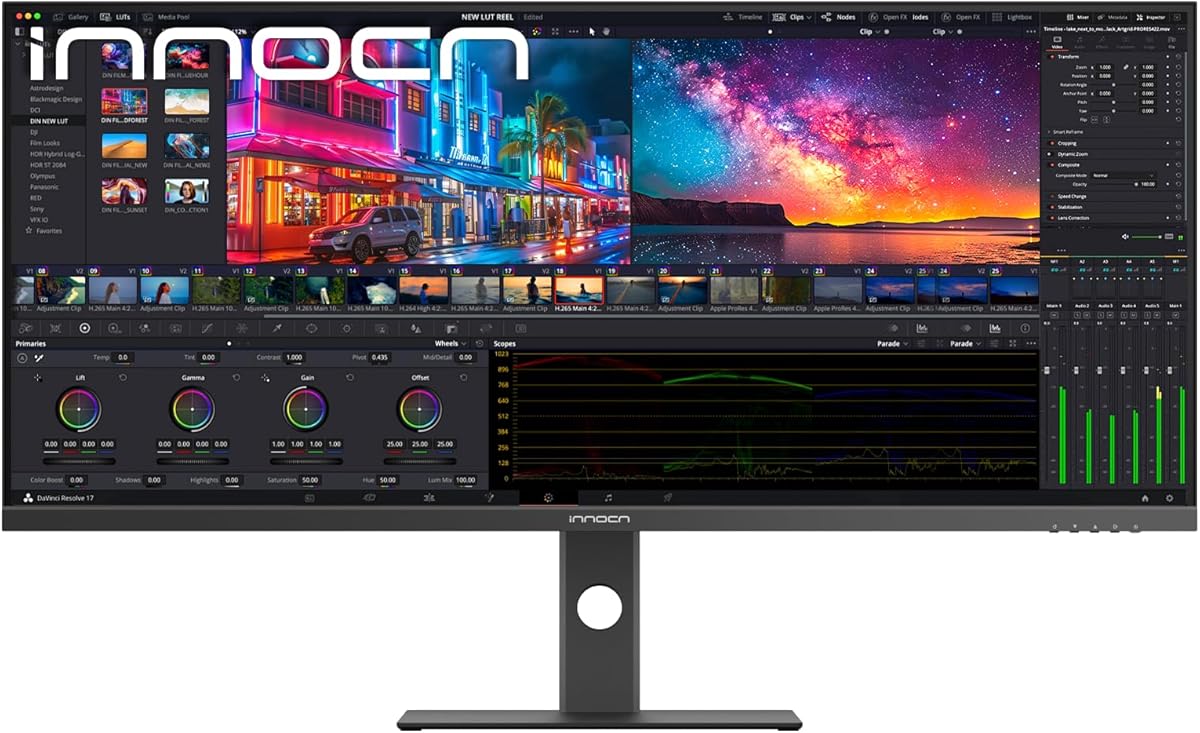
10. INNOCN 40" 5K Ultrawide - Best 5K Productivity Canvas

INNOCN 40" 5K Ultrawide 5120×2160

INNOCN 40" 5K Ultrawide 5120×2160

8.4/10★★★★☆

The INNOCN 40C1U is the pack's productivity extremity: a 40-inch ultrawide at 5120×2160—5K horizontal resolution in a 21:9 envelope. For developers who also touch video, design systems, or data visualization, the pixel budget means Retina-class sharpness at scales that actually use the width. Three editor columns, Figma, and Storybook preview can coexist without the fuzzy scaling compromises of 1080p ultrawides stretched to forty inches.

  • 40" 5120×2160 5K 21:9, 100Hz IPS
  • ΔE < 2, 135% sRGB, HDR400
  • 65W USB-C, height/swivel/tilt stand
Check Price →
✓ Pros
  • 5120×2160 5K ultrawide delivers extreme pixel density for sharp text across a 40-inch canvas
  • Factory ΔE under 2 and 135% sRGB suit design-adjacent developers and content engineers
  • 100Hz refresh smooths motion on a resolution tier that usually locks at 60Hz
  • 65W USB-C plus HDMI 2.1 and DisplayPort 1.4 cover modern laptop and desktop routing
  • Height, swivel, and tilt stand tames a massive panel without fixed-neck wobble
✕ Cons
  • Lowest pack rating at 4.2 stars—research recent buyer feedback on firmware and support
  • 40-inch diagonal demands deep desks and strong GPU—integrated graphics struggle at full 5K
  • INNOCN brand support trails Samsung and BenQ for enterprise procurement

Detailed review

Factory calibration to Delta E under two and 135% sRGB coverage with 106% DCI-P3 claims position this beyond pure terminal work. Frontend leads reviewing component libraries, technical marketers editing landing pages, and ML engineers inspecting tensor plots benefit from color accuracy that budget gaming ultrawides ignore. HDR400 readiness adds headroom for HDR thumbnail previews—not broadcast mastering, but better than SDR-only panels.

One hundred hertz refresh at 5K ultrawide is technically impressive and practically helpful. Most 5K-class panels historically stuck at 60Hz; doubling effective update rate improves scroll feel on enormous web apps and reduces stutter when dragging windows across thousands of horizontal pixels. FreeSync compatibility helps when frame rates dip under GPU load during local builds with hot reload.

Connectivity matches premium productivity intent: dual HDMI 2.1, DisplayPort 1.4, 65W USB-C power delivery, and USB-A downstream ports for peripherals. Single-cable MacBook and Windows laptop setups work for many machines, though power-hungry laptops may still want native chargers. Built-in speakers handle alerts; serious audio still wants headphones or desk monitors.

The stand adjusts height, swivel, and tilt—essential when the panel spans nearly your entire arm span. VESA 75×75 mounting is supported for arms rated for heavy ultrawides—verify weight capacity near nineteen pounds panel-only before cheap arms fail.

Honest caveats: 4.2-star average is the pack's lowest—some buyers report firmware quirks, dead pixels, or support friction. Forty inches requires desk depth measured in feet, not inches, and a GPU that can drive 5120×2160 at 100Hz without thermal throttling. Integrated graphics laptops may need reduced refresh or resolution for daily use.

Buy the INNOCN 40C1U when maximum ultrawide resolution and color accuracy justify desk space and GPU budget. Skip when simplicity, BenQ eye-care tuning, or compact 27-inch QHD suffices.

GPU and scaling reality check

Test your daily laptop on 5120×2160 before committing—M-series Macs generally handle well; older integrated Intel may need 60Hz cap or fractional scaling.

macOS treats 5K ultrawide similarly to other wide panels—verify integer scaled modes for crisp text in Xcode and VS Code.

Versus Samsung 34-inch ViewFinity

Samsung offers PBP, ambient sensor, and higher buyer rating at lower resolution and size. INNOCN wins raw pixels and color specs. Choose Samsung for balanced ultrawide; INNOCN when 5K density is the mission.

Check Price on Amazon →

We may earn a commission at no additional cost to you.

Best Monitors for Programming in 2026: 4K, Ultrawide, and Eye-Care

How to Choose a Programming Monitor in 2026

Resolution and pixel density beat raw diagonal size

A 32-inch 1080p panel enlarges UI but does not add detail—text looks big and soft. Developers who read code eight hours daily should prioritize QHD at 27 inches, 4K at 27–32 inches, or ultrawide 3440×1440 before chasing cheap large screens. Pixel density measured in PPI predicts sharpness more reliably than marketing photos.

HiDPI scaling on macOS and fractional scaling on Windows work best at integer multiples. Odd scaling steps soften text—when comparing monitors, open the same IDE theme on each and read a 200-line file for ten minutes before deciding.

Aspect ratio shapes your workflow

16:9 is the default for video and games. 3:2 panels like the BenQ RD280U add vertical lines for code reading without ultrawide GPU load. 21:9 ultrawides replace dual-monitor setups with one continuous canvas—ideal for IDE plus documentation plus chat. Pick aspect ratio before size: a 34-inch ultrawide and a 32-inch 16:9 panel feel like different jobs, not just different diagonals.

Eye comfort is a performance feature

Headaches and dry eyes slow commits more than a slightly slower CPU. Flicker-free backlights, low blue light modes, matte anti-glare coatings, and ambient brightness adaptation matter for sprint weeks. BenQ RD series MoonHalo and Night Hours Protection target this explicitly; Samsung ViewFinity adds ambient sensors; budget Acer and MSI panels offer TÜV or Less Blue Light certifications.

Dark IDE themes reduce emitted light but increase contrast demand on the panel—monitors with stronger native contrast show less gray haze in backgrounds.

Refresh rate: productivity plus play

60Hz is adequate for typing but feels sticky once you use 100Hz or 120Hz daily. High refresh helps scrolling long files, not just gaming. Hybrid developers who game after work should weigh 144Hz QHD flat panels or 180Hz ultrawides. Pure office coders can prioritize 4K at 60Hz with better text clarity over 180Hz at 1080p.

Match refresh to GPU capability—driving 5K ultrawide at 100Hz requires more than driving 1080p at 120Hz.

Connectivity and desk cable hygiene

USB-C with 65–90W power delivery simplifies laptop desks: one cable for charge, video, and sometimes hub ports. KVM switches built into monitors like the BenQ RD280U eliminate duplicate keyboards when toggling between work laptop and personal desktop. Verify your laptop's USB-C port supports DisplayPort Alt Mode—charge-only cables cause no-signal frustration.

Picture-by-Picture on ultrawides splits two machines without software—valuable on locked corporate laptops. DisplayPort generally offers higher bandwidth than HDMI for high refresh ultrawide modes.

When gaming monitors work for coding

Samsung Odyssey and Sceptre entries trade coding-specific modes for high refresh and HDR gaming features. They suit full-stack developers who compile by day and play by night. Skip curved gaming panels if your role requires pixel-perfect straight lines in design tools—choose flat IPS or programming-tuned panels instead.

Gaming OSD presets can usually be ignored or set to sRGB mode for daily work—do not assume factory 'FPS' mode is correct for IDE contrast.

Frequently Asked Questions

01

What size monitor is best for programming?

There is no universal size—workflow dictates choice. Many developers prefer 27-inch QHD or 4K for sharp text without excessive head movement, 32-inch 4K for wide IDE layouts, or 34–40-inch ultrawide for side-by-side editor and documentation. Compact 21–24-inch panels work as secondary monitors. Measure desk depth before buying 32-inch or larger screens.

02

Is 4K worth it for coding?

4K at 27–32 inches produces noticeably sharper text than 1080p at the same size, reducing eye strain during long sessions when scaling is set correctly. The GPU and cable path must support 4K comfortably. If your machine struggles, QHD at 27 inches is the practical middle ground. 5K ultrawide like the INNOCN 40C1U pushes further for design-adjacent work but demands strong graphics.

03

Are ultrawide monitors good for programming?

Ultrawide monitors excel at horizontal multitasking—IDE, browser docs, and terminal on one canvas without a center bezel. Samsung ViewFinity and Sceptre 34-inch entries in this pack cover 100–180Hz refresh. Tradeoffs include higher GPU load, less vertical space than 3:2 panels like the BenQ RD280U, and desk depth requirements. Picture-by-Picture helps dual-machine workflows.

04

What refresh rate do programmers need?

60Hz suffices for typing-focused work, but 100–120Hz noticeably smooths scrolling through logs, documentation, and web apps. Developers who game on the same panel benefit from 144–180Hz QHD or ultrawide options like Samsung Odyssey G5 or Sceptre 34-inch. Prioritize resolution and eye comfort first if you never play games—then add refresh if budget allows.

05

Is a curved monitor bad for coding?

Curved panels like the Samsung Odyssey G55C can feel immersive for terminal-heavy workflows but distort straight horizontal lines in UI design and pixel-perfect layout work. Backend and infrastructure developers often tolerate curve well; frontend designers may prefer flat panels. Try a curved display in person if possible before committing.

06

Do I need USB-C on a programming monitor?

USB-C with 65–90W power delivery simplifies laptop desks to one cable for charging and video. BenQ RD280U and RD320UA offer 90W USB-C; INNOCN 40C1U offers 65W. Desktop-only developers can use DisplayPort without USB-C. Always confirm your laptop supports DisplayPort Alt Mode over USB-C and use a full-feature cable, not charge-only.

07

What makes BenQ RD programming monitors different?

BenQ RD280U and RD320UA target developers with Nano Matte anti-glare panels, dedicated dark and light coding modes for syntax clarity, MoonHalo ambient backlight, Night Hours Protection for dim environments, and eye-care tuning for long sessions. RD280U adds 3:2 aspect ratio for extra vertical lines; RD320UA adds 32-inch 4K canvas with Ergo Arm stand. They cost more than generic office panels because the features address daily coding fatigue.

08

Can I use a gaming monitor for programming?

Yes—Samsung Odyssey G5 and G55C, Sceptre ultrawide, and Acer KB272 in this pack work well for coding when you accept gaming-oriented OSD menus and usually skip USB-C hubs. Set sRGB or custom color mode for accurate UI work, disable aggressive FPS presets, and prioritize flat panels if straight-line design accuracy matters. Hybrid work-plus-play developers often prefer one high-refresh panel over two specialized monitors.

09

How important is contrast for dark IDE themes?

High contrast helps dark themes like Dracula and One Dark look deep rather than gray-washed, improving syntax separation. BenQ RD320UA claims 2000:1 contrast; VA ultrawides like Samsung ViewFinity claim around 3000:1 static contrast. IPS panels around 1000:1 still work but may look slightly lifted in pure black backgrounds— tune IDE theme contrast if needed.

10

Should I get one big monitor or two smaller ones?

One 34–40-inch ultrawide eliminates the center bezel and duplicate cables of dual 27-inch setups—strong for focused multitasking. Two monitors offer vertical rotation flexibility—common pattern: ultrawide or 4K primary plus vertical 1080p for chat and logs using Acer KB220Q or MSI MP275 E2. BenQ RD280U 3:2 competes with dual monitors for vertical code without ultrawide width. Choose based on desk space and whether you need separate inputs at all times.

Conclusion

Programming monitors reward specificity over spec-sheet one-upmanship. The BenQ RD280U remains our top overall pick because 3:2 4K, coding modes, MoonHalo, and KVM/USB-C address how developers actually fatigue—not how esports titles benchmark. The RD320UA scales that philosophy to a 32-inch canvas; Samsung ViewFinity S50GC wins ultrawide multitasking with PBP and ambient eye care; INNOCN 40C1U pushes 5K density for design-heavy workflows willing to manage GPU and desk demands.

Budget desks still have honest options: Acer KB272 and MSI MP275 E2 deliver 120Hz eye-care value at 1080p; Acer KB220Q fills compact secondary roles. Hybrid developers who compile and game on one machine should compare Samsung Odyssey G5 and G55C flat and curved QHD panels or Sceptre's 180Hz ultrawide against their GPU and desk depth.

Use the comparison table to filter by resolution and aspect, then read individual reviews for honest tradeoffs. Avoid dollar fixation—availability shifts weekly. Confirm cables, scaling, and ergonomics in the first return window, and prioritize panels that disappear into your workflow so you stay focused on shipping code, not adjusting OSD menus.