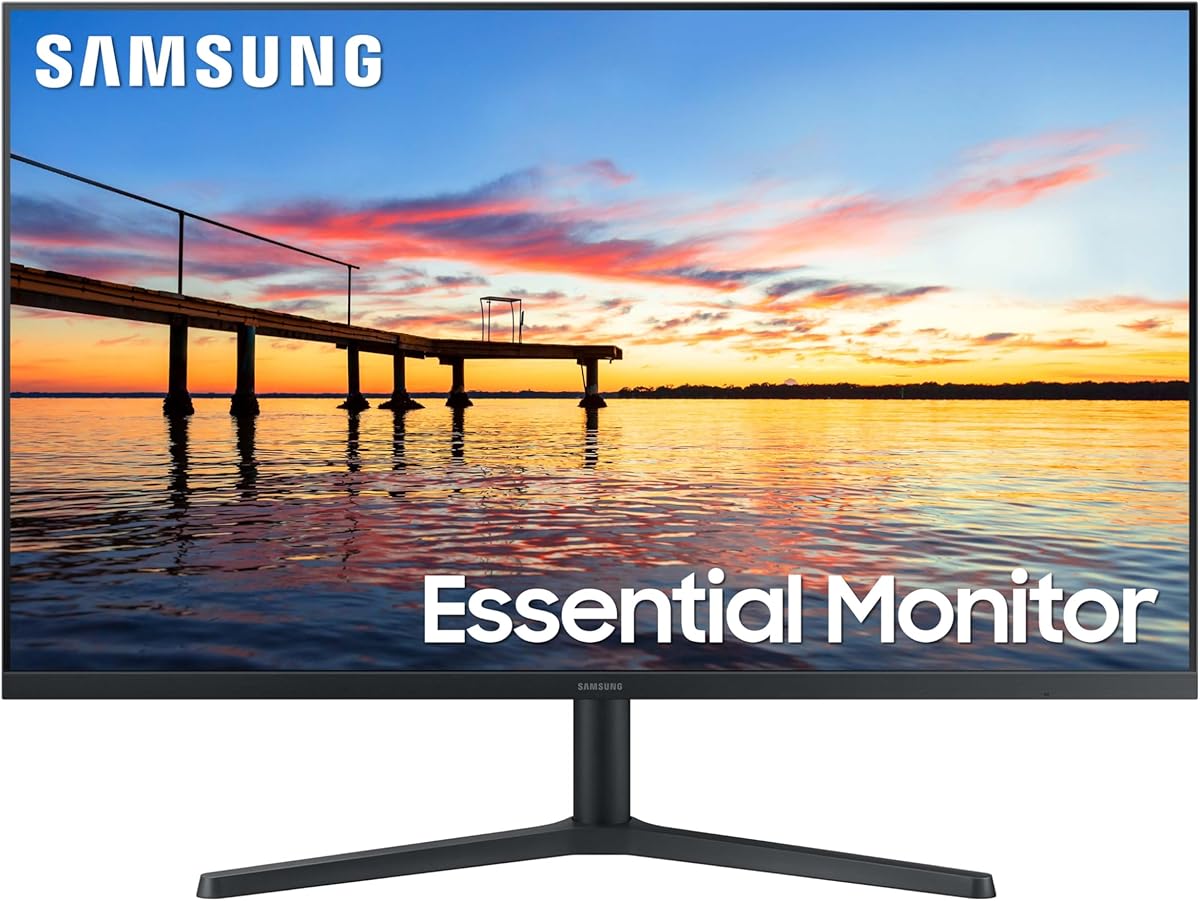
Samsung 34" ViewFinity S50GC Ultra-WQHD
- 34-inch ultrawide 21:9 with PIP and PBP for dual-source multitasking
- HDR10, ambient light sensor, and Eye Saver Mode for all-day comfort
- 100Hz refresh with FreeSync for smooth scrolling and casual gaming
Expert Review & Guide
A home office monitor is the piece of hardware you stare at for eight hours and then keep using after dinner. The right panel makes spreadsheets legible, video calls flattering, and side-by-side documents feel natural instead of cramped. The wrong one turns every tab switch into a squinting exercise and leaves you with a neck ache by Wednesday. In 2026 the category splits cleanly between compact 24-inch panels for tight desks, standard 27-inch workhorses, ultrawide 34-inch multitaskers, and larger 32-inch canvases that reward distance viewing—each with different panel types, refresh rates, and ergonomic stories.
This guide draws from a fixed product pack so every recommendation stays shoppable and comparable. Samsung's ViewFinity ultrawide leads for spreadsheet-heavy workflows, Acer's KB272 and KB242Y deliver IPS clarity with high refresh for mixed work-and-play desks, and Philips' 24-inch V line covers compact setups with EasyRead document mode and a four-year advance replacement warranty. Curved options from Samsung, LG, and the Odyssey line add immersion for creative review sessions, while the flat Samsung 32-inch model keeps things simple for buyers who want a big screen without gaming excess.
Start with the three top picks if you want a shortlist, then use the comparison table and ten full reviews to match size, resolution, and connectivity to your desk depth and daily tasks. The buying guide explains when ultrawide beats dual monitors, how VA versus IPS affects long document sessions, and which eye-comfort features actually matter after lunch on a bright window day.
As an Amazon Associate we earn from qualifying purchases. We may earn a commission at no additional cost to you.
Every model below comes from the same product pack and is evaluated for remote work, hybrid desks, and home productivity—not esports-first tuning. Specs highlight size and resolution, panel type with refresh rate, and the eye-comfort or multitasking feature that matters most for daily office tasks. Remember that ultrawide and curved models change desk depth requirements, and HDMI versus DisplayPort can affect refresh caps on laptops.
Samsung 27" Essential S3 Curved
Samsung's Essential S3 curved monitor targets home workers who want a slightly immersive wrap without jumping to ultrawide pricing or gaming excess. The 27-inch 1800R curve sits in the gentle end of the spectrum—enough to reduce perceived edge distance during video calls and creative review, but not so aggressive that Excel columns look bent at normal viewing angles. Full HD resolution at this size is the standard office compromise: readable for email and browsers at arm's length, though power users who live in tiny spreadsheet cells may prefer the sharper Acer IPS options or the Samsung ViewFinity ultrawide.
Eye comfort is the headline for remote work. Samsung's TÜV-certified advanced eye comfort technology targets blue light reduction and flicker minimization—two fatigue drivers that matter more on day three of a deadline sprint than on unboxing day. Flicker-free backlight behavior and reduced blue emission help afternoon sessions when window glare and overhead lighting fight your pupils. Pair the panel with sensible ambient lighting and the 20-20-20 rule; hardware alone cannot fix a desk pointed directly at a sunset window.
The 100Hz refresh rate is a quiet productivity upgrade. Windows scrolling, browser tab switching, and PDF page turns feel subtly smoother compared with old 60Hz office hand-me-downs. You will not notice it in every task, but once you adapt, returning to a 60Hz conference-room panel feels sticky. Game Mode is marketed for after-hours play, yet the practical office benefit is consistent full-screen scaling when you preview presentation decks or run training videos edge to edge.
Connectivity is simple: HDMI for modern laptops and docks, D-sub for legacy desktops or KVM switches still hanging around corporate closets. Most home office buyers will use HDMI exclusively; treat D-sub as backup rather than a primary path. There is no USB hub here, so plan a separate dock if you need downstream ports for webcams and keyboards.
The VA panel behind the curve delivers strong contrast for movies and dim-room work, with the usual VA tradeoff that off-angle color shift can appear if a partner peeks at your screen during a shared review. For solo desk use at center position, contrast helps long-form reading and dark-mode IDE sessions feel comfortable.
Buy the Essential S3 curved when you want Samsung polish, eye-comfort certification, and a gentle curve for mixed work and entertainment on a standard-depth desk. Skip it if straight-line accuracy in financial modeling is non-negotiable or if you need ultrawide real estate for three-window workflows. It is a balanced curved office panel, not a color-critical reference display.
Setup tip: position the center of the curve at eye level, sit centered rather than offset, and enable eye comfort modes during document-heavy afternoons while switching to standard mode for color-sensitive creative review.
Choose this curvature if you sit centered at a normal desk depth and want reduced edge glare without ultrawide width. Skip it if you mount the panel far off-axis for a standing treadmill desk where straight lines must stay geometrically perfect.
The S32GF IPS sibling trades curvature for wider viewing angles and 120Hz refresh. Pick Essential S3 curved for immersion and contrast; pick S32GF for color consistency when colleagues view your screen from the side during hybrid meetings.
We may earn a commission at no additional cost to you.
Philips' 241V8LB is the small-desk specialist in this pack. At 23.8 inches and Full HD, it occupies minimal depth while still delivering enough pixels for two-window workflows when you snap apps side by side. The V line's virtually bezel-free three-side design matters when you pair two units for a budget dual-monitor command center—gaps stay visually small and alignment feels intentional rather than cobbled together.
EasyRead mode is the feature office buyers should actually test on day one. Philips tunes the panel toward a paper-like presentation that reduces harsh white backgrounds during contract review, academic reading, and all-day Google Docs marathons. Combined with Low Blue Light and flicker-free backlighting, the monitor addresses the fatigue stack that makes remote workers dread afternoon inbox clearing. It will not replace proper breaks, but it makes those breaks less urgent.
The VA panel delivers 16.7 million colors with strong contrast—whites look clean and blacks stay reasonably deep for a budget office panel. One-hundred-seventy-eight-degree viewing angles mean a partner leaning in during a Teams call still sees a recognizable image, which matters in open-plan apartments where the couch doubles as a meeting seat. Adaptive Sync support is a bonus when you scroll long Notion pages or preview 60fps screen recordings without tearing.
Physical setup is straightforward: VESA mounting for arms, tilt adjustment on the included stand, and HDMI 1.4 for laptop connections. The four-year advance replacement warranty is unusually generous in this category and worth weighing against slightly cheaper no-name panels that disappear when a backlight fails in year two. For first-time home office builders, that warranty language can be the tiebreaker.
Tradeoffs are honest. This is not an ultrawide multitasker or a 27-inch canvas for three-column spreadsheets. Fast typists who prefer large text may love the pixel density; designers who inspect 4K assets will want more screen area. Motion handling is office-grade, not esports-grade, though 100Hz still beats the 60Hz monitors many employers shipped during early remote transitions.
Choose Philips when desk space is tight, document reading dominates your week, and you want warranty peace of mind on a compact panel. Pass if you need ultrawide width or 120Hz headroom for serious after-hours gaming. For apartment desks and bedroom offices, it is one of the most thoughtful compact packages here.
After unboxing, enable EasyRead for long reading blocks, mount at eye level if possible, and run a solid-color pixel check inside the return window while the advance replacement policy still gives you leverage.
Two 24-inch Philips panels beat one oversized screen for buyers who want separate chat and document zones on a shallow desk. Match model numbers so bezels align and warranty terms stay consistent across both units.
EasyRead complements rather than replaces application dark themes. Try EasyRead during PDF-heavy mornings and standard mode for video calls where skin tones must look natural to clients.
We may earn a commission at no additional cost to you.
Samsung's S32GF S3 series brings IPS color stability and 120Hz motion to a flat 27-inch office form factor. IPS matters when your desk sits near a window and glare forces you to tilt the panel—colors stay more predictable than many VA alternatives, which helps when you review brand assets or share screens with clients who notice hue shifts. The ultra-thin border bezels also photograph well if your home office doubles as a podcast backdrop.
One-hundred-twenty hertz is the standout spec for productivity users who notice motion. Browser scrolling, dragging windows across macOS spaces, and scrubbing timeline previews in lightweight video tools all feel fluid compared with 60Hz corporate leftovers. You do not need a gaming GPU to benefit; everyday desktop compositing still looks better when the panel refreshes faster.
Eye Saver Mode and flicker-free operation address the long-session reality of remote work. Samsung's approach reduces blue light emission and minimizes PWM-related fatigue that shows up as headaches after back-to-back calls. Enable Eye Saver during reading blocks and disable it before color-sensitive tasks so presentations still look accurate to stakeholders.
The industrial design is deliberately modern: slim profile, minimal front bezel, and a lightweight chassis that plays nicely with monitor arms if the included stand's tilt-only adjustment is not enough for your posture. Plan a riser or VESA arm if you type eight hours daily—eye line alignment prevents the neck tension that cheap stands often cause.
Connectivity covers standard HDMI paths for laptops and docks. There is no ultrawide multitasking here, no PIP, and no ambient light sensor like the ViewFinity flagship. The S32GF is a single-screen workhorse for users who want Samsung reliability and IPS viewing angles without paying for curved or ultrawide complexity.
Buy the S32GF when aesthetics, IPS consistency, and 120Hz smoothness matter on a standard 27-inch desk. Skip it if you need height ergonomics out of the box or ultrawide columns for financial modeling. It is a stylish daily driver, not a feature-maximized command center.
Calibrate expectations against the Acer KB272: both offer 27-inch IPS near 120Hz, but Samsung wins on slim bezels and brand familiarity while Acer leads on ratings and sRGB coverage claims. Compare current availability before choosing.
Higher refresh improves perceived responsiveness even in Word and Slack. If your laptop supports 120Hz output over HDMI, enable it in display settings—many users leave monitors at 60Hz for months because defaults hide the option.
Budget for a monitor riser or VESA arm because tilt-only stands rarely place the top bezel at eye level for users over average height. Proper height matters more than refresh once sessions exceed six hours.
We may earn a commission at no additional cost to you.
LG's 32MR50C-B answers a specific home office question: what if I want one big screen instead of two small ones? The 32-inch curved VA panel fills your field of view at normal seating distance, making video editing previews, dashboard monitoring, and split-screen research feel cinematic without ultrawide aspect-ratio quirks. Full HD at this size is the trade: you gain scale, you lose pixel density compared with 27-inch panels.
OnScreen Control is LG's secret weapon for productivity users willing to install desktop software. Split the display into zones, tune brightness without digging through hardware buttons, and switch presets for reading versus meetings from the mouse. For Windows-heavy workflows, it saves time daily. Mac users should confirm current compatibility before assuming feature parity.
Reader Mode targets document fatigue the same way Philips' EasyRead does—shift color temperature and brightness toward comfortable long-form reading. Combined with 100Hz refresh and FreeSync, the panel handles training videos, screen-shared walkthroughs, and after-hours gaming without tearing when frame rates dip. Black Stabilizer and gaming extras are marketed for play, but they also help when you review dark footage in creative side projects.
The curved VA panel delivers vibrant color and strong contrast for entertainment after work hours. If your home office shares space with a living room, the 32-inch curve feels intentional on a deeper desk and reduces the urge to add a second TV. Viewing angle stability is acceptable for solo use; avoid relying on extreme side angles for client color approvals.
Ergonomics are tilt-only on the included stand, so height planning matters—especially because larger panels amplify neck strain when positioned too low. VESA mounting is the long-term fix if the stand does not reach your eye line. Desk depth is another constraint: 32-inch curves need more distance than 24-inch flats.
Choose LG 32MR50C-B when you want one large curved monitor for mixed work, video review, and casual gaming on a deep desk. Skip it if fine text clarity is paramount or if your desk is shallow enough that a 32-inch panel feels overwhelming. It is a lifestyle monitor for hybrid work-and-play rooms.
Install OnScreen Control during the first lunch break, create a reading preset with Reader Mode, and measure desk depth before ordering—32-inch curves consume more real estate than spec sheets imply.
Expect softer text than 27-inch FHD at the same viewing distance. Increase browser zoom or macOS scaling if you migrate from a 24-inch panel. The size win is simultaneous windows, not microscopic spreadsheet cells.
Create presets for meetings, reading, and evening gaming so you are not adjusting OSD buttons between calls. Zone splitting replaces some dual-monitor workflows when ultrawide is not in the budget.
We may earn a commission at no additional cost to you.
Samsung's ViewFinity S50GC is the productivity flagship in this pack because ultrawide real estate changes how home offices feel day to day. The 34-inch 21:9 Ultra-WQHD panel displays three vertical browser columns, a full spreadsheet beside Slack, or a video call window pinned beside a presentation deck without the bezel gap of dual monitors. For consultants, analysts, and developers who live in overlapping windows, that continuity saves constant alt-tab friction.
Picture-by-Picture and Picture-in-Picture elevate the monitor from a single-source display to a command desk. Connect a work laptop and a personal mini PC simultaneously, or preview a client machine beside your primary desktop at native resolution. PBP is especially valuable when IT policies sandbox work environments but you still need reference docs visible. PIP lets you monitor a webinar in the corner while editing slides full screen.
Eye care features match the scale of the panel. An ambient light sensor detects room brightness and adjusts output so morning sun and evening lamp light do not force manual OSD fiddling. Eye Saver Mode reduces blue light, flicker-free technology minimizes PWM fatigue, and the larger canvas means you can increase text size without sacrificing adjacent windows—less squinting equals less strain.
HDR10 support and billion-color marketing translate to richer gradients in creative review, photography side gigs, and streaming after hours. This is not a reference-grade colorimeter-perfect studio monitor, but it is noticeably more pleasant for media than basic office TN panels from a decade ago. One-hundred-hertz refresh with AMD FreeSync keeps scrolling and video playback smooth when frame rates vary.
Connectivity is modern for hybrid desks: dual HDMI 2.2 inputs plus DisplayPort 1.2 cover laptops, docks, and desktop GPUs. The virtually bezel-free front aligns cleanly if you ever add a secondary monitor vertically for chat. Verify your laptop can drive 3440×1440 at 100Hz over your chosen cable—most recent machines can, but older budget ultrabooks may need display scaling compromises.
Tradeoffs exist. Ultrawide monitors consume desk depth; measure before buying. Some legacy apps ignore 21:9 layouts and letterbox themselves until you force window sizes. macOS and Windows snapping improved over generations, yet occasional manual arrangement remains part of ultrawide life. None of those quirks outweighs the benefit for users who genuinely multitask wide.
Buy the ViewFinity S50GC when spreadsheets, timelines, and multi-app workflows define your week and you have desk space to match. Skip it if you need portable simplicity or if your GPU struggles with high-resolution wide outputs. For serious home offices, it is the most capable single-panel setup in this pack.
Ultrawide wins on seamless cursor travel and single-cable laptop setups. Dual monitors win when you need different orientations or want one panel portrait for code. Choose ultrawide if you hate bezels in the center of your vision.
Running two machines on one display is convenient but keep classified work visually separated from personal feeds. Use PBP with distinct window zones rather than overlapping PIP when handling sensitive client data.
Confirm your dock or direct cable supports 3440×1440 at 100Hz before checkout. USB-C alt-mode laptops usually manage; older HDMI-only budget machines may cap refresh or require scaling.
We may earn a commission at no additional cost to you.
Acer's KB272 is the 27-inch IPS sweet spot for home offices that want high ratings without ultrawide complexity. At 4.7 stars in this pack, it carries stronger buyer momentum than several Samsung alternatives, which matters when you cannot audition monitors in person. The 1920×1080 IPS panel covers 99% sRGB—enough for slideshows, social assets, and video calls where skin tones should look human rather than orange.
One-hundred-twenty hertz refresh with Adaptive-Sync support bridges work and play on one desk. Spreadsheet scrolling feels modern, and after-hours gaming benefits from tear reduction when frame rates bounce. One-millisecond VRB response claims target ghosting reduction during fast cursor movement and lightweight video scrubbing. You are not buying esports machinery, but you are avoiding the muddy motion of old 60Hz office panels.
Twenty-seven inches is the default modern office size for good reason: two snapped windows fit comfortably, text remains readable at default scaling, and desk depth requirements stay reasonable compared with 32-inch options. The IPS panel keeps colors stable when a family member walks past during a call—important in open floor-plan homes where privacy screens are rare.
Connectivity includes HDMI for laptops and VGA for legacy desktops or cheap KVM switches. Most buyers will ignore VGA, but it can save a dongle when reviving an old tower as a secondary machine. There is no DisplayPort on the spec sheet, so confirm your dock outputs HDMI at your target refresh. Lack of USB downstream means a separate hub for peripherals.
The stand tilts but does not height-adjust—a pattern repeated across budget office monitors. Budget a riser or VESA arm if you type full workdays. Flicker-free backlighting and anti-glare coating handle typical home lighting, though direct window glare still demands curtains or repositioning.
Choose KB272 when you want the highest-rated standard 27-inch IPS in the pack for general office work with optional gaming. Pass if you need ultrawide multitasking, built-in speakers, or factory height adjustment. It is the rational default for many remote workers.
Enable 120Hz in your OS display settings on day one—many users never notice the option buried in advanced menus. Pair with a laptop stand and external keyboard so the monitor height aligns with relaxed shoulders.
Same Acer family DNA with smaller footprint. Pick KB272 for larger text and more window area; pick KB242Y when desk depth is under 20 inches or you plan a dual-monitor pair.
Adequate for web content and client decks, not for print prepress. If brand color matching is contractual, plan calibration or step up to a dedicated creative monitor later.
We may earn a commission at no additional cost to you.
Acer's KB220Q H2bi is the pack's answer to impossibly small desks. At 21.5 inches, it occupies less depth than a closed laptop yet delivers Full HD resolution, 100Hz refresh, and 99% sRGB coverage—specs that would have belonged to larger panels a few years ago. The product title explicitly calls out home office use, and the feature set matches: Adaptive-Sync for smooth scrolling, ZeroFrame bezels for dual setups, and flicker-free behavior for long sessions.
Small monitors reward intentional workflows. You will not run three columns of browser tabs comfortably, but you can excel at focused writing, chat-heavy support roles, and laptop-plus-monitor combos where the external panel handles reference docs while the notebook runs primary apps. Students and travelers also benefit when a monitor must fit in a car or storage bin between moves.
One-hundred-hertz refresh is a genuine upgrade at this size class. Many compact office monitors still ship at 60Hz because buyers assume small equals basic. Acer does not make that compromise, so UI motion feels contemporary when you return from a café laptop session. One-millisecond VRB response claims help with fast mouse movement during design tool navigation.
ZeroFrame design matters when you mount two KB220Q units side by side for a budget ultrawide alternative. Combined width still fits many IKEA desk tops that reject 34-inch ultrawides. Cable management stays simple with HDMI and VGA inputs, though modern users should plan HDMI-only paths.
Tradeoffs are physical: text and UI elements look smaller relative to 27-inch panels unless you increase OS scaling. Ergonomics require careful height positioning because small screens tempt users to lean forward. There are no built-in speakers or USB hubs—keep a desk speaker or headset nearby.
Buy KB220Q when space is the binding constraint and you still want modern refresh and color. Skip it if your role demands simultaneous visibility of multiple large documents. It is a smart second monitor or primary panel for minimal setups.
Increase system scaling to 125% if fonts feel tiny, and measure your desk depth before assuming any monitor fits—21.5 inches is small, but stands still need stability.
Pair KB220Q vertically or horizontally beside a laptop for chat and music control while the main screen handles deliverables. Its value often peaks as monitor two, not monitor one.
Data analysts, developers with long code files, and video editors should step up to 24-inch or 27-inch panels. Compact size saves space but taxes vertical reading.
We may earn a commission at no additional cost to you.
The Acer KB242Y is our value pick because it combines a 4.7 buyer rating with IPS color, 120Hz refresh, and a footprint that fits apartments without ultrawide desk gymnastics. It sits between the tiny KB220Q and the larger KB272, making it the Goldilocks option for remote workers who want modern motion and accurate color without sacrificing half the desk to a 32-inch curve.
IPS at 23.8 inches delivers sharper pixel density than 27-inch FHD—text looks crisp at default scaling, which helps developers, writers, and accountants who stare at dense documents. Ninety-nine percent sRGB coverage keeps presentations and web design previews respectable when clients review over Zoom. Adaptive-Sync and 120Hz refresh make daily UI interactions feel current rather than borrowed from a 2015 office closet.
Zero-frame design is a practical dual-monitor feature. Two KB242Y panels create a wide workspace with minimal center bezel interruption—often enough for chat, docs, and email simultaneously without ultrawide cost. For hybrid workers who hot-desk between home and office, two identical compact panels also travel more realistically than one massive ultrawide box.
Connectivity is straightforward HDMI plus legacy VGA. Confirm your laptop outputs 120Hz over HDMI during setup; otherwise you may silently run at 60Hz until someone notices scrolling feels sluggish. No USB hub means plan a dock for webcam, mic, and keyboard if you want one-cable cleanliness.
Limitations mirror other budget Acers: tilt-only stand, no built-in speakers, no ambient light sensor. Ergonomic risers or monitor arms fix height issues cheaply. Users who need three simultaneous full-height windows should still consider the Samsung ViewFinity ultrawide instead.
Choose KB242Y when you want maximum rating-per-dollar in a compact IPS package for standard office tasks plus light gaming. Skip it if you need a single large canvas for video editing timelines. For most apartment home offices, it is the safest value bet in the pack.
Run a dead-pixel check during the return window, enable 120Hz immediately, and consider buying two if your workflow splits chat and documents frequently.
Acer wins on IPS motion and 120Hz; Philips wins on EasyRead document tuning and four-year warranty. Pick Acer for color consistency and refresh; pick Philips for reading-heavy roles and warranty peace of mind.
Mount both at equal height with matching cables for a clean command center. Vertical orientation on one unit helps Slack and ticket queues while horizontal orientation handles main apps.
We may earn a commission at no additional cost to you.
Samsung's Odyssey G55C blurs the line between home office and gaming den—and that is exactly why some remote workers choose it. The 32-inch QHD panel delivers 2560×1440 sharpness on a large canvas, making IDE windows, Figma artboards, and four-column spreadsheets readable without squinting. QHD at 32 inches hits a pixel density sweet spot that Full HD 32-inch panels miss, which matters when you live in text-heavy tools eight hours daily.
The 1000R curvature is tighter than the Essential S3's 1800R wrap. Immersion increases for gaming and cinematic content, but straight horizontal lines in CAD or Excel may show subtle bend unless you sit centered. Hybrid workers who game nightly often accept that trade; pure accountants may prefer the flat Samsung 32-inch or Acer IPS alternatives.
One-hundred-sixty-five hertz refresh and one-millisecond MPRT response are gaming specs with office side benefits. Scrolling long Slack threads feels instant, and previewing 60fps screen recordings stays smooth. AMD FreeSync reduces tearing when frame rates dip during video calls with GPU-heavy virtual backgrounds enabled.
HDR10 support and glare reduction help when your desk faces mixed lighting. Eye Saver Mode reduces blue light during document blocks. These features do not make the G55C an ergonomic miracle, but they show Samsung considered extended use beyond matchmaking lobbies.
Desk depth and GPU requirements rise with QHD on a 32-inch curve. Measure viewing distance and confirm your laptop or desktop drives 1440p comfortably at your preferred refresh. Cable quality matters at 165Hz—use the included or a certified DisplayPort cable when chasing peak motion.
Buy Odyssey G55C when one monitor must serve serious work and serious play on a deep desk with adequate GPU headroom. Skip it if you need ultrawide multitasking, flat geometry, or maximum buyer rating confidence. It is the enthusiast's home office monitor.
Create separate OSD presets for work and gaming so blue light reduction does not linger into color-sensitive client reviews, and verify adaptive sync is enabled in both monitor and GPU settings.
1440p on 32 inches beats 1080p on 32 inches for text clarity. If you already know you want a big screen, QHD prevents the fuzzy spreadsheet problem that plagues large FHD panels.
Sit dead center and test grid lines in your primary app before return windows close. Designers who require geometric accuracy may prefer flat panels despite gaming perks.
We may earn a commission at no additional cost to you.
Samsung's 32-inch flat monitor is the no-nonsense large screen for home workers who want scale without curvature, ultrawide aspect ratios, or gaming-branded excess. The three-sided borderless design fits modern aesthetic desks and pairs visually with ultrabooks during client calls. If your work depends on straight grid lines in Excel, GIS tools, or floor-plan software, flat geometry removes the curve debate entirely.
Seventy-five hertz refresh with AMD FreeSync is a modest but real upgrade over 60Hz corporate hand-me-downs. Document scrolling and browser motion feel slightly smoother, and FreeSync helps when video playback frame rates fluctuate during training sessions. You are not buying esports headroom, which keeps GPU demands modest on integrated-graphics laptops common in employer-provided machines.
Advanced eye care combines flicker-free backlight behavior and Eye Saver Mode blue light reduction—Samsung's office-friendly branding that actually maps to daily comfort during back-to-back calls. Pair with external lighting rather than relying on max brightness at night.
HDMI and DisplayPort inputs cover typical dock scenarios. DisplayPort often unlocks smoother handshake on desktops; HDMI remains the laptop default. There is no USB hub, so plan peripherals separately. Game Mode exists for after-hours use but does not dominate the product story the way Odyssey models do.
The 32-inch FHD density trade is real: pixels spread across a larger area, so text looks softer than 27-inch FHD unless you increase scaling. Users who want big and sharp should compare the Odyssey G55C QHD instead; users who want big and simple with flat lines should stay here.
Choose this Samsung flat 32-inch when you need a large single screen for video calls, presentations, and general office work without curve or ultrawide complexity. Skip it if pixel sharpness is paramount or if 75Hz feels too close to legacy panels now that 100Hz options abound in the pack.
Increase OS scaling to 125% or 150% if fonts feel fuzzy, and position the monitor far enough back that your entire field of view does not require constant head panning.
Flat panels preserve grid accuracy; curved panels immerse. If you notice curve distortion during spreadsheet work, flat is the corrective choice even when gaming marketing pushes curves elsewhere.
LG adds 100Hz curve and OnScreen Control; Samsung flat adds DisplayPort and simpler geometry. Pick LG for software split tools and curve; pick Samsung flat for grid accuracy and cleaner lines.
We may earn a commission at no additional cost to you.

Monitor size is the first constraint that no software fixes. Twenty-one to 24-inch panels fit shallow desks, RV setups, and bedroom corners where depth is under twenty inches. Twenty-seven inches is the default balance for dual-window snapping at arm's length. Thirty-two-inch screens need deeper viewing distance to avoid neck panning, and 34-inch ultrawides need both depth and width clearance for the stand feet.
Measure your desk before ordering. A 32-inch curved monitor that fills your peripheral vision sounds appealing until you realize your keyboard sits too close and your eyes strain within a week. In this pack, Acer KB220Q and Philips 24-inch cover tight spaces, KB272 and Samsung S32GF suit standard desks, LG and Samsung 32-inch models need depth, and the ViewFinity S50GC ultrawide needs the most planning.
Full HD remains the office workhorse because laptops drive it easily and text looks sharp on 24–27-inch panels. FHD on 32-inch screens spreads pixels thinner—usable with scaling, softer without. QHD on the Odyssey G55C sharpens large-screen text for developers and designers. Ultra-WQHD ultrawide on the ViewFinity adds horizontal pixels for multitasking rather than vertical density alone.
Buy FHD when your GPU is integrated or your tasks are email, docs, and calls. Step to QHD when you inspect fine UI elements on a large panel. Choose ultrawide when simultaneous windows beat pixel density.
IPS panels on Acer KB272, KB242Y, and Samsung S32GF deliver stable colors at wider viewing angles—ideal for hybrid meetings where someone glances at your screen. VA panels on Philips, LG, Samsung Essential S3, and flat Samsung 32-inch offer stronger contrast for movies and dim rooms but can shift color off-center.
Neither type wins universally. Document-heavy solo workers often love VA contrast; collaboration-heavy workers lean IPS. Test return policies matter because panel lottery affects both technologies.
Sixty hertz office monitors still exist in corporate surplus, but this pack starts at 75Hz and pushes 100Hz, 120Hz, and higher. Higher refresh reduces scroll judder and cursor stutter during long days. You do not need a gaming GPU to benefit from 100Hz Windows desktop compositing.
Prioritize 120Hz on Acer models if motion sensitivity bothers you. Accept 75Hz on the Samsung flat 32-inch if size and flat geometry matter more. Ultrawide ViewFinity at 100Hz splits the difference beautifully for multitaskers.
Flicker-free backlights, Low Blue Light modes, TÜV certifications, and ambient light sensors address real fatigue—but they do not replace breaks, proper height, or curtains for direct sun. Philips EasyRead and LG Reader Mode tune document reading. Samsung Eye Saver and TÜV advanced eye comfort appear across multiple models.
Enable comfort modes during reading blocks, disable them before color-sensitive client reviews, and align monitor top bezel near eye height to prevent neck strain that no blue light filter fixes.
Ultrawide ViewFinity replaces dual monitors for many users with one cable and seamless cursor travel. Dual 24-inch Philips or Acer panels cost less combined and allow portrait orientation. One 32-inch curved or flat screen simplifies wiring for users who hate bezels but do not need extreme width.
Choose ultrawide for three-column workflows. Choose dual compact monitors for flexible orientation on shallow desks. Choose one 32-inch panel when you want scale without configuring PBP.
Twenty-seven inches is the most versatile single-screen size for standard desks—enough for two snapped windows without excessive depth. Twenty-four inches fits compact apartments and dual-monitor rows. Thirty-two inches suits users who want one large canvas and have deeper viewing distance. Thirty-four-inch ultrawide models like the Samsung ViewFinity S50GC excel when you routinely run three or more vertical windows. Match size to desk depth first, then resolution.
Ultrawide wins on seamless cursor movement, single-cable laptop setups, and no center bezel interrupting spreadsheets. Dual monitors win when you want one panel portrait for code or chat, different sizes, or easier transport. In this pack, the ViewFinity S50GC is the ultrawide anchor while Philips and Acer 24-inch models pair well as matched dual setups. Choose ultrawide if your workflows are horizontal; choose dual if orientation flexibility matters.
Yes, noticeably. One-hundred hertz and one-hundred-twenty hertz panels reduce scroll judder and make window dragging feel smoother during long sessions. You do not need esports-tier 165Hz unless you also game seriously. Models like Acer KB272 and KB242Y at 120Hz, Philips and Samsung Essential at 100Hz, and Samsung flat 32-inch at 75Hz all beat old 60Hz office surplus monitors for daily comfort.
IPS on Acer KB272, KB242Y, and Samsung S32GF keeps colors stable when viewing angles shift during hybrid meetings. VA on Philips, LG curved, Samsung Essential S3, and flat Samsung 32-inch delivers deeper contrast for movies and dim-room work but may shift hue off-center. Solo document readers often enjoy VA contrast; collaboration-heavy workers should lean IPS.
Gentle curves like 1800R on Samsung Essential S3 often feel fine for general office tasks when you sit centered. Aggressive 1000R curves on the Odyssey G55C can subtly bend straight grid lines in Excel or CAD. Flat panels like Acer IPS models and Samsung 32-inch flat avoid that geometry entirely. If straight-line accuracy is contractual, prefer flat IPS or test curved models inside the return window.
HDMI is the common laptop path; DisplayPort appears on Samsung ViewFinity, Odyssey, and flat 32-inch models for desktop and dock use. Confirm your dock supports your target resolution and refresh—especially 3440×1440 ultrawide at 100Hz. None of these pack models include USB hubs, so budget a dock for webcam, keyboard, and mic if you want one-cable cleanliness.
Philips 241V8LB advertises a four-year advance replacement warranty, unusually strong for the category. Samsung and Acer rely on standard manufacturer terms—check listing details at purchase. Regardless of brand, run dead-pixel and backlight bleed tests immediately inside the return window so defects are negotiable.
All pack models work well for video calls when paired with an external webcam or laptop camera. Larger 32-inch and ultrawide panels keep shared documents visible beside call windows. IPS models help when others view your screen during screen sharing. Enable eye comfort modes for long call days but switch to standard color before presenting brand assets.
It can be if you never game and need flat grid accuracy—the Acer KB272 or ViewFinity ultrawide may fit better. Odyssey G55C shines when one desk serves QHD creative work by day and high-refresh gaming by night, and you have GPU headroom for 1440p. Treat it as a hybrid monitor, not a pure office panel.
Acer KB242Y leads on value with a 4.7 rating, 23.8-inch IPS, 120Hz, and 99% sRGB at a compact footprint. Philips 24-inch competes for document readers who want EasyRead mode and four-year warranty. Acer KB220Q fits the smallest desks. Compare current availability and whether you prioritize refresh, warranty, or reading modes.
Home office monitors in 2026 are no longer one-size-fits-all corporate beige boxes. Samsung's ViewFinity S50GC ultrawide remains the productivity flagship for anyone whose work lives in overlapping windows, while Acer's KB242Y and KB272 deliver top-rated IPS value at compact and standard sizes. Philips' 24-inch panel protects tight desks with EasyRead tuning and standout warranty language.
Curved and large-format options from Samsung, LG, and Odyssey serve hybrid work-and-play rooms where immersion and scale matter more than grid geometry. The flat Samsung 32-inch keeps things simple for buyers who want size without curve debate. None of these monitors replaces posture, lighting, and breaks—but the right panel removes friction from eight-hour days.
Match size to desk depth first, then resolution to your tasks, then panel type to whether you work solo or share screens. Enable full refresh in OS settings on day one, test pixels inside the return window, and buy the monitor that fits how you actually work—not the spec sheet that looks best in a comparison chart.