Best Editing Controller
Contour ShuttlePRO v2

- Spring-loaded jog wheel for frame-accurate timeline scrubbing
- 15 programmable buttons with smart app detection across NLE suites
- Compact one-hand layout that keeps fingers near every control
Expert Review & Guide
Video editing rewards precision, repetition, and stamina more than raw DPI marketing numbers. The best mice for video editing are the devices that help you scrub timelines accurately, trigger shortcuts without breaking focus, and keep your hand comfortable through multi-hour color and picture-lock sessions. Sometimes that device is a high-end wireless sensor. Sometimes it is a Contour jog shuttle or a dial macro pad that sits beside a simpler pointer.
This ReviewConsensus roundup sticks to a focused product pack spanning dedicated multimedia controllers, programmable gaming mice that editors can remap, an ergonomic trackball for low-fatigue navigation, a Resolve-oriented desk mat, and a starter keyboard-mouse kit for empty desks. We weighed real editing jobs — rough cuts, sound passes, grading, and delivery — not esports leaderboards alone.
You will find clear top picks for controller-first workflows, precision pointing, and ergonomic relief, plus a full comparison table and deeper reviews for every product in the pack. No dollar prices here — just fit, feel, and honest tradeoffs so you can match gear to Premiere Pro, Final Cut Pro, DaVinci Resolve, CapCut, and hybrid creator setups.


As an Amazon Associate we earn from qualifying purchases. We may earn a commission at no additional cost to you.
Scan sensor style, control layout, and connectivity before you dive into the full reviews. Every row below comes from the same product pack — including jog shuttles and a desk mat — because editors rarely upgrade pointing in isolation.

The ULANZI D100H sits in the growing category of creator macro pads with a weighted dial — closer to a mini control surface than a traditional mouse. For video editing, that dial is the attraction: twist for timeline scrubbing analogs, opacity, volume, or color parameters depending on how you bind it, with motor vibration feedback confirming detents as you work.
Seven customizable buttons support shortcut combinations for cutting, grading, and even light office macros. Dual working modes matter: offline use for simple mappings without babysitting software, and Ulanzi Studio when you want deeper online configuration. Compatibility claims spanning CapCut through DaVinci Resolve and Final Cut Pro make it relevant to phone-to-desktop creator pipelines, not only Hollywood suites.
Bluetooth 5.1 with connections to multiple devices helps editors who cut on a PC, review on a MacBook, and sketch on an iPad. Instant switching reduces the peripheral pile that usually accumulates in freelance kits. Aluminum construction and anti-slip knob texture feel more premium than plastic mini keypads in the same niche.
Battery guidance in the product materials points to relatively short continuous use after a quick charge, with strong standby efficiency. Treat it as a session device you top up between projects rather than a set-and-forget week-long wireless mouse. Keep a cable nearby during multi-day festivals of exports.
Compared with Contour ShuttlePRO, the D100H is newer, more Bluetooth-centric, and less established as a jog/shuttle standard. Contour still wins for classic spring-loaded shuttle feel and vast preset maturity. ULANZI wins attention if you want a modern dial aesthetic, tactile vibration, and creator-software marketing that includes CapCut-class tools.
We call it Best Dial Macro Pad because it expands what “best mice for video editing” can mean: control surfaces that sit beside the mouse. Use a G203 or trackball for pointing and the D100H for parameter and shortcut duty. Give yourself a focused weekend to build profiles before judging whether the vibration knob earns permanent desk space.
Map the dial to timeline scrub or scrub-equivalent shortcuts where supported, then put cut, undo, and save on the nearest keys. Add grading parameter steps only after transport controls feel natural.
Confirm Bluetooth permissions on macOS and keep the pad within the stated roughly ten meter range. For latency-sensitive scrubbing, test against a Contour USB shuttle if you need absolute consistency.
We may earn a commission at no additional cost to you.
When editors say they want the best mouse for video editing, they usually mean a pointing device that stays precise on a large mat, never skips on glass-adjacent desks, and does not punish the wrist after eight hours. The Logitech G PRO X2 SUPERSTRIKE answers that brief with a HERO 2 sensor rated for extreme DPI and IPS figures that translate into silky cursor control on Resolve viewers, Premiere program monitors, and Photoshop retouch layers.
Weight around sixty-one grams is not a marketing flourish for gaming alone. Lighter shells reduce the force needed for micro-adjustments when you are parking a playhead with the mouse or nudging a mask edge. Combined with large UHMWPE feet, the SUPERSTRIKE glides with less stick-slip than heavier office mice, which helps when you make hundreds of small corrections during a color pass.
Wireless LIGHTSPEED keeps the mat clear — useful when a Contour shuttle or macro pad already occupies left-hand real estate. Battery life in the sixty-to-ninety-hour range means you charge on a weekend instead of mid-project. USB-C charging and optional POWERPLAY compatibility (sold separately) suit editors who hate hunting for dongles mid-deadline.
Customization is where Logitech G HUB earns its keep for post work. Set DPI stages for timeline scrubbing versus pixel peeping, bind side buttons to back/forward or specific shortcuts, and store profiles if you jump machines. The magnetic analog switches and haptic inductive trigger system are clearly born from esports, yet adjustable click feel can reduce accidental double-clicks during delicate UI work if you tune actuation thoughtfully.
Tradeoffs are real. You do not need forty-four thousand DPI for Premiere, and rapid-trigger settings will sit unused for most creatives. The mouse is right-hand oriented in the PRO lineage sense and expects G HUB for the deepest features. If your priority is jog/shuttle timeline control rather than cursor excellence, buy a Contour first and a simpler mouse second.
Still, among true mice in this roundup, the SUPERSTRIKE is the precision flagship. Pair it with the ShuttlePRO for a hybrid console, or use it alone if you already fly through hotkeys and mainly need a flawless pointer for panels, scopes, and browser research between cuts.
For Mac and PC dual setups common in freelancing, confirm your workflow with G HUB availability and LIGHTSPEED receiver placement. Once dialed in, this is the mouse that disappears under your hand — which is exactly what a finishing artist wants.
Most video editors thrive between roughly 800 and 1600 DPI on a large mat, then bump higher for photo retouching. Create two or three stages on the SUPERSTRIKE and cycle with the DPI button instead of living at maximum sensor output.
Colorists, motion designers, and editors on ultrawide or dual monitors who feel limited by budget sensors. Also strong for hybrid creators who game after work and refuse to keep two mice on the desk.
The G203 is the wired, lighter-wallet sibling with an 8000 DPI sensor and six buttons. Choose G203 for reliable daily pointing; choose SUPERSTRIKE when wireless freedom, weight, and sensor headroom justify the step up.
We may earn a commission at no additional cost to you.
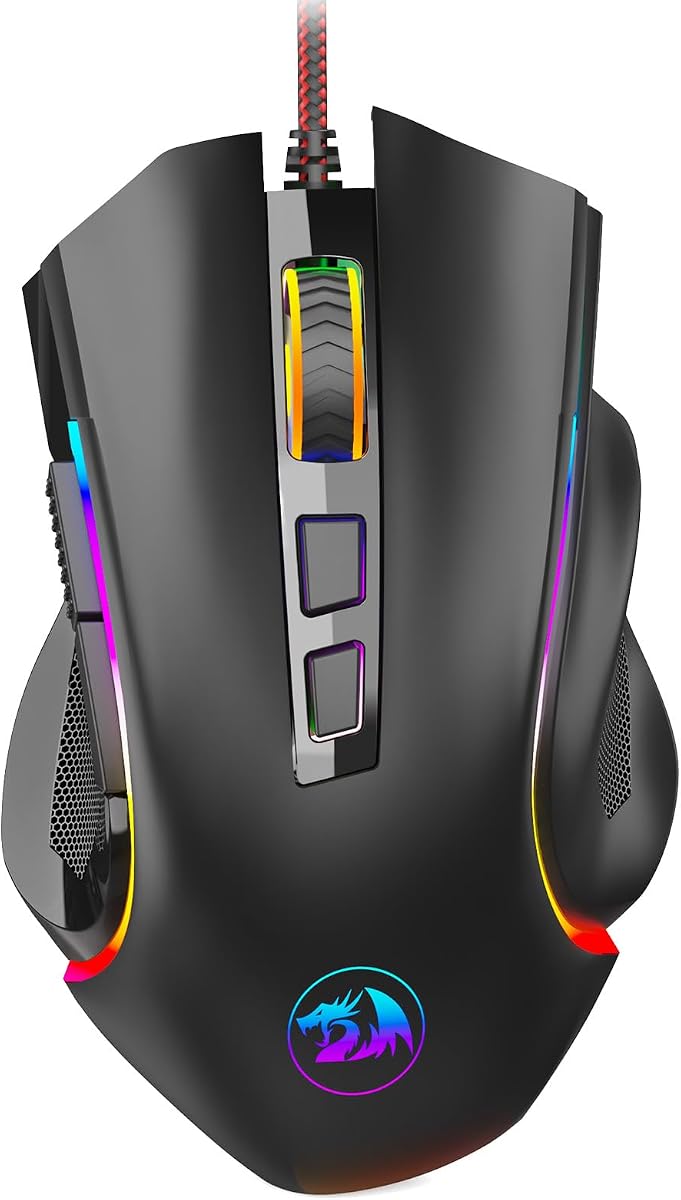
The Redragon M602 has been around long enough to become a default recommendation for people who want programmable buttons without stretching into flagship pricing. For video editing, those nine buttons are the product. Map a compact set of NLE shortcuts, keep DPI reasonable, and you have a workhorse that outperforms generic office mice for timeline labor.
Ergonomics favor a palm or relaxed claw grip. Finger recesses and a sculpted side make multi-hour YouTube editing more tolerable than a flat travel mouse. The sensor’s seven thousand two hundred DPI ceiling is ample; use software or onboard controls to create stages for rough cut versus detail work instead of maxing sensitivity.
RGB lighting with multiple modes is optional personality. In a color bay, turn it off or pick a dim static color so reflections stay off the monitor bezel. Software from Redragon’s site handles remaps, macros, and lighting — expect a utilitarian interface rather than a design showcase, but it gets macros done.
Compared with the G203, the M602 offers more buttons and a chunkier ergonomic claim. Compared with the wireless M901P-KS, it is simpler, lighter on features, and tethered. That simplicity is a virtue for first studios and school labs where IT prefers wired devices.
Durability reputation is part of the M602 story; the model has years of field use behind it. Still inspect clicks and scroll wheel feel on arrival like any peripheral. If your hand is very small, try it in person if possible — the shell is not tiny.
We place it as Best Budget Programmable for editors who need remappable controls now and can add a Contour shuttle later. It will not redefine your scrubbing technique, but it will stop you from hunting across the keyboard for everyday cut actions.
Side buttons: undo and redo. Extra buttons: razor and ripple delete. Scroll click: hand tool or middle-mouse pan if your NLE supports it. Keep DPI shift for zoomed viewer work.
Because the M602 also markets office friendliness, it doubles as a daytime productivity mouse. That helps freelancers who edit at night on the same PC they use for email and spreadsheets.
We may earn a commission at no additional cost to you.
If your day lives on a timeline, a conventional gaming mouse is only half the story. The Contour ShuttlePRO v2 is the pick we keep recommending when editors ask what actually speeds up Premiere Pro, Final Cut Pro, DaVinci Resolve, or Avid sessions. Instead of sliding a cursor across a wide mat to scrub clips, you rest one hand on a spring-loaded jog wheel and shuttle dial that map directly to frame-by-frame and variable-speed playback. That tactile feedback is the difference between guessing where a cut belongs and feeling it land.
Fifteen programmable buttons surround the wheel in a layout that Contour has refined for years. Assign blade, ripple delete, slip tool, mark in/out, or your favorite effect toggles so the left (or right) hand never leaves the controller. For colorists, mapping grade navigation and node selection to those keys frees the other hand for a pressure-sensitive pen or a high-DPI mouse. Audio editors get similar gains when markers, fades, and transport controls live under the fingers instead of across a QWERTY row.
Smart app detection is the underrated feature. Open Photoshop after a Resolve session and the ShuttlePRO can load a photo-oriented profile without a manual switch. That matters when you bounce between NLE, finishing, and stills work on the same machine. Contour ships with deep preset libraries, so beginners can start productive on day one and power users can rebuild every button around a personal hotkey dialect.
Ergonomically, the unit is compact and ambidextrous-friendly. Long edit days often fail because of shoulder travel more than click count; keeping the hand planted while the wheel does the scrubbing reduces that travel. Pair it with a lightweight precision mouse for UI navigation and you have a two-handed editing station that feels closer to a console than a laptop trackpad.
Honest limitations matter. This is a multimedia controller, not a mouse replacement. You will still need a pointing device for menus, panels, and browser tabs. Setup quality depends on installing Contour software and investing an evening in profiles. If you only cut short social clips once a week, the learning investment may outweigh the benefit. For anyone living in an NLE several hours a day, the ShuttlePRO remains one of the most efficient desk upgrades available.
In our ranking of best mice for video editing — interpreted broadly as pointing and control gear that improves post-production — the ShuttlePRO v2 earns the Best Editing Controller badge because it attacks the real bottleneck: timeline navigation. Gaming sensors and RGB shells help, but frame-accurate scrubbing and one-touch shortcuts change how quickly you finish a cut.
Choose this if you edit multi-cam interviews, long-form YouTube, podcasts with video, or narrative work where scrubbing accuracy pays off every hour. It is especially strong for editors who already know their keyboard shortcuts and want those actions closer to the timeline.
Skip it if you only need a better cursor for color wheels and UI clicks — look at the Logitech G PRO X2 SUPERSTRIKE or the Nulea trackball instead.
Install Contour software, select your NLE preset, then remap three buttons you use constantly: cut, undo, and play/pause. After a week, expand to ripple and slip tools. Keep a small sticky note of custom bindings until muscle memory sticks.
Place the ShuttlePRO left of the keyboard if you are right-handed so the mouse stays on the right for pointer work. Left-handed editors often reverse that layout successfully.
The Xpress is smaller, cheaper in spirit, and ships with five buttons instead of fifteen. If desk space is tight or you want a minimal shuttle introduction, Xpress works. Serious daily editors should prefer the ShuttlePRO for button density and long-term customization headroom.
We may earn a commission at no additional cost to you.

Not every editor needs haptic triggers or a fifteen-button shuttle on day one. The Logitech G203 is the sensible wired mouse that upgrades a mushy laptop nub or generic office rodent into something trustworthy for Premiere panels and browser research alike. An eight thousand DPI optical sensor with zero filtering claims is overkill for most NLEs, but the practical result is a pointer that starts and stops where you expect — critical when clicking narrow timeline edges.
Six buttons are enough for a focused editor map: DPI cycle, forward/back, and two side keys for undo and razor is a classic starter layout. G HUB unlocks LIGHTSYNC RGB if you care, or you can ignore lighting entirely and treat it as a black work tool. Onboard memory matters when you sit down at a client machine that blocks software installs; your DPI stages can travel with the mouse.
Spring-tensioned mechanical primary buttons give clearer actuation than many bargain mice, which reduces the vague soft-click feeling that causes double presses. The 2.1 meter cable reaches towers under desks, though a simple cord holder or bungee keeps drag off the mat during wide swipes on dual monitors.
Versus the SUPERSTRIKE, you give up wireless, extreme sensor ceiling, and ultralight construction. Versus Redragon options, you gain Logitech’s mature software ecosystem and a more restrained shape. For students, junior editors, and anyone building a reliable station without complexity, the G203 is easy to recommend.
Mac compatibility is listed, though G HUB depth is historically Windows-forward — confirm the features you need on your OS. Pure pointing still works as a class-compliant mouse. If your edit suite already has a Contour device for scrubbing, the G203 is an excellent right-hand companion that will not steal attention from the creative work.
We rank it Best Everyday Wired Pick because it hits the boring virtues: predictable sensor, enough buttons, no batteries, and broad platform support. Exciting peripherals win headlines; dependable ones finish projects.
Route the cable under a desk mat edge or through a clamp so only a short loop reaches the mouse. That preserves the G203’s tracking consistency without wireless cost.
Move to the SUPERSTRIKE for wireless and weight, to the M901P-KS for macro density, or add a Contour shuttle when timeline scrubbing — not cursor quality — becomes the bottleneck.
We may earn a commission at no additional cost to you.

Contour’s Shuttle Xpress is the distilled shuttle experience: a compact ring, a jog dial, and five buttons that can absorb your most-used shortcuts. Editors who loved the idea of the ShuttlePRO but lacked desk space — or wanted a gentler on-ramp — often land here. Variable-speed scrubbing remains the killer feature for finding edit points without dragging a mouse cursor endlessly.
Factory presets spanning a wide catalog of video, audio, and image tools mean you can be useful on day one in Premiere, Final Cut, Resolve, Audition, or Photoshop. App detection helps the device follow you across programs. Customization is fully open if your hotkey language differs from Contour defaults.
Ergonomics emphasize minimal finger travel. Left- and right-handed users can both settle into the puck-like form without a mirrored SKU. For podcast video editors and social cutters who scrub constantly but do not need fifteen keys, five well-chosen bindings are plenty.
The more modest community rating compared with ShuttlePRO reflects mixed expectations: some buyers want a mouse replacement, which neither Contour unit is. Others under-invest in software setup and bounce off the learning curve. Treat Xpress as a specialized instrument, configure it properly, and results improve.
Versus ULANZI’s wireless dial pad, Xpress is the USB Contour classic with shuttle DNA that editing schools have taught for years. Versus ShuttlePRO, you sacrifice button count and some long-term expandability. Many professionals keep an Xpress in a travel kit and a ShuttlePRO at the main desk.
We award Best Compact Shuttle for editors upgrading from pure mouse scrubbing without committing to the larger PRO surface. Pair it with any solid pointer from this list and focus your customization energy on transport and cutting keys first.
The Xpress packs easily beside a laptop for on-site edits. Combine with the Logitech G203 in a pouch and you have a portable cutting station that still beats a trackpad for multi-hour work.
If you find yourself wishing for separate buttons for slip, slide, nest, and effect toggles, the fifteen-button PRO layout will feel worth the desk space immediately.
We may earn a commission at no additional cost to you.

Macro-heavy mice are secret weapons for editors who refuse to stretch across a full keyboard for every blade, ripple, or nesting command. The Redragon M901P-KS wireless MMO mouse brings sixteen programmable controls — including a dense side cluster — so Premiere, Resolve, or After Effects actions can live under the thumb. That is the clearest reason it belongs in a video editing mouse guide even though the marketing language leans gaming.
Sensitivity up to sixteen thousand DPI and adjustable polling cover both coarse timeline travel and finer UI work. In practice, most editors will park DPI far below the ceiling and invest setup time in macros: one button for razor, one for ripple delete, one for export queue, one for toggling scopes. Five memory profiles let you store different maps for narrative edits, social verticals, and motion design comps.
Wireless rechargeable operation with roughly seventy hours of standby when lighting is off fits long project cycles. You can keep working while charging if the battery dips during a crunch week. Compared with a Contour shuttle, you still get a conventional pointer for menus, which means one device can scrub, click, and trigger macros — at the cost of less elegant jog feel than a dedicated wheel.
Comfort is subjective. The ergonomic shell and skin-friendly finish help marathon use, yet the MMO silhouette is tall and wide. Editors with smaller hands may prefer the Redragon M602 or Logitech G203. Accidental side presses are common in week one; slow down, label a cheat sheet, and build macros gradually instead of mapping everything on day one.
Software lives on Redragon’s site — plan a clean install and keep profiles backed up. RGB modes are optional flair; dim or disable them in a color-critical bay so the desk does not glow into a reference monitor. For creators who already think in hotkeys and want those hotkeys on the mouse, the M901P-KS is the most button-rich option in this pack.
Choose this when a shuttle feels too specialized and a six-button mouse feels too sparse. It will not replace Contour’s jog ring for frame-perfect scrubbing, but it can replace a surprising amount of left-hand keyboard gymnastics once macros are tuned.
Start with five: cut, undo, save, play/pause, and mark in. Add ripple delete and match frame next. Avoid mapping rarely used effects until the core five feel automatic.
Place the receiver on a short USB extension toward the desk surface if a metal case blocks signal. Disable aggressive power-saving in the OS so the mouse does not sleep mid-timeline drag.
We may earn a commission at no additional cost to you.
Video editing is an endurance sport for the shoulder. Optical mice reward sweeping arm motions that feel natural until week four of a doc series. The Nulea wireless trackball flips the model: the device stays put while your thumb (or fingers, depending on orientation) rolls a fifty-five millimeter ball. That stationary posture is why trackballs show up in broadcast rooms and long-form suites even when gaming sensors get more hype.
The oversized ball is the headline. Larger diameter improves fine control for scrolling timelines, adjusting curves, and parking the cursor on narrow inspector fields. Four DPI steps from 400 to 1600 cover careful grading and faster UI travel without the jitter some tiny laptop trackballs introduce. A free-spin scroll wheel further helps through long bins and effect stacks.
Connectivity is practical for modern creative desks. Pair up to three devices over Bluetooth or the 2.4 GHz dongle, then jump between an editing tower, a laptop for client calls, and a tablet for notes. Ambidextrous mode with automatic control swapping is rare at this class — left-handed editors and shared facilities both benefit without buying a second SKU.
Quiet clicks deserve mention. Edit bays often sit near microphones or in open offices; loud gaming switches become social problems. Nulea’s quieter actuation keeps focus on the cut, not the click soundtrack. Rechargeable power means fewer mid-project battery swaps than older AA trackballs.
Limitations are honest. Trackballs demand a week of awkwardness before they feel inevitable. If your muscle memory is pure claw-grip FPS aiming, you may bounce off the ball. DPI does not climb into esports territory, so pixel-peeping on a 6K timeline might feel slower than a HERO-class mouse until you adapt technique. Dust under the ball is a maintenance reality — clean it periodically for consistent roll.
In a roundup about best mice for video editing, the Nulea earns Best Ergonomic Pick because comfort is a performance feature. Faster cuts mean nothing if wrist pain ends the session early. Use it as a primary pointer beside a Contour shuttle, or as a dedicated left-hand navigation device while a conventional mouse stays on the right.
Keep DPI moderate and use the ball for horizontal timeline travel while the scroll wheel handles vertical panel stacks. Many editors map a side button to play/pause so the opposite hand can stay on the keyboard.
Long-session editors, anyone rehabbing RSI symptoms under clinician guidance, left-handed creatives, and multi-device freelancers who bounce between Mac and Windows daily.
Pair with the DaVinci Resolve shortcuts desk mat for a calm, low-fatigue station, or put the trackball left of a Shuttle Xpress if you want shuttle control without a large gaming mouse footprint.
We may earn a commission at no additional cost to you.

A roundup of best mice for video editing would be incomplete without the surface those mice glide on. The DaVinci Resolve shortcuts desk mat from this pack is a 31.5 by 11.8 inch extended pad that turns bare laminate into a controlled tracking plane while putting essential Resolve commands in your peripheral vision. For students and new colorists, that reference layer is worth as much as another side button.
Three millimeter thickness and a smooth cloth top give optical sensors like those in the G203, M602, and SUPERSTRIKE a consistent texture. Soft landings also quiet keyboard noise slightly and protect desks from scratches — useful in rented studios. The anti-slip rubber base keeps the mat from creeping when you make wide arm movements during rough cuts.
Shortcut printing focused on DaVinci Resolve helps editors internalize page navigation, grading, and edit page commands without alt-tabbing to a PDF. YouTubers and indie filmmakers living in Resolve will glance down during the first months, then gradually need the print less as memory forms. Premiere- or Final Cut-centric editors can still enjoy the surface quality even if some printed chords differ from their host app.
Stitched edges and a wipeable coating address durability and coffee reality. This is not a control surface and will not scrub a timeline by itself — set expectations accordingly. Think of it as the foundation layer under a Nulea trackball or Logitech mouse, optionally beside a Contour shuttle perched at the mat’s edge.
Giftability is surprisingly relevant: many creators already own a mouse but suffer on a glossy table. Upgrading the mat often improves perceived mouse quality overnight because tracking inconsistency was the real villain. Pair this pad with any pointing device in our comparison table before you assume you need a sensor upgrade.
We label it Best Desk Mat Upgrade because environment is part of input performance. If your cursor stutters on a shiny desk, fix the surface first, then escalate to flagship wireless mice.
Keep the Resolve shortcut legend visible above the keyboard wrist area. Park a Contour shuttle on the left border and the primary mouse on the right so both have stable footing.
Wipe with a lightly damp cloth and mild soap; avoid harsh solvents that can fade printed shortcuts. Let the mat dry flat before dropping a sensitive sensor mouse back on it.
We may earn a commission at no additional cost to you.
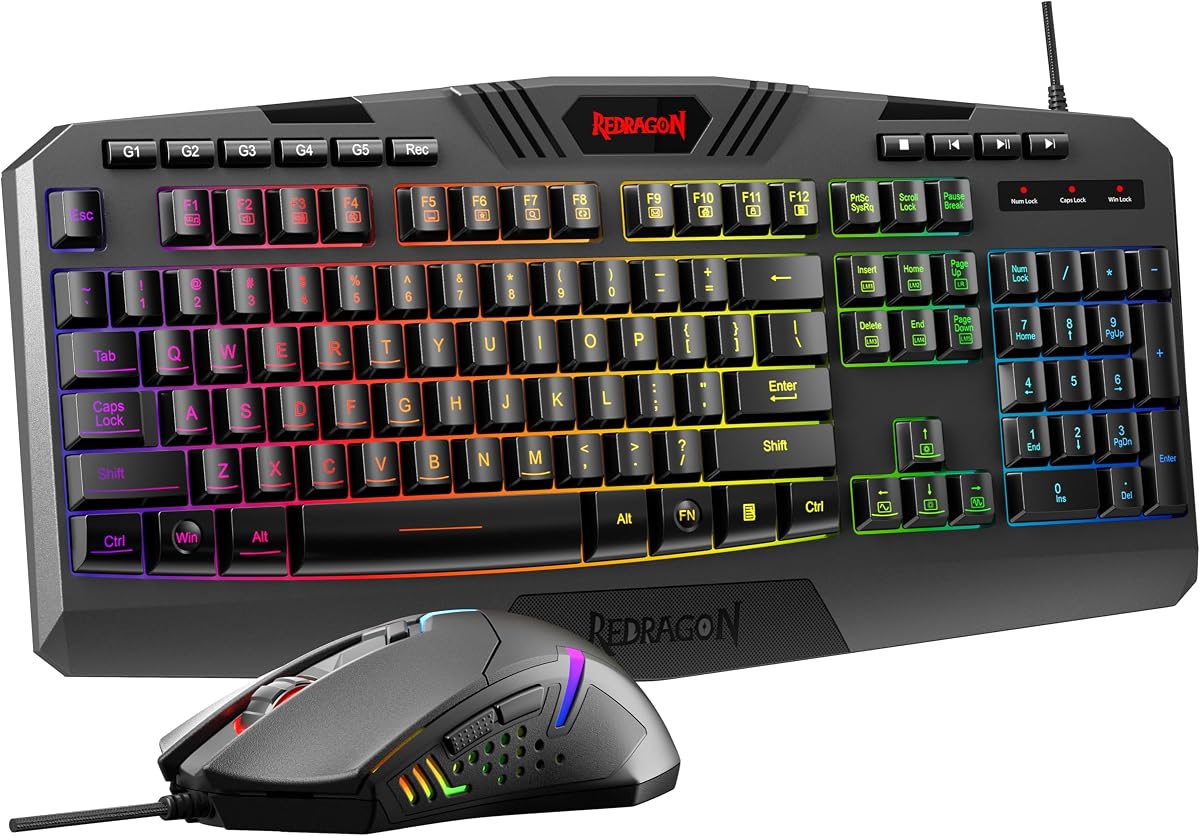
New editors often need a whole desk, not a single boutique mouse. The Redragon S101-3 PRO combo packages a full-size RGB membrane keyboard and a programmable gaming mouse so a blank bedroom desk becomes a workable edit station in one order. For parents outfitting a student filmmaker or creators escaping laptop keyboards, that convenience is the pitch.
Macro keys on the keyboard side matter for video work: record sequences for exporting presets, applying transition templates, or multi-step title workflows. The mouse offers DPI shifting in a practical range for editing and general use. Software personalization keeps lighting and bindings intact across reboots once configured on Windows.
Typing feel is soft membrane rather than clicky mechanical — an advantage at midnight when roommates sleep, and a compromise if you wanted thocky switches. Anti-ghosting claims and a wrist rest support longer captioning and project organization sessions that surround the creative cut.
Do not expect the bundled mouse to outclass the G PRO X2 SUPERSTRIKE or a Contour shuttle. The combo is a foundation. Many editors start here, learn which shortcuts they actually use, then graduate to a ShuttlePRO while keeping the keyboard if it still serves. That staged upgrade path is financially and cognitively saner than buying a pro control surface before you know your hotkeys.
Compatibility messaging focuses on Windows plug-and-play. Mac users should verify basic input works and be prepared for shallower RGB/macro tooling. Wired connections keep latency simple and eliminate charger juggling during class projects.
As Best Starter Desk Kit, the S101-3 PRO closes our list by solving the empty-desk problem. Pair it with the Resolve shortcuts mat for a surprisingly coherent beginner post bay, then add specialized controllers when your timeline hours justify them.
Install Redragon software, turn keyboard lighting to a dim static mode for color work, set mouse DPI to a medium step, and record one macro you already type daily. Resist mapping twenty macros before habits exist.
Keep the keyboard, replace the mouse with a G203 or SUPERSTRIKE when pointing quality becomes limiting, and add Contour or ULANZI dial control when scrubbing speed becomes the next bottleneck.
We may earn a commission at no additional cost to you.

Decide whether your bottleneck is cursor quality or timeline navigation. If you already fly hotkeys but hate mushy tracking on a glossy desk, prioritize a precise mouse or trackball and a good mat. If you spend half your day dragging the playhead, a Contour ShuttlePRO, Shuttle Xpress, or ULANZI dial pad will change your pace more than another DPI leap.
Many efficient suites run both: a shuttle or macro pad on the non-dominant side and a lightweight mouse on the dominant side. That hybrid mirrors how broadcast consoles separate transport from pointing.
Count the actions you repeat hourly. Undo, razor, ripple, save, and play/pause alone can justify a six-to-nine-button mouse. Heavier toolsets — nesting, compound clips, grade node jumps — push you toward sixteen-button MMO layouts or fifteen-button Contour surfaces.
Prefer vendors with stable profile software and app detection when you bounce between NLE, photo, and audio tools. Contour’s preset libraries and Logitech G HUB are mature; Redragon and Ulanzi tools are capable but reward careful setup time.
Editing injuries accumulate from static postures and micro-tension. Trackballs minimize arm travel. Ultralight wireless mice reduce lift fatigue. Compact shuttles keep fingers in a small motion envelope. If you already feel wrist strain, talk with a clinician and consider the Nulea ambidextrous trackball or a Contour device that lets the pointing hand rest more often.
Shape matters as much as feature lists. Large MMO shells fit some palms and overwhelm others. Whenever possible, match grip style — palm, claw, fingertip — to the chassis you are considering.
Wired mice eliminate charging anxiety and RF oddities near dense USB hubs — still excellent for locked school labs and on-set laptops. Wireless LIGHTSPEED or dual Bluetooth/2.4 GHz kits free the mat for wide gestures and multi-device freelancing. Controllers that rely on Bluetooth should be tested for scrub latency against USB shuttles if you cut music videos to the frame.
Keep receivers on short extensions, disable aggressive USB selective suspend, and maintain a charging routine Sunday nights if your mouse is wireless.
Editors rarely need maximum advertised DPI. Consistency and lift-off behavior matter more. Pair any optical mouse with a large cloth mat — the Resolve shortcuts pad in this pack is an easy win — before blaming the sensor. Trackballs sidestep surface quality almost entirely, which helps on location tables.
For color work, dim or disable RGB so desk glow never contaminates your view of a reference display. Small environmental fixes often outperform another hardware purchase.
Not necessarily. Gaming mice often ship excellent sensors, programmable buttons, and solid build quality that transfer well to NLE interfaces, which is why several appear in this guide. However, a Contour shuttle or trackball can improve editing speed and comfort more than an esports flagship if timeline scrubbing or ergonomics is your real pain point. Choose based on the job, not the category label.
For scrubbing and transport, yes — a jog shuttle like the Contour ShuttlePRO v2 or Shuttle Xpress is usually better than dragging a mouse cursor along the timeline. For clicking panels, rearranging windows, and drawing masks, you still want a conventional mouse or trackball. The strongest setups combine both so each hand has a clear job during the cut.
Most editors do well between about 800 and 1600 DPI on a large mousepad, adjusting for monitor size and arm versus wrist aiming. Extremely high DPI settings make fine timeline clicks harder, not easier. Create multiple DPI stages on mice like the Logitech G203 or G PRO X2 SUPERSTRIKE so you can jump from rough navigation to precise grading UI work without reopening software every time.
Yes for many long-session editors. A large-ball trackball such as the Nulea wireless model keeps the arm still, which can reduce shoulder travel during bin work and timeline parking. Expect a learning week. If you rely on wide sweeping gestures across ultrawide monitors, try before you commit — or use the trackball for navigation and keep a lightweight mouse for tasks that need those gestures.
The Contour units are longstanding friends of major NLEs with presets and customizable bindings. ULANZI markets compatibility with Resolve, Final Cut, CapCut, and Adobe stills tools via its dial keypad. Logitech and Redragon mice work as standard pointers on Mac and PC; deep remapping depends on each vendor’s software support on your operating system. Always confirm driver or Bluetooth behavior on your exact OS version before a paid rush job.
Five to nine well-chosen bindings cover most daily cutting. Fifteen Contour keys or sixteen MMO mouse buttons help power users who live in macros, but unused buttons become accidental-click hazards. Start small: undo, cut, save, play/pause, and ripple delete. Expand only after those five are muscle memory. Quality of mapping beats quantity every time.
Beginners with empty desks often benefit from a reliable mouse — or the Redragon keyboard-mouse combo — plus a Resolve shortcut mat while they learn fundamental hotkeys. Jumping straight to a ShuttlePRO is fantastic if you already edit several hours a week and feel timeline dragging slowing you down. If you cut occasionally, master keyboard basics first so the shuttle has meaningful actions to host.
Bright desk lighting can reflect into your eyes or onto bezels and subtly influence how you perceive a grade, especially in dim suites. It will not change the numerical values in your NLE, but it can change your eyes. Dim or disable RGB on mice and keyboards during critical color sessions, then turn personality lighting back on for daytime organizational work if you enjoy it.
Both are viable in 2026. Wired remains simplest for shared facilities and zero-charge workflows. Modern LIGHTSPEED and dual-mode wireless mice are reliable when receivers are placed thoughtfully and batteries are maintained. For Bluetooth control pads, test scrubbing feel against a USB Contour shuttle if frame-accurate music edits are your livelihood. Choose the failure mode you prefer: a dead battery or a cable snag.
Often yes. Glossy desks cause erratic tracking, lift-off glitches, and extra grip tension. A large cloth mat such as the DaVinci Resolve shortcuts pad stabilizes sensors in this roundup and gives your keyboard a consistent home. If your current mouse feels “off,” try a proper surface before you spend on a flagship sensor upgrade.
The best mice for video editing in 2026 are the ones that match your bottleneck. Contour ShuttlePRO v2 remains our favorite dedicated editing controller when timeline scrubbing dominates the day. Logitech G PRO X2 SUPERSTRIKE is the precision wireless pointer for editors who want a disappearing, high-confidence cursor. Nulea’s large-ball trackball is the ergonomic relief valve when arm fatigue is writing itself into every session.
From there, macro-rich Redragon options, the dependable Logitech G203, ULANZI’s dial pad, the compact Shuttle Xpress, a Resolve desk mat, and the S101-3 PRO starter combo fill specific gaps — button density, budget programmability, Bluetooth creativity control, travel-friendly shuttles, learning surfaces, and empty-desk kits. Build in layers: surface, pointer, then specialized transport.
Configure profiles before you judge any device, give yourself two project cycles to adapt, and upgrade the next constraint you actually feel. That measured approach beats chasing every new sensor headline while your playhead still crawls under a tired wrist.