Expert Review & Guide

Best Mice for Productivity in 2026 for Faster Desk Work

Productivity mice are not gaming mice with the RGB turned off. The best ones shorten the distance between intention and result: faster scrolling through long documents, quieter clicks in shared spaces, multi-device switching when your day spans a laptop and a desktop, and shapes that keep your forearm from twisting into fatigue by mid-afternoon. In 2026 that can mean a MagSpeed flagship, a vertical handshake shell, a thumb trackball that barely leaves its parking spot, or a simple ambidextrous workhorse that finally replaces a stubborn trackpad. This guide sticks to the ten products in our pack and ranks them for real knowledge-work days—spreadsheets, browsers, docs, tickets, and calls—not for esports click latency.

We weighed scroll systems, silence, ergonomics, battery behavior, and how honestly each device fits a productivity brief. The Logitech MX Master 3S Bluetooth edition leads for all-around workflow speed, the Lift vertical is the clearest wrist-relief pick, and the Productivity Plus specializes in hyper-fast scrolling with years-long battery endurance. Specialized tools still matter: the MX Ergo S trackball shrinks desk travel, CITLLA adds a horizontal thumb wheel for wide tables, and compact options like the M185 and Amazon Basics cover ambidextrous and travel needs. One pack item, the Yonktoo mouse jiggler, is an accessory rather than a pointer—we review it honestly for keep-awake use cases and the policy caveats that come with them.

Start with the three top picks if you want a default recommendation. Use the comparison table to scan tracking, connection, and comfort intent across every product. Then read the full reviews for setup notes, who should skip each model, and how the tradeoffs feel after a week of actual work. We omit dollar prices on purpose; live listings move, and the better decision is matching features to your desk, hands, and devices.

Top Productivity Mouse Picks for Faster Workdays

Best Overall Productivity

Logitech MX Master 3S Bluetooth Wireless Mouse No Receiver - Graphite

★★★★★9.2/10
Logitech MX Master 3S Bluetooth Wireless Mouse No Receiver - Graphite
  • MagSpeed scrolling and Quiet Clicks turn long documents and shared offices into smoother, calmer work sessions
  • 8000 DPI any-surface tracking including glass, plus thumb controls shaped for all-day right-hand posture
  • Bluetooth multi-device pairing with Logi Options+ customization and FLOW-style cross-computer control
Check Price →
Best Vertical Wrist Relief

Logitech Lift Vertical Ergonomic Wireless Mouse - Graphite

★★★★☆8.8/10
Logitech Lift Vertical Ergonomic Wireless Mouse - Graphite
  • 57° vertical handshake posture for small to medium right hands with a soft textured grip and thumb rest
  • Whisper-quiet clicks, SmartWheel scrolling, and customizable buttons for calmer deep-work days
  • Bluetooth Low Energy or included Logi Bolt receiver with multi-year battery endurance
Check Price →
Best Hyper-Scroll Workhorse

Logitech Productivity Plus Wireless Mouse

★★★★★10/10
Logitech Productivity Plus Wireless Mouse
  • Nearly frictionless metal wheel with hyper-fast scrolling for long reports, wikis, and research tabs
  • Sculpted right-hand shape with two thumb buttons for quick page and application navigation
  • Unifying receiver convenience and up to three years between battery changes for set-and-forget desks
Check Price →

As an Amazon Associate we earn from qualifying purchases. We may earn a commission at no additional cost to you.

Productivity Mouse Comparison: Scroll, Comfort, and Connection

Scan every pack product by the three details that change a workday fastest: how you scroll and navigate, how the shape treats your hand, and whether you connect over Bluetooth, a USB receiver, or both. No prices—check the live Amazon listing for current availability.

#ProductSpecificationsScore
1
  • 8000 DPI glass-capable sensor, Quiet Clicks
  • MagSpeed scrolling, thumb controls, FLOW multi-computer
  • Bluetooth only — no USB receiver or charging cable included
9.2
2
  • Ergonomic shell, silent clicks, flying scroll + thumb wheel
  • Up to 4800 DPI across five levels
  • Dual Bluetooth + 2.4G, switch among three devices
8.6
3
  • Compact ambidextrous contour, optical tracking
  • 2.4 GHz nano USB-A receiver, ~33 ft range
  • Up to 12 months on included AA battery
9
4
  • 57° vertical for small–medium right hands
  • Quiet clicks, SmartWheel, customizable buttons
  • Bluetooth LE or Logi Bolt, up to 2 years battery
8.8
5
  • Sculpted right-hand shape, two thumb buttons
  • Hyper-fast nearly frictionless metal scroll wheel
  • Unifying receiver, up to three years between battery changes
10
6
  • Thumb trackball, 20° tilt, quieter clicks
  • Six programmable buttons, speed/precision toggle
  • Bluetooth or Logi Bolt, USB-C rechargeable
9
7
  • Contoured 6-button optical mouse
  • 800–4000 DPI in five steps
  • 2.4 GHz USB receiver, up to 24 months on AA
9.2
8
  • Hardware mouse mover, no software required
  • Realistic random motion, whisper-quiet motor
  • Ultra-slim plug-and-play keep-awake accessory
8.6
9
  • Broader thumb rest, silent left/right clicks
  • 800–2400 DPI, six buttons
  • Rechargeable with top battery-level display
8.6
10
  • Compact ergonomic portable shell
  • 2.4 GHz optical, adjustable DPI
  • AES-128 encrypted wireless, ~33 ft range
8.6

1. Logitech MX Master 3S - Best Overall Productivity

Logitech MX Master 3S

Logitech MX Master 3S

9.2/10★★★★★

The Logitech MX Master 3S Bluetooth edition remains the productivity mouse most knowledge workers should try first in 2026 when they want one device that makes every ordinary day faster. MagSpeed electromagnetic scrolling is the headline trick: a near-frictionless spin that rockets through long contracts, research PDFs, and endless chat transcripts, then clicks into precise ratchet mode when you need line-by-line control. Quiet Clicks cut roughly ninety percent of click noise without turning the switches into mush, which matters in open offices, shared apartments, and late-night editing sessions next to a sleeping household. The 8000 DPI sensor is not a gaming flex here—it is practical insurance on glass desks, glossy conference tables, and messy hotel nightstands where cheaper optical engines lose the plot.

  • 8000 DPI glass-capable sensor, Quiet Clicks
  • MagSpeed scrolling, thumb controls, FLOW multi-computer
  • Bluetooth only — no USB receiver or charging cable included
Check Price →
✓ Pros
  • MagSpeed wheel makes long documents and dense spreadsheets feel dramatically faster
  • Quiet Clicks keep open offices and late-night sessions civil without mushy switches
  • 8000 DPI sensor tracks on glass and awkward desk surfaces where cheap mice stutter
  • Logi Options+ profiles and FLOW turn multi-laptop desks into one fluid workspace
  • Sculpted right-hand shape stays comfortable through full writing and editing days
✕ Cons
  • Bluetooth-only SKU omits USB receiver and charging cable—budget extras separately
  • Larger sculpted shell can feel bulky for very small hands or ultra-minimal desks
  • Full power of FLOW and app profiles requires installing Logi Options+

Detailed review

This particular SKU is Bluetooth only. That is not a footnote. There is no Logi Bolt receiver in the box and no charging cable included, so plan for a USB-C cable from your existing kit and confirm every machine you use has trustworthy Bluetooth. In return you get Easy-Switch pairing for up to three devices and the Logi Options+ ecosystem for app-specific button maps, gesture buttons, and FLOW cross-computer control that can drag text and files between Windows and macOS machines. If your workplace locks down USB receivers or you refuse to occupy a precious port on a thin laptop, the Bluetooth-first configuration is actually a feature rather than a compromise.

Ergonomics sit in the sculpted-right-hand lane rather than a true vertical handshake. The thumb shelf, side gesture button, and mode shift control land where your thumb expects them after a day or two, and the taller silhouette encourages a more relaxed wrist than a flat travel mouse. Small hands sometimes find the shell large; medium and large right hands usually settle in quickly. Plastic parts include certified post-consumer recycled content in Graphite, which will not change your RSI overnight but is a welcome materials story for teams buying in volume.

For spreadsheets, MagSpeed plus horizontal thumb-wheel navigation is a genuine productivity upgrade over any basic three-button mouse. Designers and editors benefit from the high-DPI glass tracking when they park a laptop on reflective surfaces. Developers hopping between a desktop tower and a MacBook can keep one mouse and switch with a button instead of juggling two peripherals. The main people who should skip this SKU are left-handed users, anyone who needs a USB receiver in the same box, and buyers who want a vertical angle for diagnosed wrist issues—the Lift or MX Ergo S may serve those needs better.

Setup is simple: enable Bluetooth, pair, then optionally install Logi Options+ to unlock the deeper button and FLOW features. Without the app you still get an excellent quiet, fast scroll mouse; with the app it becomes a multi-computer workflow tool. Battery life is rechargeable rather than AA-based, which fits modern desks already littered with USB-C cables—just remember this listing does not include that cable. Compared with the Productivity Plus in this same roundup, the MX Master 3S feels more premium in scroll feel, quietness, glass tracking, and software depth, which is why it earns Best Overall for productivity-focused buyers.

If you already own an older MX Master, the 3S generation’s quieter clicks and higher DPI sensor are the practical reasons to upgrade rather than chasing a badge. If you are coming from a free laptop trackpad or a ten-dollar ambidextrous mouse, the first week will feel like someone removed friction from your entire workday—especially the first time you fling through a two-hundred-page PDF in one wheel spin and land exactly on the clause you need.

Who should buy the MX Master 3S Bluetooth edition

Choose this mouse if you live in documents, browsers, and chat apps across one to three computers and want the fastest scroll-plus-customization package in the pack. It is especially strong for right-handed professionals on Mac and Windows who already have a USB-C cable and solid Bluetooth radios. Skip it if you need a receiver in the box, prefer a vertical handshake, or primarily need an ambidextrous left-hand shape.

Setup notes and Options+ tips

Pair over Bluetooth, then create app-specific profiles for your browser, spreadsheet tool, and code editor. Map the thumb button to a frequent shortcut such as desktop show, mission control, or a Smart Action sequence. If you use two machines side by side, enable FLOW and practice edge-swipe cursor handoff until it becomes muscle memory—that single trick often saves more time than any DPI bump.

Versus Lift and Productivity Plus

Pick Lift instead when forearm twist and wrist ache are the primary problem and you can accept a vertical learning curve. Pick Productivity Plus when you want hyper-fast scrolling and a sculpted shell with multi-year disposable-battery endurance and less interest in glass tracking or deep Options+ workflows. The MX Master 3S sits in the middle-to-top of that triangle: comfort plus software plus scroll theater.

Check Price on Amazon →

We may earn a commission at no additional cost to you.

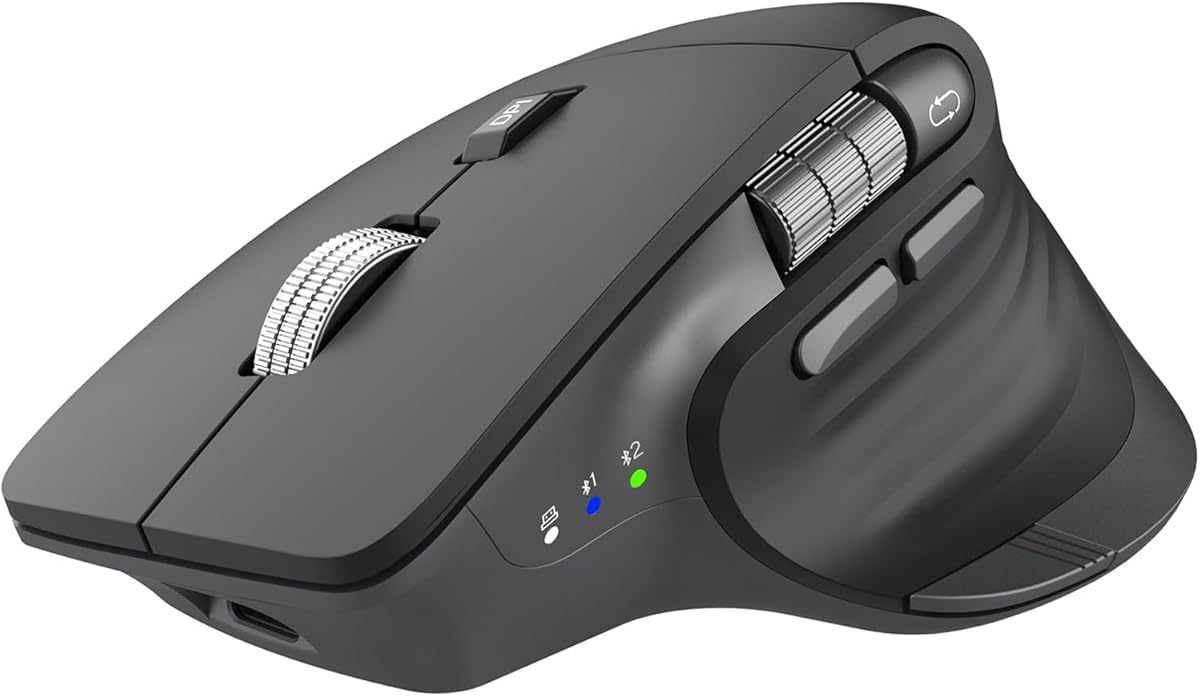
2. CITLLA Ergonomic Bluetooth Mouse - Best Flying Scroll Value

CITLLA Ergonomic Bluetooth Mouse

CITLLA Ergonomic Bluetooth Mouse

8.6/10★★★★☆

The CITLLA ergonomic Bluetooth mouse targets the productive middle: a contoured shell, silent clicks, a metal flying scroll wheel, and a dedicated horizontal thumb wheel without asking you to adopt a full vertical handshake. For spreadsheet-heavy days, that thumb wheel is the feature that sells the mouse. Side-to-side scrolling through wide Excel grids, project timelines, and design canvases becomes a thumb flick instead of a Shift-scroll improvisation. The flying scroll wheel handles the vertical axis with the kind of momentum that makes long web research and document review feel less like a chore.

  • Ergonomic shell, silent clicks, flying scroll + thumb wheel
  • Up to 4800 DPI across five levels
  • Dual Bluetooth + 2.4G, switch among three devices
Check Price →
✓ Pros
  • Flying scroll plus a dedicated horizontal thumb wheel accelerates Excel and wide canvases
  • Silent clicks suit libraries, shared apartments, and open-plan desks
  • Easy switching across three devices covers laptop, tablet, and phone workflows
  • USB-C rechargeable pack removes the AA-battery ritual for travelers
  • Five DPI steps up to 4800 give enough range for large monitors and fine UI work
✕ Cons
  • Brand support and long-term firmware polish lag behind Logitech’s Options+ ecosystem
  • Ergonomic claims help many users but are not a medical vertical handshake redesign
  • Multi-device switching can require a short re-learn if you hop machines constantly

Detailed review

Connectivity is unusually flexible for this segment. Dual Bluetooth channels plus a 2.4 GHz USB receiver let you park the mouse across a laptop, desktop, tablet, or phone and switch with a button—up to three devices. That matters for hybrid workers who present from a tablet, draft on a laptop, and still keep a home desktop warm. USB-C charging with a claimed multi-week endurance per charge removes AA anxiety for travelers, while quiet clicks keep coworking spaces and family rooms peaceful.

DPI steps run through five levels up to 4800, which is enough for a dual-monitor desk without the marketing excess of gaming sensors. Tracking is aimed at everyday mats and desks rather than glass showpieces; if your primary surface is a glass conference table, the MX Master 3S still wins. A one-touch Return to Desktop button is called out for Windows users and can be a small daily delight when your screen is buried under windows.

Comfort is contoured rather than clinical. The shell is designed to fit the hand more naturally than a flat travel mouse and to reduce wrist strain during long sessions, but it is not a 57-degree vertical redesign. Users with active tendinitis or a clinician’s recommendation for a handshake grip should look at the Logitech Lift or MX Ergo S first. Everyone else who wants silent operation, multi-device switching, and spreadsheet-friendly horizontal scroll will find CITLLA a pragmatic value play.

Compared with the INPHIC and wegear options in this pack, CITLLA’s differentiator is the combination of flying scroll, thumb-wheel horizontal navigation, and true multi-device Bluetooth-plus-dongle flexibility. Compared with Logitech’s Options+ ecosystem, you trade brand software depth for a lower barrier and a feature set that already does a lot out of the box. Compatibility spans Windows, Mac, ChromeOS, Linux, iPadOS, and Android, which makes it a strong “one mouse for the whole bag” candidate.

Expect a short adaptation week if you have never used a horizontal thumb wheel—after that, going back to a mouse without one feels oddly incomplete for finance, ops, and design work. Keep the 2.4 GHz receiver labeled in a tiny pouch if you swap machines often; Bluetooth pairing is convenient, but the dongle remains the reliable fallback on locked-down PCs that throttle Bluetooth peripherals.

Best fit for spreadsheet and browser multitaskers

CITLLA shines when your day mixes wide tables, long documents, and device hopping. Students, analysts, and remote workers who want silent clicks without paying flagship Logitech money should shortlist it. Skip it if you need glass tracking, deep app profiles, or a medically oriented vertical angle.

Charging and multi-device habits

Charge over USB-C before a travel week, then rely on the long claimed runtime. Assign device slots deliberately—laptop on Bluetooth one, tablet on Bluetooth two, desktop on the 2.4 GHz receiver—so the switch button always maps to a mental model instead of a guessing game.

Check Price on Amazon →

We may earn a commission at no additional cost to you.

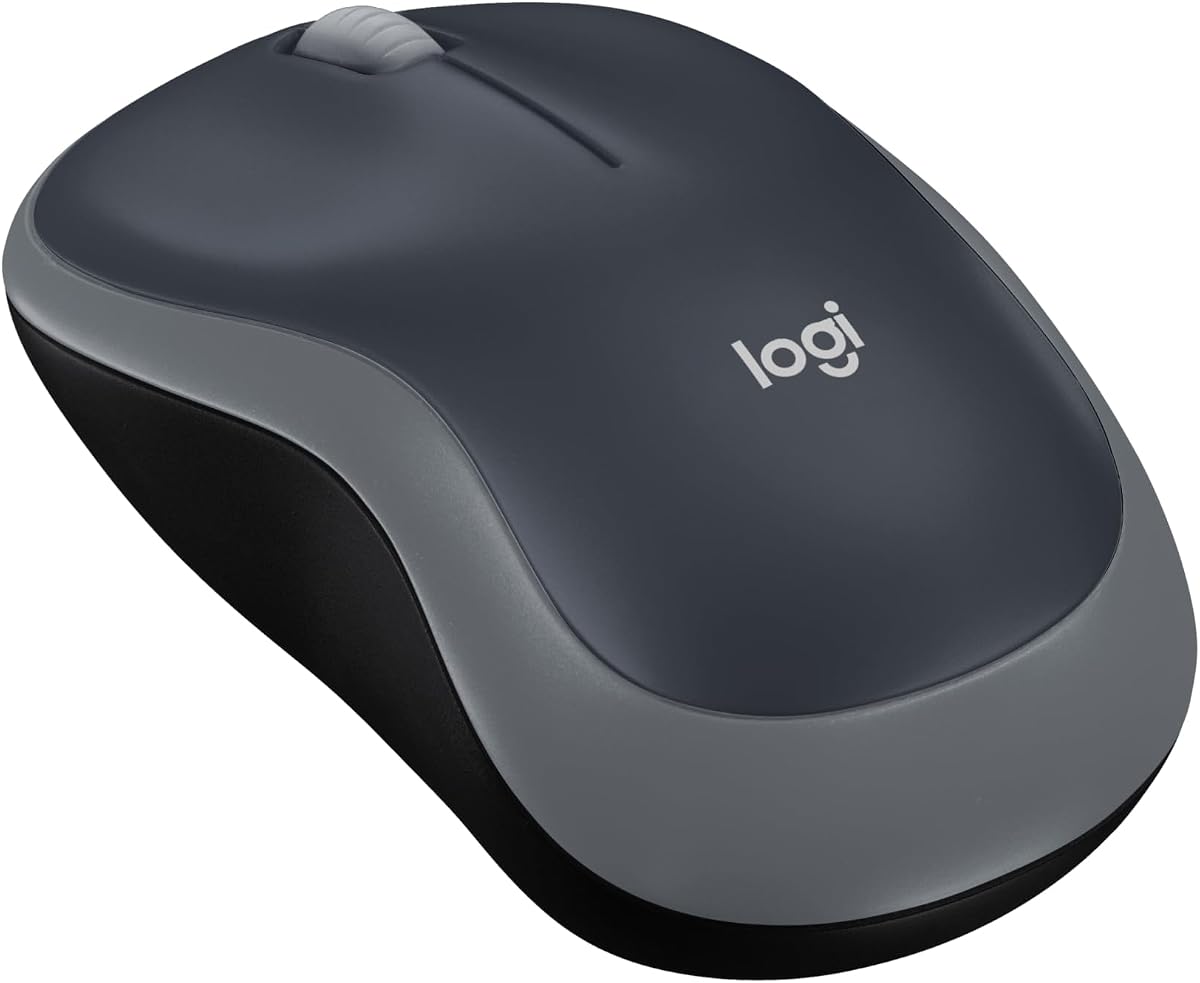
3. Logitech M185 - Best Simple Everyday Pick

Logitech M185

Logitech M185

9/10★★★★★

The Logitech M185 is the anti-drama productivity mouse: compact, ambidextrous, nano-receiver simple, and intentionally light on features. That restraint is why it still belongs in a 2026 best-of roundup. Not every desk needs MagSpeed theater or a vertical learning curve. Plenty of workers just need a reliable pointer that beats a laptop trackpad, lasts roughly a year on a single AA battery, and works the moment the tiny USB-A receiver hits a port.

  • Compact ambidextrous contour, optical tracking
  • 2.4 GHz nano USB-A receiver, ~33 ft range
  • Up to 12 months on included AA battery
Check Price →
✓ Pros
  • True ambidextrous shape works for left-handed users without hunting specialty shells
  • Plug-and-play nano receiver needs zero software on Windows or Mac
  • Year-class battery life means almost no maintenance for casual and office use
  • Compact footprint fits cramped desks, tray tables, and small hands
  • Proven Logitech reliability with a straightforward three-year limited warranty story
✕ Cons
  • Basic feature set lacks customizable side buttons and hyper-fast free-spin scrolling
  • Ambidextrous flat shape will not relieve forearm twist the way a vertical mouse can
  • Optical tracking is fine for mats and desks but not a glass-surface specialist

Detailed review

Ambidexterity is the M185’s quiet superpower. Left-handed users are chronically underserved by sculpted right-hand shells and vertical handshakes; this contoured symmetric shape feels usable in either hand without a special left-hand SKU. Small to medium hands and tight desk trays benefit from the compact footprint. Optical tracking is competent on normal surfaces, and the line-by-line scroll wheel is honest about being a basic wheel rather than a free-spinning metal spectacle.

Logitech cites study-backed productivity gains when laptop users switch from a trackpad to a mouse, and even if you treat those percentages as marketing, the lived experience is familiar: selecting text, dragging windows, and navigating spreadsheets simply feels faster with a real pointer. The M185 is often the cheapest way to capture that upgrade without overbuying. Plug-and-play means no Options+ dependency, which is perfect for locked school machines, loaner laptops, and relatives who want you to “just make it work.”

Where the M185 falls short for serious productivity enthusiasts is equally clear. There are no programmable thumb buttons, no Quiet Clicks branding, no glass tracking, and no hyper-fast scroll mode. If your wrists already hurt, a flat ambidextrous mouse will not reorient your forearm. If you live in multi-monitor design apps, you will eventually want higher DPI adjustability and more buttons. Think of the M185 as a durable daily driver or spare, not as the endgame for power users.

Battery life up to twelve months with smart sleep, a roughly thirty-three-foot wireless range, and a three-year limited hardware warranty story keep ownership boring in the best way. Recycled plastic content in the shell is a nice materials note. For offices provisioning dozens of basic seats, boring is a feature: fewer support tickets, fewer charging cables to lose, fewer “how do I pair Bluetooth” messages.

In this pack, place the M185 below the MX Master 3S, Lift, Productivity Plus, and MX Ergo S for ambitious workflows, but above novelty accessories and frills you will never use. It is the mouse you buy for a teenager’s homework laptop, a secondary machine in the kitchen, or your own backpack when you refuse to risk a flagship MX on a coffee-shop table.

Who gets the most from the M185

Left-handed users, minimalists, IT closets, and anyone escaping a trackpad should buy with confidence. Power users chasing custom button maps, silent switches, or vertical ergonomics should spend attention on other picks in this guide.

Travel and spare-mouse strategy

Keep the nano receiver in the mouse’s storage bay or taped into the laptop sleeve so you never strand the mouse. Pack one spare AA if you travel for months at a time. Pair it with a compact keyboard only if you need a full portable desk; otherwise the M185 alone already transforms most ultraportable kits.

Check Price on Amazon →

We may earn a commission at no additional cost to you.

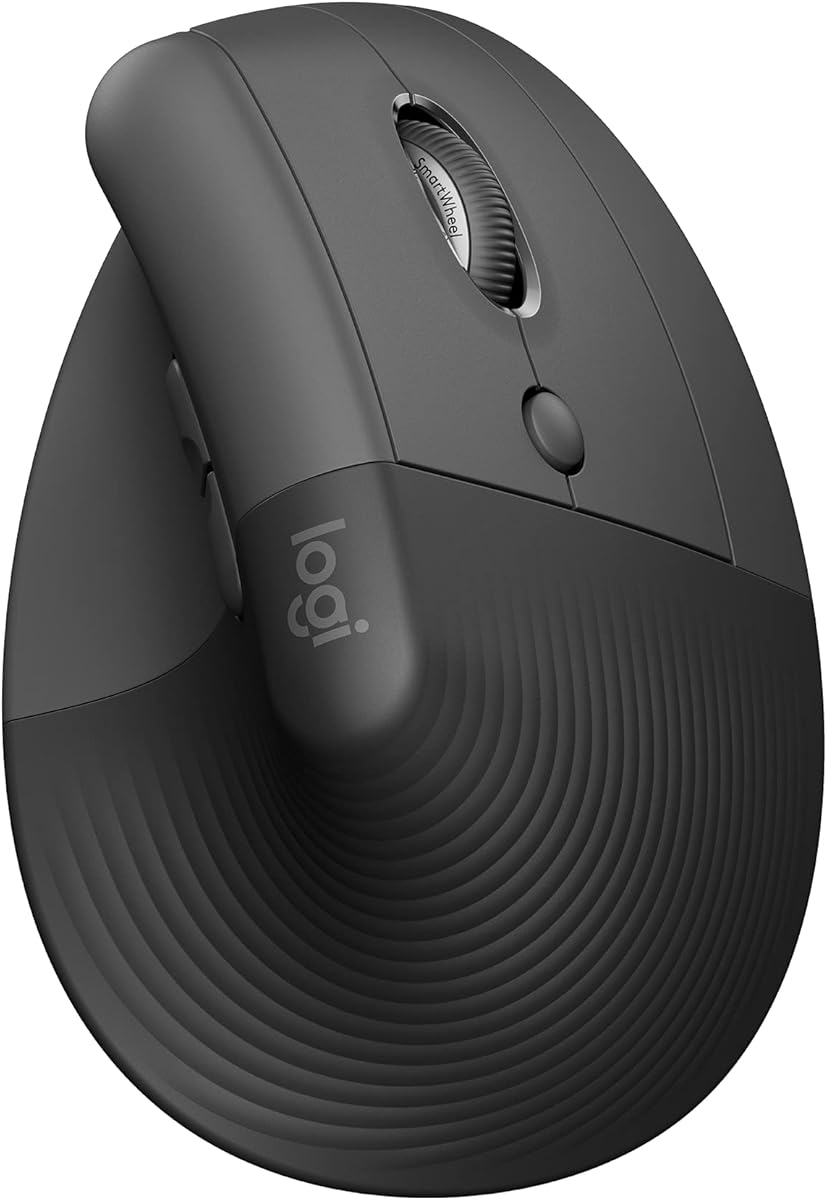
4. Logitech Lift Vertical - Best Vertical Wrist Relief

Logitech Lift Vertical

Logitech Lift Vertical

8.8/10★★★★☆

Logitech Lift is the pack’s clearest answer when productivity is being stolen by forearm twist and wrist fatigue rather than by slow scrolling. The 57-degree vertical posture puts a small-to-medium right hand into a handshake angle that many ergonomists prefer for long desk days. Softly textured grip and a snug thumb rest make the upright stance feel intentional instead of awkward after the first adaptation period. Quiet clicks and a SmartWheel keep the experience calm once you are deep in email triage or ticket queues.

  • 57° vertical for small–medium right hands
  • Quiet clicks, SmartWheel, customizable buttons
  • Bluetooth LE or Logi Bolt, up to 2 years battery
Check Price →
✓ Pros
  • 57° vertical posture meaningfully reduces forearm twist versus a flat mouse
  • Sized for small to medium right hands that feel drowned by larger verticals
  • Whisper-quiet clicks plus SmartWheel keep deep-work sessions calm and smooth
  • Bluetooth or Logi Bolt covers locked-down PCs and modern laptops alike
  • Multi-year battery life and ergo-certified design criteria inspire long-term trust
✕ Cons
  • Small-to-medium right-hand sizing can feel cramped for large hands
  • Vertical learning curve takes a few days before precision feels automatic
  • Not ambidextrous—left-handed workers need a different SKU or model family

Detailed review

Connectivity is more flexible than the Bluetooth-only MX Master 3S SKU in this pack: use Bluetooth Low Energy or the included Logi Bolt USB-A receiver. That dual path matters in enterprises that still distrust Bluetooth peripherals or in home offices with a desktop that has better USB than wireless radios. Claimed battery life stretches toward two years depending on use, which is excellent for a set-and-forget comfort mouse. Four of six buttons are customizable through Logi Options+, so you can map forward/backward, desk previews, or app actions without turning the device into a gaming keypad.

Hand size is the make-or-break detail. Lift is explicitly aimed at small to medium right hands. Large-handed users often prefer bigger vertical siblings or a trackball like the MX Ergo S. Left-handed users need a different orientation entirely. Give yourself three to five workdays before judging precision; the brain remaps aiming when the wrist no longer pronates flat, and early “I feel clumsy” sensations usually fade.

Productivity gains here are indirect but real. When your forearm hurts less at 3 p.m., you take fewer micro-breaks caused by discomfort and you stop hovering your hand in a compromised posture during long meetings. SmartWheel scrolling is smooth for documents, though MagSpeed on the MX Master 3S still wins raw scroll theater. Think of Lift as comfort-first infrastructure and the MX Master as speed-first infrastructure.

Materials include a high share of certified post-consumer recycled plastic in Graphite, and the design was developed against ergonomist criteria rather than vibes alone. That does not make it a medical device, and it will not replace clinician advice for injury recovery, but it is one of the most credible comfort-oriented wireless mice in mainstream retail. Pairing with an ergonomic keyboard multiplies the benefit; a vertical mouse under a flat cramped laptop keyboard is only half a posture fix.

Choose Lift when wrist and forearm comfort are the primary productivity bottleneck. Choose MX Master 3S when scroll speed, glass tracking, and multi-computer FLOW matter more than handshake posture. Choose MX Ergo S when you want to keep the hand almost still on a crowded desk. Those three form the premium productivity triangle in this roundup.

Adapting to a vertical handshake

Lower DPI slightly for the first two days so large muscle movements feel controllable, then raise sensitivity once aiming stabilizes. Keep the mouse close to your body’s midline so you are not reaching. If your shoulder fatigues, your chair height or desk height may need adjustment as much as the mouse itself.

Lift versus MX Ergo S

Lift still moves across the desk like a conventional mouse, just at a steeper angle. MX Ergo S parks in place and uses thumb-ball tracking. Pick Lift if you like pointer motion and want a vertical shell; pick Ergo S if desk space is tiny or shoulder travel itself aggravates you.

Check Price on Amazon →

We may earn a commission at no additional cost to you.

5. Logitech Productivity Plus - Best Hyper-Scroll Workhorse

Logitech Productivity Plus

Logitech Productivity Plus

10/10★★★★★

Logitech’s Productivity Plus Wireless Mouse wears its mission in the name: click more, scroll more, do more, with a sculpted right-hand shell and a nearly frictionless metal scroll wheel that hyper-fast spins through long pages. In a roundup obsessed with workflow, that scroll wheel is the star. Research rabbit holes, dense wikis, and multi-section reports stop feeling like wrist workouts. Two thumb buttons handle quick back/forward navigation in browsers and document histories, which is the kind of small acceleration you notice a hundred times a day.

  • Sculpted right-hand shape, two thumb buttons
  • Hyper-fast nearly frictionless metal scroll wheel
  • Unifying receiver, up to three years between battery changes
Check Price →
✓ Pros
  • Hyper-fast metal scroll wheel flies through long reports and research tabs
  • Sculpted right-hand grip with reachable thumb buttons speeds browser back/forward
  • Claimed multi-year battery endurance is a gift for set-and-forget office fleets
  • Unifying receiver can stay parked in a laptop without daily unplugging drama
  • Advanced optical tracking stays smooth on typical desk mats and wood surfaces
✕ Cons
  • Fewer deep customization options than MX Master / Options+ flagship workflows
  • Right-hand sculpted shell leaves left-handed users out
  • Battery longevity claims still depend on real usage, surface, and sleep habits

Detailed review

Power efficiency is the other headline. Logitech claims the mouse uses far less power than many comparable wireless mice and can go up to three full years between battery changes depending on conditions. For office fleets and forgetful humans, that is a support win. The tiny Unifying receiver is designed to live in a laptop port permanently so you are not constantly fishing a dongle out of a bag. Advanced optical tracking aims for smooth control on almost all common surfaces without requiring a special pad.

This is not an MX Master in disguise. You should not expect glass-grade 8000 DPI tracking, Quiet Clicks marketing, or the deepest Options+ FLOW theater from the flagship line. What you get instead is a focused productivity shape, excellent scroll speed, reachable thumb controls, and battery endurance that makes rechargeable anxiety irrelevant. For many analysts and writers, that trade is correct.

Ergonomics are classic sculpted right-hand rather than vertical. If your forearm complaints are mild, the guided palm posture and button placement may be enough. If you already have significant wrist issues, prioritize Lift or MX Ergo S. Left-handed users are out of luck on this silhouette. Software expectations should stay modest compared with MX Master 3S; buy Productivity Plus for the hardware scroll experience and longevity story first.

In ranking terms, Productivity Plus lands near the top of this pack because it nails the daily verbs of knowledge work—scroll, click, navigate—without dragging you into a complex ecosystem. It is a superb desk default when MagSpeed money or Bluetooth-only constraints make the MX Master 3S SKU less attractive, and a smarter buy than generic office mice that scroll like wet sandpaper.

Install the Unifying receiver, confirm the battery orientation, and spend ten minutes tuning cursor speed in your OS so the hyper-fast wheel and pointer acceleration feel matched. Once dialed, the mouse disappears into muscle memory, which is the highest compliment a productivity tool can earn.

Ideal user profile

Right-handed professionals who live in long documents and browser tabs, want a sculpted comfort shell, and prefer years-long battery life over USB-C charging rituals. Also strong for offices standardizing on Unifying receivers across Logitech peripherals.

When to upgrade to MX Master 3S instead

Move up if you need quieter clicks, glass tracking, multi-computer FLOW, or richer app-specific profiles. Stay here if hyper-scroll and battery endurance are your top two needs and you are happy with a simpler software story.

Check Price on Amazon →

We may earn a commission at no additional cost to you.

6. Logitech MX Ergo S - Best Stationary Trackball

Logitech MX Ergo S

Logitech MX Ergo S

9/10★★★★★

The Logitech MX Ergo S is the productivity pick for people who are tired of chasing a mouse across a crowded desk. Instead of sliding the entire shell, you spin a thumb trackball while the body stays planted. That change reduces shoulder travel and can be transformative on standing desks, cramped airplane trays with a portable monitor, and workstations buried in notebooks and coffee cups. The 20-degree tilt is designed for better forearm posture, with Logitech citing reduced muscle strain versus a flatter orientation, and the latest generation adds substantially quieter clicks.

  • Thumb trackball, 20° tilt, quieter clicks
  • Six programmable buttons, speed/precision toggle
  • Bluetooth or Logi Bolt, USB-C rechargeable
Check Price →
✓ Pros
  • Thumb trackball keeps the hand nearly still—ideal for limited desk real estate
  • 20° tilt and softer quieter clicks target forearm strain during long CAD-like sessions
  • Six programmable buttons plus Options+ Smart Actions unlock real workflow shortcuts
  • Speed/precision toggle is perfect when you jump from coarse navigation to pixel work
  • USB-C charging with a one-minute top-up keeps you productive during short breaks
✕ Cons
  • Trackball thumb technique has a real learning curve versus a conventional mouse
  • Stationary design is less ideal if you constantly move between rooms with a laptop
  • USB-C cable is not included, so plan a charger from your existing cable drawer

Detailed review

Control is dual-mode in spirit: tap a button to jump between speed tracking and high-precision tracking so coarse navigation and careful editing do not fight each other. Six programmable buttons plus Logi Options+ Smart Actions mean the trackball can become a shortcut surface for paste-plain-text, screenshot, desktop switch, or app macros. Dual wireless via Bluetooth or the included Logi Bolt receiver covers modern laptops and stricter PCs. USB-C charging delivers long claimed runtime and a one-minute quick charge for emergency top-ups—though the cable is not included.

The learning curve is honest. Thumb-ball aiming feels alien for a few days, then suddenly normal, then hard to live without if desk space is your constraint. Medium to large hands fit the sculpted shell best; very small hands may prefer Lift’s smaller vertical. Trackballs are less ideal if you constantly hotspot between rooms and want a mouse that travels in a laptop sleeve as a conventional pointer—though the Ergo S can travel, the skill you built assumes a stable parking spot.

Productivity math favors specialized work: CAD-like navigation, dense timeline editing, financial modeling on dual monitors, and any workflow where your non-mouse hand is busy on a numpad or Stream Deck. Because the shell barely moves, desk mats matter less and cable clutter around the mouse zone drops. Pairing with an ERGO-style split keyboard is a natural complete-setup path if you are rebuilding a comfort station from scratch.

Compared with MX Master 3S, you trade MagSpeed free-spin spectacle and glass-surface roaming for stillness and tilt comfort. Compared with Lift, you trade a moving vertical mouse for a stationary ball. All three are excellent; the right one depends on whether your bottleneck is scroll speed, handshake angle while still moving a mouse, or eliminating mouse travel altogether.

Materials include certified post-consumer recycled plastic content, and ergonomist certification messaging mirrors Logitech’s comfort line. Treat those as quality signals, not medical guarantees. If a clinician has you exploring trackballs specifically, MX Ergo S is the pack’s dedicated answer.

Trackball technique tips

Cup the shell lightly, keep shoulders relaxed, and use small thumb rolls rather than fingertip flicks that overshoot. Lower OS pointer speed for the first sessions, then raise it as precision returns. Clean the ball periodically so lint does not introduce stutter.

Who should skip the MX Ergo S

Skip it if you hate learning new pointer skills, need a conventional mouse for shared hot desks, or primarily want MagSpeed document flinging. Also skip if you need left-hand orientation—this is a right-hand trackball design.

Check Price on Amazon →

We may earn a commission at no additional cost to you.

7. wegear USB Wireless Mouse - Best Long-Battery Plug-and-Play

wegear USB Wireless Mouse

wegear USB Wireless Mouse

9.2/10★★★★★

wegear’s 2.4 GHz wireless mouse is a practical productivity tool for Windows-centric desks that want six buttons, adjustable DPI, and near-zero setup friction. Plug in the USB receiver—stored in the mouse bottom—and you are working without driver theater. Five DPI levels from 800 to 4000 let you slow down for careful cell selection or speed up for ultrawide monitors. Forward and backward side buttons streamline document and browser navigation on Windows, which is where this mouse feels most at home.

  • Contoured 6-button optical mouse
  • 800–4000 DPI in five steps
  • 2.4 GHz USB receiver, up to 24 months on AA
Check Price →
✓ Pros
  • Instant 2.4 GHz plug-and-play with the receiver stored under the mouse
  • Five DPI levels cover careful spreadsheet work and fast multi-monitor flicks
  • Side forward/backward buttons help Windows document and browser navigation
  • Up to two years of claimed AA battery life with sleep-mode conservation
  • Contoured shell and high click-cycle testing aim at all-day durability
✕ Cons
  • Forward/backward side buttons are not recognized on Mac according to the listing
  • AA battery is not included in the box
  • No Bluetooth path—USB receiver only, which can be awkward on ports-starved Ultrabooks

Detailed review

Battery life is a major selling point: up to twenty-four months on a single AA cell with sleep after inactivity and a low-battery LED. Note that the battery is not included, so budget a quality alkaline or lithium AA on day one. The contoured shell aims at all-day comfort rather than vertical therapy, and the manufacturer cites high click-durability testing for longevity confidence.

Mac users should read the fine print: forward/backward buttons are not recognized on Mac according to the listing, so you are mostly buying a solid two-button-plus-wheel experience on Apple machines. iPad use may require a USB-C adapter for the receiver. If your world is mixed Mac and Windows with deep side-button habits, CITLLA or Logitech Bluetooth options are cleaner. If your world is Windows laptops and office PCs, wegear’s simplicity is refreshing.

As a productivity purchase, wegear lands in the reliable-tools tier rather than the transformative-tools tier. It will not reinvent your workflow like MagSpeed or a trackball, but it will make a trackpad-free day more accurate and less fatiguing than clawing at a glassy laptop surface. For students, secondary PCs, and budget office builds, that is enough.

Place it against Amazon Basics and M185 as fellow straightforward wireless options. wegear offers more DPI granularity and side buttons than the M185, while M185 counters with ambidextrous usability and Logitech’s ecosystem trust. Amazon Basics emphasizes portability and encrypted wireless. None of the three replaces MX Master for power users; all three beat a dead trackpad.

Keep the receiver tagged if you travel between machines, and store it back in the mouse bay whenever you pack up. That single habit prevents the classic “mouse at home, dongle at work” failure mode that plagues every USB wireless peripheral.

Windows productivity checklist

Set DPI to 1600 as a starting point on a 1080p laptop, then bump to 2400–4000 on large external monitors. Use side buttons for browser navigation and consider OS mouse-key shortcuts for everything else the hardware cannot map.

Limitations to accept up front

No Bluetooth, no rechargeable pack, limited Mac side-button support, and no advanced software suite. Accept those limits and wegear feels honest; ignore them and you will be frustrated.

Check Price on Amazon →

We may earn a commission at no additional cost to you.

8. Yonktoo Mouse Jiggler - Best Keep-Awake Accessory

Yonktoo Mouse Jiggler

Yonktoo Mouse Jiggler

8.6/10★★★★☆

The Yonktoo unit is not a mouse in the pointing-device sense—it is a hardware mouse jiggler and mover designed to keep a PC awake with realistic, quiet motion and no software install. We include it because it ships in this productivity pack and because remote-work status tools are part of how some people manage always-on collaboration apps. Honesty matters more than category purity: this accessory does not improve ergonomics, scroll speed, or click comfort. It addresses a different problem—systems that lock, idle-out, or show you as away when you step off for coffee, a call with a notepad, or a dog walk.

  • Hardware mouse mover, no software required
  • Realistic random motion, whisper-quiet motor
  • Ultra-slim plug-and-play keep-awake accessory
Check Price →
✓ Pros
  • Hardware-only design needs no drivers or background apps to keep a PC awake
  • Realistic random motion looks more natural than crude jiggle loops
  • Whisper-quiet motor suits shared rooms and quiet home offices
  • Ultra-slim form factor does not dominate a crowded USB hub layout
  • Simple plug-and-play makes it useful for temporary remote-work status needs
✕ Cons
  • Not a pointing device—you still need a real mouse for actual work
  • Workplace and compliance policies may restrict keep-awake tools; check before use
  • Does not improve ergonomics, scrolling, or click comfort of your primary mouse

Detailed review

The pitch is stealthy simplicity. Plug it in and it works without drivers, pop-ups, or glowing carnival lights. Movement is described as smooth, random, and natural rather than a robotic circle that some monitoring setups can flag as obvious. A whisper-quiet motor aims to keep the gadget civilized in shared spaces. The ultra-slim body with a matte, carbon-fiber-like texture is designed to look intentional on a desk instead of like a toy.

Critical caveats belong up front. Many employers prohibit tools that falsify activity, and using a jiggler may violate acceptable-use policies even if the hardware is “undetectable” from a software-install perspective. ReviewConsensus is not telling you to evade workplace monitoring. If your workflow legitimately needs a machine to stay awake for long compiles, local renders, or device charging while screens sleep separately, prefer OS power settings, caffeinate-style utilities where allowed, or IT-approved keep-awake methods first. Use a jiggler only where policy permits and personal ethics feel clear.

As a complement to a real productivity mouse, Yonktoo can sit beside an MX Master or Lift on a remote desk when you need the computer present while you read paper notes or pace during phone calls. It will not replace those mice. If your idle problem is simply aggressive sleep settings on a personal machine, fix the power plan—it is free and cleaner. If your idle problem is corporate software with strict presence rules, talk to your manager or IT rather than assuming a silent gadget is a good career plan.

Build quality messaging emphasizes quiet operation and plug-and-play reliability. There is little to customize, which is the point. In our ranking it sits last among pack items for “best mice” intent because it is an accessory, yet it can still be the correct product for a narrow keep-awake job when used transparently and legally.

Pair it—if you use it at all—with a genuine ergonomic pointer from this guide so your hands get the comfort upgrade while your machine’s wake behavior is handled as a separate systems question.

Policy and ethics checklist

Read your employer handbook. Ask IT whether hardware keep-awake devices are allowed. Prefer official availability statuses and calendar blocks when you are actually away. Do not treat “undetectable” marketing as permission.

Better first fixes for idle PCs

Adjust sleep and display timers, use presentation modes during demos, and start long local tasks with the lid-open power settings you trust. Reach for a jiggler only after those paths fail and policy allows a hardware helper.

Check Price on Amazon →

We may earn a commission at no additional cost to you.

9. INPHIC Wireless Mouse - Best Visible Battery Indicator

INPHIC Wireless Mouse

INPHIC Wireless Mouse

8.6/10★★★★☆

INPHIC’s rechargeable wireless mouse focuses on a anxiety-reducing detail many office mice ignore: a visible battery-level indicator on top. Instead of guessing whether you have two hours or two minutes left before a demo, you glance at the shell. That alone can be worth the switch if you have ever had a mouse die mid-presentation. Silent left and right buttons support libraries, dorms, and open offices, while a broader thumb rest tries to support the hand more completely during long right-handed sessions.

  • Broader thumb rest, silent left/right clicks
  • 800–2400 DPI, six buttons
  • Rechargeable with top battery-level display
Check Price →
✓ Pros
  • Top-mounted battery indicator removes the surprise dead-mouse moment
  • Wider thumb rest improves support during long right-handed sessions
  • Silent buttons are considerate in dorms, libraries, and open offices
  • Built-in rechargeable cell and auto-sleep cut disposable-battery waste
  • Four DPI steps and six buttons cover everyday office navigation cleanly
✕ Cons
  • 2400 DPI ceiling is lower than several 4000–8000 DPI rivals in this pack
  • Bluetooth compatibility notes exclude some older Windows versions for BT mode
  • Right-hand bias means left-handed users should look elsewhere

Detailed review

Performance is calibrated for everyday productivity rather than enthusiast spectacle. Four DPI levels from 800 to 2400 cover basic laptop screens and moderate external monitors; users on large 4K canvases may prefer CITLLA or MX Master headroom. Six buttons provide standard navigation help. The built-in 400 mAh-class rechargeable battery and auto-sleep after minutes of idle time keep ownership simple. Charge roughly an hour when new before first serious use, as the manufacturer recommends.

Connectivity includes USB 2.4 GHz mode for broad plug-and-play compatibility and Bluetooth options with version caveats—Bluetooth guidance in the listing is friendlier to newer Windows and mobile/Mac setups than to legacy Windows 7/XP eras. Read the mode notes if your office PC is old. For most 2026 laptops, either path is fine; for ancient desktops, stick to the USB receiver.

Ergonomics improve on flat travel mice via the wider thumb support and right-hand contour, but this is not a vertical handshake tool. If wrist pain is already loud, Lift or MX Ergo S remain the better medicine-shaped options. If you want silent rechargeable convenience with a battery gauge at a friendly tier, INPHIC makes a coherent case.

Against Amazon Basics, INPHIC wins on silence, rechargeability, and battery visibility. Against CITLLA, it trades away flying scroll and higher DPI ceilings for a clearer power gauge and a simpler feature story. Against Logitech’s upper tier, it lacks MagSpeed polish and Options+ depth but also avoids Bluetooth-only accessory gaps and flagship complexity.

Dial DPI to 1200 or 1600 for writing days, keep clicks gentle to preserve the silent switches’ courtesy, and top up when the indicator dips rather than waiting for death. That tiny habit is the productivity feature—fewer hard stops in your afternoon flow.

Who should choose INPHIC

Right-handed students, office workers, and hybrid folks who want quiet rechargeable convenience and hate surprise power loss. Skip it if you need 4000+ DPI, horizontal thumb wheels, or vertical ergonomics.

Charging etiquette

Use the indicator as your ritual: glance at the start of each remote day. A short top-up during lunch beats a twenty-minute emergency charge when a client is waiting on a shared whiteboard link.

Check Price on Amazon →

We may earn a commission at no additional cost to you.

10. Amazon Basics Portable Wireless Mouse - Best Compact Travel

Amazon Basics Portable Wireless Mouse

Amazon Basics Portable Wireless Mouse

8.6/10★★★★☆

Amazon Basics Portable Wireless Computer Mouse is the spare-drawer hero: compact, ergonomic enough for travel days, and simple in the way that survives family tech support. Measuring roughly pocketable dimensions, it slips beside a laptop charger without demanding a hard case. Adjustable DPI and a contoured shape make it a clear upgrade over a trackpad when you are working from a hotel desk or kitchen table. The 2.4 GHz link claims about thirty-three feet of range so you can lean back without yanking a cable.

  • Compact ergonomic portable shell
  • 2.4 GHz optical, adjustable DPI
  • AES-128 encrypted wireless, ~33 ft range
Check Price →
✓ Pros
  • Compact portable size slips into a laptop sleeve without a dedicated pouch
  • Adjustable DPI and ergonomic contour beat a bare trackpad for travel days
  • AES-128 encryption is a thoughtful touch for shared or public wireless environments
  • Stable 2.4 GHz link with roughly 33 feet of claimed range for flexible seating
  • No-frills Amazon Basics reliability for spare-drawer and guest-desk duty
✕ Cons
  • Feature set is intentionally basic—no silent-click marketing, no hyper scroll
  • Compatibility messaging centers on Windows; Mac users should verify before relying on it
  • Not a vertical or advanced ergo design for users already fighting wrist pain

Detailed review

A notable inclusion at this tier is AES-128 encryption for the wireless connection—an uncommon talking point on budget office mice and a small comfort on shared networks or dense apartment Wi-Fi environments. Compatibility messaging emphasizes Windows 7/8/10-class PCs; Mac and broader laptop users should verify current behavior on their OS before making this their only mouse. Ease of use is the brand promise: no elaborate software garden to tend.

Productivity expectations should stay grounded. You will not get MagSpeed, silent-click marketing, multi-device Bluetooth switching, or vertical wrist correction. You will get a dependable pointer that makes selecting text and managing windows less fiddly than a trackpad, which is still the highest-leverage upgrade many casual users ever make. For a guest office mouse or backpack backup, that is the correct brief.

Compared with M185, Amazon Basics is similarly straightforward; M185 offers stronger ambidextrous heritage and Logitech warranty comfort, while Amazon Basics leans into portability messaging and encrypted wireless. Compared with wegear, you trade some side-button productivity tricks for a more compact travel story. None of these basic options dethrone MX Master 3S for serious daily drivers, and they should not try to.

If you are building a primary productivity station, spend your attention on the top picks. If you need a second mouse that can disappear into a sleeve and just work on a Windows laptop, Amazon Basics remains an easy recommendation inside this pack.

Install the receiver, set DPI to a medium step, and take a five-minute cursor calibration pass on the surface you actually use when traveling—hotel gloss and cafe laminate behave differently than a desk mat at home.

Travel kit pairing

Store the receiver in a labeled pouch with the mouse. Add a small foldable mouse pad if you often work on glossy tables. Keep this as backup even if your main mouse is an MX Master so a lost dongle never ends your workday.

When to spend up

Upgrade when you notice hand fatigue, need silent clicks for shared spaces, or want multi-device Bluetooth without carrying a receiver. Those needs map to Lift, CITLLA, or MX Master 3S elsewhere in this guide.

Check Price on Amazon →

We may earn a commission at no additional cost to you.

Best Mice for Productivity in 2026 for Faster Desk Work

How to Choose a Mouse for Productivity

Match the bottleneck, not the marketing

Before you fall for DPI bragging rights, name the thing that slows you down. If you drown in long documents, prioritize MagSpeed-style or hyper-fast free-spin wheels. If your forearm aches, prioritize vertical angle or trackball stillness over scroll theater. If you hop between a work MacBook and a home Windows PC, prioritize multi-device switching. If you only need to escape a trackpad on a budget laptop, a compact ambidextrous mouse can be the entire solution.

Productivity is cumulative. Shaving a second off every scroll and reducing afternoon discomfort compounds across a year of workdays. That is why comfort and navigation features usually beat exotic sensor numbers for office use.

Scroll systems that change document work

Standard ratchet wheels are fine for short pages and precise line movement. Electromagnetic MagSpeed and other hyper-fast metal wheels excel when you regularly travel hundreds of pages. Horizontal thumb wheels or tilt wheels matter when your sheets are wide—finance, capacity planning, and timeline tools especially. SmartWheel-style designs that auto-shift between precision and freestyle scrolling try to give you both modes without a manual switch.

Ergonomics: sculpted, vertical, or trackball

Sculpted right-hand mice like MX Master 3S and Productivity Plus guide the palm without a full handshake rotation. Vertical mice like Lift reorient the forearm to reduce pronation. Trackballs like MX Ergo S keep the shell still and move the pointer with the thumb. None of these replaces medical care, but choosing the geometry that matches your symptoms is the highest-leverage comfort decision in the category.

Hand size matters. Lift is tuned for small to medium right hands; larger verticals and the Ergo S suit bigger hands. Left-handed users should treat ambidextrous models like the M185 as first-class options instead of forcing a right-hand shell.

Connectivity and battery realities

Bluetooth keeps ports free and shines on modern laptops, but Bluetooth-only SKUs can strand you on machines with flaky radios. USB receivers still win on many desktops and locked-down PCs—just store the dongle religiously. Dual-mode mice that offer both paths are the lowest-stress choice for hybrid workers.

Rechargeable USB-C mice fit cable-rich desks; multi-year AA mice fit forgetful humans and fleets. Visible battery indicators, like on the INPHIC, reduce surprise failures either way. Always note what the box omits: the MX Master 3S Bluetooth edition in this pack includes neither receiver nor charging cable, and several AA mice ship without a cell.

Silence, software, and multi-computer flow

Quiet clicks are a productivity feature in open offices because they reduce self-conscious hesitation and neighbor fatigue. Software such as Logi Options+ can multiply hardware value with app-specific profiles and cross-computer FLOW, but only if you are willing to install and tune it. If you cannot install software, judge each mouse on its hardware defaults alone.

Accessories like mouse jigglers address presence and sleep behavior, not pointing quality. Treat them as policy-sensitive tools, not as substitutes for an ergonomic mouse.

Frequently Asked Questions

01

What makes a mouse good for productivity versus gaming?

Gaming mice optimize for low latency, light clicks, and high polling for fast aim. Productivity mice optimize for scroll efficiency, quiet operation, multi-device workflows, button customization for apps, and shapes you can live in for eight hours. A high DPI number can help on large monitors in either category, but it is rarely the main productivity differentiator compared with MagSpeed-style scrolling, horizontal navigation, and ergonomics.

02

Is the Logitech MX Master 3S worth it if the Bluetooth edition omits a receiver and cable?

Yes—if your computers have solid Bluetooth and you already own a USB-C cable. The MagSpeed wheel, Quiet Clicks, glass tracking, and Options+ workflow features remain excellent. If you need a receiver in the box or dislike buying a cable separately, consider Lift (includes Logi Bolt), Productivity Plus (Unifying receiver), or a dual-mode option like CITLLA instead.

03

Should I get a vertical mouse for desk work?

Choose a vertical mouse such as the Logitech Lift when forearm pronation and wrist discomfort are your main complaints and you can invest a few days in relearning pointer control. If your hands feel fine and you mainly want faster document navigation, a sculpted mouse with a better scroll wheel may improve your day more. Trackballs are a third path when desk space or shoulder travel is the issue.

04

Are trackball mice actually better for productivity?

They can be, for the right desk. A trackball like the MX Ergo S keeps your arm planted, which helps on crowded surfaces and may reduce shoulder movement. The tradeoff is a learning curve and a different aiming style. People who edit timelines, navigate large canvases, or hate clearing mouse space often love them; people who share hot desks and want familiar sliding mice often do not.

05

What DPI should I use for office work?

Most productivity users land between 800 and 1600 on laptop screens and between 1600 and 3200 on large external monitors, then fine-tune by feel. Higher ceilings like 4000–8000 are useful as headroom, especially on glass or multi-monitor spans, but cranking maximum DPI on a small screen can make precise text selection harder. Adjust OS pointer speed alongside hardware DPI rather than using only one lever.

06

Bluetooth or USB receiver for a work mouse?

Bluetooth wins when ports are scarce and your OS handles mice reliably. USB receivers win on older desktops, some enterprise images, and environments where Bluetooth is flaky or restricted. Dual-mode mice are ideal if you live in both worlds. Whichever you choose, label and store dongles; lost receivers are the top ownership failure mode for wireless office mice.

07

Do quiet clicks matter for productivity?

In shared spaces, yes. Loud clicks create social friction and can make you hesitate during rapid UI work. Quiet switches on mice like the MX Master 3S, Lift, CITLLA, and INPHIC keep focus on the task instead of the noise. If you work alone in a closed office and love tactile clack, silence is optional—but it rarely hurts.

08

Is a mouse jiggler a good productivity tool?

Only for a narrow, policy-permitted keep-awake need. The Yonktoo device can keep a PC active without software, but it does not help you type, scroll, or aim. Many workplaces forbid activity-spoofing tools. Prefer power-management settings and honest availability statuses first; use a jiggler only when rules allow and the use case is legitimate.

09

Can left-handed users find a productivity mouse in this guide?

Yes. The Logitech M185 is explicitly ambidextrous and is the safest pack pick for left-handed workers. Most sculpted and vertical options here are right-hand biased. Left-handed buyers should treat right-hand verticals and trackballs as skip-list items unless a left-specific SKU is available outside this pack.

10

How often should I replace a productivity mouse?

Replace when tracking stutters after cleaning, switches double-click, or discomfort persists despite good desk setup. Many office mice last years—especially AA models with multi-year battery claims and Logitech devices with long hardware warranties. Upgrading earlier makes sense when a new scroll system or ergonomic geometry would remove a daily friction you can already name.

Conclusion

For most people chasing the best mice for productivity in 2026, start with the Logitech MX Master 3S Bluetooth edition if you want the strongest blend of MagSpeed scrolling, quiet clicks, glass-capable tracking, and multi-device software depth—and you are comfortable supplying your own USB-C cable without a receiver in the box. Choose the Logitech Lift when wrist and forearm comfort should lead. Choose the Logitech Productivity Plus when hyper-fast scrolling and multi-year battery endurance matter more than flagship extras.

From there, specialize without overthinking. MX Ergo S is the stationary trackball for crowded desks, CITLLA is the spreadsheet-friendly multi-device value pick with a horizontal thumb wheel, and M185 remains the ambidextrous simplicity champion. wegear, INPHIC, and Amazon Basics cover capable everyday and travel tiers, while the Yonktoo jiggler is an optional keep-awake accessory with serious policy caveats—not a substitute for a real pointer.

Match the mouse to the bottleneck in your day, confirm connection and in-box contents, then give any new geometry a full work week before you judge it. The right productivity mouse should disappear into your routine while your documents, spreadsheets, and browsers simply feel easier to drive.