Expert Review & Guide

Best Laptops for Graphic Design 2026: Color, Gamut & RAM

Graphic design rewards machines that treat color as a first-class tool, not a marketing checkbox. In 2026 the gap between a laptop that merely looks bright and one that holds predictable sRGB or DCI-P3 output is still the difference between client-ready comps and surprise shifts at print or on a calibrated desktop. This roundup ranks Amazon-ready Windows options by how they handle display gamut, color volume, and the RAM you actually burn when Photoshop, Illustrator, Figma, browser tabs, and a cloud sync client all stay open.

We also treat stylus input as optional, not mandatory. Most logo, layout, and UI work lives on keyboard and mouse or a separate tablet; a few machines here ship with pen support or dual OLED canvases that make on-device sketching genuinely useful. You will see gaming chassis next to thin Copilot+ ultrabooks because design pipelines vary—some need GPU acceleration for 3D mockups and After Effects, others need quiet battery life and a clean wide-gamut panel for brand systems.

Every product below comes from our current pack only. Ratings and specs reflect listed configurations. We call out weak HD panels, tight 8GB memory, and integrated graphics honestly so you can match spend to the work that actually pays the bills.

Top graphic design laptop picks for color-critical work

Best Color Canvas

ASUS Zenbook Duo Laptop

★★★★☆8.8/10
ASUS Zenbook Duo Laptop
  • Dual 14" Lumina OLED panels with Pantone-validated 100% DCI-P3 coverage
  • 32GB LPDDR5x RAM keeps layered PSD files and browser design systems fluid
  • ASUS Pen 2.0 included when you want stylus sketching without buying a tablet
Check Price →
Best High-Res Workspace

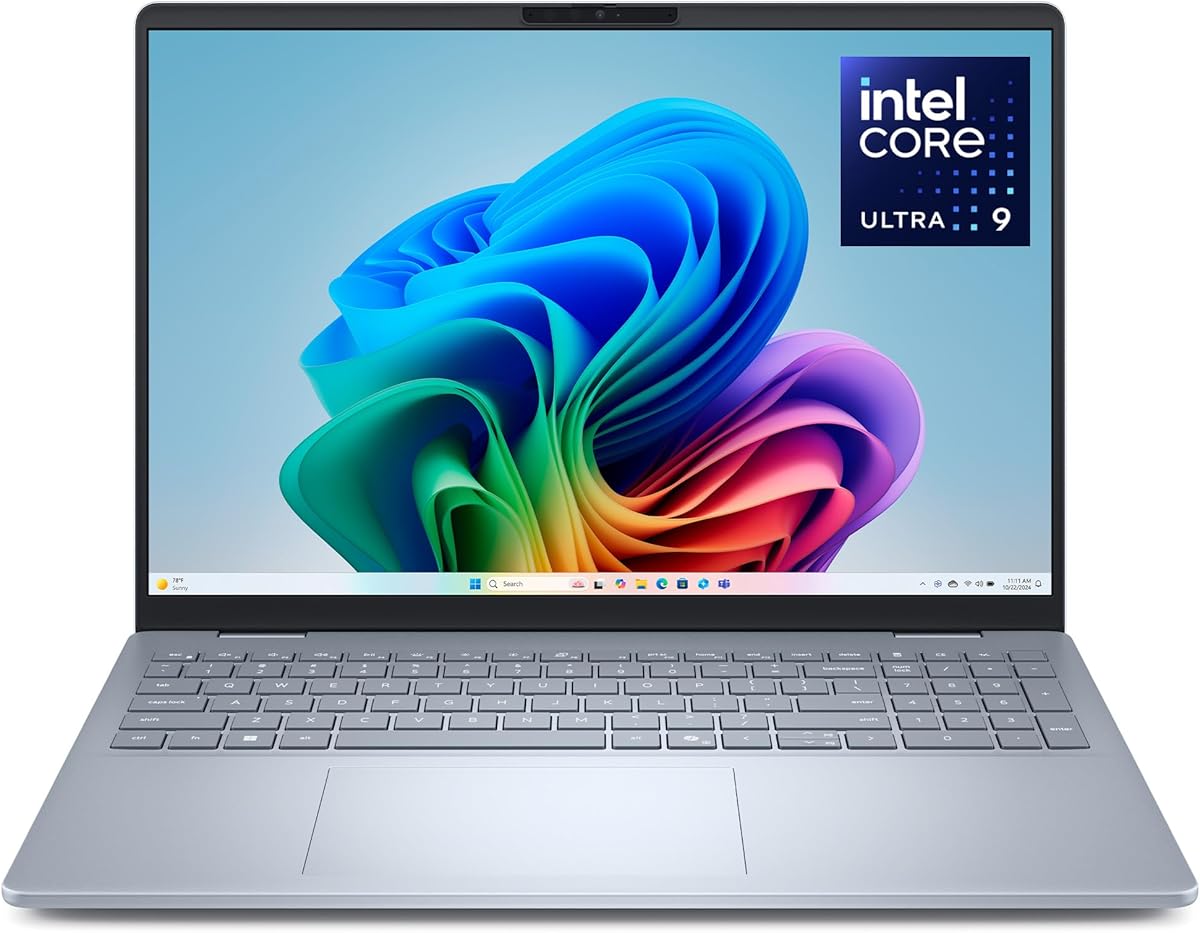
Dell 16 Plus Laptop QHD+

★★★★☆8.4/10
Dell 16 Plus Laptop QHD+
  • 2560x1600 16:10 canvas gives more vertical room for toolbars and artboards
  • 32GB LPDDR5X suits multi-app design days without a discrete GPU tax
  • Intel Core Ultra 9 + Arc graphics for AI-assisted edits and cooler all-day sessions
Check Price →

As an Amazon Associate we earn from qualifying purchases. We may earn a commission at no additional cost to you.

Graphic design laptop comparison: gamut clues, memory, and creative fit

Use this table as a fast filter before the deep reviews. Specs emphasize the three strings designers ask about first: panel usefulness for color work, memory headroom for open libraries, and compute that keeps exports moving. No prices here—match the configuration to your pipeline, then read the tradeoffs on gamut claims, stylus optional workflows, and when a gaming chassis is worth the bulk.

#ProductSpecificationsScore
1
  • 16" FHD+ 165Hz ACR film panel for creation and entertainment
  • 16GB DDR5-5600 with RTX 5060 Blackwell GPU acceleration
  • Intel Core i7-14650HX and 1TB Gen 4 SSD for heavy asset libraries
9
2
  • 15.6" FHD anti-glare touchscreen for pinch-zoom layout checks
  • Up to 40GB DDR4 RAM for browser-heavy brand systems
  • Intel Core i5 with Iris Xe and large 2TB SSD + docking storage set
8.6
3
  • 15.6" FHD IPS everyday creative canvas
  • 16GB DDR5 upgradeable toward 64GB for growing libraries
  • Ryzen 5 6600H with Radeon 660M for light photo and UI work
8.6
4
  • 15.6" FHD display with AMD Radeon integrated graphics
  • 16GB memory with dual-channel upgrade path toward 64GB
  • Ryzen 7 5825U eight-core CPU and 1TB NVMe SSD storage
9.2
5
  • 15.6" HD touchscreen—entry visuals, not wide-gamut proofing
  • 8GB LPDDR5 RAM suits simple Canva-to-PSD student tasks
  • Ryzen 3 7320U with 256GB SSD for light coursework design
9
6
  • 16" QHD+ 2560x1600 16:10 high-res design workspace
  • 32GB LPDDR5X for multi-document Adobe and Figma sessions
  • Intel Core Ultra 9 288V Copilot+ PC with Intel Arc graphics
8.4
7
  • 16" WUXGA IPS with listed 100% sRGB color coverage
  • 32GB DDR5 and 1TB Gen 4 SSD for large project archives
  • RTX 5060 Laptop GPU plus Ryzen 7 260 for GPU-heavy design
8.8
8
  • 14" WUXGA 1920x1200 portable creative display
  • 16GB LPDDR5X with long-battery Copilot+ AI features
  • Core Ultra 7 256V and Intel Arc 140V for on-the-go edits
9.2
9
  • Dual 14" 3K OLED touch screens, 100% DCI-P3 Pantone validated
  • 32GB LPDDR5x RAM and 1TB SSD for dual-canvas workflows
  • Core Ultra 9 285H with included ASUS Pen 2.0 stylus option
8.8
10
  • 15.6" FHD 120Hz panel for smoother scrolling of large boards
  • Intel Core i5-1334U with Intel UHD Graphics for light layouts
  • 512GB SSD everyday storage with ComfortView blue-light tuning
8.6

1. ASUS ROG Strix G16 (2025) - GPU Workhorse for

ASUS ROG Strix G16 (2025) Gaming Laptop

ASUS ROG Strix G16 (2025) Gaming Laptop

9/10★★★★★

The ROG Strix G16 (2025) is the pack’s clearest answer when your graphic design week includes more than flat logos. Adobe’s GPU-accelerated effects, Blender-based product viz, and Unreal or Unity moodboards all lean on a discrete GPU, and the RTX 5060 Laptop GPU on Blackwell architecture is the reason this chassis belongs in a design roundup instead of living only in gaming lists. DLSS 4 and Max-Q matter less for print posters than for interactive comps, but the same silicon shortens wait times when you scrub 4K footage inside a motion-heavy brand film.

  • 16" FHD+ 165Hz display with ACR film for contrast and lower glare
  • Intel Core i7-14650HX, 16GB DDR5, 1TB Gen 4 SSD
  • NVIDIA GeForce RTX 5060 Laptop GPU with DLSS 4 and Max-Q
Check Price →
✓ Pros
  • RTX 5060 accelerates GPU filters, 3D mockups, and export queues
  • Vapor-chamber cooling sustains long render or batch days better than thin laptops
  • 165Hz 16:10 FHD+ screen feels snappy when panning huge artboards
  • 1TB Gen 4 SSD fits font libraries, stock packs, and project archives
  • Stealth Mode can kill RGB lighting for client-facing studio sessions
✕ Cons
  • 16GB DDR5 can feel tight once Photoshop, Chrome, and After Effects share the machine
  • Gaming-tuned panel is not marketed as a wide-gamut proofing display
  • Chassis bulk and fan noise are less ideal for coffee-shop brand workshops

Detailed review

Display strategy here is honesty over hype. You get a 16-inch FHD+ 16:10 panel at 165Hz with ASUS’s ACR film for contrast and glare control. That is excellent for motion smoothness and desk comfort, yet it is not the same claim as a Pantone-validated DCI-P3 OLED. Treat on-laptop color as a working preview: soft-proof to a calibrated external monitor when brand guidelines demand tight Delta E. For many freelancers shipping digital-first assets, the Strix’s clarity and refresh rate still beat muddy 60Hz office panels.

RAM is the honest bottleneck. Sixteen gigabytes of DDR5-5600 is workable for Illustrator-plus-Photoshop days if you close unused tabs, but modern design browsers and Figma desktop clients chew memory aggressively. If your typical session stacks Lightroom catalogs, Slack, Notion, and a local static server, plan external RAM discipline or consider the 32GB Nitro and Dell options in this pack. Storage is kinder: a 1TB Gen 4 SSD absorbs Adobe caches and stock footage without constant pruning.

Thermals are a quiet design feature. ROG’s vapor chamber, tri-fan layout, and liquid metal on the chipset keep the i7-14650HX from throttling during long export nights. That reliability is why some studios still prefer thick gaming shells over silent ultraportables for deadline weeks. Stealth Mode turns off the surround RGB light bar so you can sit in a client review without looking like a LAN party.

Stylus support is optional and external: this is a keyboard-first creator machine. Pair a separate Wacom or iPad if you sketch, and use the Strix as the color-and-compute hub on HDMI or USB-C to a reference display. Wi-Fi 7 helps when you pull large Dropbox or Frame.io packages mid-session. Overall, choose the Strix G16 when gamut perfection is handled on a desk monitor and you need GPU stamina more than OLED romance.

Who should buy the Strix G16 for design

Motion designers, packaging teams doing occasional 3D, and hybrid game-art freelancers who already own a calibrated desktop monitor will get the most from this configuration. If your entire color pipeline must live on the laptop lid alone, look at the Zenbook Duo or Nitro’s 100% sRGB claims first.

Students building a showreel with After Effects will appreciate the RTX 5060 more than another thin Iris Xe machine, provided they accept the backpack weight and the 16GB ceiling for a while.

Color workflow tip with a gaming panel

Create a dual-display habit: Strix for tools and scrubbing, external wide-gamut screen for final brand checks. Soft-proof CMYK or Display P3 in Adobe apps rather than trusting laptop brightness alone. The ACR film helps in bright rooms, but ambient light still skews judgment—dim the desk lamps when signing off print files.

Check Price on Amazon →

We may earn a commission at no additional cost to you.

2. Lenovo IdeaPad 15.6” FHD Touchscreen - RAM-Heavy Browser Designer

Lenovo IdeaPad 15.6” FHD Touchscreen Laptop

Lenovo IdeaPad 15.6” FHD Touchscreen Laptop

8.6/10★★★★☆

This Lenovo IdeaPad configuration exists for a very specific graphic design reality: the bottleneck is often memory, not shaders. Brand systems live in Chrome, Figma, Google Drive, Notion, and email while Photoshop waits in the background. Forty gigabytes of DDR4 is the headline feature, and it is the reason this machine outranks thinner 16GB peers for agency account designers who never close tabs. Integrated Iris Xe will not win 3D contests, but it will keep vector and raster UI work responsive if you avoid heavy GPU effects.

  • 15.6" FHD LED anti-glare touchscreen at 1920x1080
  • Up to 40GB DDR4 RAM and 2TB SSD plus docking storage set
  • 10-core Intel Core i5 with Intel Iris Xe Graphics
Check Price →
✓ Pros
  • Exceptional RAM headroom for Figma tabs, Slack, and Adobe side-by-side
  • Touchscreen helps quick markups and client annotation sessions
  • Windows 11 Pro and Office inclusion suit small-studio admin work
  • Huge combined storage reduces constant external drive juggling
  • SD card reader simplifies camera dumps from product shoots
✕ Cons
  • Iris Xe is not a substitute for RTX when GPU filters dominate
  • FHD panel lacks the wide-gamut marketing of OLED or 100% sRGB creator screens
  • Bundle-style listing means verify exact RAM and storage modules on arrival

Detailed review

On color, set expectations. The 15.6-inch FHD anti-glare panel is a practical workspace with narrow bezels and touch input, not a proofing instrument. Touch is underrated for design reviews—pinch to inspect logo clear space, swipe through moodboard PDFs, and tap to highlight sticky notes during Zoom shares. Still, for packaging that must match Pantone chips, plan an external calibrated monitor. The anti-glare coating helps fluorescent office lighting more than it expands gamut.

Storage generosity changes day-to-day hygiene. A 2TB SSD plus the docking-station storage set in the listing means font collections, client archives, and raw photos can stay local. That reduces Dropbox thrash, which itself eats RAM and CPU. Windows 11 Pro is useful if you join an Active Directory studio or need BitLocker habits; Office lifetime licensing in the bundle covers decks and estimates without another subscription argument.

Ports matter for designers who still shoot products: USB-C, dual USB-A, HDMI, headphone combo, and an SD reader cover most desks without a dongle farm. Wi-Fi 6 is fine for cloud libraries. Battery claims up to about ten hours with rapid charge fit classroom and coworking days better than the ROG chassis, though sustained Adobe exports will drain faster than Office work.

Stylus remains optional. The touchscreen accepts finger input; if you want pressure-sensitive illustration, bring a dedicated tablet. Treat this IdeaPad as the RAM-and-storage workhorse for layout, social templates, and light retouching. Skip it if your portfolio depends on GPU ray tracing or if you need factory-stated wide color coverage on the lid alone.

Best fit inside a design team

Account designers, presentation specialists, and e-commerce catalog editors who live in browser tools will feel the 40GB difference immediately. Junior illustrators who need Wacom-class pressure response should budget a tablet rather than expecting the touchscreen to replace one.

Compare against the NIMO and MALLRACE if you want upgradeable RAM sockets with clearer DIY paths; this listing’s strength is the large configured memory and storage bundle for people who hate opening chassis.

Soft-proofing on a standard FHD panel

Enable Windows night light carefully—warm shifts can hide brand blues. Calibrate with a cheap colorimeter if the lid is your only screen, and keep brightness consistent between morning and evening sessions. Export proof PDFs for stakeholders instead of relying on screenshot colors from chat apps.

Check Price on Amazon →

We may earn a commission at no additional cost to you.

3. NIMO 15.6" AI-Creator-Laptop - Upgradeable Creator Starter

NIMO 15.6" AI-Creator-Laptop

NIMO 15.6" AI-Creator-Laptop

8.6/10★★★★☆

NIMO positions this 15.6-inch machine as an AI-creator laptop, and the honest reading for graphic designers is simpler: you get a Ryzen 5 6600H with six performance-oriented cores, 16GB of DDR5, and an upgrade story that many sealed ultrabooks refuse to tell. Dual SO-DIMM slots and an M.2 2280 bay mean you can start lean and grow toward 64GB RAM and multi-terabyte storage when client folders explode. That upgradeability is a design career feature, not a footnote.

  • 15.6" FHD IPS display for everyday creative tasks
  • 16GB DDR5 with dual SO-DIMM path up to 64GB
  • Ryzen 5 6600H and Radeon 660M with 512GB PCIe SSD
Check Price →
✓ Pros
  • H-series Ryzen cores sustain multitasking better than many U-series thin laptops
  • True upgrade path for RAM and SSD as libraries grow
  • 100W USB-C PD charging simplifies cafe and studio power bricks
  • Two-year warranty and US-oriented support claims reduce risk for students
  • Radeon 660M handles light photo edits and casual 1080p creative play
✕ Cons
  • 512GB base storage fills quickly with RAW and Adobe caches
  • No discrete RTX-class GPU for serious 3D or heavy effects
  • FHD IPS is not sold as a calibrated wide-gamut design panel

Detailed review

Radeon 660M on RDNA 2 covers light photo editing, UI mockups, and 1080p casual gaming between deadlines. It will not match the RTX 5060 machines for GPU-heavy pipelines, yet it outperforms anemic UHD graphics when you apply moderate Lightroom edits or scrub short Reels. Pair it with external storage early; the 512GB SSD is the first ceiling you will hit once fonts, mocks, and Premiere scratch disks accumulate.

Color and gamut stay in the everyday FHD IPS lane. Expect clear documents and decent web graphics, not factory DCI-P3 promises. Designers who deliver mostly social and presentation work can live here if they soft-proof on a better screen before print. Remote workers will like the 53.58Wh battery with a separate 100W PD charger—USB-C power reduces cable clutter when you already carry a tablet and camera card reader.

Multitasking is the intended sweet spot: meetings, chat, AI assistants, spreadsheets, and design apps sharing the same session. The 6600H’s boost behavior up to 4.5GHz helps when Illustrator redraws complex vectors. Compared with the HP Ryzen 3 entry model in this pack, NIMO offers clearer headroom for people who know they will still be designing two years from now.

Stylus is optional and external. Nothing in the listing replaces a dedicated pen display; use finger-free keyboard workflows or add a Bluetooth tablet. Choose NIMO when budget and upgrade sockets matter more than OLED color theater, and plan a RAM bump once you regularly cross sixteen gigabytes in Task Manager.

Upgrade sequence for designers

First expand the SSD so caches and libraries stop fighting the OS. Second, move to 32GB or 64GB RAM when Figma and Photoshop coexist all day. Keep the Radeon GPU until 3D work forces a discrete-GPU replacement machine.

Document your thermal paste and screw map before opening the chassis; warranty terms still apply, so follow the manufacturer guidance and avoid rushed teardowns before a client deadline.

Versus sealed Copilot+ thin laptops

Acer Aspire 14 and Dell 16 Plus win on polish, battery marketing, and higher-res panels. NIMO wins if you want socketed memory growth and H-series sustained CPU without paying for RTX. Match the choice to whether you value upgrade DIY or grab-and-go refinement.

Check Price on Amazon →

We may earn a commission at no additional cost to you.

4. MALLRACE Gaming Laptop - Budget Multitask Layout Machine

MALLRACE Gaming Laptop

MALLRACE Gaming Laptop

9.2/10★★★★★

MALLRACE’s LX15PRO-style Ryzen 7 5825U configuration punches above its branding for layout-centric graphic design. Eight cores and sixteen threads still matter when you package InDesign books, export PDF/X proofs, and keep research tabs open. The gaming label is mostly marketing flavor—what you actually get is an AMD laptop with Radeon graphics, a backlit keyboard, and enough CPU to survive student and freelance queues without an RTX tax.

  • 15.6" FHD display with AMD Radeon graphics
  • 16GB memory with upgrade path toward 64GB dual-channel
  • Ryzen 7 5825U 8-core/16-thread CPU and 1TB NVMe SSD
Check Price →
✓ Pros
  • Eight Zen cores keep Illustrator and browser research responsive
  • 1TB SSD is generous at this tier for asset libraries
  • Numeric keypad helps spreadsheet-driven packaging quotes
  • Wi-Fi 6, full-function Type-C, HDMI, and TF card slot cover desk basics
  • Strong buyer rating suggests solid everyday reliability for the price band
✕ Cons
  • Integrated Radeon is not a discrete creator GPU
  • FHD panel lacks stated wide-gamut or Pantone validation
  • Lesser-known brand means fewer local walk-in service options than Dell or HP

Detailed review

Memory starts at 16GB with a story that supports dual-channel upgrades toward 64GB and SSD growth toward 2TB. Designers who buy mid-tier Amazon brands specifically for that socketed future should confirm the exact module type on arrival, then upgrade before the machine feels slow. One terabyte of NVMe out of the box is already kinder than 256GB entry devices for font and mock libraries.

Visuals are FHD with Radeon-driven smoothness for multimedia and daily work. That is adequate for UI wireframes, social templates, and classroom critiques. It is not the machine you buy for factory 100% DCI-P3 confidence. Soft-proof on a better display when brand colors are contractual. The 15.6-inch size remains comfortable for toolbars without the dual-screen complexity of the Zenbook Duo.

I/O is practical: dual USB 3.2, HDMI, full-function Type-C, audio jack, TF card, webcam, and Wi-Fi 6. The numeric keypad speeds estimate sheets and print quantity math. Battery capacity around the mid-50Wh class with a few-hour charge cycle suits campus hopping more than all-day unplugged After Effects. Fans and chassis quality will not match ROG vapor chambers, so expect thermal limits on long exports.

Skip the stylus expectation—this is keyboard and mouse territory. Choose MALLRACE when you need Ryzen 7 multitasking and 1TB storage without paying for OLED or RTX, and you accept that color-critical finals belong on a calibrated monitor. For many early-career designers, that compromise is how portfolios get built.

When the high rating matters

A 4.6 rating in this pack is a useful signal for uptime and seller fulfillment, not a guarantee of studio-grade color. Read recent reviews for keyboard feel and panel uniformity, then budget a colorimeter if the laptop will be your only screen for months.

If you later add a Wacom tablet, the USB and Type-C ports give you a clean split: pen on the tablet, layout on the FHD lid, proofing on an external IPS when you can.

RAM discipline before you upgrade

Close unused Chrome profiles, limit Lightroom previews, and move finished projects to cold storage. If Task Manager still sits near the 16GB ceiling daily, prioritize the dual-channel upgrade before blaming the Ryzen 7 CPU.

Check Price on Amazon →

We may earn a commission at no additional cost to you.

5. HP 15.6 inch Laptop - Entry Touch Sketch Companion

HP 15.6 inch Laptop

HP 15.6 inch Laptop

9/10★★★★★

Include the HP 15-fc0399nr in a graphic design roundup only with clear boundaries. This is an entry education laptop: Ryzen 3 7320U, 8GB LPDDR5, 256GB SSD, and a 15.6-inch HD touchscreen at 1366x768. That resolution is the first red flag for professional layout—toolbars eat precious pixels, and you will zoom constantly. For middle-school or early high-school digital art classes, the touchscreen and familiar Windows 11 Home environment can still be enough to learn layers, type hierarchy, and basic composition.

  • 15.6" HD 1366x768 micro-edge touchscreen
  • 8GB LPDDR5 and 256GB PCIe NVMe SSD
  • AMD Ryzen 3 7320U with Radeon graphics
Check Price →
✓ Pros
  • Touchscreen invites quick annotation and classroom interaction
  • Light Ryzen 3 platform favors battery-friendly homework design
  • Familiar HP support channels and Windows 11 Home simplicity
  • Fine for Canva, Docs, and introductory Photoshop lessons
  • Compact silver chassis fits backpacks without gaming bulk
✕ Cons
  • HD 1366x768 resolution is a hard limit for serious layout density
  • 8GB RAM fills quickly with modern design browsers
  • 256GB SSD forces early external storage habits

Detailed review

Color and gamut expectations should stay humble. HD touch panels in this class prioritize cost and finger input, not wide-gamut accuracy. Students can explore color theory conceptually, then move finals to a school lab monitor when possible. Flicker-free marketing helps long homework sessions, but it does not create DCI-P3 coverage. Treat exports as drafts until viewed on a better display.

RAM is the second ceiling. Eight gigabytes shared with modern Windows and browser design tools will stutter once Photoshop and multiple tabs coexist. Unlike the NIMO or MALLRACE, this LPDDR5 configuration is not a DIY upgrade path. If the student is already producing client-style work, jump to a 16GB or 32GB machine in this pack instead of fighting Task Manager all semester.

Storage at 256GB fills with a handful of RAW shoots and Adobe installs. Teach cloud hygiene early: archive finished projects, keep fonts curated, and use an SD or USB drive for camera dumps. Radeon graphics cover entertainment and light creativity, not GPU-accelerated production pipelines.

Stylus remains optional; fingers handle taps and pinches, while serious illustration still wants a pressure pen elsewhere. Recommend this HP only as a starter companion for light coursework and web homework—not as a portfolio machine for print designers who need FHD minimums, wider gamut, and memory headroom.

When an HD touchscreen is still useful

Gesture practice, slide markups, and learning Adobe Express or Canva benefit from touch even at HD. Pair with a free cloud storage plan and a cheap external mouse for precision bezier work.

If the budget can stretch, the Dell DC15250’s FHD 120Hz panel or NIMO’s FHD IPS will feel transformative for the same backpack lifestyle.

Upgrade path is replace, not open

Plan this HP as a one-to-two-year learning device. When the student hits paid gigs, replace it with a 16GB+ FHD or better machine rather than expecting soldered memory miracles.

Check Price on Amazon →

We may earn a commission at no additional cost to you.

6. Dell 16 Plus Laptop QHD+ - QHD+ Quiet Studio

Dell 16 Plus Laptop QHD+

Dell 16 Plus Laptop QHD+

8.4/10★★★★☆

The Dell 16 Plus with Core Ultra 9 288V is the pack’s best argument for a quiet, high-resolution graphic design ultrabook. A 2560x1600 16:10 panel gives you vertical room that 16:9 FHD machines withhold—more artboard, more layers panel, less constant scrolling. For brand designers who live in Illustrator and Figma rather than Unreal, that canvas upgrade can matter more than a louder discrete GPU.

  • 16" QHD+ 2560x1600 16:10 immersive workspace
  • 32GB LPDDR5X RAM and 2TB SSD for large libraries
  • Intel Core Ultra 9 288V Copilot+ PC with Intel Arc graphics
Check Price →
✓ Pros
  • High pixel density makes type and vector edges easier to judge
  • 32GB memory matches heavy multi-app design days
  • 2TB SSD keeps client archives local and fast
  • Cooler, quieter Lunar Lake-class efficiency suits shared studios
  • Military-grade durability testing and onsite service reduce downtime risk
✕ Cons
  • Intel Arc is still not an RTX 5060 for GPU-bound 3D
  • Soldered LPDDR5X means no later RAM upgrades
  • Color gamut is not marketed with the same DCI-P3 emphasis as Zenbook OLED

Detailed review

Thirty-two gigabytes of LPDDR5X is the other half of the story. This is the RAM tier where Photoshop smart objects, multiple open libraries, and a forest of research tabs stop fighting each other. The tradeoff is soldered memory: you buy the headroom now. Two terabytes of SSD storage complements that choice by keeping RAW selects and previous campaign folders on the internal drive instead of a rattling enclosure.

Intel Arc graphics and the on-package NPU make this a Copilot+ style creator for AI-assisted selection, generative fills as they land in your apps, and efficient everyday rendering. It will not replace the Acer Nitro or ROG Strix when you lean on CUDA-heavy plugins, but for UI systems, editorial layouts, and photo retouching at sane resolutions, Arc plus Ultra 9 is a calm daily driver. Dell emphasizes cooler, quieter full-day performance—valuable in open offices where gaming fans embarrass you.

Color management still deserves a deliberate habit. QHD+ sharpness helps you see detail; it does not automatically equal a factory wide-gamut certificate. Calibrate if the lid is your proofing surface, and keep an external reference for print. The FHD+ webcam and Windows Hello ease client calls when you share comps. Aluminum Plus chassis with military-grade testing suits travel between studio and onsite shoots.

Stylus stays optional: use a separate pen tablet if you illustrate. The Dell’s job is dense pixels, dense RAM, and quiet intelligence. Pick it when your design life is multi-window and mobile, and you would rather ship clean layouts than chase maximum ray-traced spectacle.

QHD+ versus dual OLED workflows

Zenbook Duo wins if you need two Pantone-validated OLED surfaces and a bundled pen. Dell 16 Plus wins if you want one large high-res lid, simpler laptop ergonomics, and a massive internal SSD without dual-screen window management learning curves.

Try both mental models: dual screens for reference boards beside the canvas, versus one tall QHD+ sheet with virtual desktops. Preference is personal; both beat HD entry panels for professional type work.

Service as a design insurance policy

Dell’s one-year onsite service and migrate tooling matter when a laptop is the studio. Downtime during a rebrand week costs more than a slightly higher chassis price. Keep Time Machine-style cloud backups anyway—service replaces hardware, not missed files.

Check Price on Amazon →

We may earn a commission at no additional cost to you.

7. Acer Nitro V 16S - 100% sRGB Creator Gaming

Acer Nitro V 16S AI Gaming Laptop | AMD Ryzen 7 260 Processor | NVIDIA GeForce R

Acer Nitro V 16S AI Gaming Laptop | AMD Ryzen 7 260 Processor | NVIDIA GeForce R

8.8/10★★★★☆

Acer’s Nitro V 16S is the pack’s best marriage of stated color coverage and discrete GPU power. The 16-inch WUXGA 1920x1200 IPS panel is called out for 100% sRGB—exactly the gamut most web, UI, and many print-adjacent RGB workflows still target. Combined with a 180Hz refresh rate, you get smoother zooming and timeline scrubbing than 60Hz office screens without abandoning color honesty the way some oversaturated game panels do.

  • 16" WUXGA IPS 180Hz with listed 100% sRGB coverage
  • 32GB DDR5 (dual slots, max 32GB as listed) and 1TB Gen 4 SSD
  • AMD Ryzen 7 260 with NVIDIA GeForce RTX 5060 Laptop GPU
Check Price →
✓ Pros
  • Explicit 100% sRGB claim is rare and valuable among gaming laptops
  • 32GB DDR5 matches serious multi-app creative sessions
  • RTX 5060 unlocks GPU filters, 3D, and faster neural rendering features
  • 180Hz WUXGA motion feels excellent when scrubbing and panning
  • Second M.2 slot available for expanding project storage
✕ Cons
  • Listed maximum 32GB means you cannot leap to 64GB later on this config
  • Gaming aesthetics and thermals are heavier than ultrabook studio tools
  • sRGB excellence is not the same as DCI-P3 OLED for HDR cinema grades

Detailed review

Under the hood, Ryzen 7 260 and an RTX 5060 Laptop GPU with substantial AI TOPS give you creator headroom for DLSS-era neural tools, ray-traced previews, and accelerated exports. That matters when graphic design bleeds into motion, product visualization, or generative fill. Thirty-two gigabytes of DDR5 at 5600MHz keeps libraries resident; note the listing’s dual-slot maximum of 32GB so you are not planning a mythical 64GB upgrade on this exact SKU.

Storage starts at 1TB Gen 4 with a second M.2 slot free—ideal for splitting OS/apps from cold client archives. Wi-Fi 6 covers studio networks. Compared with the ROG Strix in this pack, the Nitro’s explicit sRGB claim and doubled RAM make it the more design-first gaming hybrid, even if ROG’s cooling lore is flashier.

Stylus remains optional; paint with a tablet if needed, and let the Nitro own color-plus-compute. For brand systems that live in sRGB and occasionally need Blender, this is a stronger single-machine compromise than either a pure ultrabook or a color-blind game laptop. Soft-proof CMYK on a reference display when packaging ink is contractual, because sRGB perfection still is not a press profile.

Noise and weight are the lifestyle tax. Use balanced power modes during client calls, and reserve full turbo for export nights. If you need silent aluminum and OLED dual screens instead, the Zenbook Duo is the opposite personality—with less RTX muscle.

Why 100% sRGB beats vague “vibrant” panels

Vibrant often means oversaturated greens that break brand guides. A stated 100% sRGB target gives you a known box for web and UI delivery. Validate with a colorimeter when you can; factory claims vary by unit, but Acer putting the number in the spec sheet is still a better starting point than silence.

Work in a calibrated sRGB color space in Adobe apps and convert intentionally for print. Do not design in an unmanaged wide space if the laptop cannot show it accurately.

GPU versus RAM priorities on this SKU

You already have both at healthy levels. Spend accessory budget on a colorimeter, backup drive, and optionally a stylus tablet rather than hunting RAM sticks that this configuration will not accept beyond 32GB.

Check Price on Amazon →

We may earn a commission at no additional cost to you.

8. Acer Aspire 14 AI - Portable WUXGA AI Companion

Acer Aspire 14 AI Copilot+ PC | 14" WUXGA Display | Intel Core Ultra 7 Processor

Acer Aspire 14 AI Copilot+ PC | 14" WUXGA Display | Intel Core Ultra 7 Processor

9.2/10★★★★★

The Aspire 14 AI is the travel sketchbook of this graphic design pack: Core Ultra 7 256V, Intel Arc 140V, 16GB LPDDR5X, 1TB SSD, and a 14-inch WUXGA panel in a lie-flat aluminum shell. Designers who present in conference rooms and edit on trains will prioritize its battery story—Acer cites lengthy video-playback figures under test settings—and the Copilot+ feature set for Recall-style search and Click to Do as those experiences roll out by market.

  • 14" WUXGA 1920x1200 creative portable display
  • 16GB LPDDR5X and 1TB SSD with Wi-Fi 6E
  • Intel Core Ultra 7 256V, Arc 140V, Copilot+ NPU features
Check Price →
✓ Pros
  • Light aluminum 14-inch body suits client-site workshops
  • WUXGA 16:10 improves vertical space versus old 14" FHD 16:9 lids
  • Long battery claims support unplugged sketch-to-slide days
  • Arc 140V and NPU help AI-assisted edits without a thick GPU hump
  • 180° hinge helps share comps across a table
✕ Cons
  • 16GB soldered RAM can bottleneck huge Photoshop documents
  • Not a discrete RTX machine for heavy 3D brand films
  • Smaller 14" canvas still wants an external monitor for dense packaging

Detailed review

WUXGA at 1920x1200 is a meaningful step up from HD entry screens for type and UI work. You still will not get the pixel density of the Dell 16 Plus QHD+ or the OLED drama of the Zenbook Duo, but the 16:10 aspect ratio keeps toolbars saner than squat 16:9 ultraportables. Color is pleasant for everyday creativity; treat it as a working display and soft-proof critical brand colors elsewhere when stakes are high.

Sixteen gigabytes is workable for focused sessions and painful for chaotic ones. Close unused apps, use Figma in the browser carefully, and lean on the 1TB SSD to avoid cloud sync storms. Compared with the Lenovo’s 40GB configuration, the Aspire trades memory for portability and AI PC features. That is the right call for consultants; the wrong call for collage artists with fifty smart objects open.

AcerSense and the dedicated key streamline camera and productivity tweaks during calls where you present moodboards. Wi-Fi 6E helps in modern offices. The 180° hinge is genuinely useful for sliding a comp across a table to a client without rotating the whole laptop awkwardly.

Stylus is optional—pair a USB-C tablet if you illustrate on the go. Buy the Aspire 14 when your design week is meetings, markups, and light-to-medium Adobe work away from a desk, not when you need RTX exports every night.

AI features that actually help designers

Faster Windows search across previous comps, on-device assistive selection tools as apps adopt NPUs, and cleaner background handling on video calls are the practical wins. Do not expect the NPU alone to replace a color-managed studio.

Keep sensitive client folders organized; AI recall-style features are only as safe as your permission habits and OS updates.

Docking for home studio days

Use USB-C to a wide-gamut monitor, external keyboard, and backup drive at home. Let the Aspire stay the portable brain while the desk owns color authority. That hybrid setup beats forcing every proof onto a 14-inch lid.

Check Price on Amazon →

We may earn a commission at no additional cost to you.

9. ASUS Zenbook Duo Laptop - Dual OLED + Stylus

ASUS Zenbook Duo Laptop

ASUS Zenbook Duo Laptop

8.8/10★★★★☆

If this pack has a color-first hero, it is the Zenbook Duo. Two 14-inch 16:10 Lumina OLED touch panels at 2880x1800, 120Hz, 500-nit HDR peak brightness, and Pantone-validated 100% DCI-P3 coverage change how you stage a design session. Put the canvas on one screen and references, Slack, or a style guide on the other. That is not a gimmick for art directors who constantly compare comps to brand PDFs—it is a portable dual-monitor desk.

  • Dual 14" 3K OLED touch displays, 120Hz, 100% DCI-P3 Pantone validated
  • 32GB LPDDR5x, 1TB SSD, Intel Core Ultra 9 285H with Arc graphics
  • Includes ASUS Pen 2.0 SA203H for optional stylus sketching
Check Price →
✓ Pros
  • Dual Lumina OLED canvases with serious DCI-P3 color credentials
  • Bundled ASUS Pen 2.0 makes stylus optional but immediately available
  • 32GB memory supports dual-screen Adobe and reference workflows
  • Detachable Bluetooth keyboard and kickstand enable desktop-like modes
  • Thunderbolt 4 ports and strong battery claims suit mobile studios
✕ Cons
  • Dual-screen multitasking has a learning curve and window management cost
  • Intel Arc still trails RTX 5060 for CUDA-centric plugins
  • OLED care habits needed to reduce burn-in risk on static UI chrome

Detailed review

Stylus support is finally first-class among these ten machines because ASUS includes the Pen 2.0 with MPP 2.0 support in the box. Optional does not mean useless: sketch wireframes, mark PDFs, or do light illustration without buying a separate tablet on day one. Pressure work still has limits versus a dedicated Cintiq, yet having a calibrated OLED under the pen is a luxury the Nitro and Strix do not offer out of the box.

Core Ultra 9 285H, Intel Arc graphics, 32GB LPDDR5x, and a 1TB SSD keep the dual canvases fed. AI Boost NPU features on Windows 11 help productivity flows. You will not match RTX 5060 export speed, but for brand, UI, editorial, and color-sensitive photo finishing, the Duo’s panel pair is the differentiator. At roughly 3.64 pounds and under an inch thin with the keyboard detached workflow, it travels like a laptop while staging like a studio.

Modes matter. Dual Screen and Desktop Mode expand space; Sharing Mode helps client face-to-face reviews; Laptop Mode collapses to a familiar clamshell when you need to write emails on a tray table. MIL-STD 810H testing and a 75Wh battery with fast charge through Thunderbolt 4 reduce anxiety on the road. Full I/O includes dual Thunderbolt 4, USB-A, HDMI 2.1 TMDS, and a combo jack—rare completeness for such a thin dual-screen device.

Manage OLED carefully: use auto-hide taskbars, vary wallpapers, and enable pixel care utilities so static Illustrator panels do not ghost over months. Color-wise, DCI-P3 volume is fantastic for modern digital delivery; still convert thoughtfully for sRGB web or CMYK print. The Duo is the pick when gamut, dual canvas, and a ready stylus define your edge—and when you can live without a thick gaming GPU.

Suggested dual-screen design layout

Primary OLED: active Illustrator or Photoshop document maximized. Secondary OLED: Figma browser, brand PDF, and reference moodboard in a tidy grid. Keyboard detached on the desk, kickstand angled for pen sketching on the lower panel when ideating.

For calls, flip to Sharing Mode so clients see the comp while you keep tools private. Practice once before a paid workshop so mode switching feels invisible.

Stylus optional does not mean stylus required

Keyboard-and-mouse designers can ignore the pen and still benefit from DCI-P3 dual OLEDs. Illustrators should try the included Pen 2.0 for a week before buying another tablet; many UI sketchers will keep both—a pen for ideation and a mouse for pixel snapping.

Versus Nitro V for color work

Nitro wins GPU horsepower and a single large 16-inch sRGB workspace. Duo wins absolute color volume, dual references, and pen inclusion. If your week is 80% brand systems and 20% 3D, Duo. If your week is 50% GPU effects, Nitro.

Check Price on Amazon →

We may earn a commission at no additional cost to you.

10. Dell 15.6" Laptop DC15250 - Smooth FHD Office Designer

Dell 15.6" Laptop DC15250

Dell 15.6" Laptop DC15250

8.6/10★★★★☆

Dell’s DC15250 sits in the sensible middle of office laptops that still help light graphic design. The 15.6-inch FHD panel at 120Hz is the unexpected creative perk: panning large artboards and scrolling long brand guidelines feels less sticky than on 60Hz Twin panels. ComfortView blue-light tuning reduces eye fatigue when you spend afternoons aligning columns in InDesign or reviewing slide systems.

  • 15.6" FHD 1920x1080 120Hz ComfortView display
  • Intel Core i5-1334U with Intel UHD Graphics
  • 512GB SSD, Wi-Fi 6, backlit keyboard, onsite service
Check Price →
✓ Pros
  • 120Hz FHD scrolling feels smoother than typical 60Hz office panels
  • ComfortView helps long proofreading and layout days
  • Numeric keypad and ergonomic lifted hinge aid mixed admin-design work
  • Dell onsite service is reassuring for small businesses
  • Platinum silver look fits client meetings better than RGB gaming shells
✕ Cons
  • Intel UHD Graphics limits GPU-accelerated creative effects
  • Memory configuration is modest versus 32GB creator picks
  • No wide-gamut or stylus story for color-critical illustration

Detailed review

Compute is Core i5-1334U with Intel UHD Graphics—adequate for vector logos, simple PSD composites, and classroom projects, inadequate for serious GPU filters or 3D. Pair expectations with the HP entry model’s limits, then notice what you gain: true FHD resolution, smoother motion, and Dell’s service posture. A 512GB SSD is the common middle ground; keep archives pruned or on external drives.

This is not a RAM showcase like the Lenovo 40GB bundle or Dell 16 Plus 32GB machine. Treat multitasking with care: fewer Chrome profiles, disciplined Adobe scratch disks, and cloud files only when needed. The backlit keyboard, numeric keypad, and lifted hinge make mixed roles easier—designers who also handle invoicing and inventory sheets will appreciate the keypad daily.

Color gamut is standard office FHD, not Pantone OLED. Soft-proof on better hardware for print. Stylus stays optional and external. Express Charge and efficient batteries support learning and light freelance days away from outlets. Wi-Fi 6 and Bluetooth cover peripherals like mice and headsets for feedback calls.

Choose the DC15250 when you need a polished Dell for documents-plus-design, smoother FHD motion, and service coverage—not when you are building a color-managed illustration studio. It is the meeting-friendly alternative to gaming hybrids when your deliverables stay relatively light.

Ideal user profile

Marketing coordinators who lightly edit assets, teachers preparing visual worksheets, and freelancers whose paid work is mostly Canva-plus-light Photoshop will be fine. Full-time brand designers should stretch to the Nitro, Duo, or Dell 16 Plus instead.

If you already own a calibrated desktop monitor, this Dell can be the portable inbox machine while color-critical work stays at the desk.

120Hz as a usability feature

Higher refresh will not expand gamut, but it reduces the sensation of lag when dragging guides and zooming. That tactile comfort adds up across eight-hour layout days even on integrated graphics.

Check Price on Amazon →

We may earn a commission at no additional cost to you.

Best Laptops for Graphic Design 2026: Color, Gamut & RAM

How to choose a graphic design laptop by gamut, color, RAM, and stylus needs

Start with the display gamut you actually deliver to

Most web and UI work still centers on sRGB. A laptop that states 100% sRGB coverage, like the Acer Nitro V 16S in this pack, is easier to trust than a vague “vibrant” game screen. If you deliver HDR social, digital cinema stills, or wide-gamut photography, look for DCI-P3 coverage with validation language—the Zenbook Duo’s Pantone-validated OLED pair is the clearest example here.

Resolution and aspect ratio shape how long you can work before fatigue. QHD+ 16:10 on the Dell 16 Plus and WUXGA 16:10 on the Nitro and Aspire give more vertical room for panels than older 16:9 HD lids. The HP’s 1366x768 touchscreen teaches concepts but fights professional layout density. Prefer FHD as a floor for paid work.

Color management habits beat brochure adjectives

Even excellent panels drift. Budget a colorimeter, work in documented color spaces inside Adobe apps, and soft-proof before print. Bright rooms crush shadow detail—control ambient light when approving brand blues and skin tones.

Touchscreens help annotation; they do not replace calibration. OLED’s contrast is intoxicating for portfolio pieces—use dark UI themes carefully and enable pixel refresh utilities so static toolbars do not burn in.

RAM headroom is a creative performance feature

Sixteen gigabytes is the practical minimum for modern Photoshop-plus-browser days; thirty-two gigabytes is the comfort zone when Figma, Slack, and multiple libraries stay open. Forty gigabytes on the Lenovo configuration is a gift for tab-heavy brand teams. Eight gigabytes on the HP is a learning ceiling, not a studio plan.

Prefer upgradeable SO-DIMM designs (NIMO, MALLRACE pathways) if you buy at 16GB today and expect growth. Soldered LPDDR on Dell 16 Plus, Aspire 14, and Zenbook Duo means you must buy the RAM tier you need on day one.

GPU: when integrated is enough and when RTX matters

Iris Xe, UHD, Arc, and Radeon 660M cover logos, UI, light retouching, and presentations. Step to RTX 5060 machines (ROG Strix G16, Acer Nitro V 16S) when 3D mockups, heavy filters, or frequent video-in-brand work dominate your calendar. Arc on Core Ultra chips is the middle path for AI-assisted stills without gaming chassis bulk.

Stylus optional: decide before you pay for it

Most graphic design is still bezier and type work. A stylus is optional unless you illustrate, matte-paint, or mark comps by hand daily. The Zenbook Duo uniquely includes ASUS Pen 2.0; everyone else assumes a separate tablet or finger touch only. Buying a great color laptop plus a mid tablet often beats forcing pen input onto a mediocre touchscreen.

Storage, ports, and the unglamorous desk tax

Aim for 1TB when you keep stock libraries local; 512GB works with strict archiving; 256GB forces cloud dependence. SD readers (Lenovo) and dual M.2 slots (Nitro) save hours. Thunderbolt 4 on the Duo simplifies single-cable docks to a reference monitor—the fastest way to fix a laptop’s gamut limits.

Frequently Asked Questions

01

Do I need a DCI-P3 laptop for graphic design in 2026?

Not always. If almost all deliverables are sRGB websites, social templates, and UI kits, a trustworthy 100% sRGB panel like the Acer Nitro V 16S can be the more honest tool than an oversaturated screen with no stated gamut. DCI-P3 shines for wide-gamut photography, modern digital campaigns, and HDR-aware work—the Zenbook Duo’s Pantone-validated OLEDs are built for that volume. Many pros still design on the laptop and proof on a calibrated desktop regardless of lid gamut. Buy DCI-P3 when the laptop itself must be the color authority; buy sRGB clarity when your pipeline already includes a reference monitor.

02

How much RAM do graphic designers really need?

Sixteen gigabytes is the minimum for contemporary Adobe-plus-browser workflows, but thirty-two gigabytes is the happier daily driver once Figma libraries, Photoshop smart objects, and communication apps coexist. The Lenovo IdeaPad configuration’s jump toward 40GB shows how browser-heavy brand work can exceed old textbook advice. Eight gigabytes on entry machines like the HP in this pack will frustrate anyone past coursework. Upgradeable designs let you start at 16GB and climb; soldered LPDDR machines require buying headroom up front. Watch Task Manager for a week before you purchase—it is more honest than any marketing banner.

03

Is a stylus required for professional graphic design?

No. Logo systems, typography, layout, and most UI work are mouse and keyboard crafts. Stylus input becomes important for illustration, concept sketching, and natural markups. In this pack, only the ASUS Zenbook Duo includes a pen in the box; touch models like the Lenovo and HP offer finger gestures without pressure curves. Many designers prefer a separate tablet even when a laptop accepts pens, because ergonomics and palm rejection feel better. Treat stylus as optional budget—fund color accuracy and RAM first unless drawing is your primary billable skill.

04

Can a gaming laptop be good for graphic design?

Yes, when you choose carefully. Gaming chassis often bring stronger GPUs, higher refresh rates, and better sustained thermals for exports. The risk is panels tuned for punchy entertainment rather than accurate gamut. The Acer Nitro V 16S stands out here because it advertises 100% sRGB alongside an RTX 5060 and 32GB DDR5. The ROG Strix G16 brings formidable Blackwell graphics and cooling but asks you to proof critical color externally. Use Stealth or quiet modes in client settings, and soft-proof before print. Gaming aesthetics are optional; GPU and cooling are the real design features.

05

Is integrated graphics enough for Photoshop and Illustrator?

For vector work, UI design, light retouching, and presentation graphics, Intel Arc, Iris Xe, Radeon 660M, and even UHD can be enough if RAM and storage are healthy. Pain appears with large GPU-accelerated filters, 3D mockups, complex After Effects graphs, and some modern neural tools that prefer discrete NVIDIA silicon. Match the machine to the heaviest task you do weekly, not the flashiest task you do yearly. The Dell 16 Plus and Zenbook Duo prove that Arc-class graphics plus strong RAM can feel premium for stills-focused studios.

06

What screen size works best for design laptops?

Fourteen inches wins for travel and client workshops—the Aspire 14 and Zenbook Duo prove that—while fifteen to sixteen inches reduce toolbar claustrophobia for long desk days. Sixteen-inch 16:10 panels on the Nitro, Strix, and Dell 16 Plus are especially comfortable for multi-panel Adobe layouts. Dual 14-inch OLEDs can equal or beat a single 16-inch workspace if you learn the window choreography. Avoid relying solely on HD 15.6-inch panels for professional packing design; zoom fatigue is real. When in doubt, prioritize pixels and aspect ratio over diagonal bragging rights.

07

Should I calibrate a new design laptop out of the box?

Yes if the laptop display will influence client-facing color decisions. Factory profiles and marketing gamut percentages are starting points, not guarantees for every unit. A modest colorimeter plus OS calibration tools can reveal whether your Nitro’s sRGB claim or Duo’s DCI-P3 volume lands near target. Recalibrate every few months or after major moves between lighting environments. If you always tether to a pre-calibrated studio monitor, laptop calibration matters less for finals but still helps you avoid wild mid-project surprises on the road.

08

Which laptop in this list is best for students starting graphic design?

It depends on whether the student is exploring or already freelancing. Pure exploration can start on the HP touchscreen, understanding its HD and 8GB limits. Serious coursework with Adobe apps should target at least FHD and 16GB—NIMO, MALLRACE, or the Dell DC15250 are more realistic. Students eyeing motion or 3D electives should stretch toward the Nitro V 16S. Those focused on illustration and color-forward portfolios should study the Zenbook Duo’s OLED and pen bundle. Buy for the sophomore-year workload, not only the first syllabus week.

09

How do Copilot+ AI PCs help designers specifically?

On machines like the Dell 16 Plus and Acer Aspire 14, NPUs accelerate on-device AI experiences: smarter Windows search across previous assets, assistive capture tools, and app features that offload small generative or enhancement tasks without hammering the CPU fan. They do not replace fundamental design taste, typography skill, or color management. Think of AI PCs as reducing friction—finding that old moodboard faster, cleaning a call background while you present, running lighter local assists—while your panel and RAM still decide whether the creative stack feels fluid.

10

Do I still need an external monitor if I buy the Zenbook Duo?

Often yes for print packaging and large collaborative reviews, even with dual OLEDs. Two 14-inch panels are transformative for reference-plus-canvas work, yet some studios still prefer a 27-inch wide-gamut reference for final sign-off and for sharing with multiple people at once. Thunderbolt 4 makes docking painless. If you are fully digital, solo, and travel constantly, the Duo can be enough. If you approve ink on press checks, keep a desktop authority display in the loop.

Conclusion

Graphic design laptops in 2026 sort cleanly once you ignore RGB stickers and ask four questions: What gamut do I deliver? Can I trust this panel’s color? How much RAM does my real stack burn? Is a stylus optional spice or a daily instrument? Inside this pack, the Zenbook Duo leads color-and-pen versatility, the Nitro V 16S leads sRGB-plus-GPU balance, and the Dell 16 Plus leads quiet QHD+ productivity with 32GB of creative breathing room.

Everyone else fills honest niches—ROG for sustained GPU exports, Lenovo for extreme memory, NIMO and MALLRACE for upgradeable budgets, Aspire for portable AI-assisted days, Dell DC15250 for smooth FHD office design, and HP for entry learning only. Buy the ceiling you will hit this year, dock to a calibrated screen when brand dollars are on the line, and treat stylus hardware as a choice rather than a default tax.