Expert Review & Guide

Best Keyboard for Typing in 2026: Comfort, Feel, and Daily

The best keyboard for typing is rarely the loudest mechanical on a gaming thumbnail. Writers, remote workers, students, and anyone who lives in Google Docs or Slack threads need a board that keeps wrists neutral, confirms each keystroke without fatigue, and stays predictable through month three—not just the unboxing thock video. In 2026 that means choosing between ergonomic curves that fight ulnar deviation, gasket-mounted mechanicals that feel creamy instead of clacky, and honest budget full-size boards when you simply need a number pad and years of battery life.

This ReviewConsensus guide covers ten Amazon keyboards from our typing pack only: Logitech Wave Keys and Ergo K860 for posture-first comfort; the K270 and Amazon Basics for no-nonsense layouts; Kisnt KN85, AULA F99, AULA F75 Pro, and AULA S99 for modern wireless mechanical and membrane options; the MX Mechanical for low-profile tactile office work; and the K400 Plus when your typing happens from the couch with a touchpad in reach. Ratings reflect listing scores at research time. We omit dollar prices because keyboard promotions change constantly—check each link for the current offer.

Start with the three top picks if you want a split ergonomic daily driver, a creamy hot-swap mechanical that still fits a small desk, or a compact board with a volume knob for mixed work-and-play desks. Otherwise scan the comparison table for layout and connection type, then read every review for honest tradeoffs about noise, software, wrist angle, and whether a membrane listing is pretending to be mechanical.

Top Keyboards for Typing in 2026

Best Creamy Mechanical Feel

Kisnt KN85 Wireless Mechanical Keyboard

★★★★★9.2/10
Kisnt KN85 Wireless Mechanical Keyboard
  • 75% gasket-mounted layout with pre-lubed linear switches and layered foam dampening
  • Tri-mode USB-C, 2.4GHz, and Bluetooth with hot-swap support for future switch experiments
  • PBT keycaps, RGB backlight, and 4000mAh battery for hybrid laptop-and-desktop typing
Check Price →
Best Compact with Volume Knob

AULA F75 Pro Wireless Mechanical Keyboard

★★★★★9.2/10
AULA F75 Pro Wireless Mechanical Keyboard
  • 81-key 75% layout keeps arrows visible while freeing mouse space for narrow desks
  • Hot-swappable Reaper switches, side-print PBT caps, and multi-function media knob
  • Tri-mode wireless with macro programming and creamy gasket structure for soft keystrokes
Check Price →

As an Amazon Associate we earn from qualifying purchases. We may earn a commission at no additional cost to you.

Typing Keyboard Comparison: Layout, Feel, and Connectivity

Filter by what actually changes your typing day: ergonomic shape versus flat QWERTY, mechanical versus membrane, full-size numpad versus compact 75%, and whether you need couch-distance wireless with a touchpad. Specs below skip prices so you can compare feel and features first.

#ProductSpecificationsScore
1
  • Wave-shaped compact ergonomic layout
  • Cushioned memory-foam palm rest integrated
  • Bluetooth or Logi Bolt, Easy-Switch 3 devices
8.6
2
  • Curved split keyframe with pillowed wrist rest
  • Perfect Stroke scooped keys, adjustable palm lift
  • Bluetooth or USB receiver, Options software
9
3
  • Full-size layout with numeric keypad
  • 2.4GHz Unifying receiver, 33 ft range
  • Spill-resistant UV-coated keys, 8 hotkeys
8.6
4
  • 75% hot-swap gasket mechanical, PBT caps
  • Tri-mode USB-C / 2.4G / Bluetooth 5.0
  • Pre-lubed linear switches, 4000mAh battery
9.2
5
  • 96% layout with numpad and arrow cluster
  • Hot-swap linear switches, gasket dampening
  • 8000mAh battery, BT/2.4G/USB-C tri-mode
9
6
  • 99-key membrane with integrated numpad
  • Tri-mode BT 5.0 / 2.4G / USB-C wireless
  • Full-key macros, dual-mode volume knob
8.6
7
  • Full-size QWERTY wired USB layout
  • Media hotkeys for volume and calculator
  • Windows plug-and-play, no batteries
9
8
  • Integrated touchpad, 33 ft wireless range
  • Quiet keys, spill-resistant design
  • Unifying receiver, up to 18-month battery
8.8
9
  • Low-profile tactile quiet mechanical switches
  • Smart proximity backlight, USB-C charging
  • Multi-device Bluetooth or Logi Bolt receiver
8.4
10
  • 75% hot-swap with side-print PBT keycaps
  • Tri-mode wireless, 4000mAh rechargeable
  • Gasket structure, multi-function RGB knob
9.2

1. Logitech Wave Keys - Best Wave Ergonomic

Logitech Wave Keys Wireless Ergonomic Keyboard - Graphite | Cushioned palm rest

Logitech Wave Keys Wireless Ergonomic Keyboard - Graphite | Cushioned palm rest

8.6/10★★★★☆

Logitech Wave Keys is the ergonomic keyboard you buy when you want relief from flat laptop keyboards but are not ready to relearn touch typing on a dramatic split. The wavy key plane curves gently so your wrists and forearms sit closer to neutral than on a standard slab, while the overall footprint stays compact enough for dual-monitor desks that already feel crowded. For writers who type four to six hours daily, that middle ground matters: enough posture help to notice by week two, not so alien that muscle memory revolts on day one.

  • Wave-shaped compact ergonomic layout
  • Cushioned memory-foam palm rest integrated
  • Bluetooth or Logi Bolt, Easy-Switch 3 devices
Check Price →
✓ Pros
  • Wave profile places hands in a natural typing posture without a full split learning curve
  • Integrated memory-foam palm rest adds wrist support without buying a separate accessory
  • Easy-Switch pairs up to three devices across Windows, Mac, iPadOS, and ChromeOS
  • Ergo-certified design with up to three years of battery life on AA cells
  • Compact footprint fits shallow laptop risers better than the wider Ergo K860
✕ Cons
  • Not a true split board—severe ulnar deviation may still need the K860
  • Membrane-style quiet keys lack the crisp mechanical feedback enthusiasts prefer
  • Graphite and Sand finishes differ in recycled-plastic percentage versus Off-White/Rose

Detailed review

The integrated cushioned palm rest is the other headline feature. Memory foam support is built into the chassis rather than bolted on as an aftermarket wedge, which keeps your wrists elevated consistently even when you slide the board forward for closer reach. Logitech claims United States Ergonomics certification, and in practice the combo of wave shape plus palm rest reduces the urge to float your hands above the keys—a habit that quietly exhausts forearms during long editing sessions.

Connectivity fits modern hybrid work without drama. Pair over Bluetooth to a MacBook, keep the Logi Bolt receiver in a desktop tower, and use Easy-Switch to hop to an iPad for quick notes. Logi Options+ adds shortcut customization when you want Fn-layer efficiency for email templates or snippet tools. Battery life is measured in years with typical office use, which beats weekly charging anxiety on rechargeable mechanicals.

Switch feel is quiet and office-safe. Wave Keys is not a thocky gasket mount; it prioritizes low noise and consistent travel for shared spaces and video calls. If you crave tactile bumps or hot-swap experiments, look at the Kisnt KN85 or MX Mechanical instead. If your wrists ache primarily from angle rather than lateral splay, Wave Keys often solves eighty percent of the problem at a smaller desk tax than the Ergo K860.

Tradeoffs are honest. Power users who already touch-type on columnar or split layouts may outgrow the wave profile. The board is also still fundamentally a Logitech productivity layout—no QMK layers, no per-key RGB programming beyond Options+ shortcuts. Buy Wave Keys when you want certified ergonomics, palm support, and multi-device wireless in one compact package that looks professional on camera.

As Best Wave Ergonomic in this pack, it sits between the K270’s plain full-size wireless and the K860’s split flagship. Match it with Logitech’s Lift vertical mouse if you are building a coordinated ergo station. Skip it if you know you need a true split or a mechanical sound signature for typing satisfaction.

Who should buy Wave Keys

Choose Wave Keys when wrist angle—not finger spread—is your main complaint, and you want palm support without a split relearning period. It is ideal for hybrid workers who switch between laptop, desktop, and tablet daily.

Setup tips for better typing posture

Place the palm rest flush with the desk edge, set monitor height so eyes land on the top third of the screen, and use Options+ to map one Fn shortcut to your most-used snippet tool.

Wave Keys vs Ergo K860

Wave Keys is smaller and faster to adapt to; K860 splits the keyframe for stronger ulnar deviation relief. Try Wave first if desk space is tight; upgrade to K860 if forearm tension persists after a month.

Check Price on Amazon →

We may earn a commission at no additional cost to you.

2. Logitech Ergo K860 - Best Split Ergonomic

Logitech Ergo K860 Wireless Ergonomic Split Keyboard with Wrist Rest | Curved sp

Logitech Ergo K860 Wireless Ergonomic Split Keyboard with Wrist Rest | Curved sp

9/10★★★★★

The Logitech Ergo K860 remains the clearest answer in this pack when typing volume is high and wrist comfort is non-negotiable. Its curved split keyframe physically separates the left and right key clusters so your forearms track straight instead of bending inward toward a single centerline. That geometry targets ulnar deviation—the sideways wrist bend that flat keyboards encourage—and it is the reason ergonomists recommend splits for writers, analysts, and anyone logging multi-hour document sessions.

  • Curved split keyframe with pillowed wrist rest
  • Perfect Stroke scooped keys, adjustable palm lift
  • Bluetooth or USB receiver, Options software
Check Price →
✓ Pros
  • Curved split layout reduces ulnar deviation better than flat ergonomic boards
  • Pillowed wrist rest with memory foam increases supported wrist area significantly
  • Adjustable palm lift at 0, -4, and -7 degrees suits seated and standing desks
  • Quiet Perfect Stroke keys stay office-appropriate during long typing blocks
  • United States Ergonomics certification with strong recycled-plastic content
✕ Cons
  • Wide split footprint demands desk depth and may crowd mouse space
  • Two-week adaptation period while muscle memory relearns key positions
  • Not hot-swappable mechanical—tactile enthusiasts may want MX Mechanical instead

Detailed review

Perfect Stroke keys add scooped dished tops that match fingertip curvature, which sounds like marketing until you compare mistype rates on long prose days. Keys are quiet enough for open offices and video calls, yet still offer defined bottom-out feedback compared with mushy laptop scissor switches. The pillowed wrist rest is not an optional accessory; it is part of the typing system, with memory foam that keeps wrists supported without forcing extension.

Adjustable palm lift legs at zero, negative four, and negative seven degrees let you tune tilt for seated typing, standing desk intervals, or slightly elevated monitors. Combined with the split, that adjustability is why the K860 outranks Wave Keys for severe posture cases even though it consumes more desk real estate. Plan for a learning curve: most touch typists need one to two weeks before speed returns to baseline, then often exceed prior comfort limits because fatigue stops limiting session length.

Wireless flexibility matches modern workflows. Connect through the included USB receiver for a desktop, Bluetooth to a MacBook, and swap with Logitech Options or Options+ for Fn remaps, battery notifications, and cross-device habits. Sustainability notes matter for corporate buyers: Graphite plastic includes a high percentage of certified post-consumer recycled content, and packaging uses FSC-certified paper.

What the K860 will not do is satisfy mechanical keyboard hobbyists. There is no hot-swap PCB, no gasket thock, no per-key RGB show. It is a productivity instrument tuned for health and consistency. Pair it with a vertical mouse and an external monitor at correct height to complete the ergonomic story. If you game competitively on the same desk, keep a compact mechanical on a slide-out tray rather than forcing FPS habits onto the split.

As our top pick for typing comfort, the K860 earns its rank on honest ergonomics rather than spec-sheet fireworks. Buy it when forearm tension, tingling, or chiropractor bills suggest your current flat board is the culprit. Skip it if desk width is below roughly twenty-four inches or you refuse a short relearning window.

Who should buy the Ergo K860

Full-time writers, editors, data entry specialists, and remote workers with recurring wrist or forearm fatigue should prioritize this split. It is also strong for standing-desk users who need negative tilt options.

Adaptation week checklist

Type short sessions daily rather than forcing an eight-hour migration on day one. Disable aggressive autocorrect while relearning punctuation keys, and keep your old board nearby only as backup—not as a crutch.

K860 vs MX Mechanical for office typing

K860 wins on wrist geometry and integrated rest; MX Mechanical wins on low-profile tactile switches and smart backlighting. Choose K860 for pain prevention, MX for premium feel on a conventional layout.

Check Price on Amazon →

We may earn a commission at no additional cost to you.

3. Logitech K270 - Best Budget Full-Size Wireless

Logitech K270 Full Size Wireless Keyboard for Windows - Black | Full-size keyboa

Logitech K270 Full Size Wireless Keyboard for Windows - Black | Full-size keyboa

8.6/10★★★★☆

The Logitech K270 is the typing keyboard you buy when the goal is dependable letters on screen, not enthusiast modding. It is a full-size wireless board with a number pad, multimedia row, and the kind of boring reliability that makes it perfect for a household PC, a student desk, or a backup board in the closet when your fancy mechanical needs RMA service.

  • Full-size layout with numeric keypad
  • 2.4GHz Unifying receiver, 33 ft range
  • Spill-resistant UV-coated keys, 8 hotkeys
Check Price →
✓ Pros
  • Full QWERTY with number pad for spreadsheets and data-heavy typing
  • Unifying receiver supports additional Logitech devices on one dongle
  • Two-year battery life claim reduces maintenance on shared family PCs
  • Spill-resistant keys survive coffee-adjacent desk reality
  • Eight dedicated multimedia hotkeys for volume and playback control
✕ Cons
  • Flat layout offers no ergonomic split or integrated wrist rest
  • 2.4GHz only—no Bluetooth for tablet or phone pairing
  • Older design lacks modern USB-C charging or Options+ depth

Detailed review

Layout familiarity is the superpower. Every key sits where decades of QWERTY muscle memory expect, which matters when the typist is a parent doing taxes, a kid writing essays, or an office temp who will not read a manual. The Unifying receiver pairs through a simple USB-A dongle with up to thirty-three feet of range—enough for living-room HTPC setups if you add a separate mouse, though this pack’s K400 Plus handles touchpad integration better.

Durability features are practical rather than glamorous. Spill-resistant construction and UV-coated key legends target real desks where mugs migrate toward electronics. Battery life is rated around two years with typical use, which beats weekly charging cycles on rechargeable mechanicals and keeps AA swaps predictable. Eight hotkeys cover volume, playback, and calculator shortcuts without opening software.

Feel is standard membrane-quiet. You will not get creamy gasket acoustics or tactile mechanical bumps; you will get consistent keystrokes that do not announce every Slack reply to the apartment next door. For pure typing throughput on a budget, that neutrality is fine. Ergonomic buyers should budget a wrist rest or jump to Wave Keys or K860 instead.

Limitations are clear in 2026. There is no Bluetooth for iPad workflows, no per-key programming, and no hot-swap path when switches degrade. Windows-first compatibility is the design center—Mac users can make it work but may miss native media key behavior. Still, as Best Budget Full-Size Wireless here, the K270 wins on layout completeness and set-and-forget wireless at a tier below premium Logitech office lines.

Buy the K270 when you need a numpad, long battery life, and zero setup drama. Skip it when wrist pain already exists, when you want tri-mode wireless, or when typing satisfaction depends on mechanical switch character.

Who should buy the K270

Family PCs, dorm rooms, and spreadsheet-heavy clerical work benefit most. It is also a smart spare when you cannot afford downtime on your primary board.

Simple setup for better typing

Plug the Unifying receiver directly into a front USB port, add a thin foam wrist rest if sessions run long, and keep a spare AA battery in the drawer to avoid surprise dead keys mid-deadline.

K270 vs Amazon Basics wired

K270 adds wireless freedom and multimedia keys; Amazon Basics wired removes batteries entirely and costs less complexity. Choose wireless for couch-distance desks; wired for kiosk or locked-down office PCs.

Check Price on Amazon →

We may earn a commission at no additional cost to you.

4. Kisnt KN85 - Best Creamy 75% Mechanical

Kisnt KN85 Wireless Mechanical Keyboard

Kisnt KN85 Wireless Mechanical Keyboard

9.2/10★★★★★

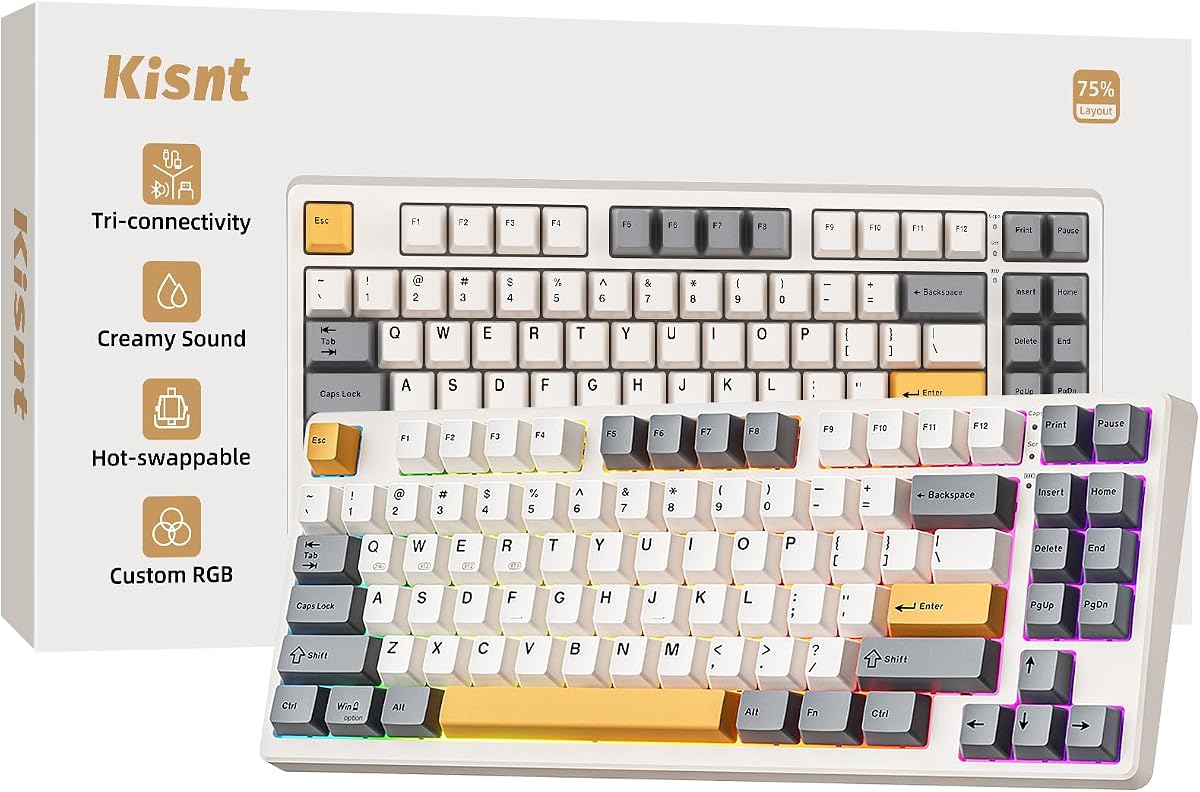
Kisnt KN85 is the mechanical keyboard for typists who discovered gasket-mounted boards on YouTube and want that creamy marbly thock without a custom group-buy wait. The 75% layout trims the numpad but preserves function keys, arrows, and home cluster—enough for writers who live in word processors yet still want mouse space on a twenty-four-inch deep desk.

  • 75% hot-swap gasket mechanical, PBT caps
  • Tri-mode USB-C / 2.4G / Bluetooth 5.0
  • Pre-lubed linear switches, 4000mAh battery
Check Price →
✓ Pros
  • Gasket mount with five dampening layers delivers creamy typing acoustics
  • Hot-swappable 3/5-pin sockets invite switch upgrades without soldering
  • 75% layout keeps F-row and arrows while saving roughly twenty-five percent desk width
  • Tri-mode connectivity with low-latency 2.4G for desktop and BT for tablets
  • 4000mAh battery supports wireless typing with wired fallback while charging
✕ Cons
  • No integrated number pad—data entry-heavy roles may need F99 or external numpad
  • Driver-based key programming is Windows-focused in wired or 2.4G mode
  • Retro beige aesthetic may clash with minimalist black office setups

Detailed review

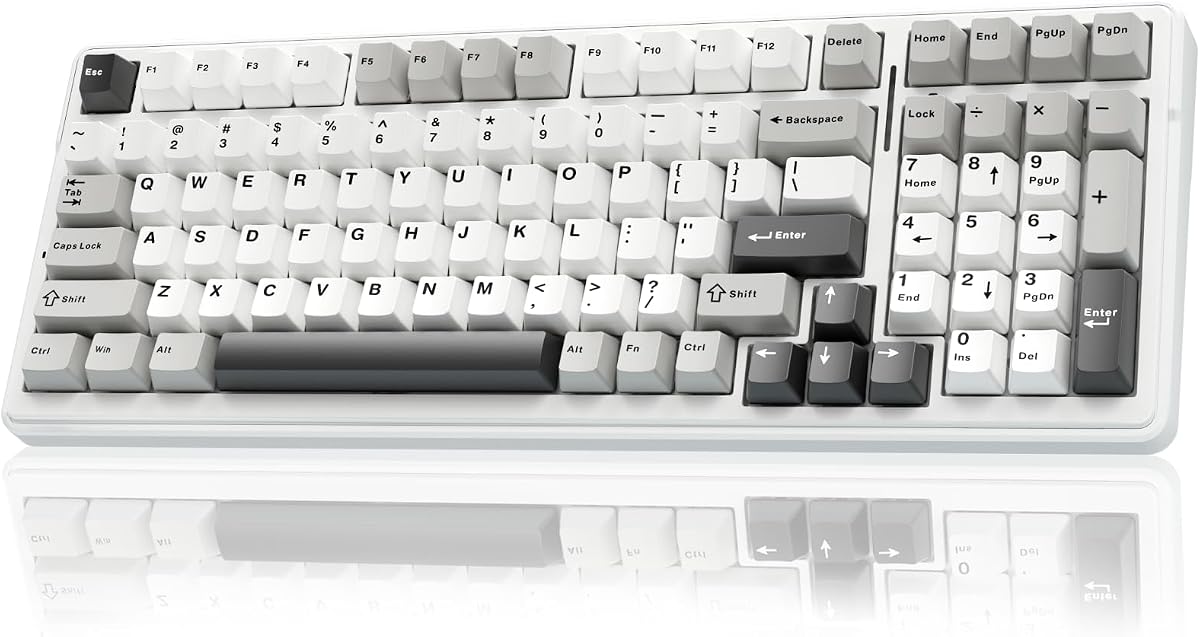
Out of the box, pre-lubed Bsun linear switches land in the forty-five to fifty gram actuation range: light enough for long prose sessions, smooth enough that finger fatigue drops compared with stiff budget linears. Five layers of foam and silicone dampening tame hollow ping, so open-plan offices hear a muted thud rather than a sharp clack. Hot-swap support means you can later drop in tactile or clicky switches if your typing style craves stronger confirmation.

Tri-mode wireless is the modern hybrid-work checklist done right. USB-C wired mode charges the 4000mAh pack and delivers the lowest latency for finicky desktop docks. 2.4GHz handles the daily driver PC with roughly five-millisecond wireless performance. Bluetooth 5.0 pairs to a laptop or phone for quick edits on the couch. Switching between devices is practical for consultants who type on a tower by day and a MacBook on the porch by evening.

PBT keycaps resist shine from oily fingers—a subtle but real win for heavy typists who keep boards for years. RGB is present but optional: twenty preset effects for personality, off mode for serious writing nights. The KN85 driver supports remaps and macros when you are on Windows with wired or 2.4G connectivity, handy for legal templates or repeated markdown snippets.

Honest gaps: accountants and Excel power users may miss a built-in numpad. Kisnt sells an optional MF17 pad if you want modularity. Software depth is not QMK/VIA—power users who demand open firmware should look elsewhere. Support and warranty stories vary by batch like many rising brands; the two-year warranty claim is a plus if you register issues early.

As our Best Creamy Mechanical Feel pick, KN85 balances enthusiast acoustics with everyday wireless convenience. It ranks second overall because typing satisfaction is high while ergonomic posture still depends on your chair and monitor—not the board alone. Pair with a low-profile wrist rest if you type six-plus hours daily.

Who should buy the KN85

Writers and developers who want mechanical satisfaction on a compact desk, plus hybrid workers who need tri-mode wireless. Ideal if you prefer linear smoothness over tactile bumps.

Switch and sound tuning tips

Stock linears are tuned for creaminess—avoid clicky swaps if you share walls. Add a desk mat to deepen acoustics, and use wired mode during firmware updates or heavy macro editing on Windows.

KN85 vs AULA F75 Pro

Both are creamy 75% tri-mode boards. F75 Pro adds a media knob and side-print caps; KN85 often feels slightly more value-forward with similar gasket philosophy. Choose the knob if volume control matters daily.

Check Price on Amazon →

We may earn a commission at no additional cost to you.

5. AULA F99 - Best 96% Tri-Mode Mechanical

AULA F99 Wireless Mechanical Keyboard

AULA F99 Wireless Mechanical Keyboard

9/10★★★★★

AULA F99 targets typists who refuse to give up a number pad but still want modern mechanical feel and wireless flexibility. Its ninety-six percent layout compresses the gap between alpha block and numpad compared with traditional full-size boards, saving horizontal desk space while keeping digits accessible for accounting, inventory, and scientific notation-heavy writing.

  • 96% layout with numpad and arrow cluster
  • Hot-swap linear switches, gasket dampening
  • 8000mAh battery, BT/2.4G/USB-C tri-mode
Check Price →
✓ Pros
  • 96% layout keeps number pad for spreadsheets without full-size width penalty
  • Massive 8000mAh battery reduces wireless charging interruptions
  • Hot-swappable PCB supports 3-pin and 5-pin switch experiments
  • Gasket structure with PCB slotting softens bottom-out feel for long typing
  • Connect up to five devices with tri-mode switching for hybrid desks
✕ Cons
  • Still wider than 75% boards—mouse space suffers on shallow desks
  • Gaming-centric RGB defaults may feel flashy for conservative offices
  • Driver features and macro depth vary; read listing notes for your OS

Detailed review

Mechanically, F99 follows the 2026 enthusiast recipe: hot-swap sockets, pre-lubed linear switches, gasket-adjacent dampening with silicone fill, and double-shot PBT keycaps that resist legend fade. Typing sound trends softer and more padded than bare-bones mechanicals from a decade ago, which helps when you draft manuscripts at midnight in a shared apartment.

Battery capacity is the standout spec on paper. An 8000mAh internal pack is unusually large for a keyboard, aiming at weeks of wireless typing between USB-C top-ups. Tri-mode connectivity—Bluetooth 5.0, 2.4GHz, and wired USB-C—supports up to five paired devices with Fn shortcuts to jump between them. That is excellent for someone who types on a desktop tower, a company laptop, and a tablet for markup reviews.

Macro and RGB customization live in AULA’s driver ecosystem. Sixteen lighting presets and music rhythm modes skew gaming-marketing, but you can dial brightness down or off for professional Zoom backgrounds. N-key rollover matters more for gamers, yet writers who chord modifiers while drafting still benefit from reliable multi-key registration.

Tradeoffs: width. If your mouse pad is already fighting the monitor stand, a 75% KN85 or F75 Pro frees more glide room. Fit and finish on budget-meets-enthusiast brands can vary by production batch—inspect stabilizers on arrival and add a little dielectric grease if spacebar tick appears. F99 is not ergonomically split; pair with a negative-tilt wrist rest if posture is a concern.

As Best 96% Tri-Mode Mechanical, F99 is the numpad-friendly mechanical for hybrid workers who type and game on the same desk. Rank fifth overall because it excels at layout completeness while demanding more desk depth than compact picks.

Who should buy the F99

Spreadsheet-heavy writers, engineering students, and hybrid workers who want numpad access plus creamy wireless mechanical typing. Skip if desk depth under twenty-two inches already feels cramped.

Wireless management for typists

Use 2.4G for the primary PC to minimize latency, Bluetooth for travel laptops, and wired USB-C during long charge-top-up days. Label each paired device in your head so Fn switching becomes muscle memory.

F99 vs AULA S99 membrane

F99 is true hot-swap mechanical with deeper customization; S99 is quieter membrane with similar tri-mode convenience. Pick F99 for feel and longevity; S99 for silence and lower complexity.

Check Price on Amazon →

We may earn a commission at no additional cost to you.

6. AULA S99 - Best Quiet Membrane with Numpad

AULA S99 Gaming Keyboard

AULA S99 Gaming Keyboard

8.6/10★★★★☆

AULA S99 is the membrane keyboard that borrows enthusiast language—creamy structure, tri-mode wireless, full-key programmability—without delivering true mechanical switches. That honesty matters for typists: if you need silence above all else and still want a number pad, S99 is a legitimate contender. If you expected hot-swap MX-style sockets, read the listing carefully; this is a silicone-damped membrane board.

  • 99-key membrane with integrated numpad
  • Tri-mode BT 5.0 / 2.4G / USB-C wireless
  • Full-key macros, dual-mode volume knob
Check Price →
✓ Pros
  • Membrane design keeps keystrokes quiet for shared walls and office pods
  • Ninety-nine-key layout retains numpad in a slightly compact footprint
  • Tri-mode wireless matches mechanical rivals for hybrid device hopping
  • Dual-mode knob simplifies volume and lighting adjustments while typing breaks
  • Full-key macro programming helps repetitive document formatting tasks
✕ Cons
  • Not hot-swappable mechanical despite gaming marketing photos
  • Membrane mush lacks the crisp switch reset mechanical typists prefer
  • Retro aesthetic and RGB may look out of place in conservative offices

Detailed review

The ninety-nine-key layout keeps familiar QWERTY spacing with an integrated numpad, targeting users who type invoices by day and casual games by night. Keystrokes are softer and lower travel than gasket mechanicals, which reduces noise transmission through thin apartment walls. A dual-mode rotary knob handles volume and lighting mode shifts without diving into software—small ergonomics win during long editing breaks.

Wireless flexibility mirrors the mechanical F99: Bluetooth 5.0, 2.4GHz, and USB-C wired modes let you float between desktop, laptop, and couch tablet. Macro recording supports repetitive formatting—think inserting boilerplate headers or multi-step paste-special sequences—though macro reliability on budget boards always deserves a test afternoon before you bet a deadline on it.

Build storytelling emphasizes silicone dampening and a creamy feel for a membrane. Reality sits between a plain office board and a thocky mechanical: less ping than cheap slabs, less precision than pre-lubed linears. Durability expectations should match the category—membrane domes can soften over years of heavy use, whereas hot-swap mechanicals let you replace switches.

Buy S99 when noise constraints dominate and you still want modern wireless convenience plus a numpad. Skip it when typing joy comes from tactile feedback or when you plan to mod switches later—choose F99 or KN85 instead. Office buyers should verify whether retro green styling fits workplace norms or whether a Logitech Wave Keys looks safer on camera.

Ranked seventh overall, S99 fills the quiet membrane niche credibly within this pack. It is not pretending to be a flagship ergonomic split; it is a practical typing tool for shared spaces that still want programmable shortcuts.

Who should buy the S99

Night-shift writers, dorm students with roommates, and open-office staff who need numpad access without mechanical noise. Also fine for casual living-room typing paired with a TV PC.

Membrane maintenance reality

Keep liquids away despite marketing confidence—membrane boards are harder to repair than hot-swap mechanicals. Blow dust from gaps quarterly and avoid aggressive key pullers that were meant for mechanical caps.

When to upgrade to F99 mechanical

If your fingers start craving sharper switch reset or you type six-plus hours daily, step up to the F99. Stay on S99 if silence is the primary KPI and macros matter more than switch modularity.

Check Price on Amazon →

We may earn a commission at no additional cost to you.

7. Amazon Basics Wired - Best Plug-and-Play Wired

Amazon Basics Wired QWERTY Keyboard

Amazon Basics Wired QWERTY Keyboard

9/10★★★★★

Amazon Basics Wired QWERTY is the anti-hype typing keyboard: a full-size USB board that simply works when you plug it in. For kiosks, reception desks, school computer labs, and the drawer backup when wireless dongles disappear, that simplicity is a feature—not a flaw.

  • Full-size QWERTY wired USB layout
  • Media hotkeys for volume and calculator
  • Windows plug-and-play, no batteries
Check Price →
✓ Pros
  • True plug-and-play USB with no dongles or charging cycles
  • Full-size layout with media keys for familiar desktop typing
  • Strong rating for a budget wired board—reliable spare or kiosk use
  • Sleek black finish blends with corporate desk aesthetics
  • Works across common Windows versions without driver hunts
✕ Cons
  • Wired tether limits couch typing and clean cable-free setups
  • No ergonomic shaping, backlight, or wireless fallback
  • Windows-centric media keys may map oddly on macOS

Detailed review

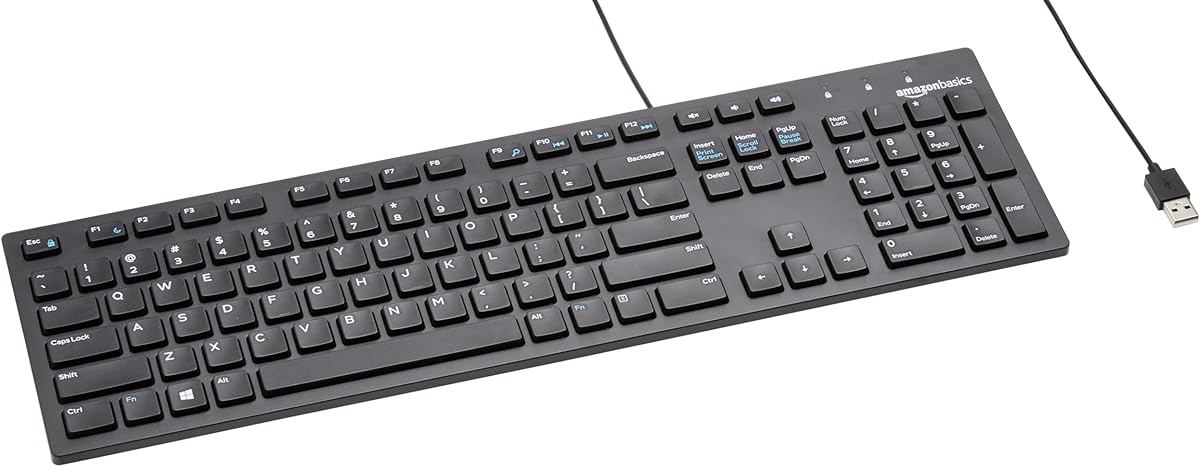
Layout is standard full QWERTY with a number pad and dedicated media keys for mute, volume, and calculator access. Typing feel is basic membrane quiet—neither offensive nor inspirational. The goal is legibility and reliability: every key registers, no pairing screens, no battery warnings during a timed exam or customer intake form.

The four-point-five rating matters in context. Budget wired boards often accumulate angry reviews from shipping damage or unrealistic mechanical expectations. Amazon Basics benefits from scale and consistent molds, which keeps key wobble and legend alignment acceptable for the tier. It will not satisfy enthusiasts, but it outperforms random no-name slabs bundled with prebuilts.

Limitations are obvious. A wired cable anchors you to the PC case or hub, which frustrates minimalist desk photos and couch workflows. There is zero ergonomic correction—flat profile, no palm rest, no split. Mac users can type fine but may need third-party tools to remap media keys sensibly.

When does it beat wireless options in this pack? Locked-down offices that disable Bluetooth dongles, parents who do not want another battery to manage, and secondary machines that sit powered off for weeks. When does it lose? Any scenario involving wrist pain, multi-device hopping, or typing pleasure—Wave Keys, K860, and KN85 all aim higher on those axes.

As Best Plug-and-Play Wired, it ranks ninth overall because typing quality is adequate while comfort and flexibility lag modern picks. Keep one in the closet anyway; the day your premium board goes through a coffee incident, you will thank the boring USB cable.

Who should buy Amazon Basics wired

Kiosk operators, IT departments stocking spares, and minimalists who want zero wireless troubleshooting. Also parents equipping a homework PC that must work tonight.

Cable management for cleaner typing

Route the USB cable through a monitor arm channel or adhesive clip so the wire does not fight mouse movement. Add a thin wrist rest if sessions stretch beyond an hour.

Basics wired vs Logitech K270 wireless

Basics wins on zero maintenance and lowest complexity; K270 wins on couch distance and multimedia wireless. Pick wired when the PC never moves; pick K270 when the desk layout changes often.

Check Price on Amazon →

We may earn a commission at no additional cost to you.

8. Logitech K400 Plus - Best Couch Media Typing

Logitech K400 Plus Wireless Touch TV Keyboard for Media Control - Black | Easy m

Logitech K400 Plus Wireless Touch TV Keyboard for Media Control - Black | Easy m

8.8/10★★★★☆

Logitech K400 Plus solves a different typing problem than the Ergo K860: you are on the couch, the PC feeds a TV, and you need to search streaming libraries, enter Wi-Fi passwords, and dash off forum replies without juggling a separate mouse on a cushion. The integrated touchpad makes it a living-room input device first, a writer’s board second—which is exactly why it ranks last for pure desk typing yet still belongs in this roundup.

  • Integrated touchpad, 33 ft wireless range
  • Quiet keys, spill-resistant design
  • Unifying receiver, up to 18-month battery
Check Price →
✓ Pros
  • Built-in touchpad eliminates separate mouse on the coffee table
  • Compact wireless layout with quiet keys suited to living-room typing
  • Up to thirty-three feet of range for HTPC and TV-connected PCs
  • Spill-resistant design handles snack-adjacent couch sessions
  • Long battery life with hardware on/off switch for standby control
✕ Cons
  • Small touchpad is fine for menus, painful for precision editing marathons
  • Compact layout lacks full-size key spacing for fastest touch typing
  • Not an ergonomic or mechanical choice for eight-hour workdays

Detailed review

Keys are quiet and slightly compact compared with full-size desktop boards. That tradeoff shrinks the chassis so one hand can reach keys while the other steers the touchpad. For paragraph-length typing it is acceptable; for novel drafting it is fatiguing. Treat K400 Plus as the keyboard that lets you answer email from the sofa, not the board that carries a sixty-hour work week.

Wireless range up to thirty-three feet and an included Unifying receiver keep connectivity stable across typical living rooms. Battery life stretches toward eighteen months with an explicit power switch to kill drain when the HTPC sleeps. Spill-resistant keys acknowledge that coffee tables are hazard zones.

Compatibility spans Windows, Android, and Chrome OS—useful for mini PCs, Raspberry Pi media boxes, and hybrid tablet setups. Logitech Options can tune touchpad scroll direction and keyboard shortcuts when you do migrate to a desk briefly.

Honest limitations: precision tasks like photo editing or spreadsheet modeling suffer on the small touchpad. There is no ergonomic wrist support, no mechanical satisfaction, and no number pad for heavy numeric entry. Desk-bound typists should default to Wave Keys, K860, or KN85 instead.

As Best Couch Media Typing, K400 Plus earns its badge for HTPC and TV-PC scenarios. Buy it when distance from the screen matters more than WPM records. Skip it when this machine is your primary professional typing station.

Who should buy the K400 Plus

HTPC owners, couch streamers, and anyone controlling a PC-connected TV from across the room. Secondary keyboard for the living room, not the home office flagship.

Couch typing ergonomics

Support the board on a stable lap tray rather than soft cushions to reduce wrist extension. Keep sessions short and move to a desk board for long writing projects.

K400 Plus vs K270 for living rooms

K400 adds touchpad integration; K270 gives full-size keys and numpad but needs a separate mouse. Pick K400 for one-hand lean-back control; K270 for a coffee table with mouse space.

Check Price on Amazon →

We may earn a commission at no additional cost to you.

9. Logitech MX Mechanical Tactile - Best Low-Profile Premium

Logitech MX Mechanical Wireless Illuminated Keyboard Tactile - Graphite | Illumi

Logitech MX Mechanical Wireless Illuminated Keyboard Tactile - Graphite | Illumi

8.4/10★★★★☆

Logitech MX Mechanical Tactile is the premium office keyboard for typists who want real mechanical switch feedback without towering keycaps that look alien on a executive desk. Low-profile tactile quiet switches deliver a discernible bump and faster reset than membrane boards, while keeping noise closer to laptop levels than clicky gaming mechanicals.

  • Low-profile tactile quiet mechanical switches
  • Smart proximity backlight, USB-C charging
  • Multi-device Bluetooth or Logi Bolt receiver
Check Price →
✓ Pros
  • Tactile quiet mechanical switches give feedback without open-office noise
  • Low-profile key height reduces wrist extension versus full-travel boards
  • Smart backlight activates on proximity and adjusts to ambient light
  • Premium metal construction and multi-OS multi-device pairing
  • USB-C charging with long runtime when backlight is managed
✕ Cons
  • Lower rating than K860 or KN85—premium tier with mixed long-term reports
  • Not ergonomic split; wrist issues may still need K860 or Wave Keys
  • Backlight and features depend on Logi Options+ maturity on your OS

Detailed review

Build quality reads professional: metal top plate, full-size layout with numeric pad, and smart illumination that lights keys when your hands approach then dims as ambient light changes. That sounds like gimmickry until you type in a dim hotel room and realize you are not hunting for semicolon keys. USB-C charging and multi-device Bluetooth or Logi Bolt pairing align with MX ecosystem mice for Flow cross-computer workflows.

For pure typing throughput, tactile quiet switches help catch bottom-out errors during fast drafting without the fatigue of super-heavy springs. Key height sits lower than enthusiast gasket boards, which can reduce wrist extension when paired with a thin rest or negative keyboard tilt. You still get a conventional straight layout—no split—so severe ergonomic cases should compare against Ergo K860 honestly.

Software customization runs through Logi Options+: Fn remaps, backlight effects, battery notifications, and Flow when you jump between two computers with one mouse and keyboard pair. Linux and iOS support broaden appeal for mixed-platform consultants, though advanced features may lag Windows and macOS polish.

Rating snapshot at four-point-two is slightly below K860 and KN85, reflecting premium pricing pressure and occasional reports about switch consistency or software quirks over multi-year ownership. Treat MX Mechanical as a luxury daily driver you buy for feel and aesthetics, not as a guaranteed ergonomics cure.

As our third-ranked pick and Best Low-Profile Premium, MX Mechanical suits managers, designers, and writers who present on camera and want mechanical honesty in a subdued package. Pair with MX Master mouse for a cohesive desk story. Skip if budget is tight or split ergonomics is the medical priority.

Who should buy MX Mechanical Tactile

Professionals who want tactile mechanical feedback on a standard full-size layout with smart lighting and multi-device polish. Strong for Mac and Windows hybrid desks that already use Logi ecosystem gear.

Backlight and battery habits

Disable aggressive animation if you type unplugged often—backlight dominates battery draw. Proximity mode is the sweet spot for hotel and evening sessions.

MX Mechanical vs Ergo K860

MX wins on switch feel, premium materials, and low profile; K860 wins on split posture and integrated wrist rest. Many buyers keep MX for client-facing desks and K860 for injury-prevention home offices.

Check Price on Amazon →

We may earn a commission at no additional cost to you.

10. AULA F75 Pro - Best 75% with Media Knob

AULA F75 Pro Wireless Mechanical Keyboard

AULA F75 Pro Wireless Mechanical Keyboard

9.2/10★★★★★

AULA F75 Pro competes directly with Kisnt KN85 for typists who want a creamy 75% wireless mechanical without surrendering a physical volume knob. The knob is not vanity—during long writing sessions with music or podcast playback, reaching for Fn combos breaks flow. A quick twist keeps focus on the draft while audio adjusts in the background.

  • 75% hot-swap with side-print PBT keycaps
  • Tri-mode wireless, 4000mAh rechargeable
  • Gasket structure, multi-function RGB knob
Check Price →
✓ Pros
  • Rotary knob controls volume and backlight without leaving the home row
  • Side-print PBT keycaps reduce front legend wear for heavy typists
  • Pre-lubed Reaper switches with gasket dampening for soft acoustics
  • Hot-swappable 3/5-pin support for future switch tuning
  • Tri-mode connectivity pairs five devices for hybrid workflows
✕ Cons
  • No numpad—spreadsheet-heavy typists need F99 or external pad
  • Gaming RGB marketing may feel loud for conservative office aesthetics
  • Driver-based macros primarily target Windows in wired or 2.4G modes

Detailed review

Seventy-five percent layout preserves arrows and function keys while reclaiming desk width for mouse movement or a notebook beside the board. Side-print PBT legends hide shine on the face of keycaps—a subtle durability win when your fingers hammer the same home row for hours. Pre-lubed Reaper switches and gasket-style dampening push acoustics toward a padded thock rather than a sharp office clack.

Tri-mode wireless mirrors other modern entries: USB-C wired for charging and lowest latency, 2.4GHz for the daily desktop, Bluetooth for laptop and tablet hops. Four-thousand milliamp-hour battery capacity is practical for wireless weeks, not days, assuming RGB stays restrained. Hot-swap sockets welcome tactile experiments if you decide linear smoothness is too soft for proofreading accuracy.

Macro programming and lighting live in AULA’s driver when connected on Windows through wired or 2.4G paths. Writers can map boilerplate signatures or formatting snippets; gamers can map ability rotations—the same hardware serves both if your desk doubles after hours. N-key rollover and win-key lock are gaming features with minor typing benefits during heavy modifier chords.

Compared with KN85, F75 Pro trades a slightly different switch brand and aesthetic for the knob and side-print caps. Compared with F99, it sacrifices numpad for ergonomics of compact reach. Desk depth under twenty-two inches favors F75 Pro; data entry roles favor F99.

Ranked sixth overall and featured in our top picks, F75 Pro is the compact mechanical for typists who control media constantly and want enthusiast feel without a full-size footprint. Add a wrist rest if you type marathon sessions; remember ergonomics still start with chair and monitor height.

Who should buy the F75 Pro

Hybrid worker-gamers, podcasters who type show notes, and compact-desk writers who want a knob plus hot-swap mechanical feel. Ideal when KN85 aesthetics do not fit but layout size does.

Knob and lighting workflow

Set the knob to volume by default and backlight brightness second. Turn off music-sync RGB during work hours to avoid distraction and save battery on wireless weeks.

F75 Pro vs Kisnt KN85 top pick rivalry

Both score four-point-six and share tri-mode creamy 75% philosophy. Choose F75 Pro for knob and side-print caps; choose KN85 if you prefer its retro beige vibe and Bsun linears out of the box.

Check Price on Amazon →

We may earn a commission at no additional cost to you.

Best Keyboard for Typing in 2026: Comfort, Feel, and Daily

How to Choose the Best Keyboard for Typing

Start with ergonomics, not switch hype

Typing pain usually comes from wrist angle, ulnar deviation, and reach—not from missing RGB modes. If forearms ache after email marathons, prioritize Wave Keys or Ergo K860 before chasing gasket mount videos. Splits require adaptation but pay dividends for full-time writers. Flat mechanicals can still work when paired with proper monitor height, a negative keyboard tilt, and breaks—but they will not fix geometry the way a split does.

Mechanical versus membrane for daily words

Mechanical boards like Kisnt KN85, AULA F99, and F75 Pro offer consistent switch reset, hot-swap longevity, and satisfying acoustics that many typists describe as less fatiguing over months. Membrane options—K270, Amazon Basics, AULA S99—stay quieter and simpler, ideal for shared walls and kiosk PCs. Logitech’s MX Mechanical bridges the gap with low-profile tactile switches in a premium office shell. Match technology to noise rules and modding appetite, not YouTube trends alone.

Layout size and the number pad question

Full-size and ninety-six percent layouts keep numpads for accounting and scientific writing. Seventy-five percent boards reclaim mouse space and reduce reach to the mouse—valuable on twenty-four-inch deep desks. Couch typists may prefer K400 Plus compactness with touchpad despite slower WPM. List the apps you live in: Excel-heavy roles should not buy 75% boards without planning an external numpad.

Wireless modes that survive hybrid work

Tri-mode USB-C, 2.4GHz, and Bluetooth boards dominate hybrid desks because one keyboard can follow laptop travel and desktop docking. Single-protocol 2.4GHz K270 remains excellent when one Windows PC is the only client. Wired Amazon Basics eliminates pairing entirely—boring until a dongle dies mid-deadline. Prefer boards that let you type wired while charging when battery anxiety is real.

Software, sound, and office politics

Logi Options+ covers Wave Keys, K860, K400 Plus, and MX Mechanical with sensible cross-device habits. AULA and Kisnt drivers add macros on Windows but may lag on Mac for deep remaps. Sound matters: creamy gasket mechanicals thud softly; clicky switches not in this pack would still alienate coworkers. When Zoom appearance counts, Logitech ergo lines and MX Mechanical look safer than rainbow gaming defaults—though RGB can usually dim to white or off.

Frequently Asked Questions

01

What is the best keyboard for typing all day?

For most full-time typists with wrist fatigue, the Logitech Ergo K860 split ergonomic board is the strongest posture-first choice in this pack thanks to its curved split keyframe, pillowed wrist rest, and adjustable palm lift. If ergonomics are fine but you want mechanical feel, the Kisnt KN85 and AULA F75 Pro deliver creamy gasket typing in a compact wireless layout. Office workers who need a conventional full-size look should consider the Logitech MX Mechanical Tactile for low-profile switches with smart backlighting.

02

Are mechanical keyboards better for typing?

Mechanical keyboards can be better when switch consistency, tactile feedback, and long-term modularity matter. Boards like KN85, F99, and F75 Pro use pre-lubed switches and dampening foam that many writers find less mushy than membrane over months of use. They are not automatically better for everyone: membrane boards such as K270 and AULA S99 stay quieter and simpler, which may outweigh feel benefits in shared spaces. Ergonomic shape often beats switch type for pain prevention.

03

Do I need a number pad for typing work?

You need a numpad when daily work includes accounting, inventory, scientific notation, or numeric data entry where the top-row numbers feel slow. Logitech K270, Amazon Basics wired, AULA F99, and AULA S99 retain numpad layouts for that reason. Pure prose writers, developers, and students often prefer 75% boards like KN85 and F75 Pro because the saved width improves mouse ergonomics. You can add a standalone numpad later if workload shifts.

04

Is a split keyboard worth the learning curve?

A split keyboard is worth the one-to-two-week adaptation period if you type long hours and notice forearm tension, ulnar deviation, or wrist discomfort on flat boards. The Ergo K860 is certified by United States Ergonomics and provides measurable posture improvements for many users. If discomfort is mild or desk width is limited, Logitech Wave Keys offers a gentler ergonomic step without full split retraining. Neither helps if you refuse to adjust monitor and chair height.

05

What is the quietest keyboard in this roundup for shared spaces?

Quietest options skew membrane: Logitech K270, Amazon Basics wired, and AULA S99 prioritize soft rubber-dome travel. Among mechanicals, Logitech MX Mechanical Tactile Quiet switches and gasket-damped AULA/Kisnt boards with linear switches aim at muted acoustics—not silence, but far softer than clicky gaming boards. Ergo K860 and Wave Keys also use quiet key mechanisms suitable for video calls. Avoid boards with clicky switches not featured here if noise is the top constraint.

06

How important is hot-swappable for typists?

Hot-swap matters if you expect to tune feel over years without buying a whole new board. KN85, F99, and F75 Pro let you replace switches when one domain gets mushy or when you decide tactile bumps improve accuracy. Casual typists on K270 or Amazon Basics may never need modularity. Hot-swap does not fix ergonomics—pair switch experiments with wrist rests or ergonomic layouts if fatigue persists.

07

Can I use these keyboards with Mac and iPad?

Logitech Wave Keys, Ergo K860, MX Mechanical, and K400 Plus explicitly target multi-OS use with Bluetooth or Bolt receivers and Options software on macOS where supported. Kisnt and AULA tri-mode boards pair over Bluetooth to iPads for light typing, though advanced macro drivers may be Windows-centric. Amazon Basics and K270 lean Windows-first for media keys. Always verify Fn-layer behavior on your specific device before deadline day.

08

Why does the Logitech K400 Plus rank low for desk typing?

K400 Plus excels at couch and HTPC control with its integrated touchpad and compact wireless chassis, but compact key spacing and a small touchpad make it a poor primary board for eight-hour writing shifts. It belongs in this typing guide for living-room password entry and streaming searches, not for manuscript production. Desk typists should prioritize Wave Keys, K860, KN85, or MX Mechanical instead.

09

What is creamy keyboard sound and does it help typing?

Creamy sound describes gasket-mounted or foam-filled boards that produce a deep, padded thock instead of a sharp plastic clack. Kisnt KN85, AULA F99, F75 Pro, and the membrane AULA S99 marketing use similar language. The sound profile does not directly increase accuracy, but many typists find softer acoustics less fatiguing and more pleasant over long sessions—especially in apartments where echo carries. It is preference, not medical science.

10

Should I choose wired or wireless for reliability?

Wired Amazon Basics is the reliability champion because it removes batteries, dongles, and pairing from the equation—ideal for kiosks and spares. Wireless 2.4GHz boards like K270 offer years of battery life with one dongle. Tri-mode mechanicals add convenience for multi-device hops at the cost of occasional charging or firmware quirks. For deadline-critical primary machines, keep a wired spare in the drawer regardless of daily driver choice.

Conclusion

Typing-heavy days reward honesty over hype. If your body complains before your prose does, the Logitech Ergo K860 split remains the clearest comfort upgrade in this pack—accept the desk width and adaptation week, then enjoy longer sessions with less forearm fight. If ergonomics are already managed and you crave mechanical satisfaction on a compact desk, Kisnt KN85 and AULA F75 Pro tie for the most enjoyable daily feel, with F75 Pro pulling ahead when a volume knob matters and KN85 when you want retro beige gasket thock out of the box.

Budget and context still matter. Logitech K270 and Amazon Basics wired cover full-size familiarity without charging cycles; AULA S99 keeps numpad access quiet on membrane; MX Mechanical delivers premium tactile low-profile switches for camera-facing desks; Wave Keys bridges laptop users toward ergonomics; and K400 Plus stays the couch companion when the TV PC needs a touchpad. None of these replace posture breaks, monitor height, or a chair that fits—but the right board removes friction so you notice words more than wrists.

Shop the comparison table for layout and connection first, then read the review that matches your real desk: split versus compact, numpad versus mouse space, silent membrane versus creamy mechanical. Check live listings for current offers—we skip prices here because they swing—but keep tag=reviewconsens-20 links intact when you buy. Your best keyboard for typing is the one you will still enjoy on page forty, not just on unboxing day.